
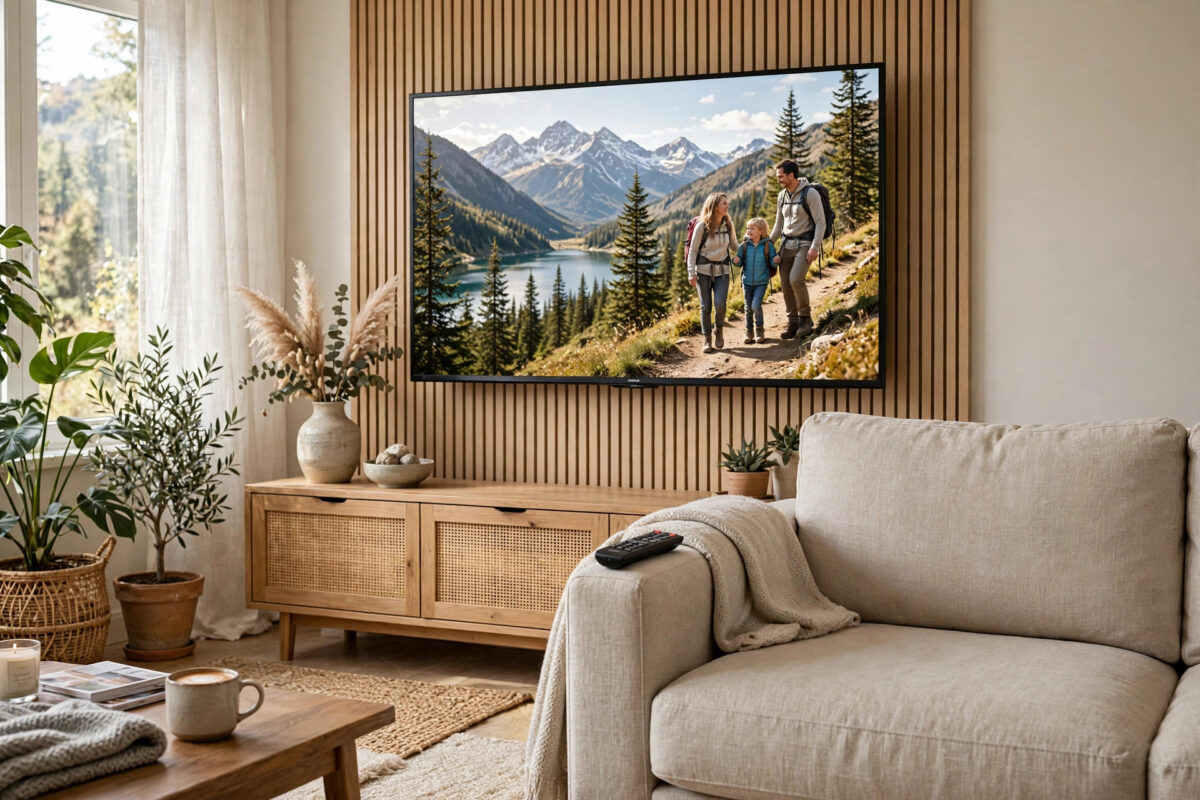
An idle television does not have to show a blank screen or a loop of stock landscapes. On Android TV and Google TV, you can turn that empty time into a rolling display of your own family pictures, holiday shots, and favourite memories. It takes only a few minutes to set up, and once it is done the TV looks after itself every time you leave it alone for a while.
This guide explains how to use your own photos as a screensaver through Google Photos, how the ambient mode settings work, what to do if the photo option is missing, and how to control privacy, timing, and picture quality. The steps are written for standard Android TV and Google TV menus, with notes for brands that label things slightly differently.
Quick Answer
To set up a screensaver with your own photos on Android TV, go to Settings, open Device Preferences or Display and Sound, choose Screen saver, select Google Photos, sign in if asked, and pick the album you want to display. The TV will then show that album automatically whenever it sits idle for the time you set. Choose a dedicated album rather than your whole library so only photos you approve ever appear.
What You Need Before You Start
The setup itself is short, but two preparations make it work properly the first time.
- A Google account signed in on the TV. The screensaver uses the Google Photos library belonging to the account signed in to the television.
- An album prepared in Google Photos. Open Google Photos on your phone or computer and create an album for the TV. Add between 30 and 100 good landscape photos for a varied display that does not repeat too quickly.
- A stable Wi-Fi connection. The TV downloads the photos from the cloud, so it needs to be online when the screensaver runs.
Step by Step: Turn On the Google Photos Screensaver
Menu names vary a little between Sony, Philips, TCL, Hisense, and other brands, but the path is similar on nearly all Android TV and Google TV models.
- Press the Home button on the remote and open the Settings gear icon.
- On Google TV, go to System, then Ambient Mode. On older Android TV, go to Device Preferences, then Screen saver.
- Select Screen saver or the current ambient content option.
- Choose Google Photos from the list of sources. Other options usually include curated art, experimental content, and a simple clock.
- If prompted, confirm the Google account. On some models you finish this step in the Google Home app or the Google Photos settings on your phone instead.
- Select the album you prepared. Avoid choosing your entire library unless you have reviewed everything in it.
- Return to the settings and set when the screensaver starts. Five or ten minutes of inactivity suits most homes.
- Leave the TV on the home screen without pressing anything, and wait for the screensaver to begin so you can confirm it works.
Some newer Google TV models manage photo selection through the Google Home app. In that case, open Google Home on your phone, tap your TV, open its ambient settings, choose Google Photos, and select the same album there. The changes apply to the TV within a minute or two.
The official Google Photos Help Centre advice on albums and sharing is worth reading if your album does not appear, because album type and account permissions affect what the TV can see.
Useful Settings to Adjust Afterwards
Timing and sleep are not the same thing
The screensaver start time controls when pictures appear. A separate sleep or power timer controls when the TV switches itself off completely. Many people set the screensaver to five minutes and the sleep timer to one or two hours, so the TV shows photos for a while and then rests. Setting sleep too short makes the screensaver almost pointless.
Photo speed and display style
Where available, adjust how long each photo stays on screen. Five to ten seconds per picture feels calm; very fast changes become distracting. Some models also offer a slow zoom effect that gently moves across each photo, which looks attractive and helps reduce the risk of any one image sitting perfectly still for too long.
Personal photo data
Google TV ambient settings usually include an option to show or hide personal details such as the photo owner’s name, album name, and the date the picture was taken. Turn these off if you prefer a clean display, or leave the date on if you enjoy seeing when each memory was captured.
How to Choose Photos That Look Great on a TV
A television is far less forgiving than a phone screen. Blurry shots that looked fine on a handset can look rough at 55 inches, so a little curation pays off.
- Pick sharp, bright images. Daylight landscapes, group photos in good light, and scenic views hold up best.
- Remove near-duplicates. Ten almost identical shots of the same beach bore viewers quickly. Keep the best one or two.
- Mix subjects and seasons. Variety keeps the display interesting across the year.
- Check resolution. Very old, heavily compressed photos may look soft. They can still carry sentimental value, so include a few, but do not build the whole album from them.
If your television itself is new to the home, pairing this setup with the basics in our guide on how to set up a smart TV for the first time properly will give you sensible picture, network, and account settings from day one.
What to Do If Google Photos Is Missing
On a small number of models and regions, Google Photos does not appear as a screensaver source. You still have options.
Use a screensaver app from the Play Store
Several well-reviewed photo screensaver apps on the Google Play Store can display albums from Google Photos or from a USB stick. Install one, set it as the screensaver in the same settings menu, and sign in inside the app. Choose apps with clear privacy policies and recent updates.
Use a USB stick of photos
Some TVs can run a slideshow from connected storage, and some screensaver apps read USB folders directly. Copy your chosen photos to a stick, leave it plugged into the TV, and point the app at that folder. This also works without any cloud account, which some households prefer.
Check for software updates
Ambient features have expanded over recent Android TV and Google TV versions. Updating the TV software under Settings, then About or System, sometimes adds the Google Photos option where it was previously absent.
Privacy and Household Safety Tips
A screensaver is on display to everyone in the room, including visitors, tradespeople, and children’s friends. Treat the album accordingly.
- Never point the screensaver at your entire, unreviewed library. Screenshots of documents, private pictures, and location-heavy images do not belong on a shared screen.
- Remember that a signed-in TV may expose the same account elsewhere. If the TV is in a guest room or rental property, use a separate Google account holding only display-safe photos.
- Review the album after big uploads. Automatic backups can add unexpected pictures to shared albums if your settings allow it.
Common Mistakes to Avoid
- Choosing the whole library. This is the single most common error and the cause of most embarrassing screensaver moments.
- Setting the sleep timer shorter than the screensaver. If the TV sleeps after five minutes and the screensaver starts after ten, the photos will never appear.
- Using only portrait photos. They display small and leave most of the screen unused.
- Forgetting the TV is downloading data. On a capped connection, a screensaver running all day pulls a steady stream of images. Shorten the active hours or use USB photos instead.
- Leaving the same photo paused. Never pause a single bright image for many hours, especially on OLED screens, where static images carry a small burn-in risk over time.
Conclusion
Setting up a screensaver with your own photos on Android TV comes down to three things: prepare a dedicated album in Google Photos, select Google Photos as the screensaver or ambient source in the TV settings, and set sensible timing so the pictures appear before the TV sleeps. Add a few privacy checks and a well-chosen mix of sharp landscape photos, and your idle TV becomes one of the nicest picture frames in the house.
Frequently Asked Questions
Why does my Android TV screensaver show other people’s photos?
If you selected a curated or art option instead of Google Photos, the TV shows stock collections. Go back to the screensaver settings, choose Google Photos, and make sure the specific album you created is selected rather than a general memories feed.
Can I use iCloud photos as an Android TV screensaver?
Not directly, because Android TV does not include iCloud access. The practical workaround is to download your chosen iCloud photos and add them to a Google Photos album, or copy them to a USB stick and use a photo screensaver app that reads local storage.
Does the photo screensaver use much electricity?
The TV stays fully on while the screensaver runs, so it uses similar power to watching normal content. Use the sleep timer so the TV switches off after a set period instead of displaying photos all night.
How do I stop the screensaver starting during films?
The screensaver should only start when the TV is idle, not during playback. If it interrupts videos, an app may be failing to report activity properly. Update the app and the TV software, and check that you set the screensaver timer rather than a sleep or power-off timer by mistake.
Can I have different photos on different TVs in the house?
Yes. Each TV selects its own album. If both TVs use the same Google account, simply create separate albums, such as one for the living room and one for the kitchen, and assign each TV its own album in its settings.



Leave a Reply