
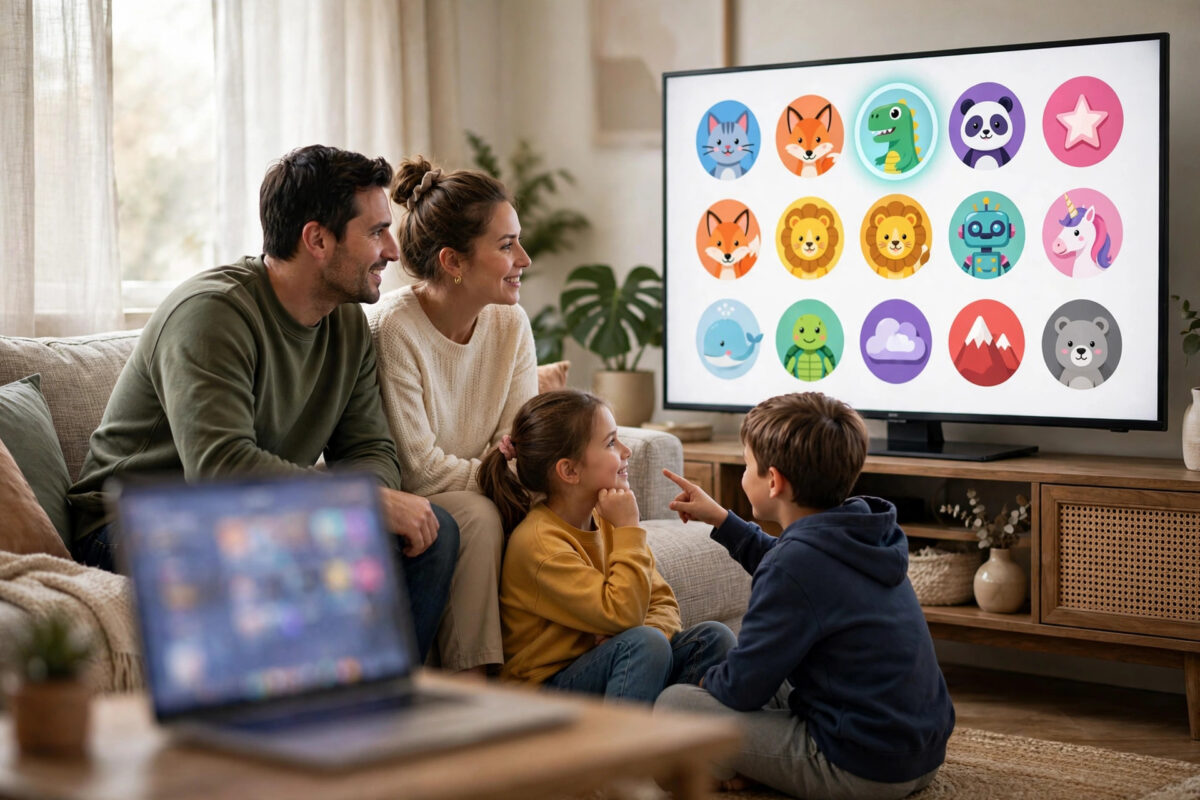
In most families, streaming passwords live in a messy mix of old text messages, sticky notes, and one person’s memory. Profiles are just as chaotic: everyone watches on “Profile 1,” the children’s shows have taken over the recommendations, and nobody can find the film they were halfway through last night.
A one-time tidy-up fixes all of this. With a password manager, a clear profile for each person, and a simple family system for who manages what, streaming becomes calmer for everyone. This guide shows you how to organise passwords and profiles properly, without sharing codes in unsafe ways or breaking the services’ household rules.
Quick Answer
To organise streaming passwords and profiles for your whole family, store every streaming login in one trusted password manager instead of notes or messages, and give each household adult access to the shared vault. Inside each streaming app, create a separate named profile for every family member, including a restricted kids’ profile, so watch lists and recommendations stay personal. Finally, choose one person to manage subscriptions and review the list every few months to remove old services and update weak passwords.
Step One: Gather Every Streaming Login in One Place
You cannot organise what you cannot find. Start by making a complete list of your family’s streaming services before you change anything.
- Write down every video, music, and live TV service your household uses, including free ones.
- For each service, note which email address the account uses. Families often discover the same service exists twice under two emails.
- Check bank statements for subscriptions nobody remembers signing up for.
- Ask each adult which services they log into on their phone, as phone-only apps are the ones most often forgotten.
- Mark any account whose password nobody knows; you will reset those in the next step.
This list often reveals paid duplicates and forgotten trials. Cancel clear duplicates now, and you may find the tidy-up pays for itself in the first month.
Step Two: Store Passwords in a Password Manager
A password manager is an app that stores all your logins in one encrypted vault, protected by a single strong master password. It is far safer than notes apps, screenshots, or messages, and it makes family sharing controlled instead of chaotic.
- Choose a well-known password manager that offers family sharing and apps for phones, computers, and browsers.
- Create your account with a long, unique master password that you have never used anywhere else.
- Turn on two-step verification for the password manager itself, using an authenticator app or a security key if available.
- Add each streaming login with its service name, email address, and current password.
- Create a shared family folder or vault for streaming accounts, and keep personal accounts, such as banking, in a private folder that is never shared.
- Invite the other adults in the household to the family plan with their own accounts, rather than sharing your master password.
For accounts where the password was unknown or shared too widely in the past, use the service’s “forgot password” process to set a fresh, unique password and save it straight into the manager. Unique passwords matter because a leak from one small service should never unlock your family’s main accounts. Our guide on how to set up parental controls on a smart TV pairs well with this step when you reach the children’s profiles below.
Step Three: Create a Profile for Every Family Member
Profiles are the inside of the system: they decide whose watch history, list, and recommendations appear. Set them up once and every TV in the house feels personal again.
- Open each streaming app and go to Manage Profiles or the profile switcher.
- Create a profile for each adult and older child, using their first name and a clear, different picture or colour.
- Set the language and subtitle preferences on each profile, as these often follow the profile rather than the device.
- Move each person’s saved shows into their own list by adding them again on the correct profile.
- Delete or rename the old shared profile once everyone has their own, so nobody drifts back to it out of habit.
Most major services support multiple profiles and explain their limits in their own help centres; for example, the Netflix Help Centre describes how profiles, maturity settings, and profile locks work on that service, and the same ideas apply on most rivals.
Step Four: Set Up Kids’ Profiles Properly
A child’s profile should be more than a name and a cartoon picture. Take two extra minutes per service to set the safety controls while you are creating it.
- Choose the kids’ experience or set the highest age rating the child is allowed to watch.
- Block specific titles you do not want available, where the service allows title blocking.
- Add a profile PIN or lock on the adult profiles if offered, so children cannot simply switch profiles to escape their limits.
- Turn off autoplay previews if the service lets you, to reduce endless browsing of unsuitable thumbnails.
- Check the viewing activity report for the child’s profile every so often, together rather than as a surprise inspection.
Step Five: Agree Simple Family Rules for Sharing
Technology works better with one page of agreed habits behind it. Keep the rules few and practical.
- One manager: One named adult looks after subscriptions, renewals, and the password vault invites.
- No passwords by message: If someone needs a login, they open the shared vault; codes are never sent by text or read out to visitors.
- Respect household rules: Only share accounts within your household and follow each service’s own sharing terms, which have become stricter in recent years.
- Guests get the guest route: Visitors use a guest profile or cast from their own device and their own account, not the family password.
- New service, same routine: Any new subscription is added to the password manager and given proper profiles on the day it starts.
- Leaving home changes: When an older child moves out, review which accounts they should keep, move to their own plan, or stop using under the service’s rules.
Keep It Tidy With a Short Review Every Few Months
Streaming clutter grows back slowly, so schedule a light review rather than another big project. Once every three or four months, open the password manager and the subscription list together.
- Cancel services nobody has opened since the last review.
- Update any password that was shared outside the vault or reused on another site.
- Remove old devices from each account’s device list, such as phones that were sold or replaced.
- Check that the kids’ age settings still match their ages and maturity.
- Confirm the other adults can still access the shared vault, so nobody is locked out when the manager is away.
These reviews are also the moment to check account email addresses. If a service still uses an old email you no longer control, change it now, because that inbox is the key to every future password reset.
Common Mistakes to Avoid
- One password for every service: A single reused password means one leak opens your whole streaming life. Let the manager create a different password for each account.
- Sharing the master password: Family members should join the password manager with their own accounts and shared folders, never by borrowing your master login.
- Leaving everyone on one profile: Shared profiles wreck recommendations, lose everyone’s place in series, and make parental controls almost meaningless.
- Writing passwords on paper near the TV: A note that guests and children can read is not storage; it is publication.
- Ignoring service sharing rules: Most services limit accounts to a household. Breaking those terms can lead to blocked access, so set up separate plans where the rules require it.
- Skipping two-step verification: Your main email and password manager deserve the strongest protection, because together they control every reset link.
Conclusion
An organised streaming family has one vault for passwords, one profile for each person, and one adult quietly in charge of the list. Gather every login, move them into a password manager with proper family sharing, build named profiles with safe kids’ settings, and review the whole system a few times a year. The result is simple to live with: everyone finds their shows in seconds, recommendations make sense again, and no password ever needs to be hunted through old messages.
Frequently Asked Questions
Is it safe to store streaming passwords in a password manager?
Yes, a reputable password manager is one of the safest options available. Your logins sit in an encrypted vault protected by your master password and, ideally, two-step verification. That is far safer than reusing one password, saving codes in notes, or sending them in messages.
How many profiles can we create on streaming services?
Most major services allow around four or five profiles per account, which covers a typical household. If your family is larger, prioritise profiles for regular viewers, use a shared family profile for occasional group watching, and keep the kids’ profile separate at all costs.
Can we share streaming accounts with relatives in other homes?
Most services now define sharing by household and may restrict use at other addresses. Check each service’s current terms before sharing, and use its official extra-member or separate-plan options where offered, rather than passing the family password around.
What should we do if nobody remembers a streaming password?
Use the “forgot password” link on that service’s official website, reset it through the account email, and save the new password directly into your password manager. Do this during your tidy-up session so the new code never ends up in another chat message.
Should children know the family streaming passwords?
Generally no. Children use their own profiles on already signed-in devices, so they rarely need the actual passwords. Keeping the codes in the adults’ vault prevents accidental purchases, account changes, and passwords being shared with friends.



Leave a Reply