
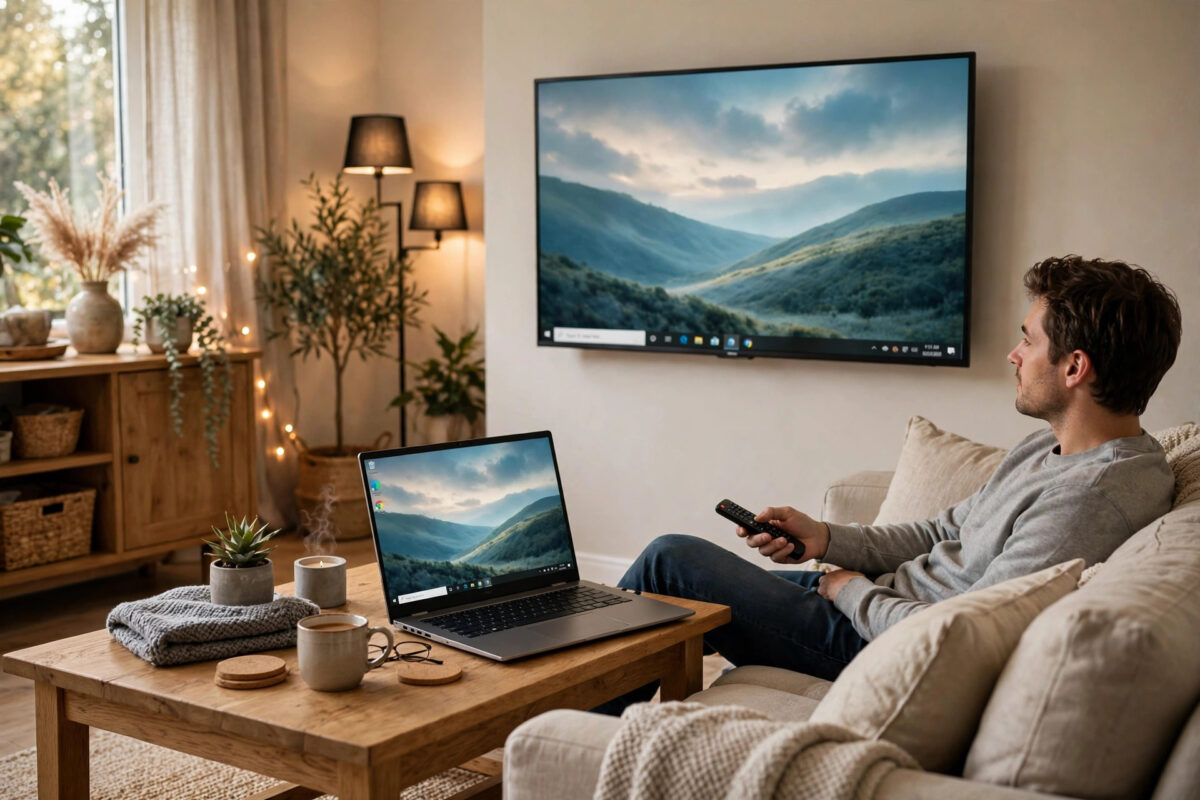
You do not need a cable, a Chromecast, or any extra gadget to show your Windows laptop on your TV. If your laptop runs Windows 10 or Windows 11 and your TV is a smart TV with built-in wireless display support, the two can already talk to each other. The feature is called Miracast, and it is built into Windows as Connect or Wireless Display. Millions of people own everything they need and simply never turn it on.
This method is perfect for showing photos, presenting slides, browsing together on a big screen, or watching a video file stored on your laptop. Setup takes about two minutes once you know where the settings hide on both devices. This guide walks you through the connection on Windows 11 and Windows 10, explains the TV settings for major brands, and fixes the common problems that stop laptops and TVs from finding each other.
Quick Answer
To mirror a Windows laptop to your TV without extra devices, connect both to the same Wi-Fi network, turn on screen mirroring or Miracast input on the TV, then on the laptop press Windows key plus K, select your TV from the list, and choose Duplicate to mirror. Both devices must support Miracast, which most Windows 10 and 11 laptops and modern smart TVs do.
What You Need for This to Work
Wireless mirroring without extra devices relies on Miracast, a standard that lets Windows send its display directly to a compatible TV. Before troubleshooting for an hour, spend one minute checking that your equipment qualifies.
- A Windows 10 or Windows 11 laptop with Wi-Fi turned on. Very old laptops upgraded from Windows 7 may lack Miracast hardware support.
- A smart TV with Miracast or screen mirroring built in. Samsung calls it Smart View or Screen Mirroring, LG calls it Screen Share, Sony and most Android TV and Google TV models support it as Wireless Display or built-in Chromecast, and many Roku TVs support it directly.
- The same home Wi-Fi network for the easiest discovery, although Miracast can also create a direct Wi-Fi link between laptop and TV after they find each other.
How to Check If Your Laptop Supports Miracast
Press Windows key plus R, type dxdiag, and press Enter. When the tool opens, click Save All Information and open the saved text file. Search for Miracast. It should say Available. If it says Not Available, your Wi-Fi adapter or graphics driver does not support the standard, and you will need updated drivers or a different method such as an HDMI cable. Keeping drivers current through Windows Update fixes this on many machines, a point also covered in Microsoft Support guidance for wireless display and Miracast.
Step-by-Step: Mirror From Windows 11
- Turn on your TV and open its mirroring screen. On Samsung, press Source or Home and choose Screen Mirroring or Smart View. On LG, open Screen Share from the home dashboard. On Google TV and Android TV, the TV is usually ready to receive without opening an app, but check Settings under Apps or Network for Wireless Display if needed.
- On your laptop, make sure Wi-Fi is on and you are connected to your home network.
- Press Windows key + K together. The Cast panel opens on the right side of the screen and searches for wireless displays.
- Click your TV name when it appears. The first connection may take 10 to 30 seconds.
- If the TV shows a prompt asking to allow the connection, accept it with the TV remote.
- Once connected, press Windows key + P and choose Duplicate to mirror the same image on both screens, or Extend to use the TV as a second monitor with its own space.
- To stop, press Windows key + K again and click Disconnect, or simply turn off the TV input.
Sound should move to the TV automatically. If audio still plays from the laptop, click the speaker icon in the Windows taskbar and select the TV as the output device. For presentations, Duplicate is the right choice. For work, Extend is more useful because you can drag a video or document to the TV while keeping notes and controls private on the laptop screen.
Step-by-Step: Mirror From Windows 10
Windows 10 uses almost the same process with slightly different menu names.
- Prepare the TV mirroring screen as described above.
- On the laptop, click the speech bubble or Action Centre icon at the far right of the taskbar.
- Click Connect. If you do not see it, click Expand to show all quick actions.
- Select your TV from the list of wireless displays and audio devices.
- Accept the prompt on the TV if one appears, then use Windows key + P to choose Duplicate or Extend.
On some Windows 10 laptops you must first install an optional feature. Go to Settings, Apps, Optional Features, Add a Feature, and install Wireless Display. Restart the laptop afterwards. Windows 11 includes this in most installs, but the same optional features page fixes missing Cast options there as well. If your smart TV also supports Chromecast built-in, you can alternatively open Chrome on the laptop, click the three-dot menu, and choose Cast to send a tab or the desktop without any extra hardware. Our guide on setting up Chromecast on any TV without extra hassle explains how browser casting differs from full Miracast mirroring.
Fixing Problems When the TV Does Not Appear
Both Devices Must Be Discoverable
The most common failure is simple: the TV mirroring screen was never opened, so the TV is not advertising itself. Always start the TV side first and leave that screen open while you search from the laptop. On Samsung TVs, also check Settings, General, External Device Manager, Device Connect Manager, and make sure Access Notification is not set to block new devices.
Network and Firewall Blocks
Connect laptop and TV to the same router and the same band where possible. Guest Wi-Fi networks often isolate devices so they cannot see each other, so avoid the guest network for both. On the laptop, set your Wi-Fi profile to Private rather than Public in Settings under Network, because Public mode blocks discovery. A VPN running on the laptop can also hide the TV, so disconnect it while mirroring at home.
Update Drivers and Restart Cleanly
Outdated Wi-Fi and graphics drivers are the second biggest cause of failure. Run Windows Update fully, including optional driver updates, then restart both laptop and TV properly – unplug the TV for 60 seconds rather than just using standby. Remove a failed pairing by going to Settings, Bluetooth and Devices, Devices on the laptop, deleting the TV entry, and connecting fresh.
Picture Is Mirrored But Laggy or Blurry
Move closer to the router or switch both devices to the 5 GHz band for a faster, cleaner link. Lower the laptop display resolution one step in Settings under Display if fast video stutters, and close heavy background apps. Wireless mirroring is ideal for slides, web pages, and casual video. For fast gaming, expect some delay on any wireless method.
Useful Tips and Common Mistakes
- Choosing PC Screen Only by accident: If the TV goes black after connecting, press Windows key + P and select Duplicate. PC Screen Only sends nothing to the TV.
- Forgetting the sound setting: Check the Windows output device if a video plays silently on the TV but loudly on the laptop.
- Leaving Extend on after a presentation: Windows may remember the TV as a second screen. Disconnect properly with Windows key + K so windows do not open off-screen later.
- Trying to mirror over a hotel or office guest network: Device isolation on public networks usually blocks Miracast discovery. This method is designed for your own home network.
- Skipping the Windows Wireless Display feature: If the Cast panel says no devices support it, install the Wireless Display optional feature before assuming your hardware is too old.
One more useful tip: rename your TV in its settings to something clear like Living Room TV. When several TVs or neighbours’ devices appear in the Cast list, a clear name prevents you from connecting to the wrong screen.
Conclusion
Mirroring a Windows laptop to your TV without extra devices is a built-in feature, not a trick. If both your laptop and smart TV support Miracast, pressing Windows key plus K, selecting the TV, and choosing Duplicate is genuinely all it takes. Prepare the TV mirroring screen first, keep both devices on the same private home network with updated drivers, and most connection problems disappear. Use Duplicate for sharing and presenting, Extend for working across two screens, and you have a cable-free big-screen setup that costs nothing at all.
Frequently Asked Questions
Do I need Wi-Fi for Miracast to work?
You need Wi-Fi radios on in both devices, but after discovery Miracast can use a direct Wi-Fi link. In practice, connecting both to the same home router gives the easiest setup and the most stable result.
Why does Windows say my PC does not support Miracast?
Your Wi-Fi adapter or graphics driver may be too old or missing the Wireless Display feature. Install the Wireless Display optional feature, update drivers through Windows Update, and check dxdiag again before giving up.
Can I mirror to a TV that is not a smart TV?
Not without extra devices. A non-smart TV has no Miracast receiver built in, so you would need an HDMI cable, a streaming stick, or a wireless display adapter to receive the laptop signal.
What is the difference between Duplicate and Extend?
Duplicate shows exactly the same screen on the laptop and TV, which is best for presentations and shared viewing. Extend makes the TV a second, separate desktop where you can drag different windows.
Will mirroring drain my laptop battery quickly?
Wireless mirroring uses extra Wi-Fi and graphics power, so battery use rises noticeably. For long films or work sessions, plug the laptop into its charger while mirroring.



Leave a Reply