
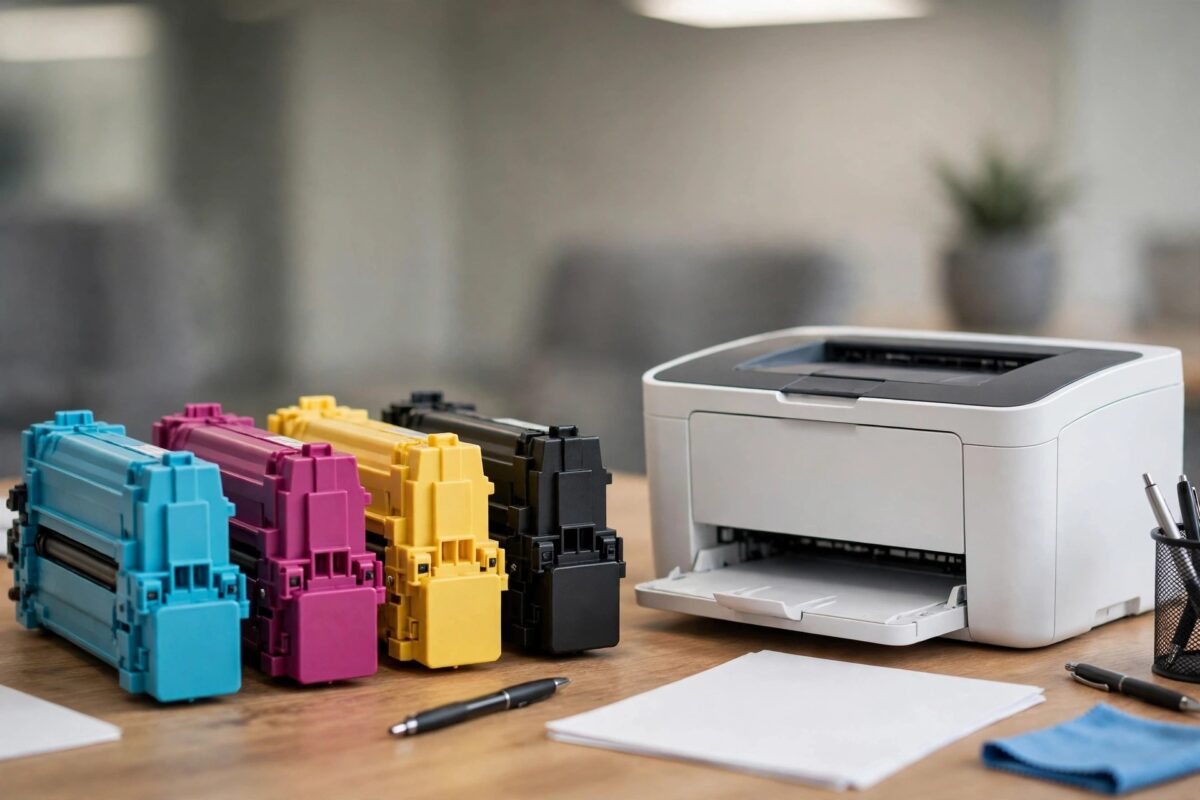
Your HP Color LaserJet Pro M283fdw says a toner cartridge is empty or blocked — yet you can see toner inside, or you have just refilled it, and the printer refuses to print. This is the cartridge chip at work: HP’s cartridges count pages and report levels electronically, and the printer trusts the chip over the actual toner. People call the workaround “resetting the toner chip counter”. This guide explains honestly what can and cannot be reset on the M283fdw, and the legitimate options that get you printing again.
Quick Answer
There is no menu option on the Color LaserJet Pro M283fdw to reset a toner chip counter — the chip itself stores the level, not the printer. What does work: turning off Cartridge Protection and the cartridge policy settings so the printer accepts refilled or remanufactured cartridges, reseating the cartridge to clear false readings, or fitting a cartridge with a fresh (or replacement) chip. If the printer reports a cartridge as “blocked” for containing a non-HP chip, that block comes from HP’s dynamic security firmware and cannot be undone from the printer menu.
How the Toner Chip System Works on the M283fdw
Each 207A/207X cartridge carries a small chip that tracks toner usage by counting pages and coverage. The printer reads the chip and displays the level the chip reports. Key facts that shape your options:
- The counter lives on the cartridge chip — swapping the cartridge into another printer carries the “empty” reading with it, which proves the point.
- Refilling adds toner but does not reset the chip — a refilled cartridge with its original chip still reports empty unless the chip is replaced.
- Cartridge Protection is a separate feature: when enabled, it locks a cartridge to the first printer that used it, and that printer will reject cartridges “protected” by another machine.
- Dynamic security on this model means firmware can block cartridges whose chips are not recognised as HP-authorised.
Step 1: Rule Out a False Reading
Before fighting the chip system, make sure the reading is genuinely wrong:
- Remove the cartridge the printer complains about.
- Check the gold contacts on the chip — wipe them gently with a dry lint-free cloth.
- Rock the cartridge gently side to side to loosen settled toner.
- Refit it firmly and check the Supplies page again.
- If the printer says a cartridge is very low but still prints, you can often continue: many M283fdw messages are warnings until the chip’s hard limit trips.
Step 2: Turn Off Cartridge Protection and Policy Settings
These two settings decide whether refilled and remanufactured cartridges are accepted at all:
- On the printer’s control panel, go to Setup, then Supply Settings.
- Find Cartridge Protection and set it to Off.
- Find the Cartridge Policy (sometimes labelled “Authorised HP Cartridges”) and set it to Off as well.
- Alternatively, type the printer’s IP address into a browser, open Settings, and change the same options in the embedded web server.
- Refit the cartridge and check whether the printer accepts it now.
HP documents these settings in its cartridge protection guidance. Note that turning protection off affects future cartridges — cartridges already protected by another printer remain locked to that printer.
Step 3: Your Real Options for a “Dead” Chip
- Fit a replacement chip: refill suppliers sell chips for the 207A/X cartridges. Swapping the chip on your refilled cartridge makes it read as full. The swap is a small, fiddly job with the cartridge out of the printer.
- Use remanufactured cartridges with fresh chips: reputable remanufacturers fit new chips that the M283fdw accepts, provided cartridge policy settings allow them.
- Keep printing on a “low” cartridge: if the message is only a low-toner warning and print quality is still good, acknowledge it and print on. Quality, not the chip, tells you when toner is truly gone.
- Fit a genuine HP cartridge: always works, and is the fallback if your printer’s firmware blocks every alternative.
A Word About Firmware Updates
HP periodically releases firmware that updates the list of accepted chips — and after such an update, cartridges that worked last month can suddenly be rejected as blocked. If your refilled or remanufactured cartridges work today, think carefully before accepting firmware updates, and consider turning off automatic firmware updates in the printer settings so you stay in control of the timing. Our guide to updating printer firmware safely explains how to weigh these updates.
Common Mistakes to Avoid
- Believing a factory reset will reset toner levels — it resets printer settings, not the chip on the cartridge.
- Buying “reset” gadgets promising miracles — chip resetters for modern HP cartridges are unreliable; a replacement chip is the proven route.
- Turning off Cartridge Protection after the fact — it cannot unlock a cartridge already protected by another printer.
- Updating firmware while chasing an ink fix — it can make third-party cartridge acceptance worse, not better.
Managing Multiple Cartridges Without the Stand-Offs
If you run this printer in a small office, a little cartridge discipline prevents most chip arguments. Keep one genuine HP cartridge set as your known-good baseline — when a compatible cartridge misbehaves, the baseline set tells you in two minutes whether the printer or the cartridge is at fault. Buy remanufactured cartridges from a single reputable supplier rather than whoever is cheapest that week, because chip quality and firmware compatibility vary enormously between suppliers, and consistency means a cartridge that works today is replaced by an identical one that also works. Note your printer’s firmware version on a label inside the cartridge door, and check it against the supplier’s compatibility claims before ordering. And if the printer serves several people, tell them what the “very low” warnings mean and that printing may continue until quality actually fades — otherwise well-meaning colleagues replace half-full cartridges, or worse, accept a firmware prompt that changes the rules for every cartridge in the building.
One practical tip for refill users: keep the empty genuine cartridges this printer came with rather than exchanging them. A cartridge that began life in your own printer, refilled and fitted with a fresh chip, is the combination least likely to argue with it — its history is clean and its fit is guaranteed.
Conclusion
The M283fdw’s toner counter cannot be reset from the printer because the counter lives on the cartridge chip. What you can do is clear false readings, switch off Cartridge Protection and cartridge policy so refills and remanufactured cartridges are accepted, and use replacement chips where a refill needs to read as full. Set those options once, and the “empty cartridge” stand-offs largely stop.
Frequently Asked Questions
Can I reset the chip with a button combination on the printer?
No. Despite claims online, there is no button sequence on the M283fdw that resets cartridge chip data. The reading comes from the chip itself.
My refilled cartridge shows empty but prints perfectly. Can I keep using it?
Yes, while the printer only warns. Some firmware versions eventually block printing at the chip’s hard limit; if that happens, a replacement chip or a fresh cartridge is required.
Why does the printer say my cartridge is blocked?
That message comes from HP’s dynamic security: the firmware does not recognise the chip as authorised. Turning off the cartridge policy may help on some firmware versions; otherwise a genuine HP cartridge is the sure fix.
Does turning off Cartridge Protection void my warranty?
No. It is a built-in, documented HP setting. Using non-HP cartridges can affect warranty claims for damage caused by those cartridges, but changing the setting itself does not void the warranty.
Will a new chip make an empty cartridge read full?
Yes — the printer trusts the chip. That is also the danger: a fresh chip on a genuinely empty cartridge will let the printer run dry, so only fit new chips to cartridges you have actually refilled.
Leave a Reply