
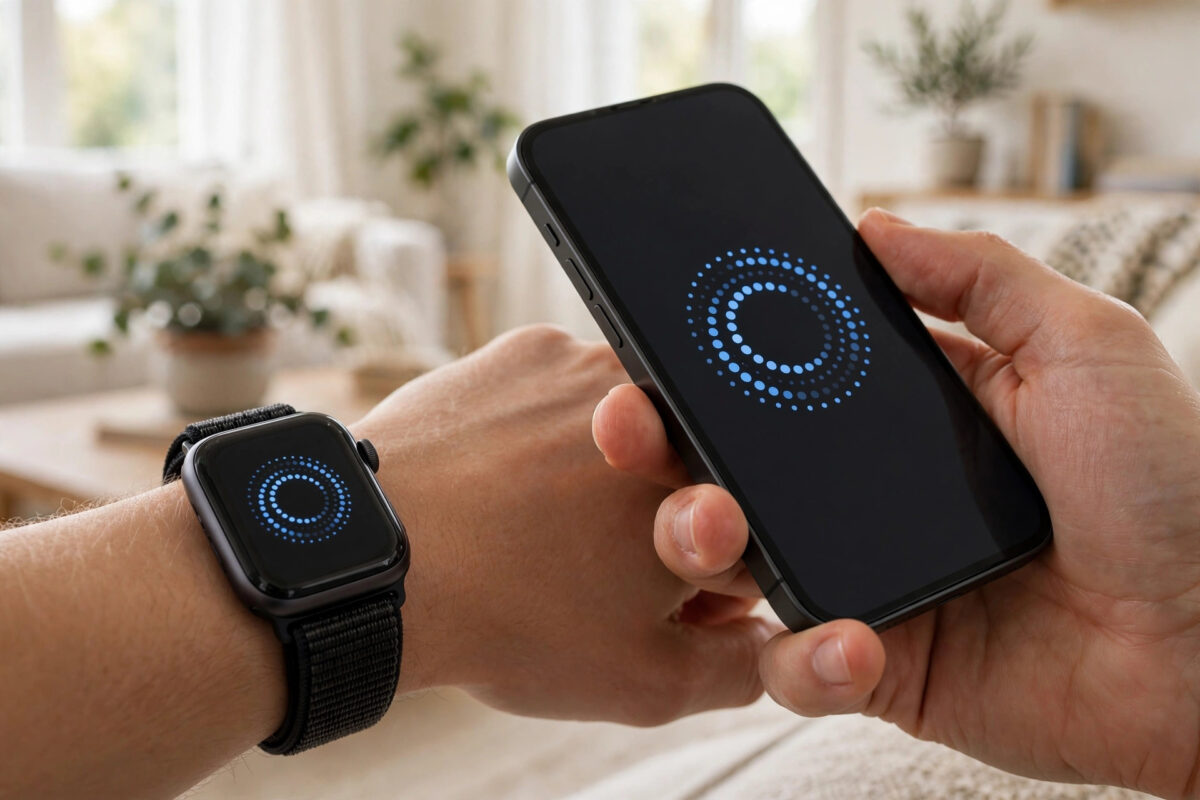
Getting a new iPhone 15 should be exciting. You unbox it, set it up, and then try to connect your Apple Watch, expecting everything to move over in a few minutes. Instead, the pairing screen never appears, the camera cannot read the watch animation, or setup stops halfway with an error. It feels like the watch and the phone simply refuse to talk to each other.
The good news is that a pairing failure is almost never a broken watch. In most cases the watch is still linked to your old iPhone, one of the devices needs a software update, or a simple radio setting like Bluetooth or Airplane Mode is getting in the way. Work through the fixes below in order, and you will usually be wearing a fully paired watch again within half an hour.
Quick Answer
Your Apple Watch will not pair with a new iPhone 15 because it can only be paired with one iPhone at a time, so it must be unpaired from the old phone first. Update the iPhone 15 to the latest iOS, turn on Bluetooth and Wi-Fi, turn off Airplane Mode on both devices, and restart both. Then open the Watch app on the iPhone 15, tap Start Pairing, and restore the watch from its most recent backup.
Why Your Apple Watch Refuses to Pair With the iPhone 15
Understanding the cause makes the fix much faster. Pairing is not just a Bluetooth connection. It is a transfer of trust between the watch, your Apple Account, and one specific iPhone. If any part of that chain is out of place, setup stops.
- The watch is still paired to your old iPhone. This is the number one cause. A watch keeps its old pairing until you unpair it properly.
- Activation Lock is still on. If the watch was erased without unpairing, it stays linked to the Apple Account used to set it up, and it will ask for that password.
- The iPhone 15 needs an update. A watch running a newer watchOS version may refuse to pair with a phone running older iOS software.
- Bluetooth, Wi-Fi, or Airplane Mode problems. Pairing uses Bluetooth to find the watch and Wi-Fi to move data, so one disabled radio breaks the process.
- The devices are too far apart or the battery is low. A weak signal or a watch under roughly 50 percent charge can stall setup and updates.
Step 1: Prepare Both Devices Before You Pair
A few minutes of preparation prevents most pairing errors. Do these checks before you open the Watch app.
- Update the iPhone 15 by opening Settings, tapping General, and then Software Update. Install anything that is offered.
- Charge the Apple Watch until it shows at least 50 percent, and keep it on its charger during setup.
- Turn on Bluetooth and Wi-Fi on the iPhone, and make sure Airplane Mode is off on both the phone and the watch.
- Keep the watch on your wrist, unlocked, and within a few inches of the iPhone.
- Sign in to iCloud on the iPhone 15 with the same Apple Account you used on your old phone, so your watch backup is available.
Step 2: Unpair the Watch From Your Old iPhone
If you still have your old iPhone, this is the cleanest path. Unpairing creates a fresh backup of the watch, erases it, and removes Activation Lock in one move. If you no longer have the old phone, our guide on how to unpair an Apple Watch from an iPhone you no longer own covers the erase-only route and what to expect from Activation Lock.
- Keep the watch and the old iPhone close together.
- Open the Watch app on the old iPhone and tap the My Watch tab.
- Tap All Watches at the top of the screen.
- Tap the information button next to your watch, then tap Unpair Apple Watch.
- If you have a cellular model, choose to keep or remove your plan. Keeping it is usually best if you will use the same carrier.
- Enter your Apple Account password to turn off Activation Lock, then wait for the watch to erase and return to the language screen.
Step 3: Pair the Watch With Your iPhone 15
With the watch erased and showing the welcome screen, you can now pair it with the new phone. Apple’s own walkthrough of getting started with Apple Watch and pairing it with iPhone follows the same flow if you want a second reference while you work.
- Put the watch on your wrist and hold the side button until the Apple logo appears.
- Bring the iPhone 15 close to the watch and wait for the pairing message, then tap Continue. If nothing appears, open the Watch app and tap Start Pairing.
- Choose Set Up for Myself.
- Hold the watch face up to the iPhone camera so the animation sits inside the viewfinder. If the camera struggles, tap Pair Apple Watch Manually and enter the six-digit code shown on the watch.
- Tap Restore from Backup and pick the newest backup, which was created when you unpaired.
- Follow the remaining screens to set a passcode, enable Siri and Apple Pay if you use them, and choose your app layout.
- Leave the devices close together until syncing finishes. This can take several minutes if you have a lot of music, photos, or apps.
Step 4: Fix Pairing That Starts but Gets Stuck
Sometimes pairing begins normally and then freezes on the Apple logo, a spinning wheel, or a message saying an update is required. Try these fixes in order.
Restart everything and try again
Restart the iPhone normally. On the watch, hold the side button and the Digital Crown together for about ten seconds until the Apple logo returns. Then start pairing again from the Watch app rather than waiting for the automatic prompt.
Let the watch finish its update
If setup says the watch must update before pairing can continue, keep the watch on its charger, keep the iPhone on Wi-Fi, and let the update run. Interrupting this step is a common reason pairing loops back to the beginning. Plug both devices in and give it up to an hour for a large update.
Reset the watch from its own settings
If the watch still shows an old setup or will not reach the pairing screen, erase it directly. Open Settings on the watch, tap General, tap Transfer or Reset, then tap Erase All Content and Settings. Remember that erasing alone does not remove Activation Lock, so have your Apple Account password ready during the new setup.
Check your network settings
A VPN profile, a captive hotel or office Wi-Fi network, or corrupted network settings on the iPhone can block the connection. Connect to a normal home Wi-Fi network, turn off any VPN, and try again. As a last resort on the iPhone, open Settings, tap General, tap Transfer or Reset iPhone, tap Reset, and choose Reset Network Settings. You will need to rejoin your Wi-Fi networks afterwards.
Common Mistakes to Avoid
- Erasing the old iPhone before unpairing the watch. This leaves Activation Lock switched on and forces the slower erase-only route.
- Skipping the iOS update on the new phone. A brand-new iPhone often ships with older software than the watch expects.
- Pairing far from the router or with a weak battery. Both lead to half-finished syncs that look like pairing failures.
- Using a different Apple Account on the new phone. Your watch backup lives in the original account, so a different sign-in means no backup to restore.
- Force quitting the Watch app mid-sync. The first sync is slow by nature. Give it time while both devices are charging.
Conclusion
When an Apple Watch will not pair with a new iPhone 15, the cause is almost always the old pairing, Activation Lock, or out-of-date software rather than faulty hardware. Prepare both devices, unpair cleanly from the old iPhone, and pair through the Watch app while restoring the automatic backup. If setup stalls, restart both devices, let any required update finish on the charger, and reset network settings only if the connection still fails. Follow the official Apple guidance on pairing an Apple Watch with iPhone alongside these steps, and your watch should be back on your wrist with its data intact.
Frequently Asked Questions
Do I need to unpair my Apple Watch before switching to iPhone 15?
Yes. An Apple Watch can be paired with only one iPhone at a time. Unpairing from the old phone also backs up your data and removes Activation Lock, which makes the new setup quick and safe.
Will I lose my health and activity data when I pair with the new phone?
Normally, no. Unpairing creates a backup on the old iPhone, and health data is stored in iCloud if Health syncing is on. Restore that backup during setup on the iPhone 15 and your rings, workouts, and settings return.
Why does my iPhone 15 not show the pairing animation screen?
Check that Bluetooth is on, Airplane Mode is off, and the watch is unlocked and nearby. If the prompt still does not appear, open the Watch app manually and tap Start Pairing, or use the manual code option.
What if my watch asks for an Apple Account password I do not know?
That is Activation Lock. The watch is still linked to the account used to set it up. Only that account password, or proof of purchase through Apple Support, can clear it. There is no safe shortcut around this check.
How long should pairing and syncing take?
Pairing itself takes a few minutes. A full sync with apps, music, and photos can take fifteen to thirty minutes, and a watchOS update during setup can add more time. Keep both devices charging and close together until it finishes.

Leave a Reply