
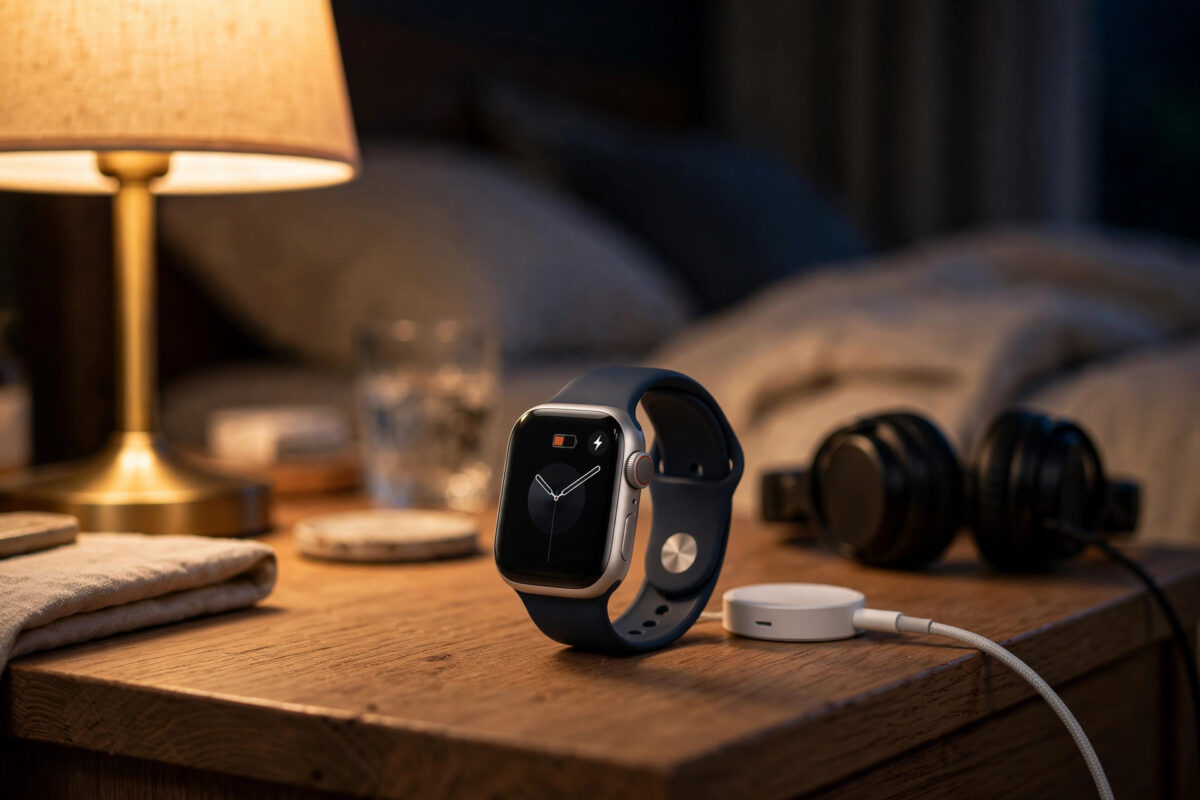
Your Apple Watch Series 9 used to cruise through the day and still have charge left at bedtime. Then watchOS 11 arrived, and now the battery is gasping by mid-afternoon. You are not imagining it, and your watch is probably not broken. A big software update changes how the watch indexes data, syncs with your iPhone, and runs background tasks, and those changes can hit battery life hard for days.
The good news is that post-update drain usually settles, and when it does not, the cause is normally one runaway setting, one stuck app, or one connection problem that you can find and fix. This guide shows you how to tell normal update behaviour from a real fault, and how to claw back your full day of battery step by step.
Quick Answer
After watchOS 11, a Series 9 often drains fast for 24 to 72 hours while it re-indexes photos, mail, and health data in the background, so charge it nightly and wait two or three days first. If the drain continues, restart both the watch and iPhone, update to the latest watchOS 11 point release, turn off Background App Refresh for apps you do not need, reduce Always On and wake behaviour, and check Battery Health. Unpair and re-pair the watch only if the drain survives all of that.
Why Battery Drain Gets Worse Right After watchOS 11
A major update is not a small patch. The watch rebuilds databases, re-syncs libraries, and re-learns routines, and all of that work happens quietly in the background while you wear it.
- Background indexing. Photos, messages, mail, and health records are processed again after the update, which keeps the processor busy for a day or two.
- A bug in the first release. Early versions of a major watchOS release sometimes ship with power bugs that Apple fixes in the following point update.
- Reset or changed settings. Updates can quietly re-enable features such as Background App Refresh, Wake on Wrist Raise, or app notifications you had limited.
- A stuck app or sync loop. One app repeatedly trying and failing to sync can drain the battery faster than everything else combined. This same loop often shows up as Apple Watch notifications arriving late or in bursts, because the connection is busy retrying instead of delivering alerts.
- Weak signal hunting. If the watch keeps losing its iPhone or Wi-Fi connection, its radios work harder and use more power.
- An ageing battery. The update may not be the cause at all. It may simply be the moment you noticed a battery that has worn down over time.
Step 1: Give the Update Time, Then Restart Both Devices
- Use the watch normally for two to three days after updating, charging it fully each night. Many owners see battery life return to normal on its own.
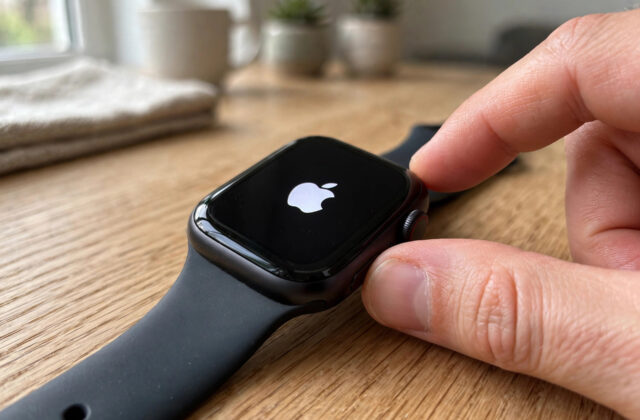
- Restart the watch. Hold the side button, tap the power icon, slide to power off, wait thirty seconds, then hold the side button again until the Apple logo appears.
- Restart the iPhone as well. The watch depends on it for most background work, and a stuck process on the phone can keep the watch busy.
- Watch the battery for one full day after the restarts before changing anything else, so you know whether it helped.
Step 2: Install the Latest watchOS 11 Update
Apple’s first fix for widespread drain is almost always a small follow-up release. Running the very first build of watchOS 11 for weeks is a common reason the problem never improves.
- Put the watch on its charger and connect your iPhone to Wi-Fi.
- Open the Watch app on the iPhone and tap General, then Software Update.
- Install any update offered, keeping the watch charged above 50 percent and on the charger until it finishes.
- Also update the iPhone itself under Settings, General, Software Update, since mismatched versions can cause repeated sync attempts.
Step 3: Cut the Biggest Battery Drains
If the drain remains, reduce the features that keep the screen and radios awake. Change one or two at a time so you can see what makes the difference.
Background App Refresh and notifications
- In the Watch app, tap General, then Background App Refresh.
- Turn it off for apps that never need live data on your wrist, such as news, shopping, and social apps.
- In the Watch app, tap Notifications and stop mirroring alerts for noisy iPhone apps. Every alert wakes the screen and the vibration motor.
Display settings
- Open Settings on the watch and tap Display and Brightness.
- Lower the brightness one or two levels and shorten the Wake Duration to 15 seconds.
- If battery life matters more than the always-visible face, turn off Always On in the same menu for a few days and compare the result.
- Turn off Wake on Wrist Raise if your watch lights up constantly while you type, drive, or gesture.
Connections and workouts
- Keep your iPhone nearby. A watch separated from its phone switches to Wi-Fi or cellular and burns power searching.
- On cellular models, poor coverage drains the battery quickly. Use Airplane Mode in signal dead zones.
- End workouts properly. A paused workout that never ends keeps heart rate and GPS sensors running for hours.
- Check for a stuck download or podcast sync in the Watch app and cancel anything that never completes.
Step 4: Check Battery Health on the Series 9
Software fixes cannot restore a worn-out cell. Check what condition the battery is actually in.
- Open Settings on the watch.
- Tap Battery, then tap Battery Health.
- Read the Maximum Capacity figure. Near 100 percent means the battery is healthy and your drain is a software issue.
- If capacity is at or below about 80 percent, or the watch shows a service message, the battery itself is the problem. Apple’s explanation of how to check battery health and usage on Apple Watch describes exactly what this screen reports.
Step 5: Unpair and Re-Pair as the Last Resort
If drain survives several days, the latest update, and the settings cuts above, the pairing database itself may be corrupt. Unpairing erases the watch and restores it from a clean backup.
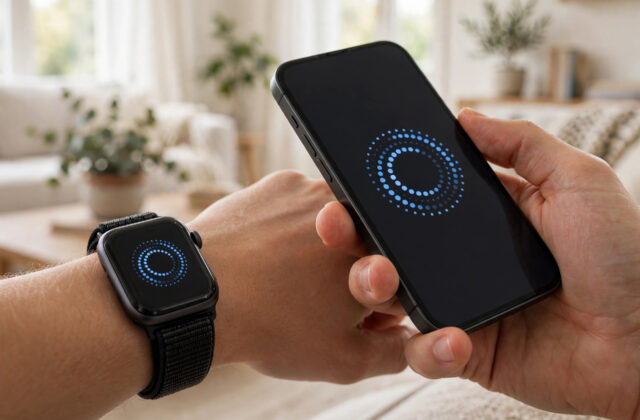
- Open the Watch app, tap All Watches, tap the information button beside your Series 9, and tap Unpair Apple Watch.
- Wait for the erase to finish, then pair again and choose Restore from Backup.
- If the drain returns even after restoring, repeat the process but choose Set Up as New. A fault hiding inside the old backup is rare, but a clean setup rules it out.
- Use the watch for a full day before judging the result.
Common Mistakes to Avoid
- Judging battery life on update day. First-day drain is normal background work, not proof of a fault. Wait at least 48 hours.
- Force quitting every app constantly. Relaunching apps from cold often uses more power than leaving them idle, and it does not fix a sync loop.
- Turning everything off at once. You will not learn which feature caused the drain, and you may disable health tracking you actually want.
- Ignoring the iPhone. The watch mirrors the phone. A misbehaving iPhone app or a stuck iCloud sync can drain both devices together.
- Skipping Battery Health. No setting can fix a battery at 75 percent capacity. Check the number before spending days tweaking.
Conclusion
Fast battery drain on a Series 9 after watchOS 11 is usually temporary indexing, a first-release bug, or one feature quietly working overtime. Wait out the first two or three days, restart both devices, install the newest point update, and trim Background App Refresh, notifications, and display wake behaviour. Check Battery Health to separate software problems from a worn cell, and keep unpairing as the final step. If a healthy battery still dies in half a day after a clean setup, contact Apple through Apple’s official watch service and repair options, because at that point the fault is likely hardware.
Frequently Asked Questions
How long does Apple Watch battery drain last after a watchOS update?
For most people, one to three days. The watch finishes indexing and syncing in the background during that window, especially while it charges overnight. Drain that is still severe after three full days deserves the troubleshooting steps in this guide.
Is it normal for my Series 9 to feel warm after updating?
Slight warmth during the first day is normal, because the processor is working through background tasks. A watch that stays hot, or one too warm to wear comfortably, suggests a stuck process. Restart it, and unpair and re-pair if the heat returns.
Does Low Power Mode help with watchOS 11 drain?
Yes, as a short-term measure. Low Power Mode limits background heart rate checks, Always On, and some connectivity, which can stretch a bad day. It is a workaround, though, not a fix for the underlying cause.
Should I turn off Always On permanently?
Only if the test shows it matters for you. Always On does use extra power, but on a healthy Series 9 it should not halve your battery life. If turning it off fixes the drain completely, something else was likely misbehaving alongside it.
When is battery drain a sign I need a repair?
When Battery Health shows capacity around 80 percent or less, when the watch shuts down at high percentages, or when a clean, newly set-up watch still cannot last a normal day. Those point to the battery or hardware, not settings.

Leave a Reply