
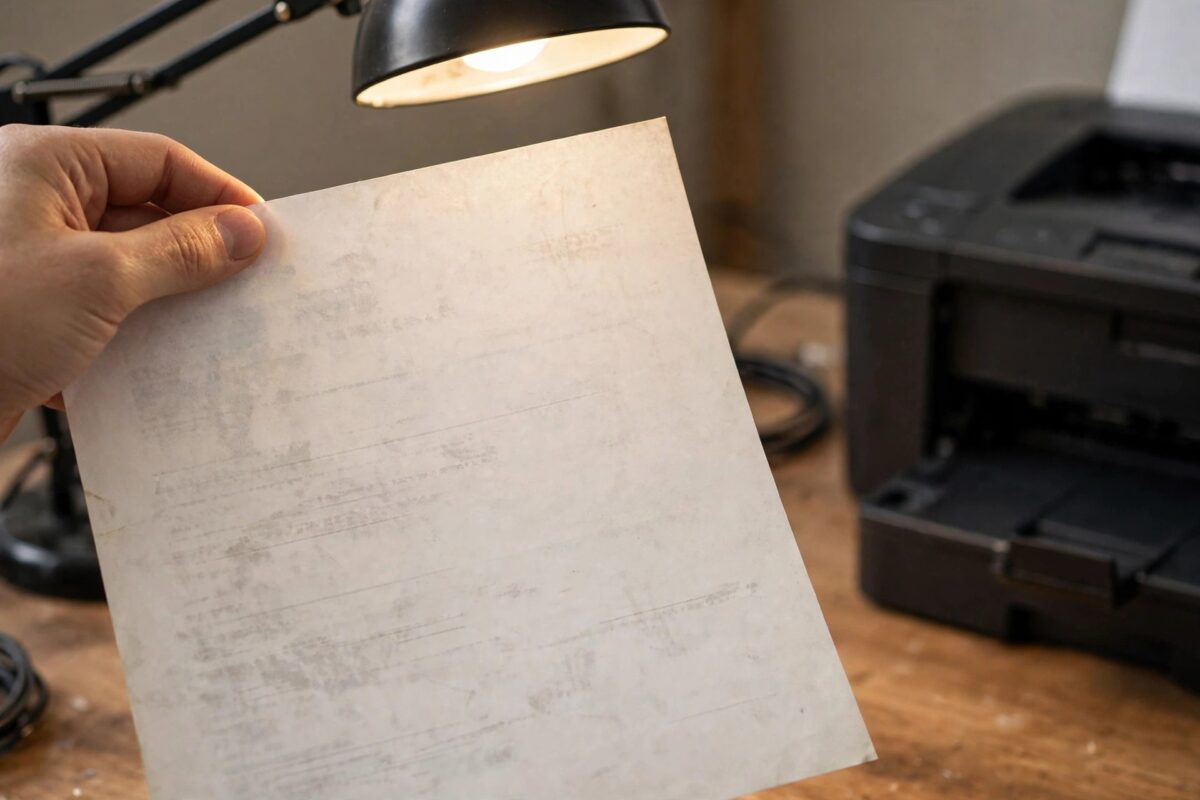
When an HP LaserJet prints a page where the text is crisp on the right but pale and washed out down the left side, the pattern itself is the diagnosis. Fading that affects one side of the page — rather than the whole page evenly — almost always comes down to how toner is being distributed or transferred: a cartridge running low and settling unevenly, a dirty laser scanner window, or a worn transfer roller. The fixes are mostly free and take minutes. This guide runs through them in the order most likely to cure it.
Quick Answer
Faded text on one side of the page on an HP LaserJet is usually caused by low toner that has settled unevenly in the cartridge, or by dust and toner film on the laser scanner window. Remove the cartridge, rock it gently side to side five or six times to redistribute the toner, and refit it. If fading persists, clean the scanner window inside the printer, check EconoMode is off, and try a different cartridge to rule out a failing one.
How to Read the Fade Pattern
Before touching anything, look closely at a printed page:
- Left or right side faded, other side sharp: uneven toner distribution in the cartridge, or a dirty scanner window on that side.
- The whole page is light: low toner overall, EconoMode, or a density setting turned down.
- A repeating faded band or spots in the same place on every page: a damaged drum or a mark on the transfer roller.
- Fading gets worse as the print run goes on: the cartridge is genuinely near empty or the transfer roller is worn.
This guide focuses on the one-sided fade, but the checks overlap, so work through them regardless.
Step 1: Redistribute the Toner
- Open the printer and remove the toner cartridge.
- Hold it level with both hands and rock it gently from side to side five or six times — enough to loosen and spread the toner inside, not shake it violently.
- Also tip it slightly end to end once or twice.
- Refit the cartridge and print the same page again.
If the left side is back to full darkness, your cartridge is simply getting low and the toner had settled away from one end. The fix buys you anywhere from a few pages to a few hundred, but start planning a replacement cartridge — the fade will return as the level drops further.
Step 2: Check EconoMode and Density
EconoMode deliberately uses less toner and prints lighter. On the printer’s control panel or in its settings page, find Quality or EconoMode settings and make sure EconoMode is off. Also check the print density setting — set it to the middle value (usually 3 of 5) if someone has turned it down. Then check the same settings in the driver on your PC: Printer Properties, and in the app’s print dialog, since a driver-level EconoMode overrides what you set on the printer. HP’s print quality troubleshooting guide lists these settings checks for light prints.
Step 3: Clean the Laser Scanner Window
The laser writes the image onto the drum through a narrow glass window inside the printer, and a film of toner dust on one part of that window produces exactly this one-sided fade:
- Switch the printer off and unplug it.
- Remove the toner cartridge and set it on paper, covered from bright light.
- Look inside the cavity for the glass strip running across the top (or the underside of the top cover on some models) — this is the scanner window.
- Wipe it gently with a soft, dry, lint-free cloth. Do not use liquids or apply pressure.
- Also wipe the inside of the cavity of loose toner with a dry cloth.
- Refit the cartridge and test.
Step 4: Swap the Cartridge to Isolate the Fault
If rocking and cleaning do not fix it, fit a different cartridge — even an old one with some toner left. If the fade disappears, the original cartridge is faulty or empty: its drum or developer roller is worn on one side. If the fade stays in exactly the same position with a different cartridge, the printer is at fault — most likely the transfer roller, the foam roller that presses paper against the drum. A transfer roller is a cheap part on many LaserJet models, though fitting difficulty varies. Our guide to fixing faded printing covers transfer roller and drum checks in more depth for several brands.
Common Mistakes to Avoid
- Shaking the cartridge hard or over a desk — gentle rocking redistributes toner; violent shaking spills it and can damage the drum shutter.
- Turning density to maximum as a permanent fix — it masks low toner briefly and wastes toner on every page; find the real cause.
- Touching the green drum surface on the cartridge — fingerprints and light damage cause permanent marks.
- Using a damp cloth on the scanner window — smears make the fade worse and spread across the page.
- Ignoring a very low cartridge — repeatedly printing with a starved cartridge can wear the drum unevenly, so replace it promptly.
Checking the Paper Path and Environment
Two quieter causes are worth ruling out before you price up parts. The first is paper: a stack that has absorbed moisture unevenly — for example a ream stored against a cold outside wall — can accept toner poorly down one side. Try a fresh, sealed ream before concluding anything about the printer; it takes one minute and has embarrassed many confident diagnoses. The second is the printer’s environment and levelling. A LaserJet sitting on a noticeably tilted surface, or one that has been recently moved, can behave as if its toner has settled oddly for the first several prints. Print twenty or thirty pages of a dense test document and watch whether the fade migrates or evens out as toner redistributes through normal use. Lastly, check the toner cartridge’s shutter and drum for a strip of protective material or damage along one edge — a partially stuck shutter from a new cartridge shades one side of every page in exactly this pattern, and it is a thirty-second fix once spotted.
As a rule of thumb, treat any cartridge that needs rocking more than twice in its life as finished. Each rescue returns less print than the last, and running a cartridge to absolute exhaustion risks uneven wear on the drum and transfer components that then affect even a brand-new cartridge’s output.
Conclusion
One-sided fading on a LaserJet is a pattern you can trust: rock the cartridge to redistribute toner, confirm EconoMode is off, and clean the scanner window. Those three steps cure most cases for free. If a cartridge swap moves or removes the fault, replace the cartridge; if the fade is fixed in place across cartridges, look at the transfer roller next.
Frequently Asked Questions
Why is only the left side faded and not the right?
Toner settles and is consumed unevenly along the cartridge’s length, and the scanner window can film over partially. Either produces a fade that follows one side of the page.
Rocking the cartridge fixed it for a week, then the fade returned. Why?
Because the cartridge is genuinely low on toner. Rocking redistributes what is left, but the level keeps falling. A new cartridge is the permanent fix.
Can the paper cause one-sided fading?
Damp paper can print unevenly, but it usually causes patchiness all over rather than a clean left-side fade. Still, trying fresh paper from a new ream is a cheap test.
The fade is on the right side instead. Same fixes?
Yes. Left versus right only reflects which end of the cartridge or window is affected; the troubleshooting is identical.
Is a dirty scanner window common?
Very — especially on printers a few years old or in dusty rooms. It builds up slowly, which is why the fade often creeps in rather than appearing overnight.

Leave a Reply