
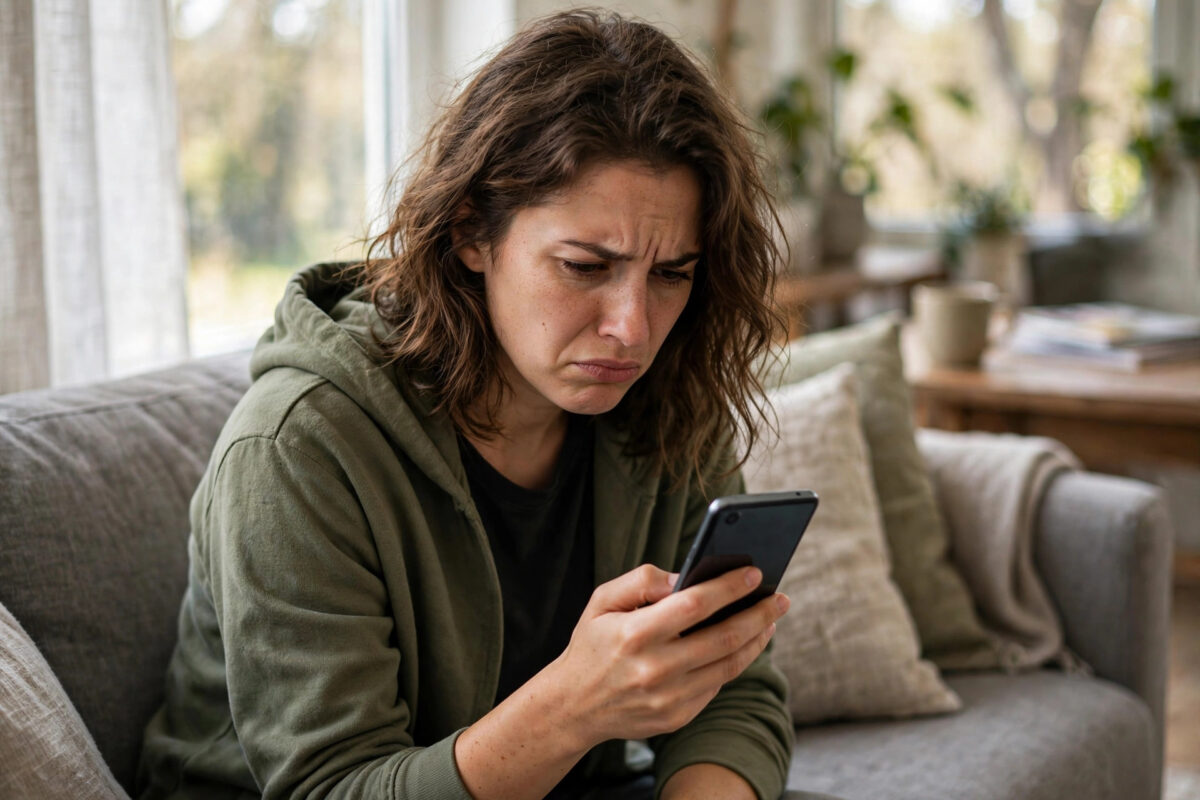
You are halfway through reading a message, a recipe, or a news story, and the screen goes black. You tap it, unlock the phone again, and lose your place. Two minutes later it happens again.
This is one of the most annoying small problems on Android. The good news is that it is rarely a fault, and the fix usually takes less than a minute.
Quick Answer
Your screen timeout is set too short. Go to Settings > Display > Screen timeout and choose 2, 5, or 10 minutes instead of 15 or 30 seconds. If the screen still fades early, check battery saver, your phone case, and the proximity sensor next.
Why Your Phone Screen Turns Off So Quickly
Android turns the screen off after a period without touches. That period is called the screen timeout, and manufacturers often set it to just 30 seconds.
A short timeout saves battery and protects privacy. It stops the screen burning power in your pocket and stops strangers reading an unattended phone.
Problems start when the setting gets changed without you realising. A system update, a battery-saving mode, or a child playing with settings can all shorten it.
Sometimes the timeout is innocent and something else fakes the symptom. A faulty case, a dirty sensor, or an aggressive battery app can black out the screen early.
Work through the fixes below in order. Each one takes a minute, and the first solves the problem for most readers of our Android tips and guides at Network Ustad.
Fix 1: Increase the Screen Timeout
This is the main setting, and checking it should always be your first step. The path differs slightly by brand, but Display is your starting point on almost every phone.
On Pixel and Stock Android
- Open Settings.
- Tap Display.
- Tap Screen timeout.
- Choose 2 minutes for a balanced setting.
- Choose 5 or 10 minutes if you read often.
- Exit Settings and test by leaving the phone untouched.
On Samsung Galaxy
- Open Settings.
- Tap Display.
- Tap Screen timeout.
- Select 2, 5, or 10 minutes.
- Optionally enable Keep screen on while viewing, explained below.
On Xiaomi, Redmi, and Poco
- Open Settings.
- Tap Lock screen, or Display on older MIUI versions.
- Tap Sleep, or Screen timeout.
- Select a longer time, such as 5 minutes.
- Avoid Never unless you charge often, as it drains the battery.
Google’s support page on changing Android screen and sleep settings confirms the same steps for most stock devices.
Fix 2: Use Keep Screen On While Viewing
Many phones can watch for your face while you read. If you are looking at the screen, it stays on, even past the timeout.
Samsung calls it Keep screen on while viewing. Find it in Settings > Advanced features > Motions and gestures.
Pixel phones call it Screen attention. Find it in Settings > Display > Screen timeout, as a toggle on the same page.
- Open the relevant settings page for your brand.
- Turn on the face-detection toggle.
- Hold the phone at a normal reading distance.
- Read for a minute without touching the screen.
- Confirm the screen stays lit while you look at it.
The feature uses the front camera in short checks, so the battery cost is small. It will not work in darkness or if the camera is covered by a case flap.
Fix 3: Check Battery Saver and Power Modes
Battery-saving modes often force a 15 or 30 second timeout. They override your chosen setting without asking, which confuses many owners.
- Open Settings > Battery.
- Check whether Battery Saver or Power saving is on.
- Turn it off and test the screen again.
- On Samsung, check Settings > Battery > Power saving separately.
- On Xiaomi, check Settings > Battery for Ultra battery saver.
If you need battery saver daily, accept its shorter timeout as the trade-off. Alternatively, use it only when the battery drops below a set percentage.
Third-party battery apps can do the same thing. If you installed one recently and the problem started afterwards, uninstall it and test.
Fix 4: Rule Out the Proximity Sensor and Your Case
The proximity sensor sits near the earpiece. Its job is to blank the screen during calls, so the phone does not register cheek presses.
A thick case, a poorly fitted screen protector, or dirt over the sensor can trick it. The phone then thinks it is against your ear and turns the screen off.
- Remove the phone case completely.
- Clean the top edge of the screen with a soft cloth.
- Check any screen protector for bubbles near the earpiece.
- Use the phone without the case for an hour.
- If the problem stops, replace the case or protector.
Wallet cases cause a special version of this fault. Their magnets can trigger the sleep sensor, folding the cover back behind the phone still activates it.
Samsung covers sensor and case behaviour in its guide to troubleshooting Galaxy screens that turn off or stay black.
Fix 5: Check Apps, Updates, and Safe Mode
Occasionally an app forces the screen off. Reading apps, launchers, and screen-dimmer apps are the usual suspects.
- Restart the phone once, which clears temporary glitches.
- Install any pending update in Settings > System > System update.
- Review recently installed apps in Settings > Apps.
- Uninstall anything installed just before the problem began.
- Boot into Safe Mode to test with all downloaded apps disabled.
To enter Safe Mode on most phones, hold the power button, then long-press Power off and tap Safe Mode. If the screen behaves normally there, an app is responsible.
Restart normally to leave Safe Mode. Then remove your recent apps one at a time until the culprit reveals itself.
Common Mistakes and Tips to Avoid Them
Setting the timeout to Never. The screen will drain the battery fast and may stay on in your bag. Ten minutes is a sensible maximum for daily use.
Confusing screen timeout with lock time. They are separate settings. The screen can turn off without locking instantly, which you can adjust in Settings > Security > Automatically lock.
Ignoring a new case or protector. If the problem started the day you fitted them, believe the timing. Test without them before resetting anything.
Resetting the phone too early. A factory reset is a last resort for this issue. The fixes above solve the vast majority of cases.
Tip: match timeout to the task. Use 2 minutes normally, and temporarily choose 10 minutes for recipes, sheet music, or following repair guides.
Tip: keep the top of the screen clean. A quick wipe of the sensor area during your weekly screen clean prevents many mystery blackouts.
Conclusion
A screen that turns off too quickly is almost always a setting, not a failure. Start with Settings > Display > Screen timeout and pick a longer time.
If the problem continues, check battery saver, test without your case, and clean the proximity sensor. Safe Mode will expose any misbehaving app.
Work through those steps in order and you will fix it in minutes. Your phone should stay awake exactly as long as you need it, and no longer.
Frequently Asked Questions
What is the best screen timeout setting?
Two minutes suits most people, balancing convenience and battery life. Choose 5 or 10 minutes if you read long articles, and avoid Never for everyday use.
Why does my screen turn off during videos and reading?
The timeout counts time without touches, even while content is on screen. Raise the timeout, or enable Keep screen on while viewing or Screen attention if your phone supports it.
Why does my screen go black during calls and not come back?
That usually points to the proximity sensor being blocked by a case, protector, or dirt. Clean the earpiece area and test without the case to confirm.
Does a longer timeout damage my battery?
It uses more power because the screen is the biggest battery drain. The effect is modest at 2 to 5 minutes, but Never or 30 minutes will noticeably shorten your day.
My timeout is greyed out. Why?
A work profile, device administrator app, or battery saver is controlling it. Check Settings > Security > Device admin apps, and turn off battery saver, then try again.



Leave a Reply