
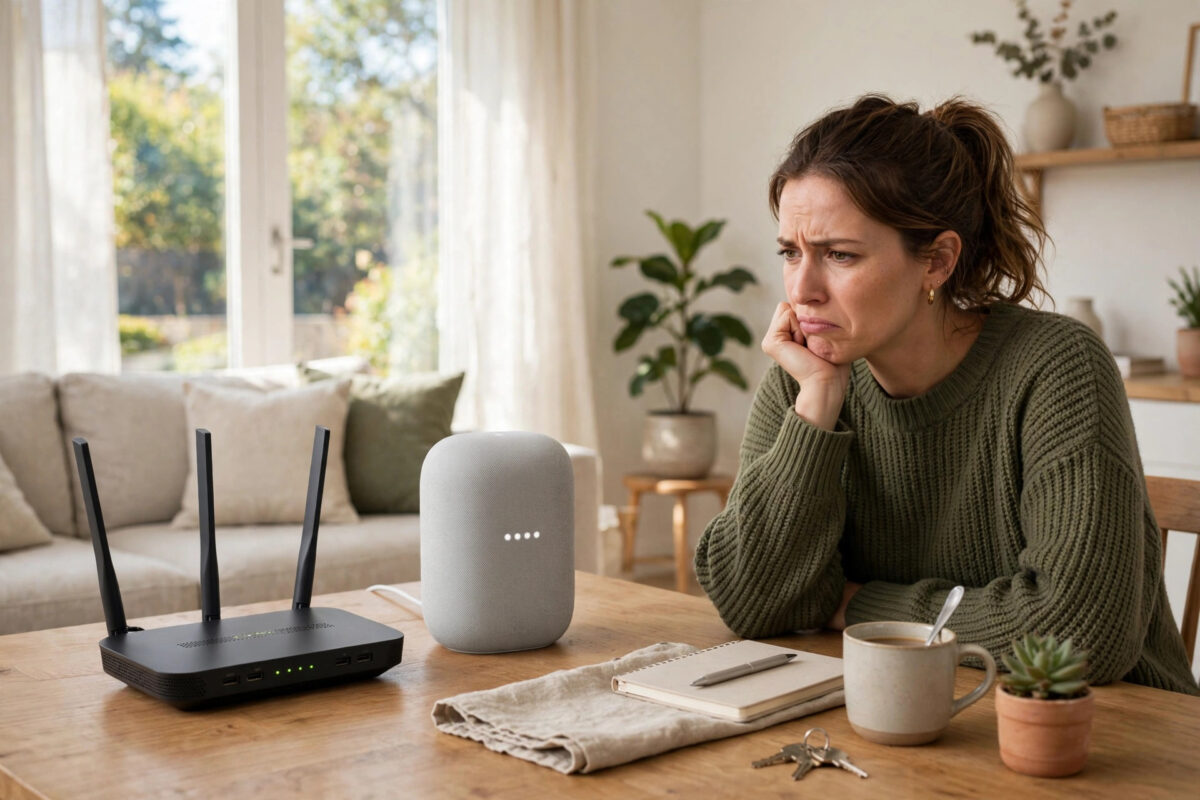
Few smart speaker errors are as annoying as this one. You ask your Google Nest Audio a simple question, the lights dance for a moment, and then it says, “There was a glitch, try again in a few seconds.” You try again, and you get the same message. And again. The speaker is clearly powered on and hearing you, but it cannot complete anything.
This glitch message is a general error. It means the Nest Audio tried to reach Google’s services or complete a task and something in that chain failed. The cause is usually your Wi-Fi, a temporary problem with the speaker’s connection, a software hiccup, or an account issue. The good news is that the fix is normally simple, and this guide takes you from the fastest checks to the deeper resets, in the right order.
Quick Answer
To fix a Nest Audio that keeps saying “there was a glitch, try again in a few seconds,” restart the speaker by unplugging it for one minute, restart your router, and make sure the speaker has a strong Wi-Fi signal on your main home network. Check the Google Home app for updates or setup problems, confirm you are signed into the right Google account, and remove the speaker from any dead zones. If the error continues after clean restarts, remove the Nest Audio from the Home app and set it up again, or do a factory reset as a last step.
What the Glitch Error Really Means
When you speak to a Nest Audio, your voice is sent over the internet to Google, which works out what you said and sends the answer back. The glitch message appears when that round trip breaks down. The speaker heard you, but it could not finish the job.
Connection Problems Are the Main Cause
A weak signal, a router that is struggling, or a speaker stuck between two mesh points can all break that round trip. The speaker may show as connected in the app and still fail every request, because a connection that is barely alive is not the same as a healthy one.
Temporary Software Problems
A Nest Audio can get into a bad state after weeks of running, a failed update, or a brief power cut, until it is restarted cleanly.
Account and App Issues
If your Google account session has expired or the Home app has the speaker in a half-set-up state, requests can fail with the same vague message.
Step-by-Step Fixes
Step 1: Wait, Then Try a Simple Test
- Wait a full minute after the error before trying again, in case it is a brief service hiccup.
- Ask something simple, such as “Hey Google, what time is it?”
- If simple questions work but music or smart home commands fail, the problem is with that service or device, not the speaker itself.
- If everything fails with the same message, continue with the steps below.
Step 2: Restart the Nest Audio Properly
- Unplug the power cable from the Nest Audio.
- Wait 60 seconds with the cable out.
- Plug it back in using its original adapter and a wall socket.
- Wait for the startup lights to finish and for the speaker to greet you or sit idle normally.
- Test again with a simple question.
Many glitch errors end right here.
Step 3: Restart Your Router and Check the Signal
- Unplug your router for 30 seconds, then plug it back in.
- Wait until your Wi-Fi is working on your phone.
- Stand next to the Nest Audio and check the Wi-Fi signal on your phone in that exact spot.
- If the signal is weak there, move the speaker or improve coverage in that room.
- Test the speaker again once the network has settled.
If that corner of the room is a known weak spot, our guide on fixing Wi-Fi dead zones throughout your home explains how to test coverage properly and how to choose between moving the router, adding a mesh point, or using an extender.
Step 4: Check the Speaker in the Google Home App
- Open the Google Home app while connected to your home Wi-Fi.
- Find the Nest Audio and check whether it shows as online or offline.
- Open its settings and confirm the Wi-Fi network name matches your main network.
- Check the linked Google account is the one you expect.
- If the app offers a reboot option for the device, you can use it, but the power cycle in Step 2 is still worth doing.
Step 5: Rule Out Network Settings That Block Speakers
Some router settings cause endless glitch errors even on a strong signal.
- Guest network: Speakers on a guest network may be blocked from reaching other devices and some services. Move the Nest Audio to your main network.
- Band steering confusion: If your router uses one name for both bands and the speaker keeps hopping, test it closer to the router where both bands are strong.
- Router firewall or parental controls: A profile that pauses or filters the speaker’s connection can produce constant glitches. Remove the speaker from any paused profile.
- VPN on your network: A router-level VPN can interfere with Google services in some regions. Test with it off if you use one.
Google publishes current requirements and troubleshooting for these cases on the official Google Nest support site, including the router settings they recommend for Nest speakers.
If the Glitch Only Happens Sometimes
An error that appears only at certain times points to load or interference rather than a faulty speaker. Evening glitches often mean a busy network, with streaming and gaming competing. Keep notes for a day: if the speaker works at 9 in the morning and fails at 8 in the evening, your fix is about network capacity and placement, not resetting the speaker again.
Remove and Re-Add the Speaker
If clean restarts and a healthy network do not stop the error, removing the speaker from your home in the app and setting it up again rebuilds its connection and account links from scratch.
- Open the Google Home app and open the Nest Audio’s settings.
- Choose the option to remove the device and confirm.
- Do one more full power cycle of the speaker.
- In the app, tap the option to add a new device and follow the setup steps.
- Complete setup near the router, on your main Wi-Fi network, then move the speaker back if needed.
- Test with several questions and a short music request before re-adding it to groups.
Factory Reset as the Last Step
A factory reset erases the Nest Audio’s settings completely. On the Nest Audio there is no visible reset button. Instead, you switch the microphone off using the switch on the back, then press and hold the centre of the top of the speaker until it confirms the reset with lights and a sound. After it restarts, set it up again in the Google Home app as if it were new.
Only do this after the earlier steps, because a reset will not fix a weak network. If the error continues after a reset and a test next to the router, contact Google support.
Tips to Prevent the Glitch Error Returning
- Give the speaker a strong, stable spot: Keep it within good range of the router or a mesh point, away from thick walls and large electronics.
- Restart occasionally: A power cycle every month or two keeps small software problems from building up.
- Keep the Home app updated: App and speaker updates often include fixes for exactly this kind of connection behaviour.
Common Mistakes to Avoid
- Factory resetting straight away: Most glitch errors are network or temporary software issues. A reset is the last step, not the first.
- Testing during a router restart: Wait until Wi-Fi is fully back on your phone before judging the speaker.
- Ignoring where the speaker sits: A speaker in a dead spot will keep failing no matter how many times you reset it.
- Assuming Google is down every time: True service outages happen but are rare and usually short. If the error lasts all day, the cause is almost certainly in your home.
Conclusion
The “there was a glitch, try again in a few seconds” message on a Nest Audio is frustrating because it sounds vague, but in practice it almost always means a broken connection, a tired speaker state, or a network setting getting in the way. Restart the speaker with a full power cycle, restart the router, prove the Wi-Fi is strong where the speaker sits, and check the Home app settings. Remove and re-add the speaker if the error survives, and save the factory reset for last. Follow that order and your Nest Audio should go back to answering first time, every time.
Frequently Asked Questions
Why does my Nest Audio say there was a glitch for every request?
When every request fails, the speaker usually cannot complete its connection to Google’s services. This is most often caused by weak Wi-Fi, a router problem, or the speaker being in a bad software state. A full power cycle of both the speaker and router fixes many cases.
Is the glitch error a sign my Nest Audio is broken?
Usually not. Most speakers showing this error work perfectly once the network and software issues are sorted. Hardware failure is only likely if the error continues after a factory reset and a test right next to a healthy router.
Does the glitch error mean Google’s servers are down?
Occasionally a short service problem can cause it, but that is uncommon and passes quickly. If the message continues for hours, check your own network and speaker first rather than waiting for a service fix.
How do I factory reset a Nest Audio?
Switch the microphone off with the switch on the back, then press and hold the centre of the top of the speaker until it confirms the reset. Afterwards, set it up again in the Google Home app.
Why does the error only happen in the evening?
Evenings are peak time for home networks. Streaming, gaming, and downloads can overload a weak connection, so the speaker’s requests fail. Improving Wi-Fi coverage and reducing heavy downloads at peak times usually stops evening glitches.



Leave a Reply