
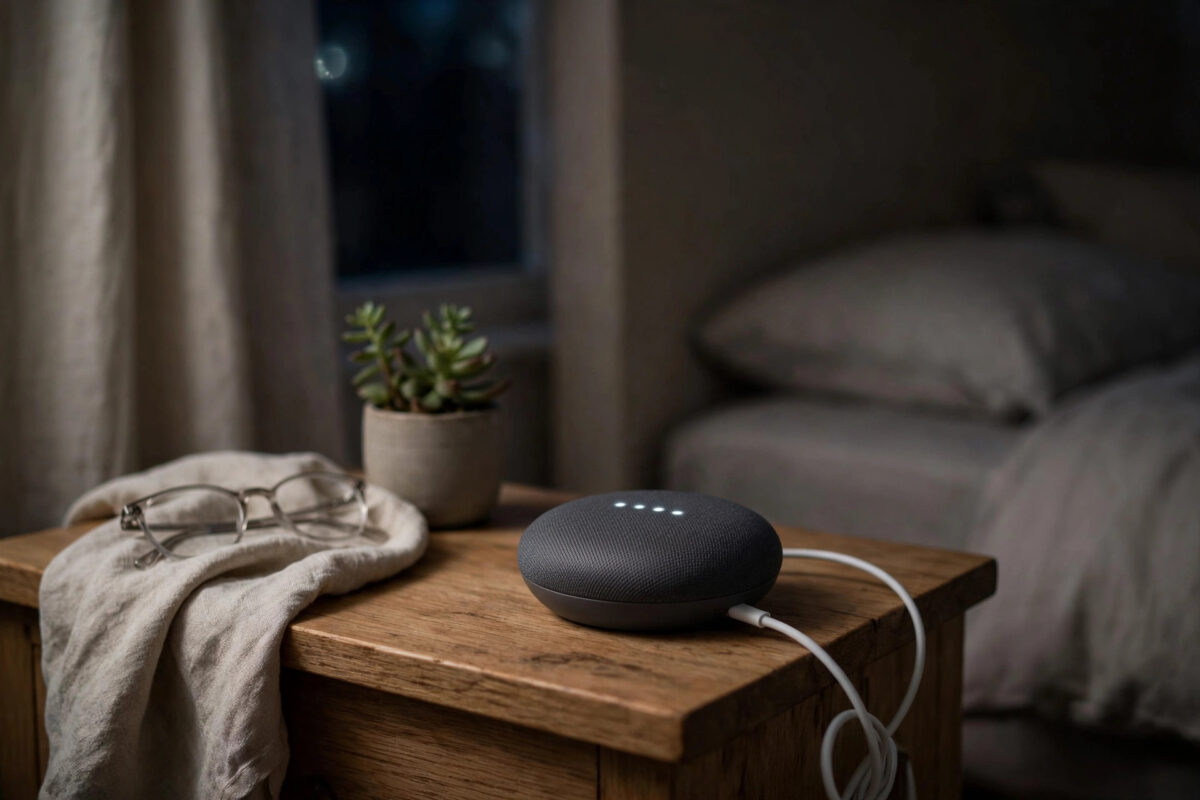
A power cut is annoying enough on its own. The lights come back, the Wi-Fi reconnects, and everything slowly returns to normal, except your Google Nest Mini, which just sits there showing four white dots and does not respond to anything. It will not play music, it will not answer questions, and tapping it does nothing useful.
Four white dots that stay on usually mean the speaker is stuck while starting up, or stuck while trying to update or reconnect. The power outage may have interrupted an update, cut power in the middle of a restart, or left the speaker with a confused network connection. Before you assume it is broken, work through the fixes in this guide. Most Nest Minis recover with a proper power cycle, a patient wait, or, in tougher cases, a factory reset.
Quick Answer
To fix a Google Nest Mini stuck with four white dots after a power outage, unplug it for a full minute, plug it back in using its original power adapter and a wall socket, and wait up to ten minutes for it to finish starting or updating. If the dots stay frozen, restart your router, move the speaker closer to it, and check the Google Home app. If nothing changes after several careful restarts, perform a factory reset by pressing and holding the centre of the top of the Nest Mini until it confirms the reset, then set it up again in the app.
What the Four White Dots Mean
The lights on top of a Nest Mini are its way of talking to you. Four white dots that light up and move normally appear while the device is starting up or thinking. The problem is not the dots themselves, it is when they freeze in place and never move on.
Frozen During Startup
When power returned after the outage, every device in your home reconnected at once. If the Nest Mini tried to start before your router was ready, it can get stuck waiting for a network that was not there yet. It then sits in that half-started state until it is restarted in the right order.
Frozen During an Update
Google speakers update themselves automatically, often overnight, and the four dots can appear during that process. If power was lost in the middle of an update, the speaker may need time, or a clean restart, to finish or roll back the update safely.
A Sign of a Power Problem
A damaged adapter, loose cable, or cheap replacement charger can leave the speaker stuck between off and on, lights lit but never fully loading.
Fixes to Try, in Order
Fix 1: Do a Proper Power Cycle
- Unplug the power cable from the Nest Mini itself, not just at the wall.
- Wait a full 60 seconds. This matters, because it lets the device fully discharge.
- Plug the cable back in firmly, using the original adapter.
- Wait without touching the speaker. Give it at least five to ten minutes.
- Watch the lights. A healthy start ends with the dots fading and the speaker announcing it is ready, or responding to “Hey Google.”
Fix 2: Restart in the Right Order After an Outage
- Unplug the Nest Mini.
- Restart your router and wait until your Wi-Fi is fully back and working on your phone.
- Only then plug the Nest Mini back in.
- Wait up to ten minutes and test it with a simple question.
This order matters. A speaker that starts before the network is ready can get stuck again.
If your speaker and other smart devices were never set up in a clean order to begin with, our starter guide on setting up smart speakers for Alexa and Google Home explains room naming, Wi-Fi choices, and first-time setup steps that make recovery after outages much smoother.
Fix 3: Check the Power Adapter and Cable
- Use only the adapter that came with the Nest Mini for testing.
- Plug directly into a wall socket, not a cheap extension lead or a USB port on another device.
- Check the cable for damage and make sure both ends click or sit firmly in place.
- If you have another genuine adapter of the same type in the house, try it as a test.
Fix 4: Move the Speaker Closer to the Router
For testing, place the Nest Mini in the same room as the router. If it starts quickly there, its normal position may have poor coverage.
Fix 5: Check the Google Home App
- Open the Google Home app on your phone while connected to your home Wi-Fi.
- See whether the Nest Mini appears as available, offline, or updating.
- If it appears, tap it and try adjusting the volume or playing a short sound.
- If the app offers a reboot option in the device settings, use it once and wait.
Google’s official troubleshooting steps are kept current on the Google Nest help and support site, which is worth checking if your app screens look different from the steps described here, since the Home app design changes from time to time.
When to Do a Factory Reset
If you have done several proper power cycles, confirmed good power, restarted the router first, and waited patiently, and the four dots still never clear, a factory reset is the next step. It erases the speaker’s settings and returns it to its out-of-box state, so you will set it up again afterwards. It does not delete anything in your Google account itself.
- Make sure the Nest Mini is plugged in and powered on, even though it is stuck.
- Turn the microphone switch on the side to the off position if needed for the reset prompt, following the speaker’s spoken guidance.
- Press and hold the centre of the top of the Nest Mini, where the lights are.
- Keep holding. After about five seconds the speaker will warn that you are about to reset it.
- Continue holding until the speaker confirms the reset and plays a sound.
- Release, wait for it to restart, and watch for the welcome lights and sound.
- Open the Google Home app, tap the option to add a device, and set the speaker up again on your Wi-Fi.
On the older Google Home Mini, the reset uses a small button underneath, near the power cable.
After the Reset: Set Up Carefully
- Set up near the router first: Complete the whole setup in a strong signal area, then move the speaker to its room.
- Use your main Wi-Fi network: Avoid guest networks, which can block the speaker from talking to your phone and other devices.
- Let updates finish: After setup, leave the speaker plugged in and idle for at least 15 minutes so any updates complete without interruption.
- Test the basics: Ask for the time, the weather, and a short music track to confirm everything works.
- Re-link services: Reconnect music services and re-add the speaker to rooms and speaker groups in the Home app.
How to Protect the Speaker From the Next Outage
You cannot stop power cuts, but you can reduce the damage. Keep the Nest Mini on a surge-protected socket, avoid switching it off at the wall every night, and give your router a few minutes to settle after power returns before judging any smart device.
Common Mistakes to Avoid
- Unplugging and replugging too quickly: A two-second pause is not a power cycle. Wait a full minute with the cable out.
- Repeatedly resetting: Doing a factory reset over and over without testing power and Wi-Fi first wastes time and can interrupt recovery.
- Using a phone charger as a replacement: It may light the dots but fail to power the speaker properly. Always test with the original adapter.
- Not waiting long enough: Updates after an outage can take longer than a normal start. Ten patient minutes beats five rushed restarts.
- Throwing the speaker away too soon: A frozen startup is very often recoverable. Work through every step before replacing the device.
Conclusion
Four frozen white dots on a Nest Mini after a power outage usually mean a stuck startup, an interrupted update, or a power or network problem, and most of these are fixable at home. Do a full one-minute power cycle with the original adapter, restart your router before the speaker, test it close to the router, and check the Home app. If the dots still will not clear, a factory reset and fresh setup gives the speaker a clean start. With a little patience and the right order of steps, your Nest Mini should be answering questions again instead of silently glowing.
Frequently Asked Questions
How long should I wait for the four white dots to clear?
A normal start takes a minute or two, but after an outage or during an update it can take up to ten minutes. If the dots are completely frozen after ten minutes with good power and Wi-Fi, restart the speaker properly and try again.
Will a factory reset delete my Google account or routines?
No. A factory reset only clears the speaker itself. Your Google account, and routines stored in the Home app, stay in place. You will just need to set the speaker up again and re-add it to its room and groups.
Why did this happen right after a power outage?
The outage likely cut power while the speaker was starting, updating, or reconnecting, or the speaker started again before your router was ready. Restarting the router first, then the speaker, fixes many of these cases.
My Nest Mini has no reset button. How do I reset it?
The Nest Mini does not use a button underneath. Press and hold the centre of the top surface until the speaker warns you and then confirms the reset. The older Google Home Mini is the model with the small button underneath.
The dots cleared but the speaker went back to four dots later. What now?
Repeated freezes suggest a power, Wi-Fi, or hardware problem. Test the speaker in another room with its original adapter and a strong signal. If it still freezes there, contact Google support, as the device itself may be failing.



Leave a Reply