
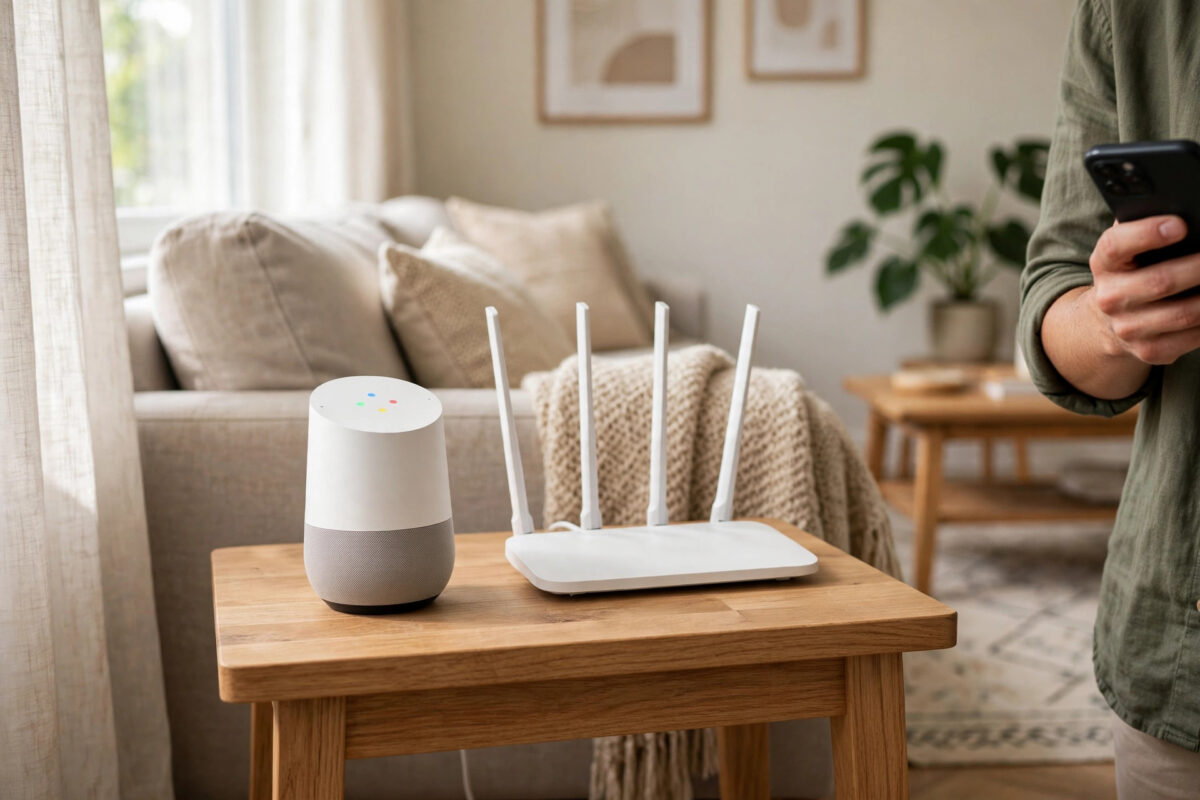
Switching to a new router should make your internet faster and more reliable. Instead, many people find that their Google Home speakers suddenly stop responding, disappear from the app, or say they cannot connect to Wi-Fi. This usually happens after a move from a separate 2.4GHz network to a modern combined band router, where 2.4GHz and 5GHz share one network name.
The good news is that your speakers are rarely broken. They are simply still looking for the old network, or they are confused by the new way the router handles bands, security, and device discovery. With a calm reset and setup in the right order, most speakers reconnect in under fifteen minutes.
Quick Answer
Keep your phone on the new combined band network, then open the Google Home app and add the speaker again as a new device. If the speaker does not appear in setup mode, press and hold its reset button until you hear the reset sound, wait for the lights to pulse, and set it up from scratch. Use the exact same network name and password for every speaker, and stay in the same room as the router during setup.
Why Combined Band Routers Confuse Google Home Speakers
Older routers often showed two separate networks, one ending in 2.4G and another ending in 5G. You probably connected your speakers to the 2.4GHz network because it travels further through walls. A combined band router uses one name for both bands and moves devices between them automatically. This feature is often called band steering or smart connect.
When the network name, password, or security type changes, a speaker cannot simply guess the new details. It keeps trying the saved network and fails. Band steering can also push a speaker toward 5GHz during setup, even though speakers and phones need to meet on a stable connection for the first handshake. Once setup is complete, the same feature usually works fine.
Other Changes That Happen With a New Router
- New security settings: Many new routers default to WPA3 or a mixed WPA2 and WPA3 mode that older speakers struggle with.
- New IP address range: The router gives out different local addresses, so saved connections no longer match.
- Client isolation: Some guest or mesh settings stop devices from seeing each other on the same network.
- Different Wi-Fi channel: A crowded or unusual channel can make discovery unreliable in flats and busy streets.
Before You Start: A Short Checklist
Five minutes of preparation saves a lot of repeated resets. Work through this list first.
- Confirm the new network works: Browse the web on your phone while connected only to the new router, with mobile data turned off for the test.
- Write down the exact details: Note the network name and password exactly, including capital letters, spaces, and symbols.
- Update the Google Home app: Install any pending update and sign in with the same Google account used before.
- Turn on phone settings: Enable Bluetooth and location permission for the app, because setup uses them to find nearby speakers.
- Move close to the router: Set up one speaker at a time in the same room, then move it to its normal place afterwards.
- Restart the router once: Unplug it for thirty seconds, plug it back in, and wait until the internet light is steady.
Step-by-Step: Reconnect a Google Home Speaker
Try the simple re-add first. Only factory reset a speaker if it does not appear, keeps failing, or still thinks it belongs to the old network.
Method 1: Set Up Without a Full Reset
- Plug in the speaker and wait two full minutes for it to finish starting.
- Connect your phone to the new combined band Wi-Fi network.
- Open the Google Home app and tap the plus or Add option, then choose to set up a device.
- Select the correct home, wait for the app to find the speaker, and confirm the code or sound if asked.
- Choose the new Wi-Fi network, enter the password slowly, and wait without closing the app.
- Give the speaker a clear room name, finish the voice and services prompts, and test it with a simple question about the weather or time.
Method 2: Factory Reset, Then Set Up Fresh
- Find the reset button or touch area for your model. On many speakers it is on the base or back, near the power cable.
- Press and hold it for the time stated for your model, usually around fifteen seconds, until you hear a sound confirming the reset.
- Release, wait for the lights to show the speaker is ready for setup, and leave it plugged in.
- In the Google Home app, add it as a new device in the correct home and room.
- Connect it to the new network, complete the prompts, and run a music or timer test before moving to the next speaker.
For model-specific button locations and sounds, check the official Google Nest and Google Home support pages, which list reset steps for each speaker and display.
Router Settings to Check If Setup Keeps Failing
If two careful attempts fail, the problem is often a router setting rather than the speaker. Change one setting at a time, save it, restart the router, and try setup again.
Security Mode
Set wireless security to WPA2, or to a mixed WPA2 and WPA3 mode, rather than WPA3 only. Many speakers, especially older Google Home and Nest Mini models, connect far more reliably this way. The network remains well protected with a long, unique password.
Temporarily Split or Pause Band Steering
Some routers let you pause smart connect, create a separate 2.4GHz network for smart devices, or turn on a temporary IoT network. If yours does, connect the speakers to the 2.4GHz option during setup. You can keep that separate network for smart home gear long term, which often improves stability.
Turn Off Isolation Features
Make sure you are not using the guest network for speakers. Guest networks often block devices from seeing your phone. Also look for AP isolation or client isolation in wireless settings and turn it off for your main network.
Check Coverage Where the Speaker Lives
A speaker that sets up next to the router but drops out in a bedroom or kitchen may simply be in a weak spot. Thick walls, metal appliances, and distance all reduce signal. Improving placement matters as much as setup, and our guide to fixing Wi-Fi dead zones in your home explains practical ways to cover those problem rooms without buying the wrong equipment.
Reconnecting Several Speakers and Speaker Groups
Reconnect speakers one by one, starting with the one closest to the router. Finish and test each speaker fully before starting the next. This makes it easy to spot a single faulty unit instead of facing five offline devices at once.
After every speaker is back, open the Google Home app and check speaker groups, stereo pairs, and routines. A factory reset usually removes a speaker from groups and pairs, so you may need to create them again. Routines that mention a speaker by name may also need the new device selected. Test a group with music at low volume, then test a voice routine such as a morning announcement.
Common Mistakes to Avoid
- Resetting every speaker at once: You lose track of which one is ready and the app can mix up devices. One at a time is faster in the end.
- Typing the password from memory: One wrong character looks like a network fault. Read it from your notes or the router label.
- Setting up from another room: Weak signal during setup causes failures that disappear next to the router.
- Using the guest network: It may give internet but block the phone-to-speaker connection the app needs.
- Skipping the router restart: After changing security or band settings, a restart makes sure the new settings are really active.
- Giving up after one failure: A second attempt after a reset and restart solves most stubborn cases.
Conclusion
A combined band router is a genuine upgrade, and Google Home speakers work well on one once they have the correct details. Reconnect each speaker in the same room as the router, use the exact new network name and password, and factory reset only the speakers that refuse to appear. If setup still fails, check security mode, band steering, and isolation settings one change at a time. Work patiently through your speakers, rebuild any groups and pairs, and your voice control should feel normal again by the end of the session.
Frequently Asked Questions
Do I need to factory reset every Google Home speaker after changing routers?
No. Try adding the speaker again first if it appears in setup mode. A factory reset is only needed when the speaker does not appear, keeps joining the old network, or fails setup repeatedly after a router restart.
Should I turn off 5GHz while setting up my speakers?
Only if setup keeps failing. Most speakers set up fine on a combined network when you are close to the router. If yours does not, a temporary separate 2.4GHz network or pausing band steering usually solves it.
Why does my speaker work but my phone cannot control it?
Your phone and speaker are probably on different networks, such as a guest network or two different mesh nodes with isolation enabled. Connect both to the same main network, turn off client isolation, and reopen the app.
Will reconnecting delete my routines and groups?
A simple reconnect usually keeps them, but a factory reset removes that speaker from groups, stereo pairs, and some routines. Check groups and routines after setup and reselect the speaker where needed.
What if one speaker reconnects and another never appears?
Unplug the stubborn speaker for one minute, plug it back in close to the router, and hold its reset button until you hear the confirmation sound. If it still never appears, its Wi-Fi hardware may be faulty and the official support pages can help you confirm warranty options.



Leave a Reply