
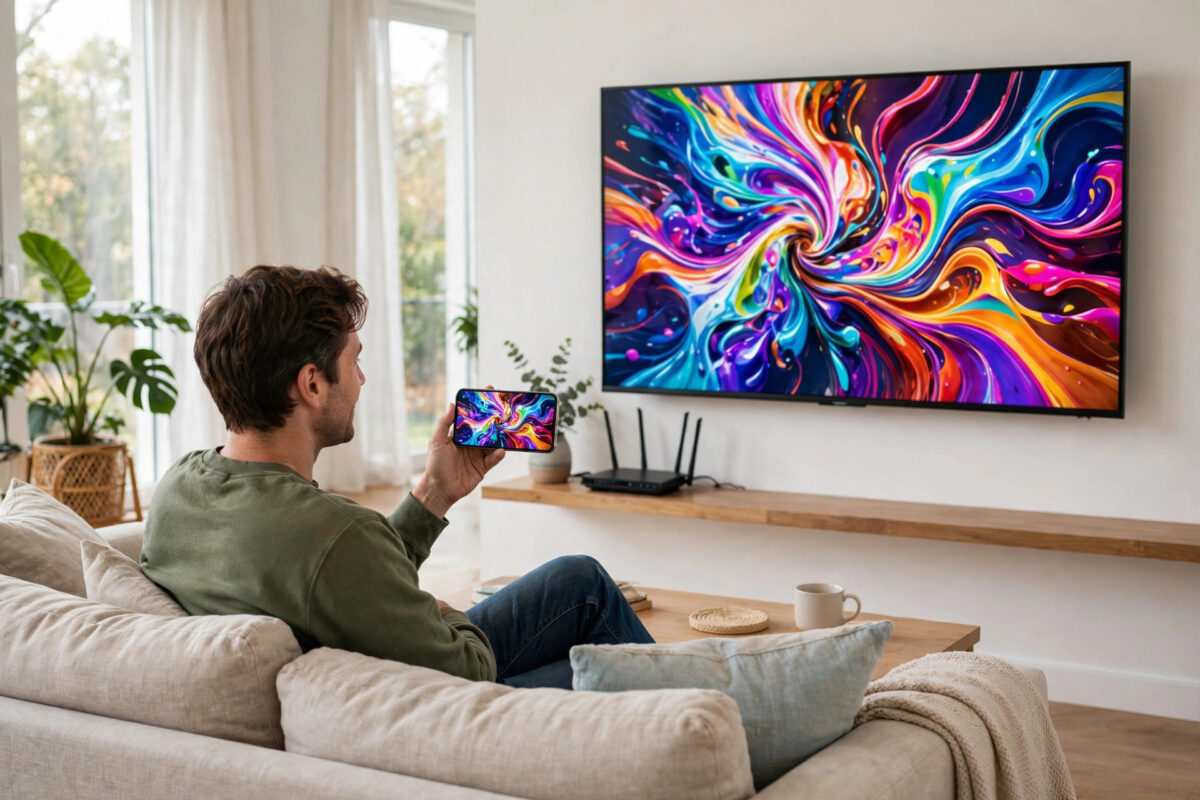
Screen mirroring should feel instant. You tap a video, swipe a photo, or move in a game, and the TV should show it at almost the same moment. Instead, many people see a painful delay: sound comes late, the picture stutters, and fast scenes turn into a slideshow. The phone itself is fast, the TV is modern, so why is mirroring so laggy?
Mirroring is one of the hardest jobs for your home network. Your phone has to record its screen, compress it into video, send it over Wi-Fi, and the TV has to decode and display it, all in real time. Any weakness in that chain adds delay. The good news is that most lag comes from fixable causes such as a weak signal, a busy 2.4 GHz network, or the wrong TV mode. This guide shows you how to cut that delay down step by step.
Quick Answer
To fix screen mirroring lag between your phone and TV, connect both devices to the same 5 GHz Wi-Fi network close to the router, turn on Game Mode on the TV to reduce processing delay, close background apps on the phone, and lower the mirroring quality if the app allows it. For the lowest lag of all, use a wired HDMI connection or a modern casting device on the same fast network.
What Actually Causes Mirroring Lag
A small delay of about half a second is normal for wireless mirroring, because compression and decoding take time. Lag becomes a problem when it grows to two, three, or more seconds, or when the picture freezes and jumps. That level of delay almost always points to network congestion or processing overload rather than a broken device.
The 2.4 GHz Wi-Fi band is a major culprit. It is crowded with neighbours’ routers, Bluetooth devices, baby monitors, and smart home gadgets all fighting for space. Your mirroring stream needs a steady flow of data, and on a busy band it keeps waiting its turn. Distance makes it worse. If the phone is in your hand, the TV is across the room, and the router is downstairs, the signal passes through floors and walls and arrives weak and unstable.
TV Processing Adds Its Own Delay
TVs apply heavy picture processing to normal video: motion smoothing, noise reduction, and upscaling all take time. When a mirrored signal passes through those same tools, each one adds a little more delay. This is why the same phone can feel responsive on one TV input and sluggish on another. Game Mode exists to strip most of that processing away, and it helps mirroring just as much as it helps consoles.
Phone Performance Matters Too
Mirroring is hard work for a phone. It is running your app, encoding video, and transmitting at the same time. If the phone is hot, low on battery, running many background apps, or saving power with an aggressive battery mode, it will encode more slowly and lag will rise. Older phones with weaker processors struggle most with high-resolution mirroring.
Step-by-Step Fixes to Reduce Lag
Start at the top and test after every two or three changes. Mirroring a fast-moving video or a simple timing test, such as a stopwatch app on the phone, makes lag easy to measure.
- Put phone, TV, and router on 5 GHz. Connect both the phone and TV to the 5 GHz network name, not 2.4 GHz. Keep line of sight to the router where possible, and test in the same room before blaming any other setting.
- Restart all three devices. Restart the phone, fully power off and unplug the TV for 60 seconds, and restart the router. This clears stuck processes and gives you a clean test.
- Turn on Game Mode on the TV. Find it in Picture Settings or General Settings under Game Mode, Game Optimiser, or Low Latency mode. Turn off Motion Smoothing, TruMotion, or similar motion tools for the mirroring input as well.
- Close background apps and downloads. Close unused apps on the phone, pause cloud photo backups, and ask others to pause large downloads or 4K streams while you mirror. One big download can starve your mirroring stream.
- Lower the stream load. If you are mirroring a video, consider casting instead of mirroring: casting sends the video link to the TV so the TV streams directly, which is far smoother. If you must mirror, reduce the phone screen resolution in display settings if your phone allows it, and avoid mirroring 4K content to a struggling TV.
- Update everything. Update the phone system, the TV firmware, and the mirroring or casting app. Manufacturers regularly improve mirroring performance. Official steps for Google TV and Chromecast-based mirroring are covered in Google TV Help for casting and mirroring performance, which is a good reference for Android users.
- Forget and re-pair the connection. Remove the TV from the phone’s mirroring or Smart View list, remove the phone from the TV’s device list if shown, then connect fresh. A clean pairing clears corrupted handshakes that cause repeated stutter.
If you mirror from an iPhone using AirPlay, keep the same rules: same network, 5 GHz, close to the router. Guides maintained on Samsung Support for Smart View and AirPlay troubleshooting list the TV-side settings that most often block or slow down a connection, and they apply the same logic across brands.
Better Alternatives When Wireless Mirroring Still Lags
Some uses will never feel perfect over wireless mirroring, especially fast gaming and live sports where every fraction of a second counts. For those cases, change the method instead of fighting the settings.
A USB-C or Lightning to HDMI adapter gives you a true wired mirror with almost no delay and no network involvement at all. It is the best choice for presentations, gaming, and anyone whose Wi-Fi environment is simply too crowded. A dedicated modern streaming device can also help, because devices built for casting have stronger Wi-Fi and faster decoders than many built-in TV systems. If your TV is an older non-smart model, see our step-by-step guide to how to mirror a phone screen on a non-smart TV for the adapter and device options that work without built-in mirroring.
Another practical trick is to mirror only what you need. Instead of sharing the whole screen, use the cast button inside YouTube, Netflix, Spotify, and photo apps wherever it exists. Casting avoids the encode-and-send loop entirely for supported content, so it is smoother, sharper, and kinder to your phone battery.
Mistakes and Tips for Smooth Mirroring Every Time
- Mirroring on 2.4 GHz in a flat: In dense housing, 2.4 GHz is almost always congested. Moving to 5 GHz is the single biggest improvement most people can make.
- Using a VPN on the phone: A VPN can route traffic oddly and add delay or block local discovery entirely. Turn it off while mirroring on your home network.
- Leaving Bluetooth devices busy nearby: Bluetooth shares airspace with 2.4 GHz Wi-Fi. If you must stay on 2.4 GHz, move Bluetooth speakers and controllers a little farther from the TV.
- Expecting game-level response from full mirroring: Even a good wireless setup has some delay. For competitive games, use a cable or play on the phone with the TV only as a second choice.
- Ignoring router position: A router hidden in a cupboard under the stairs will always struggle. Raising it and centring it in the home improves mirroring for every device, not just the TV.
A quick tip for testing: change one thing, then mirror the same 30-second clip. Your eyes will judge the improvement far better with a consistent test than with random content each time.
Conclusion
Screen mirroring lag is rarely a mystery fault. It is usually the combined result of a slow or crowded Wi-Fi band, distance from the router, heavy TV picture processing, and a phone working too hard in the background. Move both devices to a strong 5 GHz connection, switch on Game Mode, lighten the load on your phone and network, and keep software updated. For gaming and other time-critical uses, switch to casting where apps support it or use a simple HDMI adapter. With those changes, mirroring becomes smooth enough for videos, photos, presentations, and casual play in almost every home.
Frequently Asked Questions
Why is there a delay between my phone and TV when mirroring?
Your phone must compress its screen into video, send it over Wi-Fi, and the TV must decode it. Each step adds a small delay. Weak Wi-Fi, a busy network, and TV picture processing make that normal delay much longer.
Does 5 GHz really reduce mirroring lag?
Yes. The 5 GHz band is faster and far less crowded than 2.4 GHz, so your mirroring stream waits less and stays steadier. The trade-off is shorter range, so it works best when the router is reasonably close.
Why is mirroring fine for photos but bad for games?
Photos do not change quickly, so a one-second delay is barely noticeable. Games send constant fast movement and need instant feedback, so the same delay feels terrible. Use a wired HDMI connection for gaming.
Can a new router fix mirroring lag?
A modern router or mesh system with strong 5 GHz coverage can make a big difference if your current router is old or poorly placed. Try the free setting fixes first, because they solve the problem for most people.
Is casting better than mirroring?
For supported apps, yes. Casting tells the TV to stream the content itself, giving you better quality and almost no phone lag. Mirroring is best for showing your exact screen, such as apps without a cast button or presentations.



Leave a Reply