
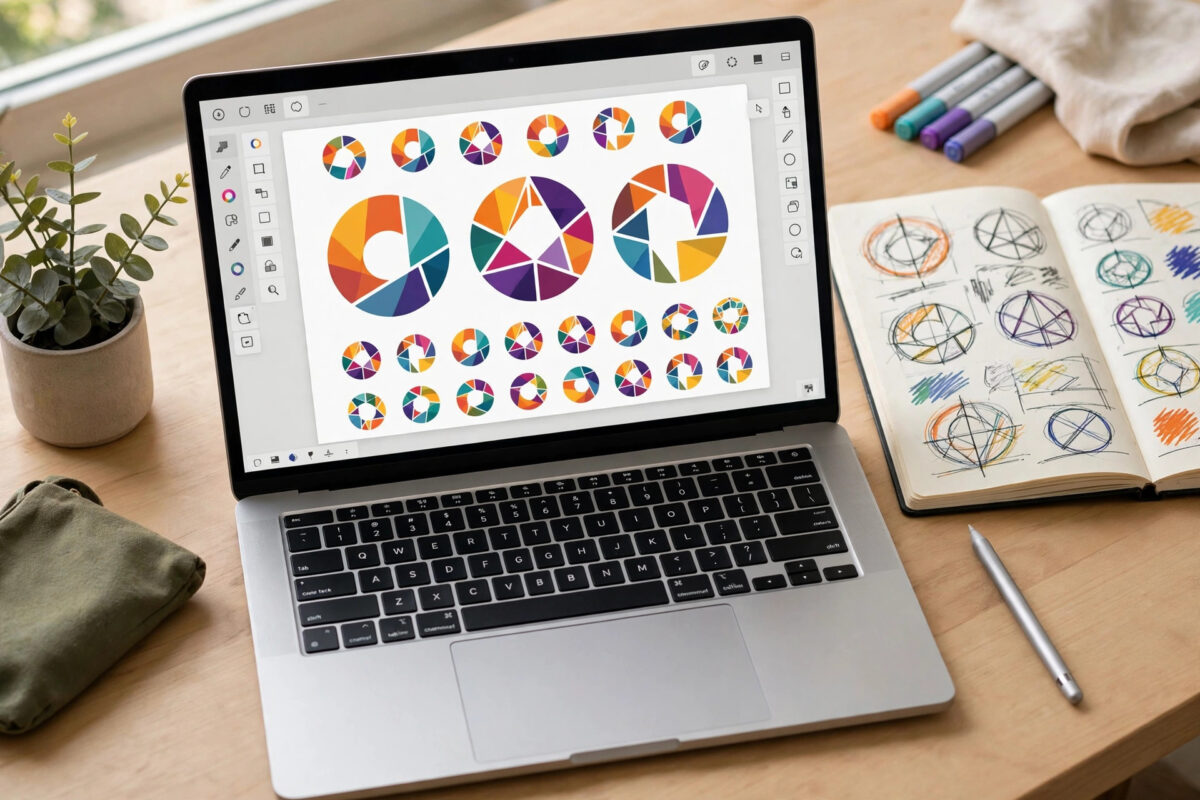
You do not need to hire a designer or buy expensive software to get a clean, professional logo. Whether you are launching a small business, a YouTube channel, or a side hustle, free online logo makers can take you from a blank page to a downloadable logo in under an hour. The trick is knowing which tool fits your skill level, what file types you actually need, and how to avoid the traps that make free logos look generic or unusable later.
This guide walks you through the whole process, from preparing your ideas to exporting files that work on a website, social media, and print. No design experience is required.
Quick Answer
You can make a logo for free using tools like Canva, Adobe Express, Hatchful by Shopify, and Wix Logo Maker. Pick a template or start from an icon, add your business name, adjust fonts and colours, then download a PNG. Always save a high-resolution version if the free plan allows it.
Before You Start: Decide What Your Logo Needs to Say
The biggest mistake beginners make is opening a logo maker before they know what they want. Five minutes of planning will save you an hour of random clicking.
Write Down Three Brand Words
Choose three words that describe how you want people to feel when they see your logo, such as modern, friendly, and bold, or calm, trusted, and professional. Every choice after this, from icon style to colour, should match those words. If a template looks nice but feels wrong for your words, skip it.
Decide on a Logo Type
- Wordmark: Just your business name in a distinctive font. Best for short, memorable names.
- Icon plus text: A simple symbol above or beside your name. The most versatile option for beginners.
- Monogram: One or two initials inside a shape such as a circle or shield. Good for personal brands.
- Badge or emblem: Text inside a badge shape. Works well for cafes, trades, clubs, and vintage-style brands.
The Best Free Online Logo Tools Compared
Canva
Canva is the easiest starting point for most people. It has thousands of logo templates, a drag-and-drop editor, and a huge library of icons and fonts. The free plan lets you download PNG and JPG files. Transparent backgrounds and SVG export are part of Canva Pro, so free users should design on a solid background that matches where the logo will be used, or use plain white. You can explore the editor on the Canva design platform homepage before signing up.
Adobe Express
Adobe Express offers a free logo maker with clean templates and access to Adobe Fonts. It is a good choice if you want a more corporate, minimal look. Downloads on the free plan are usually PNG and JPG, and the editor is tidy and simple.
Hatchful by Shopify
Hatchful asks a few questions about your industry and style, then generates dozens of logo options automatically. It is the fastest option if you have no design ideas at all. The free download pack includes versions sized for social media, which saves extra work later.
Step by Step: Make a Logo in Canva for Free
- Create a free account. Go to Canva, sign up with your email, and confirm your account.
- Search for a logo template. Use the search bar and type Logo. Select the Logo template category, which uses a square canvas you can resize later.
- Filter by style and industry. Use the filters to narrow templates by colour or theme, and type your industry into the search as well, for example coffee shop logo.
- Choose a simple template. Pick a design with one icon, one or two fonts at most, and plenty of empty space. Avoid photos, gradients on text, or thin lines that disappear at small sizes.
- Replace the text. Double-click the business name text box and type your own name. Edit or delete the tagline box. Keep the name to one or two lines.
- Swap the icon. Click the icon, then go to Elements in the left panel and search for a relevant keyword. Choose a flat, single-colour icon and avoid detailed illustrations.
- Change the colours. Click any element, then click the colour tile in the top toolbar. Use a maximum of two or three colours: one main colour, one dark neutral for text, and optionally one accent. Enter exact hex codes if you already have brand colours.
- Adjust the fonts. Select the text, open the font dropdown, and choose a font that matches your brand words. Use one font for the name and, at most, one different font for the tagline.
- Align and space everything. Drag elements slowly and use the alignment guides that appear. Leave clear space around the logo and keep nothing touching the edge of the canvas.
- Check at small size. Zoom out to 25 percent. If you cannot read the name or recognise the icon, simplify the icon and increase the text size.
- Download your logo. Click Share in the top right, then Download. Choose PNG for web use and set the size as high as the free plan allows. Download a JPG copy if you need a smaller file.
- Save your project. Rename the design clearly, for example My Business Logo Final, and keep it in your projects so you can edit it later.
If you want more walkthroughs in this practical style, you will find more practical software guides on Network Ustad covering everyday tools for work, study, and small businesses.
How to Refine a Logo That Looks Almost Right
Most first drafts are 80 percent right. A few small refinements usually fix the rest without starting over.
Fix Colour and Font Problems
If your logo looks dull, the problem is usually contrast, not the colour itself. Try your main colour with near-black text instead of grey. Always test the logo in pure black and pure white too. A strong logo still works in a single colour, which matters for printing and watermarks. For fonts, thin script styles look elegant on screen but fail at small sizes and on signage. Switch the name to a clean sans-serif or sturdy serif if readability is a problem, and add a small amount of letter spacing to make a simple wordmark look designed rather than typed.
Create Useful Variations
Duplicate the finished design and create three variations. Make a version with the icon above the text for square spaces such as profile pictures, a horizontal version with the icon on the left for website headers, and a single-colour white version for dark backgrounds. Having these ready prevents messy improvisation later.
Understanding File Types and Sizes
- PNG: Best for websites and social media, with sharp edges and, on some plans, transparent backgrounds.
- JPG: Smaller file size, no transparency. Good for documents and email signatures on a white background.
- SVG: A vector file that scales to any size without losing quality. Ideal for print. Save one whenever your plan allows it.
- PDF: Useful for sending to printers, especially if it contains the vector version.
For a website header, a PNG around 400 to 800 pixels wide is usually enough. For social profiles, export a square version at 1000 x 1000 pixels or larger. For print, always send the largest file you have.
Common Mistakes to Avoid
- Using too many fonts or colours: More than two fonts or three colours almost always looks amateur.
- Copying a famous logo: Templates are fine, but never imitate a well-known brand closely. It creates trademark risk and confuses customers.
- Ignoring trademark checks: A free tool does not guarantee your logo is legally unique. Before printing signage, search for similar names and logos in your industry.
- Designing only for one size: A logo that only works as a large banner will fail as a profile picture. Test it small.
- Using a low-resolution download everywhere: A small PNG stretched across a sign will look blurry. Keep your largest export safe.
- Adding drop shadows and busy effects: Shadows and bevels date quickly and reproduce badly in print. Flat design lasts longer.
Conclusion
Making a logo for free with online tools is completely realistic if you plan briefly, choose a simple template, and refine it carefully. Start with Canva, Adobe Express, or Hatchful, stick to one icon, two fonts at most, and a small colour palette, and always test your design at a small size before downloading. Export the largest PNG you can, create horizontal, stacked, and single-colour variations, and keep your editable project saved. A clean, simple logo you made yourself will serve a new business far better than a complicated design.
Frequently Asked Questions
Can I legally use a logo made with a free online tool for my business?
In most cases yes, for basic use such as a website and social media, as long as you created the design from the tool’s licensed elements and did not copy another brand. Each tool has its own licence terms, and trademark protection is a separate legal step. If the business grows, get a professional trademark check before investing in signage.
How do I get a transparent background on a free plan?
Some tools include transparency for free, while others reserve it for paid plans. If yours does not, download the logo on a plain white or solid brand-colour background and use that version where a matching background exists. Alternatively, try a different free tool that includes a transparent PNG in its free download pack.
What is the best size to download my logo?
Always download the largest size offered, then resize copies down for specific uses. A large master file can be made smaller without losing quality, but a small file cannot be made larger cleanly. Keep the master file in a clearly named folder with your brand colours and font names noted.
Can I edit my logo later if my business name changes?
Yes, if you keep the original project saved in the tool where you made it. That is why renaming and saving the editable design matters. If you only keep the downloaded PNG, you will have to rebuild the logo from scratch.



Leave a Reply