
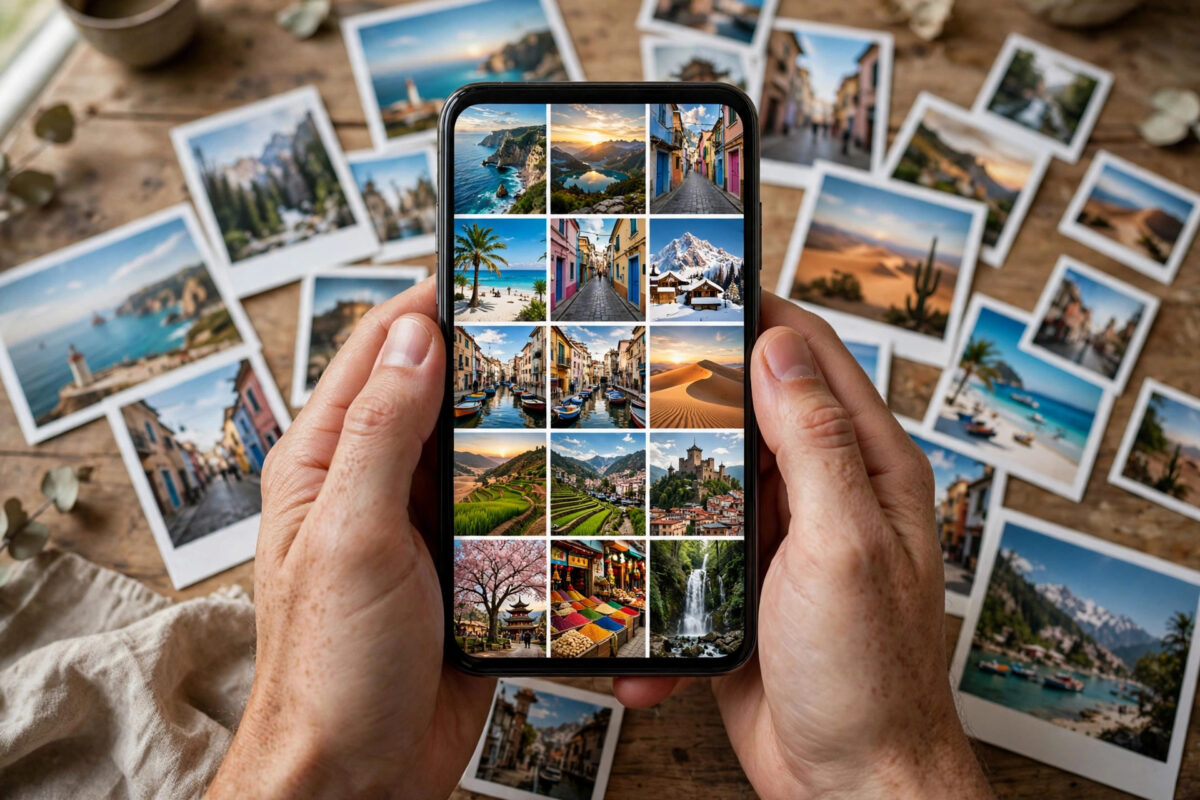
A single photo rarely tells the whole story. A birthday, a holiday, a product launch, or a before-and-after transformation looks far better as a collage, where several moments sit side by side in one polished image ready to share. The good news is that you no longer need a computer or design software to make one that looks professional.
Your phone already has everything required. Built-in photo apps on Android and iPhone can build simple grids in minutes, and several genuinely free apps add stylish templates, backgrounds, text, and stickers without forcing you to pay before you can export. The trick is knowing which tool fits your goal and how to choose photos and layouts that work together.
This guide walks you through creating a free photo collage step by step, first with no extra downloads at all, then with a free collage app, and finishes with editing and export tips that keep your collage sharp on social media.
Quick Answer
To create a free collage on your phone, open Google Photos and use Library > Utilities > Collage, or open a free app such as Canva or Layout, pick a template, add your photos, adjust borders and spacing, and export at the highest available resolution. On iPhone, the Shortcuts app can also combine photos into a grid for free.
Plan Your Collage Before You Open Any App
Two minutes of planning saves ten minutes of rearranging. Decide the purpose first: a square collage suits Instagram posts, a tall 4:5 or 9:16 layout suits stories and Pinterest, and a wide layout suits Facebook covers and printed cards. Then pick photos that belong together visually.
- Choose one hero photo that will occupy the largest frame, and support it with smaller detail shots.
- Pick photos with similar lighting and colour where possible. One very dark image among bright ones will always look out of place.
- Include a mix of wide shots and close-ups so the collage has rhythm instead of repeating the same view.
- Decide now whether you need space for text, such as a date or a short title, and keep one frame or border area free for it.
Most free apps limit the number of photos per template, commonly between two and nine. Selecting your final set in your gallery first, and favouriting them, makes the building stage much faster.
Method 1: Make a Collage in Google Photos (Android and iPhone)
Google Photos is free, already installed on most Android phones, and available for iPhone too. Its collage tool is simple, quick, and free of watermarks.
- Open Google Photos and tap Library at the bottom.
- Tap Utilities, scroll to the Create section, and tap Collage. In newer versions you can also tap the + icon at the top and choose Collage.
- Select between two and nine photos, then tap Create.
- Swipe through the layout suggestions at the bottom until you find a grid that suits your photo shapes.
- Tap any photo to swap it, drag to reposition it inside its frame, and pinch to zoom so the subject is not cropped awkwardly.
- Use the editing options to adjust brightness or apply one consistent filter across the collage if the option is offered.
- Tap Save copy. Your collage is stored as a new image, leaving the originals untouched.
Google explains its creation tools in Google Photos Help and support, including how collage and animation features differ slightly between Android, iPhone, and the web version.
Method 2: Make a Collage on iPhone With Shortcuts
If you prefer not to install anything on an iPhone, the built-in Shortcuts app includes gallery shortcuts that combine images into a grid.
- Open the Shortcuts app, tap Gallery, and search for Photo Grid.
- Tap the shortcut and choose Add Shortcut.
- Run the shortcut, select the photos you want when prompted, and choose your preferred spacing if asked.
- Preview the result, then tap Done and Save to Photos.
The result is clean and watermark-free, although styling options are limited compared with a dedicated app. For birthdays and events where you want text and decoration, use the app method below instead. You will find more phone photography walkthroughs in Network Ustad’s mobile tips and app guides if you want to go further with editing.
Method 3: Use a Free Collage App for Templates and Text
Free versions of apps such as Canva, Layout from Instagram, PhotoGrid, and Picsart offer hundreds of templates. Canva is the most beginner-friendly for posters and social posts, so the steps below follow its layout, and other apps work in a very similar way.
- Install the app from Google Play or the App Store and open it. A free account is enough for standard collages.
- Search the template box for photo collage and filter by the format you need, such as Instagram post or story.
- Open a template you like. Avoid designs marked Pro or Premium if you want a completely free export.
- Tap each placeholder frame, choose Replace, and pick your photo from the gallery or uploads section.
- Drag photos to reframe them, and swap frames by long-pressing and dragging one photo onto another.
- Adjust the design using the toolbar: change the background colour, increase border width for a clean framed look, or round the corners of each frame.
- Add text only if it earns its place. Tap Text > Add a heading, keep it to a few words, and use one font that matches the mood of the photos.
- Tap the Share or download icon, choose PNG where offered, and select the largest size available on the free plan before saving.
Free Plan Limits to Watch For
Free tiers are generous but not unlimited. Some templates, stickers, and backgrounds are locked behind subscriptions, and a few apps add a small watermark unless you watch an advert or use only free elements. Check the export preview carefully. If a watermark appears, switching to a fully free template normally removes it without paying anything.
Editing Tips That Make a Collage Look Professional
The difference between an amateur and a polished collage is usually consistency. Edit the whole collage as one image, not as five separate ones. Apply the same filter at a modest strength to every frame, keep border widths identical, and align spacing evenly using the app’s guides.
Leave breathing room. Collages packed edge to edge with no borders look chaotic on small screens, while a simple white or soft-colour border makes every photo stand out. For text, use strong contrast: dark text on a light background band or white text placed over a calm, uncluttered area of a photo. Finally, view the finished collage at the size your audience will see it, usually a phone screen, and zoom out. If you cannot tell what each photo shows at that size, use fewer photos in a larger grid.
Exporting and Sharing Without Losing Quality
Always export in PNG for collages containing text, because JPEG compression can make letters look fuzzy. Choose the largest dimensions the free plan allows, ideally at least 1080 pixels on the shortest side for social media. Save the finished collage to your gallery and also keep the editable version inside the app for a few days, so you can fix a spelling mistake or swap a photo without rebuilding everything. When sharing, upload the saved file directly rather than screenshotting it, since screenshots cut resolution dramatically.
Common Mistakes to Avoid
- Using too many photos: Nine tiny photos tell no story. Four to six well-chosen images almost always look better.
- Mixing clashing filters: A warm vintage filter beside a bright natural photo looks accidental. Edit consistently.
- Cropping out faces: Always reposition photos inside their frames so heads and key subjects are never cut by the frame edge.
- Adding too much text and stickers: Decoration should support the photos, not cover them. One short title is usually enough.
- Exporting at low resolution: A blurry collage looks unprofessional everywhere. Always pick the highest free export size.
- Paying by accident: Pro elements can slip into a design unnoticed. Review the template and every added element before exporting.
Conclusion
Creating a photo collage on your phone for free is a five-minute job once you know your options. Use Google Photos for a fast, clean grid, Shortcuts on iPhone for a no-install solution, or a free app like Canva when you want templates, borders, and text. Plan your layout, choose photos that work together, edit consistently, and export at full size, and your collages will look designed rather than improvised every time.
Frequently Asked Questions
Which free collage app has no watermark?
Google Photos adds no watermark at all, and Canva’s free templates export without one as long as you use only free elements. Layout from Instagram is also watermark-free. Always preview the export, because individual apps change their free terms from time to time.
How many photos should a good collage have?
Between two and six works best for most purposes. Two or three photos suit a bold, clean design, while four to six suit events and travel stories. Above nine, each photo becomes too small to appreciate on a phone screen.
Can I print a phone collage without it looking blurry?
Yes, if you export at the largest available size and print at a modest size such as 6 by 4 or 7 by 5 inches. Larger prints need higher resolution, so check the exported file dimensions in your gallery details before ordering a big print.
How do I make all the photos in my collage the same brightness?
Edit the darkest and brightest photos individually before building the collage, using the brightness and shadows sliders in your gallery editor. Then apply one gentle filter to the finished collage to unify colour and tone across every frame.
Can I edit a collage after I have saved it?
The saved image itself can only be edited as a single picture. To change photos, text, or layout, reopen the project inside the app where you made it. That is why keeping the app project for a few days after exporting is a sensible habit.


Leave a Reply