
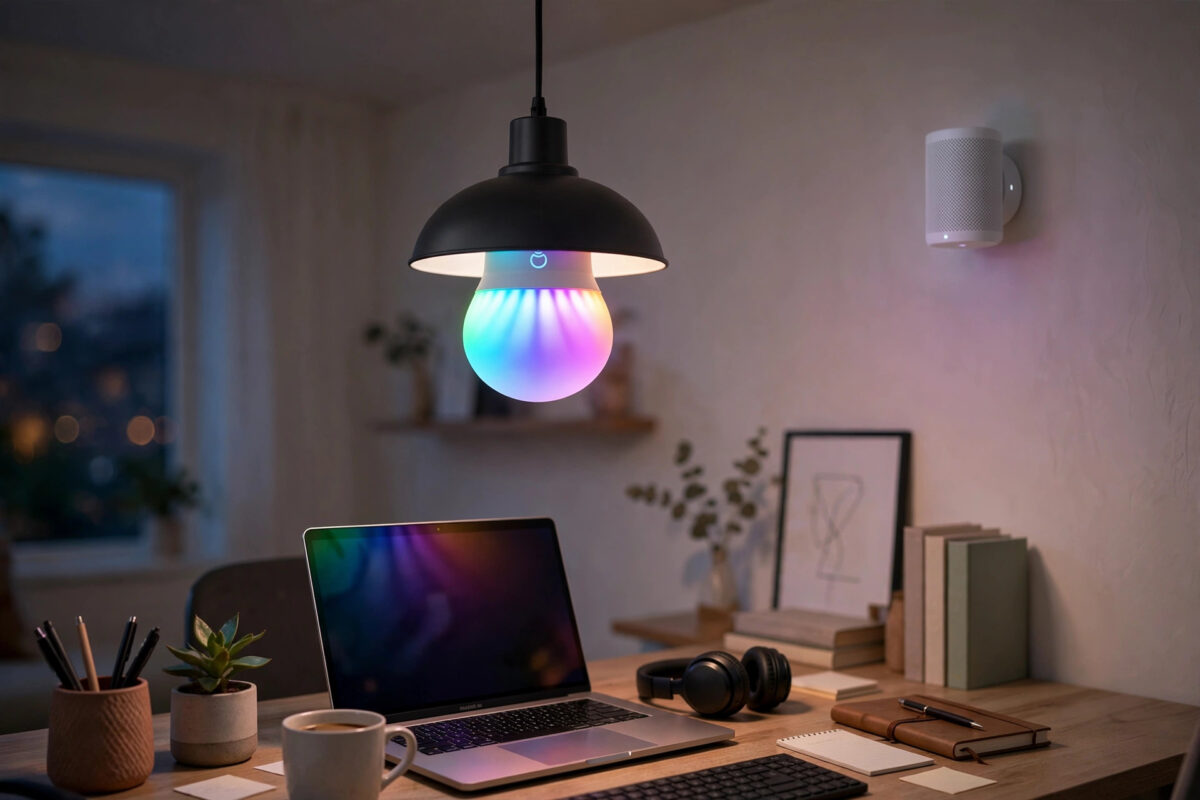
LIFX bulbs are different from most smart bulbs. They do not need a hub. Each bulb connects straight to your Wi-Fi, which makes setup simple and colours bright. The downside shows up in homes with UniFi access points or modern mesh systems. A bulb works for a week, then drops offline. Another reconnects every night. The app shows clouds and errors while your phone has perfect signal in the same room.
If that sounds familiar, the problem is usually the network settings, not the bulb itself. LIFX bulbs use older, simpler Wi-Fi habits than phones and laptops. Mesh features that help your phone can confuse a bulb. This guide shows you how to tune a UniFi or mesh network so LIFX bulbs stay connected.
Quick Answer
Give your LIFX bulbs a clean 2.4 GHz connection by creating a separate smart home SSID with WPA2 security, fast roaming and band steering turned off, and airtime fairness disabled. Lock each problem bulb to the nearest access point if your system allows it, reserve fixed IP addresses for the bulbs, and keep the Wi-Fi channel on 1, 6, or 11 with 20 MHz width. Most repeated LIFX dropouts stop once the bulbs stop being moved between access points and bands.
Why LIFX Bulbs Struggle on Mesh and UniFi Networks
A phone is clever. It can jump between 2.4 GHz and 5 GHz, roam between access points mid-call, and handle new Wi-Fi standards with ease. A smart bulb is not clever in that way. It expects one steady 2.4 GHz signal, from one access point, with simple security.
Mesh and UniFi systems are built to move devices around for the best speed. That creates four common problems for bulbs.
- Band steering: The system pushes the bulb towards 5 GHz, which LIFX bulbs cannot use in the way the system expects, or keeps flipping it between bands.
- Fast roaming: Features designed for phones moving through an office can drop simple devices that do not support the same roaming standards.
- Access point hopping: A bulb between two access points may be moved back and forth, going offline each time.
- New Wi-Fi features: Settings such as WPA3-only security, certain multicast controls, and aggressive power saving can block or sleep the bulb connection.
Once you see the network from the bulb’s point of view, the fixes make sense. You are building a calm, simple corner of your Wi-Fi just for smart home gear.
Step 1: Create a Dedicated 2.4 GHz Smart Home Network
This single change fixes more LIFX problems than any other. It also helps other smart devices that dislike mesh tricks.
- Log in to your UniFi controller or your mesh app, such as Eero, Deco, Orbi, or Nest Wifi settings where available.
- Create a new SSID with a clear name, for example HomeSmart. Set it to 2.4 GHz only.
- Set security to WPA2, or WPA2 and WPA3 mixed mode if WPA2 alone is not offered. Avoid WPA3-only for this network.
- Turn off band steering for this SSID. The bulb should never be offered 5 GHz.
- Turn off fast roaming, often labelled 802.11r, for this network.
- If you see airtime fairness, smart connect, or preferred band options, disable them for this SSID.
- Save the network, then reset one problem bulb and connect it to the new SSID as a test before moving the rest.
On UniFi, many of these options live under the advanced settings for each Wi-Fi network. On consumer mesh systems, options vary. If your mesh cannot split bands, look for an IoT network or guest network option, which often runs a simpler 2.4 GHz service. The LIFX support centre for connectivity and setup help lists the security and band requirements LIFX currently recommends.
Step 2: Fix Access Point Roaming and Signal Problems
Lock Bulbs to the Nearest Access Point
In UniFi you can lock a client to a specific access point from the client list. Use this for bulbs that sit clearly in one room. A kitchen bulb should stay on the kitchen access point, not wander to the hallway unit because its signal rose slightly for a minute.
Reduce Access Point Overlap
If every access point transmits at maximum power, bulbs in the middle hear several loud options and keep switching. Try lowering the 2.4 GHz transmit power on nearby access points to medium. Phones will still roam well, and bulbs will see one clear winner in each room.
Choose Clean Channels
- Set 2.4 GHz channels manually to 1, 6, or 11, the three channels that do not overlap each other.
- Use 20 MHz channel width on 2.4 GHz. Wider settings are faster on paper but noisier in real homes.
- Give neighbouring access points different channels from that set of three.
- After changing channels, power cycle the problem bulbs and watch them for a full evening.
If your bulbs also show weak signal in the LIFX app despite being near an access point, our guide on fixing smart home devices that keep dropping off Wi-Fi covers placement and interference checks room by room.
Step 3: Reserve IP Addresses and Check Network Blocks
LIFX bulbs talk to the app locally and through the cloud. Address changes and blocked traffic can look like random disconnections.
- In your router or UniFi controller, find each LIFX bulb in the client list and reserve a fixed IP address for it, often called DHCP reservation.
- Make sure client isolation or AP isolation is off for the smart home SSID, or the bulbs cannot be reached by your phone on the same network.
- Check that multicast and broadcast controls are not blocking discovery. On UniFi, be careful with options that block LAN to Wi-Fi multicast and broadcast traffic for this SSID.
- If you use a firewall, Pi-hole, or strict DNS filter, test with it paused. Some filters block the cloud endpoints LIFX uses, which makes a healthy bulb look offline in the app.
- Confirm your internet connection itself is stable. A bulb marked offline during a broadband drop is behaving correctly.
Step 4: Reset and Reconnect a Stubborn Bulb Properly
- Turn the bulb on and off five times in a row at the switch, leaving a second or two between each change, ending with the bulb on. The bulb should cycle through colours to show the reset worked.
- Stand near the bulb and the access point it should use, with your phone on the new 2.4 GHz smart home SSID.
- Add the bulb again in the LIFX app and complete any firmware update it offers straight away.
- Give it a clear name and room, reserve its IP address, and lock it to the nearest access point if needed.
- Watch it for 48 hours before declaring success. Short tests miss the overnight roaming that causes many dropouts.
Common Mistakes and Tips
- Resetting every bulb before fixing the network: If the Wi-Fi settings stay the same, freshly reset bulbs will drop again. Fix the network first, then reconnect.
- Using WPA3-only security: Many simple smart devices fail quietly on WPA3-only networks. Mixed mode or WPA2 for the smart SSID is far safer.
- Leaving guest mode restrictions on: A guest network with isolation turned on can block the phone from controlling the bulb locally. Check those toggles.
- Placing an access point right beside a metal lamp fitting: Metal shades and fittings weaken signal. A strong phone signal in the room does not guarantee a strong signal inside the lamp.
- Ignoring firmware: Keep both LIFX firmware and UniFi or mesh firmware current. Old access point firmware has caused many smart home complaints that vanished after an update.
A practical tip is to change one setting at a time and keep a short note. Networks are easy to make worse by changing five clever features at once and then having no idea which one mattered.
Conclusion
LIFX bulbs disconnecting from UniFi or mesh Wi-Fi is almost always a settings story, not a dead bulb story. Give the bulbs their own simple 2.4 GHz network with WPA2 security, turn off fast roaming and band steering for that network, keep them on the nearest access point with clean channels, and reserve their IP addresses. Reconnect one test bulb, watch it for two days, and then move the rest. With a calmer network built for simple devices, LIFX bulbs can be just as reliable as any hub-based system.
Frequently Asked Questions
Do LIFX bulbs work on 5 GHz Wi-Fi?
No, LIFX bulbs connect on 2.4 GHz. If your network merges both bands under one name and steers devices between them, the bulb can be pushed around and drop off. A separate 2.4 GHz-only SSID removes that problem completely.
Which UniFi settings cause the most LIFX problems?
Fast roaming, band steering, airtime fairness, and WPA3-only security are the usual causes. Blocking LAN to Wi-Fi broadcast traffic can also hide bulbs from the app. Turning these off for a dedicated smart home SSID is the standard fix.
Why does my bulb work in the day but drop at night?
At night your network is quieter and some systems rebalance clients, change channels automatically, or apply power-saving behaviour. Locking the bulb to one access point, fixing the channel, and reserving its IP address usually stops overnight drops.
Should I set a static IP on the bulb itself?
A DHCP reservation in the router or controller is better than a manual address on the device. The bulb still gets its address automatically, but it is always the same one. This keeps app control and cloud checks stable without risking address clashes.
One bulb still disconnects after all these fixes. What next?
Swap it with a bulb that works well. If the problem follows the bulb to the new room, the bulb itself is likely faulty. If the problem stays in the room, look again at signal, metal fittings, and interference from microwaves, baby monitors, or thick walls near that spot.



Leave a Reply