
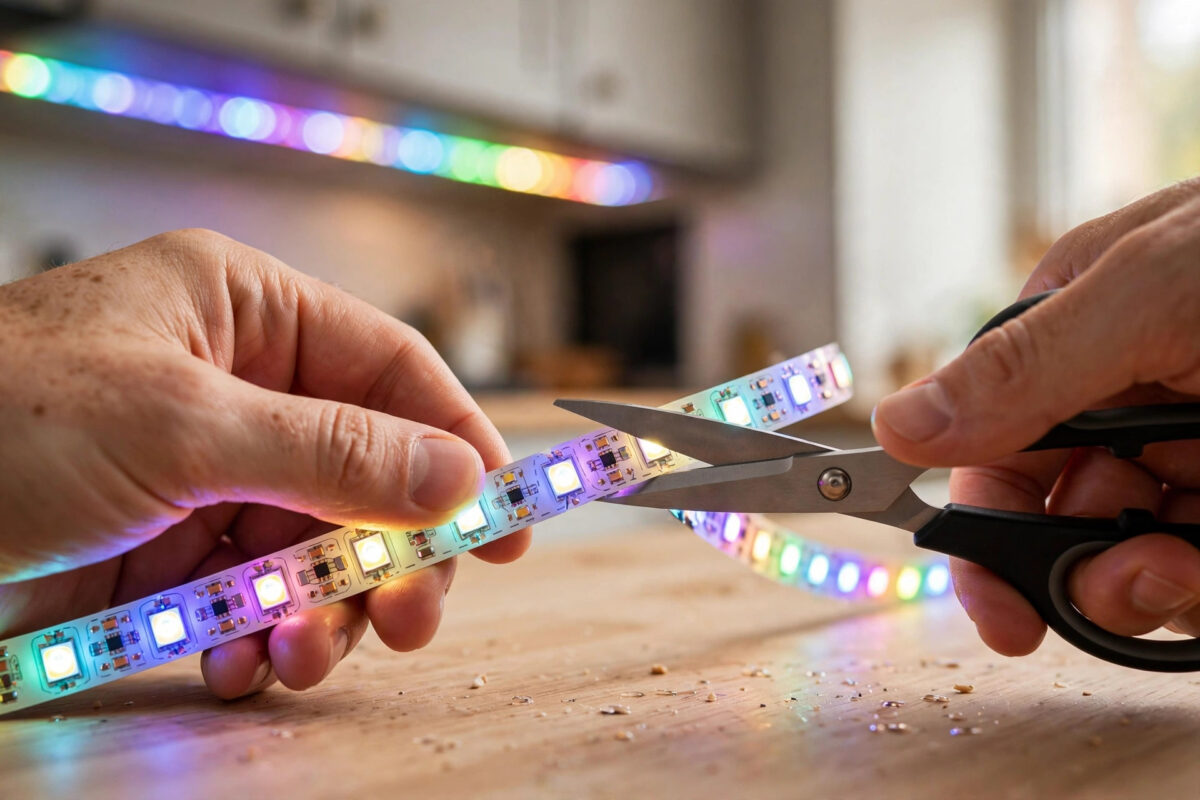
Cutting a Govee light strip to fit a shelf, desk, or kitchen cabinet feels like a small victory. The length is finally right. Then you turn it on and the victory fades. One section shows red when you chose blue. Another part glows green on a warm white scene. The part after the cut may not match the part before it at all.
Wrong colours after a cut are common, and they do not always mean the strip is ruined. Colours go wrong when the cut damages the copper contacts, when a connector joins the strip the wrong way round, or when the app still thinks the strip has its old number of segments. This guide helps you work out which problem you have and fix it safely.
Quick Answer
Turn the strip off and unplug it, then check your cut line. You must only cut on the marked scissor lines, with clean copper pads visible on both sides. Rejoin or re-trim any damaged end, make sure connectors line up with the correct positive, data, and colour pins, and then update the segment count or recalibrate the strip in the Govee Home app. If colours are swapped on every scene, a reversed connector is the most likely cause.
How a Govee Strip Carries Colour Information
To fix swapped colours, it helps to know what travels along the strip. Along its length there are thin copper tracks. Depending on the model, those tracks carry power and colour signals for red, green, and blue, or power plus a data signal that tells smart segments what colour to show.
If one track is cut badly, crushed, or joined to the wrong pin, the signals get mixed. Red instructions may reach the green channel. A damaged data line on an addressable strip can make every segment after the damage show wrong colours or random colours, while the part before the cut stays perfect. That pattern is a big clue. Problems that start exactly at your cut or connector are almost always physical, not a software fault.
Step 1: Inspect the Cut Before Touching Any Settings
- Unplug the strip from power completely. Never cut, join, or handle the strip contacts while it is powered.
- Find the place where you cut. Look for the printed scissor icon and the line across the strip. Cuts should only happen on those lines.
- Check the copper pads at the cut. They should be clean, flat, and fully visible, with no torn edges, lifted tracks, or burnt marks.
- Look for tiny copper strands bridging two pads. A rough cut with dull scissors can smear copper across the gap and short two channels together, which mixes colours.
- If the cut looks rough or sits away from the marked line, trim a small amount back to the next proper cut line with sharp scissors, cutting straight across in one clean motion.
The Govee support centre for light strip setup and troubleshooting confirms the cut lines and connector types for each strip model if you are unsure which lines are safe.
Step 2: Check Every Connector and Join
If you rejoined sections or added a corner connector after cutting, check the join before anything else. A connector fitted the wrong way round is the classic cause of swapped colours.
What to Check at Each Join
- Pin alignment: The markings on the strip, such as +12V or +24V, G, R, B, or a data arrow, must match the same markings on the connector.
- Direction arrows: On RGBIC strips, arrows printed on the strip show the direction the data flows. All sections must point the same way, away from the controller.
- Fully closed clips: Clip connectors must close firmly over the pads. A half-closed clip may power the strip but scramble one channel.
- Correct strip width: Connectors come in different widths and pin counts. A loose connector made for a wider strip will wobble and mix contacts.
- No solder bridges: If you soldered the join, check that no blob of solder touches the pad next to it.
- Open each connector, lift the strip out, and reseat it with the markings lined up exactly.
- Close the clip firmly and give the strip a very gentle tug to confirm it is held.
- Power the strip on and test pure red, pure green, and pure blue scenes one at a time. Each colour should appear cleanly across the whole strip.
If pure colours are correct but mixed scenes look wrong, the join is probably fine and the problem sits in the app segment settings instead.
Step 3: Fix the Segment Settings in the Govee Home App
RGBIC strips count their segments. When you shorten the strip, the app may still expect the old length, so colour effects land in the wrong places and the end sections can show colours meant for segments that no longer exist.
- Open the Govee Home app and select your strip.
- Open the device settings and look for segment management, segment calibration, or the option to set the number of segments, depending on your model and app version.
- Update the count to match the strip you actually have after the cut, or run the calibration and follow the on-screen steps.
- Delete old custom scenes made for the longer strip and test with a simple built-in scene first.
- Try the finger sketch or DIY mode and colour the whole strip one solid colour. A clean solid result means the strip is healthy and only old scenes were confused.
While you are in the app, install any firmware update offered for the strip or its control box. Then power cycle the strip once at the plug so the new settings start cleanly. For wider smart lighting help, our guide on fixing LED strip lights that show the wrong colours covers power supply and controller faults beyond cutting damage.
Step 4: Check Power and the Cut-Off Piece
Power Supply Problems
A strip that shows wrong colours mainly at the far end may be short of power rather than damaged. Long runs lose voltage, and blue and white shades suffer first. Keep to the length the original power supply supports, and never power a longer combined strip from a supply meant for a short one.
The Removed Section
The piece you cut off will not work on its own unless it is connected to a suitable controller and power supply with the pins lined up. Colours showing wrongly on a reused offcut usually mean its connector is reversed. Also cover any exposed cut end with the end cap or electrical tape, as bare pads can short against metal shelves.
When the Strip Is Truly Damaged
If a clean re-trim, correct connectors, and fresh app calibration still leave one fixed section showing swapped colours, the copper track or a segment chip at that point is likely damaged. Cutting back to the next marked line past the damage is the last repair. If the damage sits near the controller end, replacement is usually the honest answer.
Common Mistakes and Helpful Tips
- Cutting anywhere other than the marked lines: Cutting through a segment kills that segment and can scramble everything after it. The scissor lines are the only safe places.
- Cutting while the strip is plugged in: This risks short circuits and damaged chips. Always unplug first.
- Forcing the strip into the wrong connector: Similar-looking connectors with different pin layouts will fit badly and swap channels. Match the pin labels, not just the shape.
- Sticking the strip down before testing: Always test colours on the roll or laid out loosely before using the adhesive backing. Fixing a join is easy on a table and miserable above a cabinet.
- Bending sharply at corners: A hard fold can crack the copper tracks and create colour faults that look like cutting damage. Use corner connectors or a gentle loop.
Conclusion
Wrong colours after cutting a Govee strip almost always trace back to the cut itself, a reversed or loose connector, or the app still expecting the old strip length. Inspect and re-trim the cut, reseat every connector with the pins and arrows lined up, and refresh the segment count in the Govee Home app. Test pure red, green, and blue before judging mixed scenes. Work through those steps calmly and most cut strips return to showing exactly the colours you chose.
Frequently Asked Questions
Can I cut a Govee strip anywhere I like?
No. Only cut on the printed scissor lines where the copper pads are exposed. Cutting in the middle of a segment damages that segment and can cause wrong colours, dead sections, or flickering in everything after the cut.
Why are red and green swapped after I joined two pieces?
The connector is almost certainly reversed or the strip was inserted with the pins misaligned. Unplug the strip, open the connector, line up the printed labels on the strip with the matching labels on the connector, and test pure colours again.
Why does only the part after the cut show wrong colours?
Because the signal reaches that part through your cut or join. A damaged pad, a copper strand bridging two tracks, or a broken data line affects everything downstream. Re-trim to the next cut line and reseat the connector to fix it.
Can I rejoin a Govee strip after cutting it?
Yes, with the correct clip connectors or careful soldering, as long as the pins and direction arrows line up. RGBIC strips must keep the data flowing in the same direction, so never flip a section end to end when rejoining.
Do I need to change anything in the app after cutting?
For RGBIC models, yes. Update the segment count or run calibration so effects match the new length. For basic RGB strips, no app change is normally needed, and wrong colours on those models point to the cut or connector instead.



Leave a Reply