
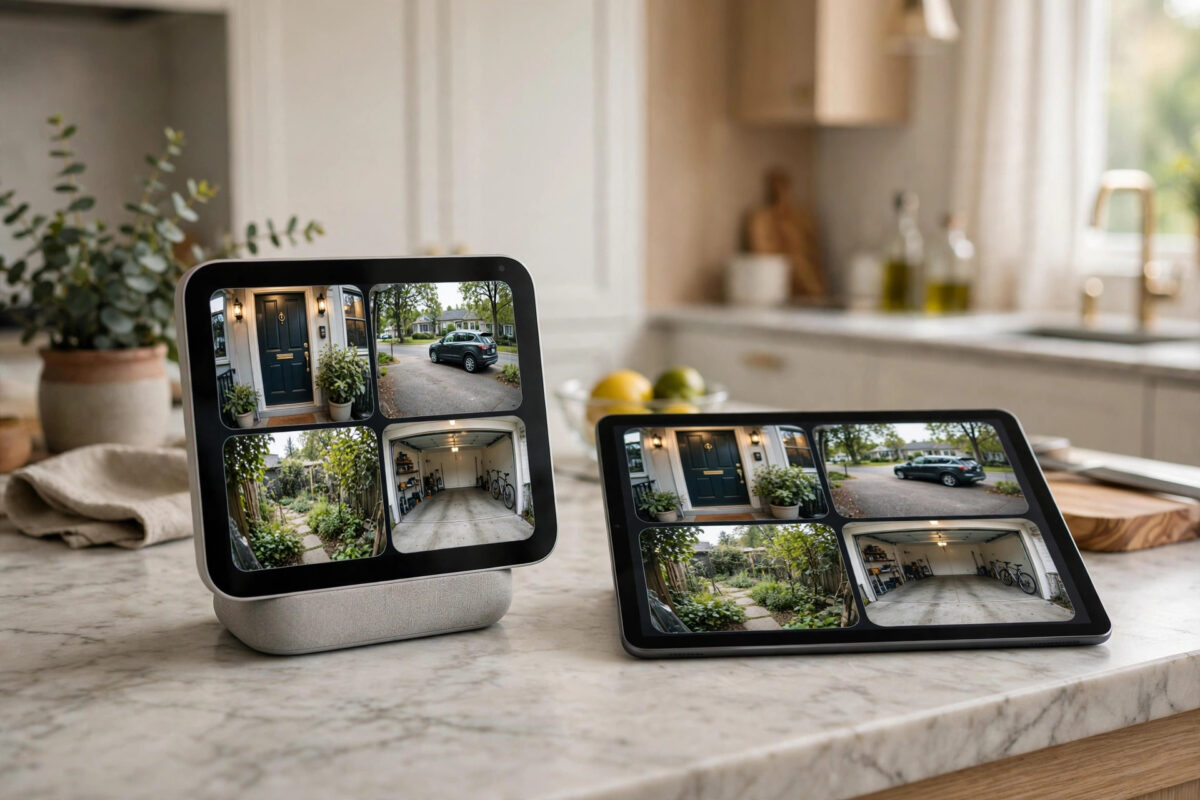
A smart display on the kitchen counter is the perfect place to keep an eye on your home — until you realise it only wants to show one camera at a time. You ask for the front door, then the driveway, then the garden, one by one, and by the time you get to the last feed, the first thing you wanted to check is already over.
Many owners expect an Echo Show or a Google Nest Hub to behave like a CCTV monitor with a neat four-way split screen. The reality is more limited, and it depends heavily on which display, which cameras, and which apps you use. This guide explains honestly what is possible on each platform, the best workarounds, and how to get the closest thing to a four-camera view without wasting money on the wrong kit.
Quick Answer
Neither the Echo Show nor the Google Nest Hub offers a true built-in four-camera split screen for most homes. On an Echo Show you can view one live camera at a time, or use a Fire TV device or the Alexa app for larger multi-view options with supported cameras. On Google Nest Hub, you view one Nest or compatible camera at a time, while the Google Home app on a tablet or phone gives you a grid of camera tiles you can tap through. The practical way to watch four feeds at once is a tablet or TV running the camera app, or a proper recorder and monitor for wired systems.
What Each Platform Can Actually Do
Echo Show and Alexa
An Echo Show is excellent for a fast single-camera check. Say the camera name and the live feed appears within seconds, which is ideal for a doorbell or a nursery camera. What it does not provide is a standard four-up grid of four different live cameras on the display itself. Picture-in-picture can appear in some situations — for example, a doorbell feed popping up while you are doing something else — but that is one extra feed, not a four-way security wall.
Amazon’s wider ecosystem has more flexibility. Some Fire TV devices support showing feeds alongside TV content, and the Alexa app lets you jump between cameras quickly. Features change by region and camera brand, so test with your own cameras.
Google Nest Hub and Google Home
A Nest Hub works in a similar way. You can ask Google Assistant for one camera, or tap through the home controls to open a single live feed, and newer Nest cameras stream reliably this way. The Nest Hub itself does not present a permanent four-camera grid as a home security console.
Where Google is stronger is the Google Home app. On a tablet, the Cameras section shows tiles for your cameras together, with previews you can scan and tap to enlarge. That grid on a tablet is, for many Google households, the honest answer to wanting four feeds together.
The Best Ways to See Four Feeds at Once
- Use a tablet with your camera app. An inexpensive Android tablet or iPad running the Alexa app, Google Home app, or your camera brand’s own app — such as Ring, Wyze, Arlo, or Tapo — can show a multi-camera grid. Place it where you would have put the smart display, keep it plugged in, and open the cameras page. This is the simplest and most flexible option for most homes.
- Use a TV with Fire TV or Google TV. A larger screen suits four feeds far better than a small display. Fire TV and Android or Google TV devices can run camera apps or show smart home camera views, and a TV in an office or kitchen makes four tiles genuinely readable instead of tiny.
- Use the manufacturer’s multi-view. Many camera brands offer their own grid view inside their app or web portal, regardless of Alexa or Google. Ring’s app, for example, shows dashboard tiles for all cameras, and several brands offer a desktop web view where four live feeds sit side by side. Check your brand first before buying anything.
- For wired systems, use the recorder. If your cameras connect to an NVR or DVR recorder, that recorder’s HDMI output to a monitor is the true four-way, eight-way, or sixteen-way split screen, running all day without depending on cloud apps. This is still how proper CCTV monitoring works.
- Rotate feeds on the smart display instead. If you keep the Echo Show or Nest Hub, create short names and a routine or favourites order so you can cycle through the four cameras quickly by voice. It is not simultaneous, but with practice it takes only a few seconds per camera.
Amazon’s own help pages describe how viewing live camera feeds on Echo Show and Fire TV devices works, and Google’s help centre explains how to stream Nest camera video to a display using Google Assistant and Chromecast devices. Reading the page for your exact platform prevents disappointment, because both make clear that on-display viewing centres on individual camera streams.
Setting Up a Practical Four-Camera Station
If you decide on the tablet route, a little setup turns it from a temporary trick into a reliable home monitoring station.
- Sign the tablet into the same account as your cameras and confirm all four cameras appear in the app’s camera list or favourites.
- Name cameras simply — Front Door, Driveway, Garden, Garage — so tiles are easy to read at a glance and voice commands stay short on your other devices.
- Turn on the app’s grid or multi-view page and set screen timeout to a long period while plugged in, following the tablet’s own guidance on screen use.
- Connect the tablet to the strongest Wi-Fi band for video in that room. Four live streams use far more bandwidth than one, so a weak corner signal causes buffering and frozen tiles.
- Test all four feeds together at your busiest time of evening, when the household network is loaded with TV streaming and phones, not just in a quiet morning test.
Keep in mind that four simultaneous cloud streams also use internet bandwidth and, on battery cameras, far more battery. Every live view wakes a battery camera fully. A four-up display left running all day can drain battery doorbells and cameras quickly and may hit fair-use limits on some cloud services. For an always-on station, mains-powered cameras are strongly preferred — a point covered in more depth in our guide to battery versus wired security cameras for your home.
Making a Single-Feed Display Feel Faster
If you stay with a smart display, you can still make four cameras feel close to instant. Put them in your favourites, and let doorbell presses automatically pop that feed onto the display. None of this is a true split screen, but a well-organised single view covers most real needs — most people check one event at a time.
Helpful Tips for Multi-Camera Viewing
- Prioritise one wide screen over two small displays. Four tiles on a small smart display would be too tiny to identify a person. A tablet or TV makes the grid actually useful.
- Keep camera names short and unique. Similar names cause voice assistants to show the wrong feed, which feels slower than any grid.
- Strengthen Wi-Fi before blaming the app. Four streams failing together is almost always a network capacity or signal problem, not four cameras breaking at once.
- Use wired power for always-on viewing. Battery cameras are built for short event clips, not for an all-day live wall.
- Check compatibility before buying a display for this purpose. A display is a great controller and single viewer. Buy it for that strength, and plan a tablet, TV, or recorder for the grid.
Conclusion
It is reasonable to want four camera feeds on one screen, but it is important to buy and set up for what the platforms truly offer. An Echo Show or Nest Hub gives you fast, convenient single-camera viewing and helpful automatic doorbell pop-ups — not a built-in four-way split screen. For a genuine four-feed view, use a tablet or TV running your camera app or the Google Home or Alexa ecosystem, or the monitor output of a wired recorder system. Set that up with strong Wi-Fi and mains-powered cameras, and you will have the security wall you pictured, without fighting a smart display to do a job it was never designed for.
Frequently Asked Questions
Can an Echo Show show four cameras at the same time?
Not as a standard built-in split screen. An Echo Show shows one live camera feed at a time, with picture-in-picture in some situations. For multiple simultaneous feeds, use a Fire TV setup with supported features, the Alexa app, or a tablet running your camera brand’s app.
Can a Google Nest Hub show a grid of all my cameras?
The Nest Hub itself shows one camera feed at a time when you ask or tap through home controls. The multi-camera tile view lives in the Google Home app, so running that app on a tablet is the practical way to scan several cameras together in a Google home.
What is the cheapest way to watch four feeds at once?
Usually a tablet you already own. Open your camera app or the Google Home app’s cameras page, arrange the four cameras as favourites, and keep the tablet plugged in where you want the display. This avoids buying new hardware in most homes.
Will viewing four live feeds drain my battery cameras?
Yes, it can. Live viewing keeps a battery camera fully awake and streaming, which uses far more power than short motion clips. An always-on multi-view station works best with mains-powered or wired cameras.
Do all camera brands work on Echo Show and Nest Hub?
No. Compatibility varies by brand, model, and region, and some cameras work with Alexa but not Google, or the other way round. Check your camera brand’s official Alexa and Google compatibility pages before building a setup around either display.



Leave a Reply