
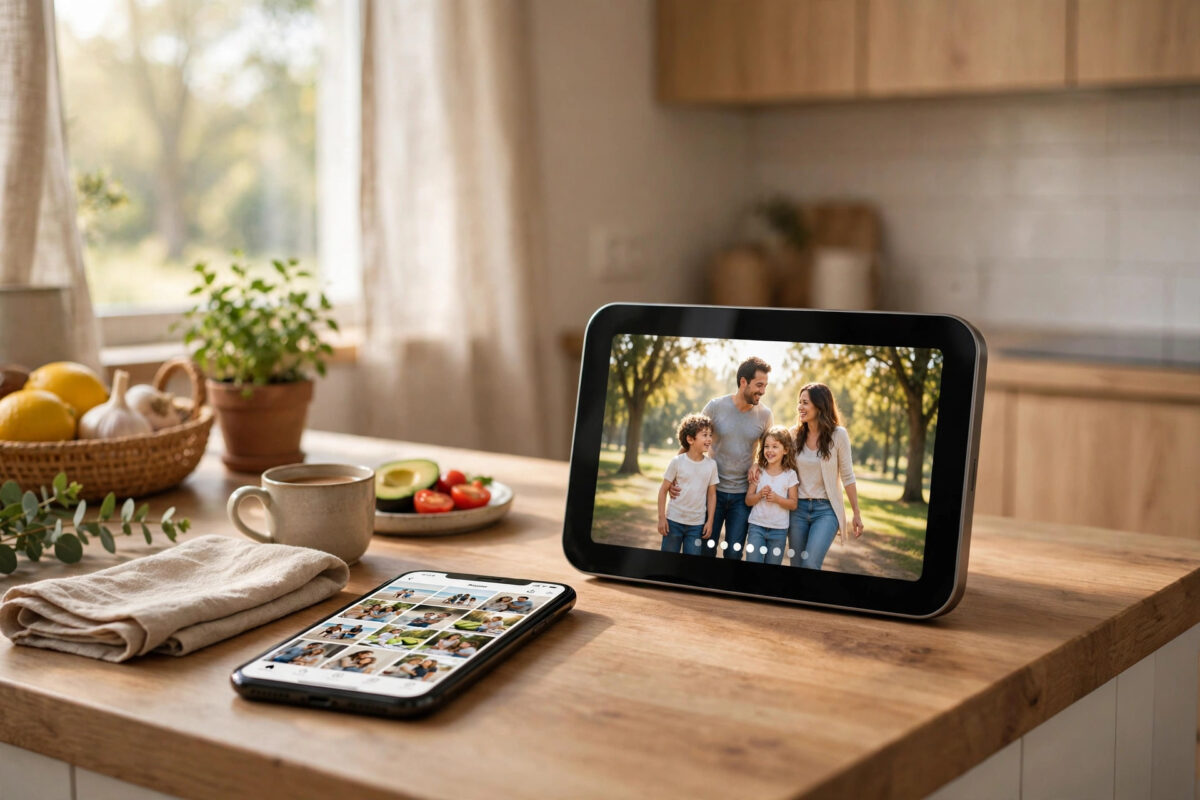
Your Nest Hub is supposed to feel alive. You add a new album of holiday photos, birthday pictures, or family moments to Google Photos, and you expect them to appear on the kitchen or bedroom display within a few hours. When they do not, the same old pictures keep looping and the display starts to feel stuck in the past.
This problem is very common, and it is rarely a broken device. Most of the time the slideshow is paused by a sync setting, the wrong album is selected, the new photos are still backing up, or the Hub is showing curated highlights instead of your full album. This guide walks through the causes in a clear order, so you can fix the real issue instead of restarting the device again and again.
Quick Answer
Open the Google Home app, tap your Nest Hub, go to Settings, then Photo Frame, and confirm the correct Google Photos album is selected. Then open Google Photos and check that your new pictures have finished backing up and are actually inside that album, not just in your main library. If the slideshow still does not refresh, remove the album, wait a minute, add it again, and restart the Hub to force a fresh sync.
Why a Nest Hub Slideshow Stops Updating
Understanding how the Photo Frame works makes the fix much easier. The Nest Hub does not read photos directly from your phone. It pulls them from your Google Photos account in the cloud, based on the albums and options you chose in the Google Home app.
That means a break can happen at several points in the chain:
- Your phone has not finished uploading the new photos yet.
- The photos are uploaded, but they were never added to the selected album.
- The Hub is set to show Live Albums or Favorites instead of your chosen album.
- Personal photo curation is filtering out pictures it thinks are blurry or poor quality.
- The Hub has lost its Wi-Fi connection or its cache is stale.
Work through the checks below in order. Most people solve the problem in the first three sections.
Step 1: Check That Your Photos Have Finished Backing Up
Nothing can appear on the Nest Hub until it exists in Google Photos online. A photo that is only on your phone will never show in the slideshow, even if the album itself is selected correctly.
- Open the Google Photos app on your phone.
- Tap your profile picture and look at the backup status at the top.
- If it says backup is paused, waiting for Wi-Fi, or still uploading, connect to Wi-Fi and let it finish.
- Open the new photos and confirm you can view them full screen without a loading icon.
- On a computer, sign in to Google Photos in a browser and check the same photos appear there too.
If the pictures show in the browser version, they are safely in the cloud and ready for the Hub. If they do not, the problem is backup, not the display, and you should fix that first.
Step 2: Confirm the Photos Are in the Right Album
This is the mistake that catches almost everyone. Adding photos to your Google Photos library is not the same as adding them to an album. The Nest Hub Photo Frame only shows the albums you selected, so new library photos stay invisible until you place them in one of those albums.
- Open Google Photos and go to the Albums or Collections tab.
- Open the exact album your Nest Hub is set to display.
- Scroll through it and check whether your new photos are really there.
- If they are missing, select the photos from your library, tap Add, and choose that album.
- Wait a few minutes, then glance at the Hub to see if the refresh begins.
Step 3: Review the Photo Frame Settings on the Hub
Next, check what the Nest Hub itself has been told to show. Settings can change after an app update, after another household member adjusts the display, or when you set up a second Hub and copy settings across.
- Open the Google Home app and tap your Nest Hub.
- Tap the Settings gear, then choose Photo Frame.
- Under Google Photos, confirm the right albums are ticked.
- Check whether Live Albums or Favorites is selected instead of your personal album.
- Turn off personal photo curation, or set it to show all photos, if good pictures seem to be skipped.
- Look at the slideshow speed and make sure it is not set so slow that new photos rarely appear.
Curation deserves special attention. Google tries to hide blurry shots, screenshots, and near-duplicates. That is helpful, but it can also hide casual family photos that mean a lot to you. If whole groups of new pictures never appear, curation is a likely reason.
For more help organising albums before you display them, see our guide on organising Google Photos albums for smart displays, which covers naming, sorting, and cleaning up duplicates.
Step 4: Check the Account and Household Match
The Nest Hub can only show photos from the Google Account linked to it in that home. If your photos live in a different account, the slideshow will never update with them, no matter how often you refresh.
How to verify the account
- In the Google Home app, check which account you are signed in with.
- Compare it with the account you use in Google Photos on your phone.
- If a partner or family member set up the Hub, ask which account they used.
- If photos were shared with you, confirm the shared album was saved to your library and added to the Photo Frame list.
Step 5: Force a Fresh Sync
If the account, album, and backup all look correct, the Hub may simply be holding old cached data. A clean re-selection usually clears it.
- In Photo Frame settings, untick the album that is not updating.
- Wait about one minute while the display switches to its default art or clock.
- Tick the same album again and exit settings.
- Unplug the Nest Hub for 30 seconds, then plug it back in.
- Give it 10 to 15 minutes on a stable Wi-Fi connection to rebuild the slideshow.
Avoid judging the result instantly. Large albums can take a while to refresh, and the first photos shown are not always the newest ones, because the order is shuffled.
Step 6: Check Wi-Fi, Updates, and Date Settings
A Hub that keeps dropping off your network cannot pull new photos. Place it within a good signal range of your router, and avoid hiding it behind a TV or inside a closed cabinet that weakens the signal.
Google’s own guidance on this feature is worth reading in the official Google Nest Photo Frame help page, which lists the current album options and supported settings.
Common Mistakes to Avoid
- Factory resetting too early: A reset removes your setup and rarely fixes an album selection problem. Try it only after every step above.
- Adding photos to Favorites by accident: Starring a photo does not place it in your slideshow album.
- Using very large videos: Long or unsupported clips can stall an album refresh. Keep slideshow albums mainly to still photos.
- Expecting instant updates: New photos can take several hours to appear, especially right after a large upload.
- Ignoring storage limits: If your Google Account storage is full, backup stops and no new photos reach the Hub.
- Testing with one photo only: A shuffled slideshow may not reach a single new photo for a long time. Add several and watch over a day.
When to Try a Factory Reset
If you have checked backup, album membership, account, curation, and Wi-Fi, and the slideshow is frozen on the same images for more than a day, a factory reset becomes reasonable. Press and hold both volume buttons on the back of the Nest Hub for about 10 seconds until it confirms the reset, then set it up again in the Google Home app with the correct account from the start.
Conclusion
A Nest Hub slideshow that will not update is almost always a settings or sync issue, not faulty hardware. Start with backup, then album membership, then the Photo Frame settings and account, and only then force a resync or consider a reset. Work through that order calmly and your new Google Photos albums should start appearing on the display again, just as they should.
Frequently Asked Questions
How long should new photos take to appear on a Nest Hub?
Once photos have finished backing up and are inside the selected album, they often appear within a few hours. Large uploads, slow Wi-Fi, or a Hub that was unplugged can stretch this to a full day.
Why does my Nest Hub show old photos but not new ones?
The most common reasons are that the new photos were never added to the selected album, backup is paused, or curation is filtering them out. Check those three things before anything else.
Can a Nest Hub show a shared Google Photos album?
Yes, but the shared album must be accessible to the Google Account linked to the Hub and selected in the Photo Frame settings. Viewing a shared album on your phone alone is not enough.
Will a factory reset delete my Google Photos?
No. A factory reset only removes settings from the Nest Hub itself. Your photos stay safe in your Google Photos account and can be selected again after you set the display up.
Why are some of my photos skipped in the slideshow?
Personal photo curation may hide images it judges to be blurry, dark, or near-duplicates. Turning curation off, or widening its settings in the Google Home app, usually brings those photos back.



Leave a Reply