
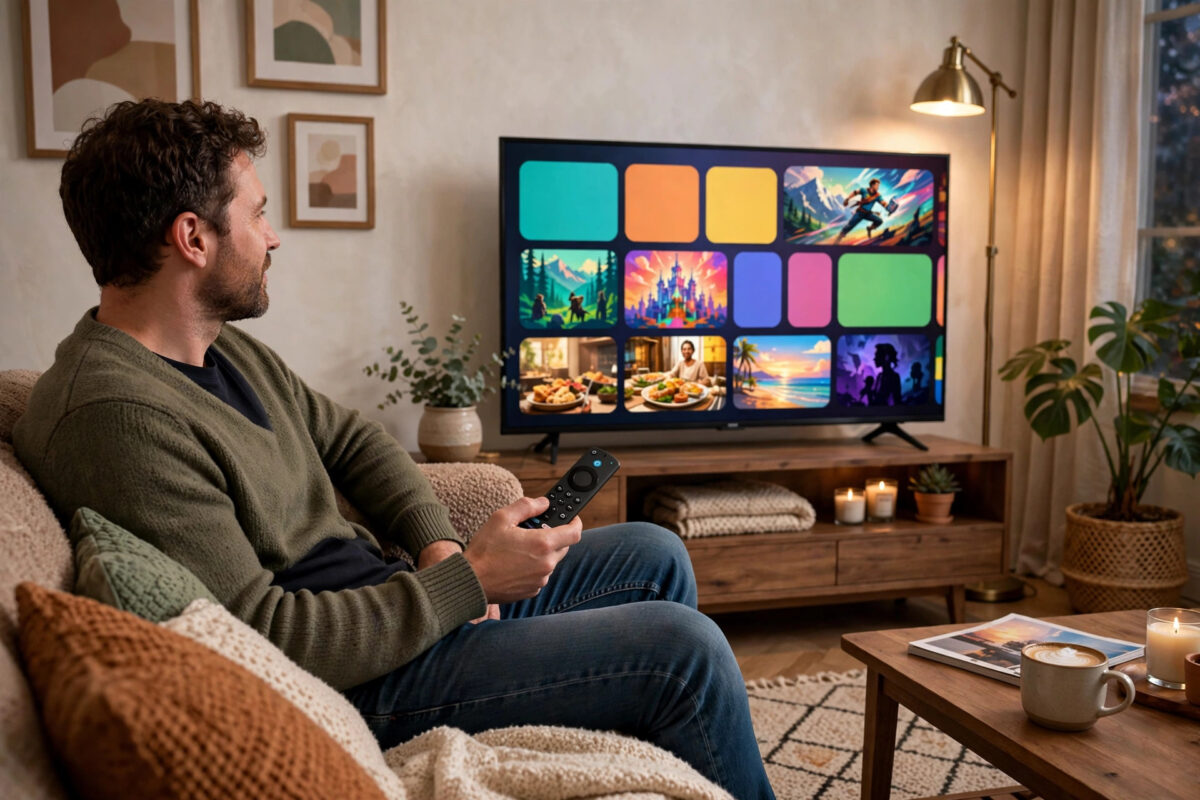
Software updates on a Fire TV Stick bring new features, fix bugs, patch security problems, and often solve odd issues like apps crashing or the remote behaving strangely. The device is supposed to update itself automatically, but that only happens when it is idle, connected, and has enough free space. If you suspect yours has fallen behind, you can check and start the update yourself in a couple of minutes.
Quick Answer
To update a Fire TV Stick manually, go to Settings, choose My Fire TV, select About, and then choose Check for Updates. If an update is available, select Install Update and leave the device alone while it downloads, installs, and restarts. Keep it connected to power and Wi-Fi throughout, and do not unplug it during the process.
Why Updating Manually Is Worth Doing
Automatic updates sound convenient, and most of the time they work quietly in the background. In real homes, though, a Firestick might be switched off at the wall every night, used on a weak Wi-Fi signal, or running so low on storage that the update cannot download. Weeks or months can pass without the device ever getting the idle, connected window it needs.
Running a manual check puts you back in control. It confirms which software version you are on, tells you honestly whether anything new is waiting, and starts the process while you can supervise it. It is also one of the first steps worth taking when something misbehaves, because many known bugs are already fixed in the latest release. Streaming services occasionally raise their minimum requirements too, so an old system version can eventually stop a favourite app from working properly.
Before You Start: Three Quick Preparations
- Use the wall power adapter. Power from a television USB port can dip or cut out when the TV sleeps. The supplied wall adapter gives the steady power an update needs.
- Check the Wi-Fi connection. The Firestick needs a stable connection for the whole download. If your signal is weak, move closer to the router temporarily or restart the router first.
- Free up some storage. Updates need working room. Aim for at least one gigabyte free. If space is tight, uninstall an unused app or clear a few large caches first.
Also note the current time. A full update, including download, installation, and restart, usually takes between five and fifteen minutes depending on your connection speed and the size of the update. Pick a moment when nobody is halfway through a film.
How to Update Fire TV Stick Software Manually, Step by Step
- Press the Home button on the remote and go to the main screen.
- Move to the gear icon and open Settings.
- Scroll down and select My Fire TV. On some older models this section is called Device or System.
- Select About at the top of the list.
- Look at the version information shown on this screen for your own reference.
- Select Check for Updates. The device will contact Amazon’s servers, which may take up to a minute.
- If it says your system is up to date, you are finished. Nothing further is needed.
- If an update is available, select Install Update. On some versions the download begins automatically and the install option appears when it is ready.
- Leave the remote alone. The screen may go blank and the device will restart by itself, sometimes more than once.
- When the home screen returns, go back to About and check the version again to confirm the update completed.
Amazon describes this same process on the Amazon Fire TV help pages for software updates, which are worth bookmarking if you manage Firesticks for family members as well as yourself.
What You Will See During the Update
Knowing the normal stages prevents panic. First the device downloads the update in the background, and you may be able to keep watching during this stage. Next it prepares and installs, during which the screen can freeze on a logo or go dark. Then it restarts and may sit on the logo screen for several minutes while it finishes setting up. A long pause at this point is usually normal. Only worry if the same screen has not changed after twenty to thirty minutes.
How to Check Which Version You Are Running
The About screen under Settings, My Fire TV shows your device model, serial number, storage, network details, and the Fire OS version. There is no single version number that is correct for everyone, because Amazon releases updates in stages and different models run different builds. That is why the Check for Updates button matters more than comparing numbers with a friend’s device. If the checker says you are up to date, then for your model, in your region, at this moment, you are.
Staged releases also explain why a household with two Firesticks may see an update on one weeks before the other. There is nothing wrong with the second device. Checking manually once a week is the fastest legitimate way to catch the update when it reaches you.
If the Update Will Not Download or Install
Restart and Try Again
A simple restart clears temporary glitches that block update checks. Go to Settings, My Fire TV, Restart, wait for the home screen, and run the check again. If the menus themselves are frozen, unplug the power for thirty seconds and plug it back in.
Fix the Storage Problem First
Failed updates are very often storage failures in disguise. Check your free space and remove an unused app or two. Our related guide on restarting a Firestick safely and fixing common glitches also helps when the device feels generally stuck, because a clean restart before updating solves many small problems at once.
Improve the Connection
If the download crawls or fails partway, the signal at the TV is the likely cause. Move the router closer if you can, use the HDMI extender to pull the Firestick out from behind the television, pause other big downloads in the house, and try again. If your router offers both a 2.4 GHz and a 5 GHz network, the 5 GHz band is faster at short range, while 2.4 GHz reaches further through walls.
Leave a Stuck Update Longer Than You Think
The single most important rule is patience. Interrupting power during installation is the one thing that can genuinely damage the system. If the progress seems frozen, give it a full thirty minutes before concluding it has failed. Many updates that look stuck are simply working through a large installation on a modest processor.
After the Update: A Short Checklist
- Confirm the new version on the About screen.
- Open your two or three most-used apps and let them update if they prompt you.
- Check that the remote responds normally. If it does not, re-pair it by holding the Home button for ten seconds near the device.
- Play a few minutes of video in high definition to confirm smooth playback.
- Re-check free storage, because updates sometimes leave the device fuller than before.
Common Mistakes to Avoid
- Unplugging during installation. This risks corrupting the system. Always wait for the device to restart itself, even if it takes longer than expected.
- Updating on TV USB power. If the television sleeps or is switched off, the Firestick loses power mid-update. Use the wall adapter.
- Ignoring low storage warnings. An update cannot install without room. Free space first instead of retrying repeatedly.
- Assuming a staged rollout means your device is broken. Updates reach models and regions at different times. A manual check tells you the truth for your device.
- Factory resetting to force an update. A reset is far more disruptive than the problem it tries to solve and rarely changes which update you are offered.
- Skipping updates for months. Old software misses security fixes and can lose app compatibility. A monthly manual check keeps you current with almost no effort.
Conclusion
Updating a Fire TV Stick manually is a short, safe routine: prepare the power, connection, and storage, then go to Settings, My Fire TV, About, and Check for Updates. Let the device finish in its own time, confirm the new version afterwards, and give your main apps a quick test. Build the check into a monthly habit alongside clearing your caches, and your Firestick will stay secure, compatible, and noticeably better behaved.
Frequently Asked Questions
How long does a Fire TV Stick update take?
Most updates complete in five to fifteen minutes, including the download and restart. Large feature updates on a slow connection can take longer. If the device has not changed screens after thirty minutes, a power interruption and retry may be needed.
Will updating delete my apps or sign-ins?
No. A normal software update keeps your apps, accounts, settings, and downloads in place. The device may restart several times, but when it finishes everything should look exactly as it did before.
Why does my Firestick say it is up to date when a newer version exists?
Amazon releases updates gradually by model and region. A newer version may exist for a different device or in another country before it reaches yours. Keep checking manually every week or so and it will arrive.
Can I stop an update once it has started?
There is no safe cancel option during installation, and cutting the power is risky. Let it finish. If you want to delay an update, simply do not start the manual install until a more convenient time.
Do app updates happen at the same time as system updates?
They are separate. Apps usually update themselves automatically when the device is idle, and many can also be updated from within the app store. After a system update, opening your main apps once helps them settle and fetch any updates they need.



Leave a Reply