
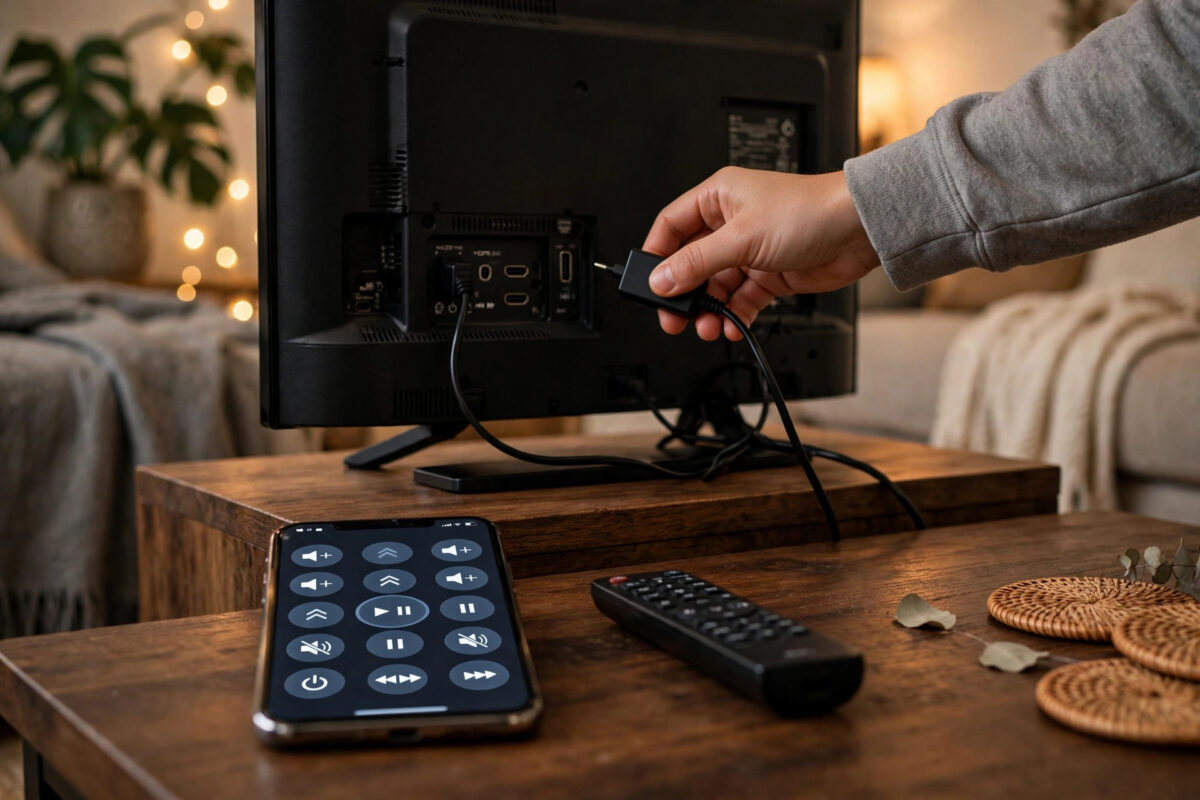
Your Firestick is frozen or acting strangely, you reach for the remote to restart it, and nothing happens. The buttons do nothing, the screen does not move, and you are stuck. This is a common situation, and the good news is that you do not actually need the remote to restart a Firestick.
This guide shows you every reliable way to restart your Firestick when the remote is not responding, starting with the simplest power method and moving on to phone controls and other workarounds.
Quick Answer
Unplug the Firestick power cable from the wall or from the stick itself, wait at least 30 seconds, then plug it back in. The device will restart automatically when power returns. Alternatively, use the free Amazon Fire TV app on your phone as a remote, or plug in a USB keyboard, to navigate to Settings and restart from the menu.
First, Check Whether the Remote or the Stick Is the Problem
Before restarting, take ten seconds to work out what has actually failed. This saves you from fixing the wrong thing.
Look at the TV screen. If the picture is frozen but the clock or a screensaver still moves, the stick may still be alive and only the remote connection has dropped. If the entire image is completely still and the stick feels very warm, the stick itself has likely frozen.
Also try one simple remote test. Press the Home button and watch the small light on the remote, if your model has one, and try fresh batteries if you have spares. If nothing changes, do not waste more time on the remote for now. Restart the stick first using the methods below, because a fresh restart often brings the remote back to life as well.
Method 1: Restart by Unplugging the Power
This is the most reliable method and it works in every situation, even when the stick is fully frozen. Unplugging is safe and will not delete your apps, settings, or sign-ins.
- Find the power cable connected to the side of the Firestick.
- Unplug the adapter from the wall outlet, or pull the USB cable out of the stick, whichever is easier to reach.
- Wait at least 30 seconds. Waiting matters, because it lets the memory clear properly.
- Plug the power back in, using the original wall adapter.
- Wait two to three minutes while the stick starts. The Amazon logo will appear, followed by the home screen.
- Test your remote once the home screen loads.
In many cases the remote starts working again after this restart without any further steps. The restart rebuilds the wireless connection between the stick and the remote, which clears a large share of these faults.
Important Power Tip
While you have the cables in your hand, check how the stick is powered. If the USB cable is plugged into the TV instead of the wall adapter, move it to the adapter now. TV USB ports often supply weak power and switch off with the TV, which causes freezes and remote dropouts. Correct power prevents many repeat problems.
Method 2: Use Your Phone as a Remote
If you do not want to reach behind the TV, or the stick is not frozen and simply ignores the remote, your phone can take over as the remote. This lets you restart the stick properly from its settings menu.
- Download the free Amazon Fire TV app on your Android phone or iPhone.
- Make sure your phone is connected to the same Wi-Fi network as your Firestick.
- Open the app. Your Firestick should appear in the list of devices. Tap its name.
- A four-digit code will appear on your TV screen. Type that code into the app to connect.
- Use the on-screen controls in the app to go to Settings, then My Fire TV, then Restart, and confirm.
The phone app is also a great backup remote for everyday use. Typing with your phone keyboard is far easier than spelling passwords with the normal remote. The only limit is that the phone method needs the stick to be responsive and on the same network, so it will not help if the stick is fully frozen. In that case, use the unplug method instead. If your phone cannot find the stick, our guide on how to connect a Firestick to Wi-Fi without the remote covers the network steps in more detail.
Method 3: Use a Keyboard, Mouse, or Game Controller
Many people are surprised to learn that a Firestick accepts other controllers. If you have one of these nearby, it can get you to the restart option quickly.
- Bluetooth keyboard or controller: If it was paired before, it may reconnect on its own. You cannot pair a new Bluetooth device without some working controller, so this only helps with devices paired earlier.
- USB keyboard: On models that support it, a keyboard connected with a USB OTG cable lets you navigate menus with arrow keys and Enter.
- TV remote with HDMI-CEC: Many TVs let the TV remote control the Firestick through a feature called CEC, which brands call Anynet+, Bravia Sync, or Simplink. Try your TV remote arrow keys. If they move the Firestick cursor, navigate to Settings and restart from there.
To restart from the menu once you have any working controller, go to Settings, select My Fire TV, scroll to Restart, and confirm. This clean restart is gentler than cutting power, so prefer it whenever the stick still responds.
Method 4: Restart Using Alexa or a Smart Plug
If you own an Echo speaker linked to the same Amazon account, you may be able to control the Firestick by voice for basic actions. Voice control will not fix a frozen stick, but it can help you test whether the stick is alive. If Alexa responds and content plays, the problem is the remote alone.
A smart plug offers another hands-free way to cut and restore power on a schedule or by voice. It does the same job as unplugging by hand. Use it only as a restart tool, not as the everyday way to turn the stick off, because regular sudden power cuts during updates can cause errors.
After the Restart: Get the Remote Working Again
Once the home screen loads, test the remote straight away. Point it at the TV from a few feet away and press Home. If it works, you are done.
If the remote still does nothing after a successful restart, work through these quick checks:
- Replace the batteries with a fresh pair, even if the current ones seem fine.
- Hold the Home button for ten seconds to re-pair the remote with the stick.
- Move closer to the TV and remove anything blocking the space between you and the stick.
- Restart the stick one more time using the phone app, then try pairing again.
For deeper remote troubleshooting from the manufacturer, see Amazon’s official help for Fire TV remotes that are not working. You can also manage your device and check its status through Amazon’s device support hub if problems continue.
Common Mistakes to Avoid
- Unplugging for only two seconds: A very short power cut may not clear the fault. Wait at least 30 seconds every time.
- Turning the TV off and calling it a restart: The stick stays on and frozen. Only cutting the stick power restarts it.
- Doing a factory reset for a simple freeze: A reset wipes your apps and sign-ins. A plain restart solves most freezes without any loss.
- Leaving the stick powered by the TV: Weak USB power causes repeat freezes and remote issues. Use the wall adapter.
- Trying to pair a new Bluetooth device while frozen: Pairing needs a working screen and controller. Restart first, then pair.
Conclusion
A dead remote does not leave you helpless. Unplugging the power for 30 seconds restarts any Firestick, frozen or not, and takes less than a minute. When the stick still responds, the phone app, a TV remote with CEC, or a previously paired keyboard lets you restart cleanly from the settings menu instead. Restart first, test the remote second, and only dig into remote repairs if the problem survives a fresh start.
Frequently Asked Questions
Will unplugging my Firestick delete my apps or settings?
No. Unplugging only restarts the device. Your apps, account, and settings are stored safely and will all be there when the home screen loads again.
How long should I leave the Firestick unplugged?
Leave it unplugged for at least 30 seconds. For a hard freeze, a full minute is better because it gives the memory and connections time to fully clear.
Can I restart a Firestick from my phone without the remote?
Yes, with the free Amazon Fire TV app, as long as the phone and stick share the same Wi-Fi network and the stick is responsive enough to show the connection code.
Why did my remote start working again after a restart?
The remote connects to the stick wirelessly, and that connection can break when the system glitches. A restart rebuilds the connection, which is why it fixes so many remote faults.
Is it bad to unplug the Firestick often?
Occasional unplugging for a restart is harmless. Avoid doing it daily or during an update, because sudden power loss while the system writes files can cause errors over time.



Leave a Reply