
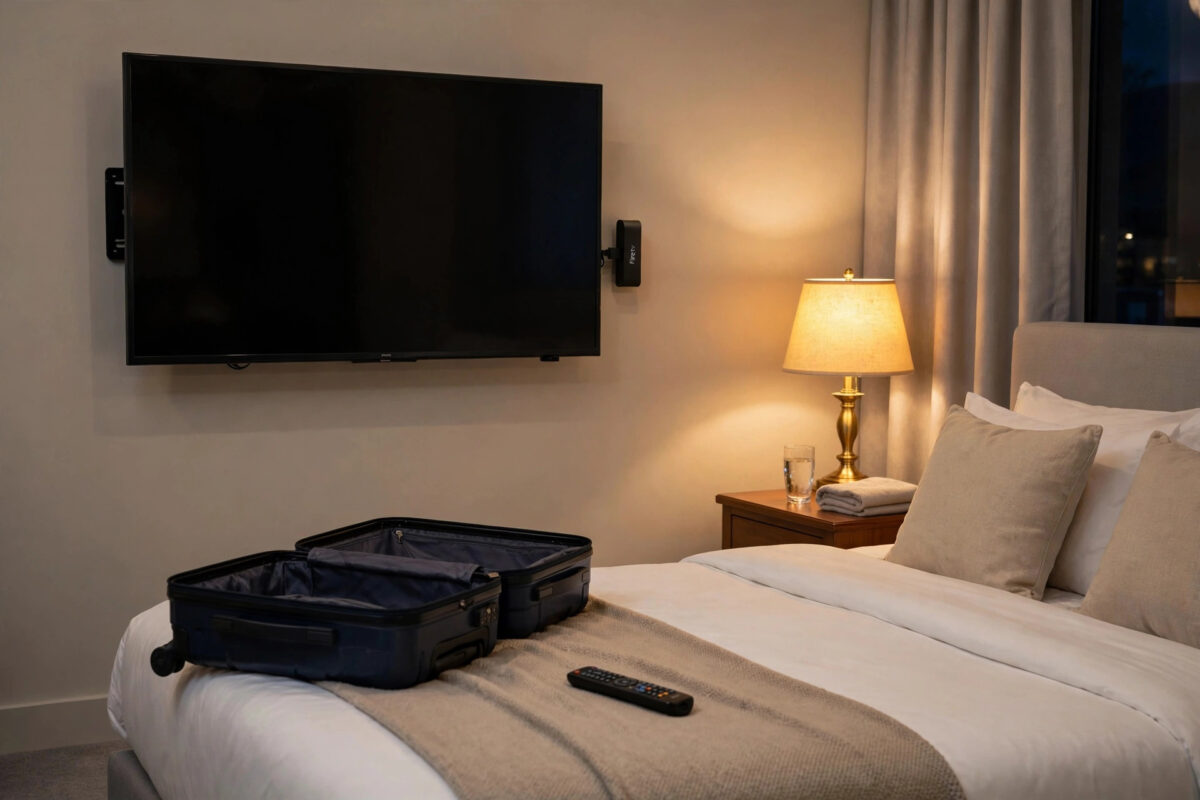
Travelling with a Firestick is one of the easiest ways to make a hotel television feel like your own. Your apps, your sign-ins, and your watch history all come with you in a device smaller than a chocolate bar. Then you meet the one obstacle every traveller knows: hotel Wi-Fi with a login page. The network appears, you select it, and nothing happens, because the Firestick has nowhere to type the room number and password the hotel demands.
Quick Answer
To connect a Firestick to hotel Wi-Fi with a login page, select the hotel network in Settings, Network, and wait for the built-in browser window to open automatically. Use the remote to move the pointer, enter the details the hotel gave you, such as your surname and room number, and accept the terms. If the page never appears, open the Silk Browser and visit a simple website to trigger it.
Why Hotel Wi-Fi Is Different From Home Wi-Fi
At home, your network normally asks for one password, and once the Firestick knows it, the connection is complete. Hotels use a system called a captive portal. The network lets your device join, but blocks real internet access until you pass through a web page that proves you are a guest. That page might ask for a room number, a surname, an access code from reception, or simply a tap to accept the terms of use.
Televisions and streaming sticks were not originally designed with these pages in mind, which is why the experience can feel clumsy. The Firestick does support captive portals, and modern Fire OS versions open the login page automatically during setup. Most failures come from small things: the page loading slowly, the pointer being hard to control, the session expiring, or the hotel system limiting how many devices each room may register.
Two steps are involved: joining the network, and then passing the login page. If step two is incomplete, the device may show as connected while no app can actually reach the internet.
What to Get From Reception Before You Start
- The exact network name, because large hotels often run several similar networks for guests, conferences, and staff.
- The login details required: usually a room number plus surname, or a printed access code.
- How many devices your room is allowed to register, and whether there is a paid faster tier.
- How long a login session lasts. Some hotels require you to sign in again every twenty-four hours.
Asking at check-in saves a phone call later. If the hotel charges for premium Wi-Fi, decide before you start streaming, because free tiers can be too slow for high-definition playback.
How to Connect, Step by Step
- Plug the Firestick into a spare HDMI port on the hotel television and connect its power adapter to a wall socket. Avoid the TV’s USB port, which may cut power when the set sleeps.
- Switch the television to the correct HDMI input using the TV remote.
- On the Firestick, open Settings and select Network.
- Find the hotel’s guest network in the list and select it.
- Wait. On most modern devices a browser window opens by itself within about thirty seconds, showing the hotel login page.
- Use the remote’s direction ring to move the on-screen pointer. It behaves like a mouse. Take your time, as the pointer can be slow.
- Select each form field, type the required details using the on-screen keyboard, and double-check the room number before submitting.
- Accept the terms if asked, then select the connect, log in, or agree button.
- Wait for a success message, then press Home and open a streaming app to test real playback, not just the home screen.
Amazon notes this captive portal support in the Amazon Fire TV help pages covering network connections, which also explain the basic network settings used in the steps above.
If the Login Page Never Appears
Trigger It With the Browser
The most reliable trick is to force the portal to show itself. Open the Silk Browser, or install it free from the app store if needed, and try to visit any ordinary website. Because the hotel system intercepts all traffic until you log in, it will redirect your request to its login page. Use a simple, plain website rather than a big app, and give the page a full minute to load on a busy network.
Forget the Network and Start Again
If the device joined but the session is half-finished, old details can block a fresh attempt. Go to Settings, Network, select the hotel network, press the menu button on the remote, and choose to forget the network. Then join again from the beginning and watch carefully for the login window.
Restart the Firestick
A restart clears temporary connection states. Use Settings, My Fire TV, Restart, then join the network again. This fixes a surprising number of first-night connection problems, especially if the Firestick was previously connected to your home network and has travelled in a bag all day.
Check the Basics on the Television Side
Confirm you are on the right HDMI input, that the Firestick has power, and that the hotel television is not running a restricted hospitality mode that blocks external inputs. Some hotels disable HDMI ports or hide the input button on a simplified remote. Reception or the in-room guide usually explains how guests use the ports, and our guide to improving weak Wi-Fi signal strength offers broader signal tips, several of which apply just as well to a distant hotel router down the corridor.
When the Hotel System Limits Devices
Some hotels allow only one or two registered devices per room. If your phone and laptop have already taken those places, the Firestick may log in and still be refused access, or it may push another device off the network. You have three practical options.
First, log out or let the session expire on a device you are not using, then register the Firestick. Second, ask reception to add another device or reset the room’s registrations, which staff can often do in seconds. Third, use a travel router if you carry one. A travel router logs into the hotel portal once from your phone or laptop, then creates your own private network that all your devices join normally. It is the most comfortable solution for frequent travellers, though it is one more gadget to pack and set up.
If the hotel Wi-Fi proves hopeless, a mobile hotspot with a decent data allowance can stream well for a few evenings, and the Firestick joins it like any ordinary home network.
Staying Safe on Hotel Networks
Hotel Wi-Fi is shared with strangers, so a little caution is sensible. Only join the network name staff confirm, because fake lookalike networks are a known trick in public places. Avoid banking or sensitive shopping on the hotel connection if you can. Always sign out and forget the network before you check out, and consider removing the device from any hotel account page if the system offers that option. The Firestick itself stays signed into your streaming accounts, so do not leave it behind in the room’s television. A quick glance at the HDMI ports before you close the door is a habit worth building, because forgotten Firesticks are extremely common.
Common Mistakes to Avoid
- Assuming connected means online. The Firestick can show a connection while the portal still blocks traffic. Always test by playing real video.
- Giving up when the login page is slow. Busy hotel systems can take a minute to present the page. Wait before pressing buttons repeatedly, which can stack up failed attempts.
- Powering from the TV’s USB port. If the television sleeps, the Firestick dies and loses its session. Use a wall socket.
- Typing details carelessly with the pointer. One wrong digit in a room number fails the whole login. Check each field before submitting.
- Registering too many devices first. If the room has a device limit, save a slot for the Firestick instead of connecting every phone and tablet first.
- Leaving the Firestick plugged in at checkout. It holds your accounts. Unplug it, and forget the network in settings before you leave.
Conclusion
Connecting a Firestick to hotel Wi-Fi is really two jobs: join the network, then complete the login page that proves you are a guest. Get the exact details at reception, use the automatic browser window or trigger it through Silk, respect any device limits, and always finish with a real playback test. Once you have done it successfully a couple of times, the whole routine takes five minutes, and every hotel room becomes a small cinema with your own library on screen.
Frequently Asked Questions
Why does my Firestick say connected but nothing will play?
Almost always, the hotel login page was never completed. The device joined the network, but the portal is still blocking internet traffic. Open the Silk Browser, visit any website, and complete the login form that appears.
The login page opened but I cannot control the pointer well. Any tips?
Move slowly and use short presses on the direction ring. The pointer behaves like a mouse and overshoots easily. If your Firestick supports it, the Fire TV phone app gives you a trackpad and a real keyboard, which makes forms far easier.
Do I need to log in again every day?
Many hotels expire sessions after twenty-four hours, or at checkout time each day. If streaming suddenly stops mid-stay, reopen the browser, revisit any website, and complete the login page again with the same details.
Can the hotel see what I watch?
The hotel network can see that your device is connected and how much data it uses, as with any network operator. Using only the official network, keeping your accounts signed in only on your own device, and forgetting the network when you leave are sensible basic precautions.
My Firestick worked last night but not today. What changed?
Usually the session expired, the room’s device registration was reset, or the television lost power and the Firestick restarted into a half-connected state. Forget the network, restart the Firestick, join again, and complete the portal login once more.



Leave a Reply