
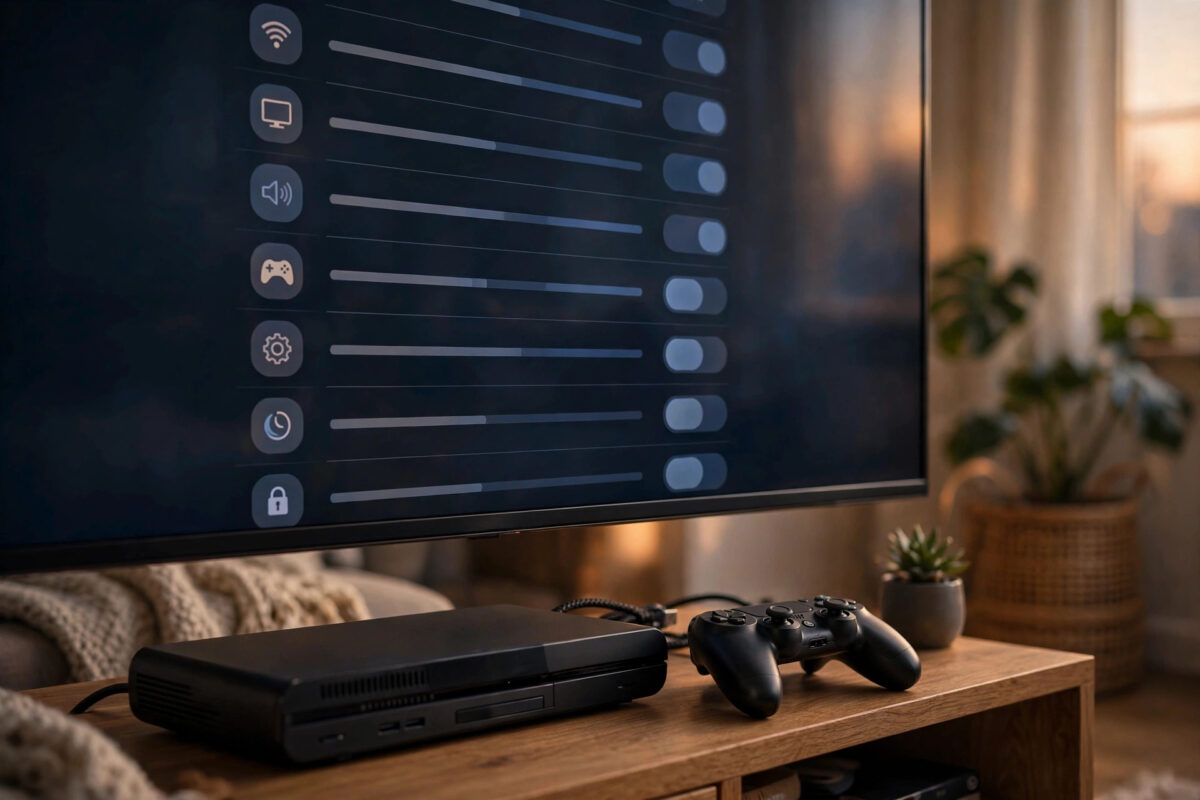
Every modern TV has a hidden setting that can make console games feel twice as responsive. It takes less than a minute to turn on, yet many players never find it because it sits in different menus on every brand. If your games feel floaty or your aim feels a step behind, this is the first setting to fix.
This guide shows you exactly where Game Mode lives on Samsung, LG, Sony, Hisense, TCL, and other TVs, how to check it is really working, and what to do if your TV switches it off or does not seem to have it at all.
Quick Answer
To turn on Game Mode, open your TV’s Settings, go to Picture or General settings, and select Game as the picture mode while your console is connected and switched on. On Samsung TVs use the Game Mode setting under General and External Device Manager, on LG use the Game Optimiser, on Sony choose Game picture mode, and on many TVs ALLM turns Game Mode on automatically when the console sends a game signal.
What Game Mode Does and Why It Matters
A TV normally spends time improving the picture before showing it. It smooths motion, reduces noise, adjusts contrast scene by scene, and sharpens edges. That work suits films, but for games it delays every frame. The delay between your button press and the action on screen grows, and fast games become harder to control.
Game Mode strips that processing back to the minimum. The picture reaches the screen as quickly as the panel allows, often cutting the delay from over 80 milliseconds to under 10 milliseconds on a good TV. The trade-off is small: you lose motion smoothing and some enhancements that games do not need anyway, because a game signal is already clean and progressive.
Game Mode is not the same as a Game picture preset on older sets, although the two are closely related. On newer TVs, Game Mode is a low-latency state that can sit underneath different picture styles, so you can often keep your preferred colour settings while still getting the speed benefit.
Before You Start: Two Quick Checks
- Turn the console on first. Some TVs only show game settings when they detect an active console on the selected HDMI input.
- Select the right input. Picture settings are usually saved per input. If you enable Game Mode while watching TV channels, it may not apply to the HDMI port your console uses.
Keep your console’s home screen or a game running while you work through the menus. That way any change you make applies to the correct source, and you can feel the difference immediately by moving through menus.
How to Turn On Game Mode by TV Brand
Samsung TVs
- Press the Home button and open Settings.
- Go to General, then External Device Manager.
- Select Game Mode Settings and turn Game Mode on. Choose On rather than Auto if you want it locked in.
- On newer models, press the Settings button during play to open the Game Bar, where you can check the current mode, resolution, and frame rate.
LG TVs
- Open Settings, then go to General and look for Game Optimiser. Turn it on.
- Alternatively, open Picture settings and set the picture mode to Game or Game Optimiser.
- During play, open the Game Dashboard to confirm the frame rate, VRR status, and low latency state.
LG TVs with ALLM usually switch automatically when a PS5 or Xbox starts. If yours does not, check that HDMI Deep Colour is enabled for the port in the Devices or HDMI settings, because that unlocks the full gaming feature set. Official steps are also listed at Xbox Support for TV display and ALLM settings, which covers how the console side of the handshake works.
Sony TVs
- Press the Settings or Quick Settings button on the remote.
- Go to Picture Settings and find Picture Mode.
- Select Game. On Google TV models, you can also use the Game Menu during play for quick toggles.
Sony TVs paired with a PS5 can also enable auto picture mode, which switches in and out of Game mode automatically.
Hisense, TCL, Philips, and Panasonic TVs
On Hisense sets, open Settings, then Picture, and choose Game as the picture mode, or look for a Game Mode toggle under advanced picture settings. On TCL sets running Google TV or Roku TV, open Picture settings during gameplay and select Game, or enable Game Mode in the advanced picture menu. Philips TVs usually place Game under Picture Style, and Panasonic places it under Picture Mode or the Option settings as Game Mode on or off.
The exact wording varies by model year, but the pattern is consistent: picture settings first, then a mode named Game. If you cannot find it, use the settings search feature if your TV has one, and type the word game.
Using ALLM So Game Mode Turns On Automatically
ALLM stands for Auto Low Latency Mode. When a console starts a game, it sends a signal that tells the TV to switch to its fastest mode. When you open a streaming app on the same console, the TV can switch back to a film-friendly mode. It is convenient and prevents the common problem of forgetting to change settings.
To use it, the feature must be enabled at both ends. On the PS5 it is under Settings, Screen and Video, Video Output, and ALLM. On Xbox it is the Allow Auto Low-Latency Mode checkbox under General, TV and Display Options, Video Modes. On the TV side it is often on by default, but some brands hide it in HDMI or device settings. Note that ALLM only triggers over HDMI, and older TVs from before roughly 2018 may not support it at all.
If you want to understand what ALLM is actually reducing, our detailed explainer on what input lag is and how to reduce it on your TV breaks down the full delay chain in simple terms.
How to Check Game Mode Is Really On
- Feel test: Move quickly through a game menu or spin the camera. The response should feel immediate, with no floaty trailing sensation.
- Motion setting check: Open the picture menu. Motion smoothing options should be greyed out or off, which is a good sign the low-latency mode is active.
- Info banner: Many TVs show an information panel with resolution, refresh rate, and HDR status. Some also display a Game or ALLM badge.
- Game bar or dashboard: Samsung’s Game Bar and LG’s Game Dashboard show live frame rate and latency-related features at a glance.
Best Settings to Use Alongside Game Mode
Game Mode handles speed, but you can still tune the picture inside it. Set HDR on the console and run its calibration tool. Keep brightness comfortable for your room and contrast near the default. Turn on VRR if supported, and enable your TV’s enhanced HDMI format for the console’s port so 120Hz modes appear. Console-side guidance is available from PlayStation Support for PS5 video output and ALLM.
Common Mistakes to Avoid
- Enabling it on the wrong source: Settings saved for the tuner or an app do not carry to your console’s HDMI input.
- Assuming the Game preset equals low latency on very old TVs: Some old presets only changed colours. If menus still feel heavy, check for a separate PC or Game mode in HDMI settings.
- Turning Game Mode off because films look different: Use ALLM or per-input settings instead of switching it off for everything.
- Forgetting the console-side setting: ALLM and 120Hz must also be enabled on the PS5 or Xbox itself.
- Using an HDMI splitter or old receiver: Extra devices can block the ALLM signal and stop the TV switching automatically.
- Judging by the home screen alone: Always confirm inside an actual game, where frame rate and HDR are active.
What If Your TV Has No Game Mode?
Most TVs from the last decade include some form of it, but if yours truly does not, you can still cut delay manually. Choose the picture mode with the least processing, usually Standard or PC mode. PC mode is a useful hidden trick: labelling an HDMI input as PC often disables the same processing as Game Mode. Then turn off motion smoothing, noise reduction, and dynamic contrast yourself. The result will not match a modern gaming TV, but it will feel noticeably better than a cinema preset.
Conclusion
Turning on Game Mode is the fastest free upgrade you can give a console setup. Find the picture or game setting for your brand, enable it on the correct HDMI input, and let ALLM handle the switching if your equipment supports it. Confirm the change with a quick feel test in a real game, then fine-tune HDR and VRR inside Game Mode. Your games will respond the instant you press a button, which is how they were meant to be played.
Frequently Asked Questions
Does Game Mode lower picture quality?
Only slightly. It removes motion smoothing and some enhancement filters, which games do not need. Colour, brightness, and HDR still work, and most players prefer the cleaner, more direct image.
Why is Game Mode greyed out on my TV?
This usually happens when the current source is a built-in app or the tuner. Switch to your console’s HDMI input with the console switched on, then open the settings again.
Do I need Game Mode if I have ALLM?
ALLM switches Game Mode on for you automatically. You do not need to enable it manually each time, but it is worth checking once that the automatic switch actually happens on your TV.
Should I use Game Mode for watching films on my console?
For films, a cinema or filmmaker mode looks better because motion processing suits video. With ALLM enabled, the TV should leave Game Mode automatically when you open a streaming app.
Does Game Mode work with HDR and 120Hz?
Yes. On modern TVs, Game Mode works alongside HDR, 120Hz, and VRR. If one of those options is missing, check that the HDMI port is set to its enhanced format and that you are using a high-speed cable.



Leave a Reply