
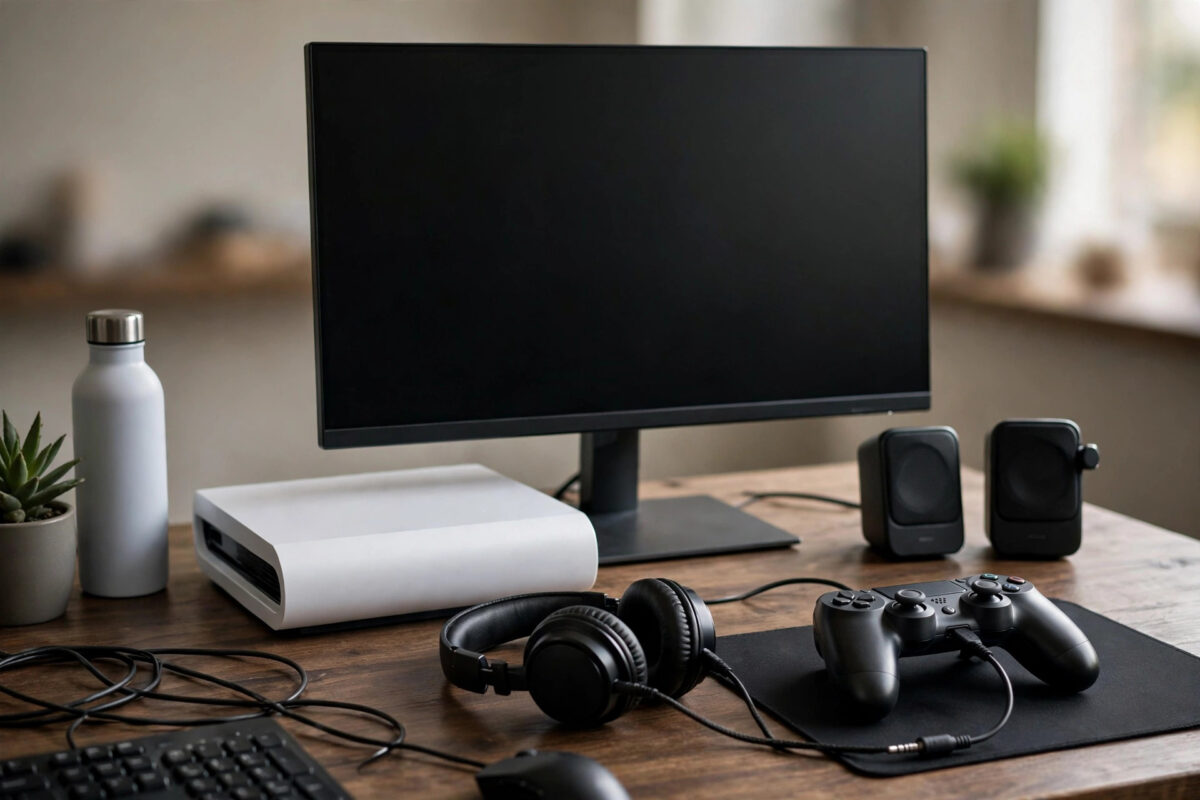
Gaming monitors are built for speed, not sound. Many of the best models have no speakers at all, and the ones that do often sound thin and quiet. So you connect your console, the picture looks perfect, and then there is complete silence. It is a common problem, but every console gives you several clean ways to get audio back.
This guide covers all the practical options, from the headset you probably already own to speakers, soundbars, and extractors. By the end you will know which method suits your desk, your budget, and your monitor.
Quick Answer
If your gaming monitor has no speakers, the easiest fix is to plug a headset into your controller’s 3.5mm jack or connect a wireless gaming headset to the console. For room-filling sound, connect speakers or a soundbar using the monitor’s headphone output if it has one, an HDMI audio extractor, or Bluetooth or optical audio from the console where supported. The PS5 and Xbox also let you send all audio to a headset connected through the controller.
Why Monitors Often Have No Speakers
Monitor makers spend their budget on the panel: refresh rate, response time, colour accuracy, and ports. Speakers take up space, add cost, and are rarely a reason anyone buys a gaming monitor, so many models leave them out entirely. Even when speakers are included, they are usually small, downward-firing, and low powered. Voices can be hard to follow and bass is almost absent.
The good news is that console audio is flexible. The HDMI cable carries sound as well as picture, and the consoles themselves offer headset and USB audio routes. You just need to pick the path that matches your setup.
Option 1: Use a Headset With Your Controller
This is the simplest and most popular solution for desk gaming. Both the PS5 DualSense and the Xbox wireless controller have a 3.5mm headphone jack on the bottom edge.
- Plug any wired headset or earbuds with a 3.5mm plug into the controller.
- On PS5, go to Settings, then Sound, then Audio Output, and confirm the output device is set to the controller headset. The console switches automatically in most cases.
- On Xbox, press the Xbox button, open the audio settings at the bottom of the guide, and adjust headset volume and chat balance.
- Test with a game and the console menu sounds so you can set a comfortable level before you play.
Controller audio also carries a microphone, so party chat works without extra equipment. The only downsides are the cable and battery drain, since powering a headset shortens controller battery life a little. For competitive players, this option has another benefit: game audio in your ears with almost no delay, and clear directional cues for footsteps.
Option 2: Connect a Wireless or USB Headset to the Console
Wireless headsets remove the cable and usually sound better than controller audio. Most gaming headsets connect with a small USB dongle that plugs into the console. Put the dongle in a front USB port, turn the headset on, and the console should recognise it as the audio output.
On PS5, official and licensed headsets pair easily, and the Tempest 3D audio features work with many models. On Xbox, check compatibility carefully, because Xbox uses its own wireless system and not every PlayStation or PC headset works with it. Bluetooth audio is limited on both consoles: the PS5 does not support standard Bluetooth headsets directly, and Xbox is similar, so a dongle-based or officially licensed headset is the reliable route. The support pages at PlayStation Support for headset and audio setup and Xbox Support for headset compatibility list what each console accepts.
Option 3: Use the Monitor’s Headphone Output
Many speaker-less monitors still have a 3.5mm audio output, because the monitor can pass the HDMI sound through to headphones or speakers. Look for a small round port on the back or underside of the monitor, often marked with a headphone symbol.
- Connect powered speakers or headphones to the monitor’s audio output.
- Make sure the console is sending audio over HDMI, which is the default.
- Control volume through the monitor’s menu or the speakers themselves, since console volume controls may not affect this output.
This method is tidy for a desk because the speakers stay connected to the monitor and work with any device you plug into it, including a PC. The sound quality depends on the monitor’s internal audio chip, which is usually fine for casual play. If your broader setup is new, our walkthrough on how to set up a gaming monitor for a console with HDR and low input lag covers the picture side of the same connection.
Option 4: Use an HDMI Audio Extractor
An HDMI audio extractor is a small box that sits between the console and the monitor. It passes the video through to the monitor and splits the audio out to an optical or 3.5mm connection for speakers, a soundbar, or an amplifier.
- Connect the console to the extractor’s HDMI input with a short cable.
- Connect the extractor’s HDMI output to the monitor.
- Connect your speakers or soundbar to the extractor’s audio output.
- Power the extractor, usually by USB, and select the audio format your speakers support.
Choose an extractor that matches your video needs. If you play at 4K 120Hz with HDR, the extractor must support HDMI 2.1 bandwidth, or it will limit your picture. For 1080p or 1440p setups, cheaper HDMI 2.0 models are fine. This is the best option when you want proper speakers and your monitor has no audio output at all.
Option 5: Connect Speakers or a Soundbar Another Way
Some setups allow a more direct route. If your soundbar has HDMI passthrough, you can run the console through the soundbar and then to the monitor, letting the soundbar play the audio and forward the picture. Check that the passthrough supports your resolution and refresh rate, or the picture will be limited instead.
The original Nintendo Switch and Switch 2 in docked mode follow the same rules as the other consoles: HDMI carries the sound, so the monitor output, an extractor, or a headset in the console’s own headphone jack will work. In handheld mode the built-in speakers and headphone jack handle everything. Note that the PS5 and Xbox Series consoles have no optical port, so optical-only speakers need an extractor or a monitor output to connect.
Fixing Common Audio Problems
No Sound at All
Check the basics in order. Confirm the monitor volume is not muted in its menu, confirm the console output is set to HDMI or the headset you intended, and reseat every cable. If you use an extractor, make sure it has power and the correct input is selected.
Sound Is Delayed
Bluetooth adapters and some soundbar processing modes add noticeable delay. Use wired connections for competitive games, and enable any game or passthrough mode on audio equipment. Lip-sync or audio delay sliders in speaker settings can also help align sound with picture.
Sound Only Comes From One Side
Push the 3.5mm plug in fully, because a half-inserted jack is the usual cause. Try the headset in a phone to rule out a faulty cable, and check balance settings on the console.
Common Mistakes to Avoid
- Buying unpowered speakers: A monitor’s headphone output cannot drive passive speakers. You need powered speakers or an amplifier.
- Assuming Bluetooth will just work: Neither PS5 nor Xbox supports ordinary Bluetooth headsets directly. Buy a compatible dongle or licensed headset.
- Forgetting the extractor’s limits: A cheap extractor can cap your resolution or refresh rate. Match its HDMI version to your setup.
- Leaving chat and game audio unbalanced: Use the console’s mixer so voices are clear without drowning out the game.
- Plugging into the wrong 3.5mm port: Some monitors have both input and output jacks. Use the one marked with a headphone or output symbol.
Conclusion
A monitor without speakers is not a problem once you know the routes console audio can take. A headset in the controller is the fastest fix, a wireless headset is the cleanest desk upgrade, the monitor’s own headphone output is the tidiest path to speakers, and an HDMI extractor unlocks almost any sound system you own. Pick the option that matches how you play, test it in the console menu before launching a game, and your silent screen will sound as good as it looks.
Frequently Asked Questions
Can I connect Bluetooth speakers directly to a PS5 or Xbox?
Not in most cases. Both consoles restrict Bluetooth audio to licensed accessories and dongle-based headsets. For speakers, use a wired connection through the monitor output, a soundbar passthrough, or an HDMI extractor instead.
Will a headset in the controller work for game chat?
Yes. The controller jack carries both game audio and microphone input, so party chat works normally. Adjust the chat and game balance in the console’s audio settings.
Does an HDMI audio extractor reduce picture quality?
A correctly rated extractor does not. Problems only appear when the extractor’s HDMI version is lower than your setup needs, which can limit resolution, HDR, or refresh rate.
Why is there sound in menus but not in games?
This is often an audio format issue. Set the console’s audio format to Stereo or Linear PCM for simple speaker setups, because some devices cannot decode surround formats and fall silent instead.
What is the cheapest way to get sound from a speaker-less monitor?
Use earbuds or a headset you already own in the controller’s 3.5mm jack. It costs nothing extra, works on PS5 and Xbox, and gives clear audio with very low delay.



[…] Switch recording is deliberately simple and short. Clips are 720p and 30 seconds maximum, and a small number of games disable the feature. For longer Switch sessions, the workarounds below are your main options. If your setup shares a desk display, see our guide on how to connect a console to a gaming monitor with no speakers. […]