
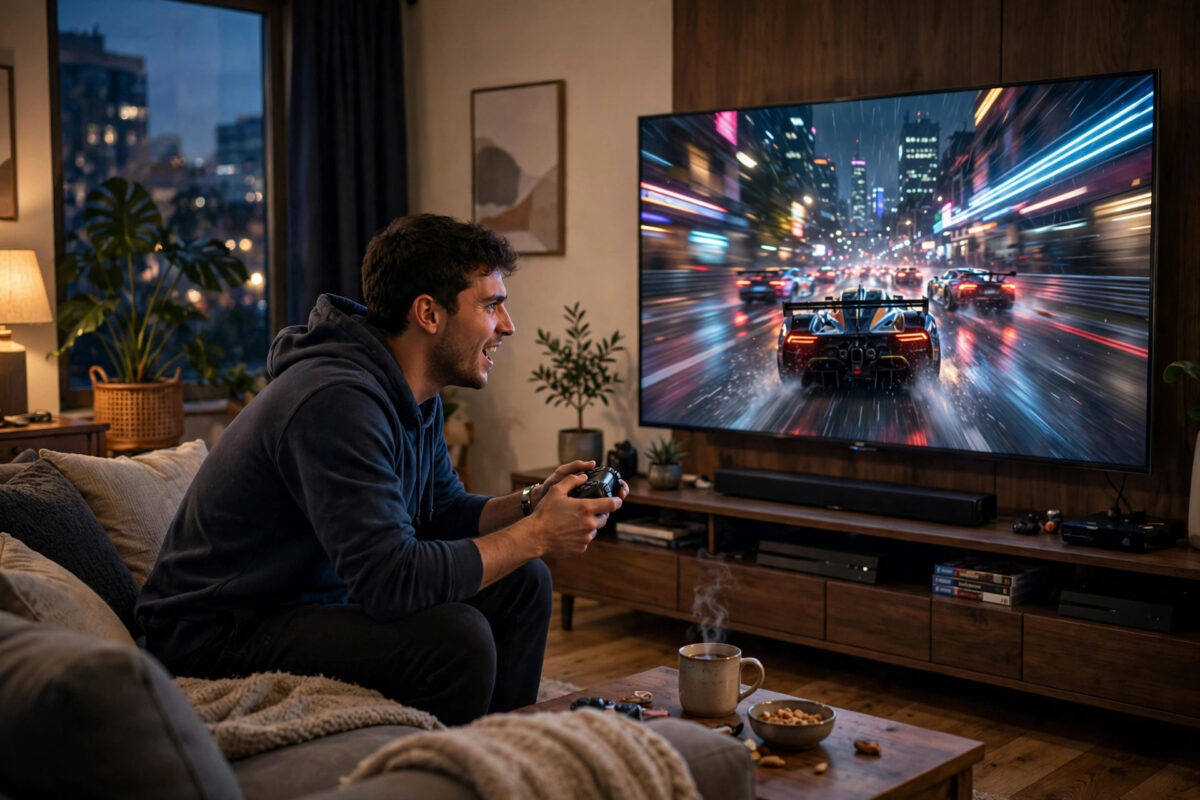
You press jump, and your character jumps a fraction of a second later. You flick the stick to aim, and the crosshair arrives late. That small delay has a name, and it can be the difference between a TV that feels great for gaming and one that feels sluggish no matter how good the picture looks.
This guide explains input lag in plain language, shows you how to measure it, and gives you a clear list of settings and habits that reduce it on any TV used for console gaming.
Quick Answer
Input lag is the delay between pressing a button on your controller and seeing the result on screen, measured in milliseconds. To reduce it, turn on your TV’s Game Mode, connect your console directly to the TV with HDMI, disable motion smoothing and other picture processing, use a wired or low-latency controller connection, and play at the highest refresh rate your TV and console support. Good gaming TVs achieve under 10ms of lag in Game Mode.
What Input Lag Actually Is
Input lag is a chain of small delays added together. Your controller sends a signal, the console processes it and renders a frame, the signal travels through the cable, and the TV processes the image before displaying it. Each step takes a few milliseconds. When the total is low, the game feels connected to your hands. When it is high, everything feels like it is moving through treacle.
It helps to separate input lag from two related ideas. Response time is how fast pixels change colour, and a slow response causes blur or ghosting behind moving objects. Refresh rate is how many times per second the screen updates, shown in hertz. A 120Hz TV can display a new frame every 8.3 milliseconds, while a 60Hz TV needs 16.7 milliseconds. Higher refresh rates therefore cut one part of the lag chain automatically.
For context, most players stop noticing lag below about 20 milliseconds. Casual and story games feel fine up to roughly 40 milliseconds. Fast shooters, fighting games, and rhythm games demand the lowest lag you can get, because timing windows are tight and opponents online may be playing on faster setups.
How Much Input Lag Is Good for Gaming?
- Under 10ms: Excellent. Typical of modern gaming TVs and monitors in Game Mode at 120Hz.
- 10 to 20ms: Very good. Suitable for almost every genre, including competitive play.
- 20 to 40ms: Acceptable for casual and single-player games, but keen players will feel it in shooters.
- Over 50ms: Noticeable to most people. Menus feel heavy and aiming feels delayed.
- Over 100ms: Common on TVs with motion processing left on. Difficult to play anything that needs timing.
The same TV can swing between these ranges depending on its settings. A set that measures 90ms with all processing on may drop below 10ms the moment Game Mode is enabled. That is why settings matter more than most people expect.
How to Reduce Input Lag on Your TV: Step by Step
Step 1: Turn On Game Mode
This is the single biggest fix. Game Mode tells the TV to skip most of its picture processing so frames reach the screen as fast as possible. You will find it in the picture settings or in a dedicated game menu, depending on the brand. Samsung and LG often detect a console and suggest it automatically. Sony calls it Game picture mode. Turn it on for the HDMI input your console uses, because many TVs apply picture settings per input.
If your TV and console both support ALLM, or Auto Low Latency Mode, the TV switches to Game Mode by itself when you start a game. You can check the requirements in our explainer on how to turn on Game Mode on your TV for consoles, which covers each major brand in detail.
Step 2: Turn Off Picture Processing
- Disable motion smoothing, called TruMotion, Motionflow, or Auto Motion Plus depending on the brand. It invents extra frames and adds heavy delay.
- Turn off noise reduction, dynamic contrast, and MPEG noise filters. Games are clean digital signals and do not need them.
- Disable eco and ambient light modes that adjust the picture in real time.
- Leave sharpness at the neutral value rather than adding edge enhancement.
Each feature may seem harmless alone, but together they can add tens of milliseconds. Game Mode disables many of them automatically, yet some TVs still leave motion settings active, so check manually.
Step 3: Connect the Console the Right Way
Plug the console directly into the TV rather than through a soundbar, AV receiver, or HDMI switch. Every device in the chain can add delay or limit bandwidth. If you must use a receiver, enable its passthrough or game setting and confirm it supports the resolution and refresh rate you want.
Use the HDMI cable supplied with the console and the TV’s enhanced or eARC port where appropriate. In the TV’s HDMI settings, set the input format to Enhanced, Deep Colour, or Input Signal Plus so the port runs at full speed. Guidance from Xbox Support on TV and display settings and PlayStation Support on video output settings confirms that port format settings are a common reason consoles fall back to slower modes.
Step 4: Use the Highest Refresh Rate and VRR
If your TV supports 120Hz, enable 120Hz output on the console and choose performance mode in games that offer it. More frames per second means the screen shows your input sooner. Turn on Variable Refresh Rate as well if available. VRR does not just remove tearing; it also presents each frame as soon as it is ready instead of waiting for a fixed refresh cycle, which trims a little more delay.
Step 5: Reduce Controller Delay
The controller is the first link in the chain. A wired connection is usually the fastest and most consistent, and it never suffers interference. Modern wireless controllers from PlayStation and Xbox are already very fast, but you can help them by keeping the console in open space, staying within a sensible distance, and avoiding a clutter of other wireless devices near the console. Charge or replace batteries before they run low, as some controllers behave less consistently on very low power.
How to Test Your Input Lag
You cannot get a lab-grade number at home, but you can compare settings reliably. The simplest test is feel: open a fast game, move the camera in circles, and fire or jump repeatedly with Game Mode on and off. The difference is usually obvious.
For a rough measurement, record your TV and controller together with a phone that shoots slow-motion video. Press a button, count the frames between the press and the on-screen reaction, and divide by the recording frame rate. At 240 frames per second, each frame is about 4.2 milliseconds. Repeat the test a few times and average the results, because human presses vary.
Some games and calibration tools also show timing tests, and rhythm games often include a latency calibration screen that gives a useful estimate. Use the same test before and after changing settings to see what actually helped.
Settings That Do Not Help as Much as You Think
Lowering the resolution alone does not guarantee lower lag if processing stays on. A 1080p signal with motion smoothing can still feel slower than a 4K signal in Game Mode. Likewise, an expensive cable does not reduce lag by itself; it only ensures the signal arrives at full quality and full refresh rate. Finally, TV software updates occasionally change latency, so retest after a major update if a game suddenly feels different.
Common Mistakes to Avoid
- Playing in Cinema or Vivid mode: These modes look dramatic but keep the heaviest processing switched on.
- Turning on Game Mode for the wrong input: Settings are often saved per HDMI port. Check the exact port your console uses.
- Routing through extra devices: Soundbars and capture devices can add delay unless they have a proper passthrough mode.
- Leaving motion smoothing on: It is the worst single offender and is sometimes active even inside other presets.
- Blaming the internet for offline lag: Network latency affects online games, but menu delay and offline sluggishness are local input lag.
- Mixing up lag and frame rate: A game running at a low frame rate feels unresponsive for a different reason. Fix frame rate with performance mode and lag with TV settings.
Conclusion
Input lag is simply the total delay between your hands and the screen, and most of it is under your control. Game Mode, direct HDMI connection, disabled motion processing, the highest available refresh rate, and a sensible controller setup will transform how a TV feels for gaming, often without spending anything. Test your setup before and after the changes, keep the settings saved for your console’s input, and enjoy games that respond the moment you do.
Frequently Asked Questions
What is a good input lag for console gaming?
Under 20 milliseconds feels responsive for most players, and under 10 milliseconds is excellent. Anything above 50 milliseconds is noticeable in fast games and is usually caused by picture processing being left on.
Does Game Mode reduce picture quality?
Slightly, because it disables some enhancement features. In practice, games look clean without them, and you can still adjust brightness, colour, and HDR inside Game Mode on most modern TVs.
Does a bigger TV have more input lag?
No. Size does not determine lag. Processing, refresh rate, and settings do. A large TV in Game Mode can be just as fast as a small one.
Is input lag the same as ping?
No. Ping is network delay between your console and a game server. Input lag is local delay between your controller and your screen. You can have low ping and high input lag at the same time.
Will a gaming monitor always have less lag than a TV?
Usually, yes, because monitors are built for fast response and have little processing. However, a modern TV in Game Mode at 120Hz is now very close, and the gap is small enough that many players cannot feel it.



[…] you want to understand what ALLM is actually reducing, our detailed explainer on what input lag is and how to reduce it on your TV breaks down the full delay chain in simple […]