
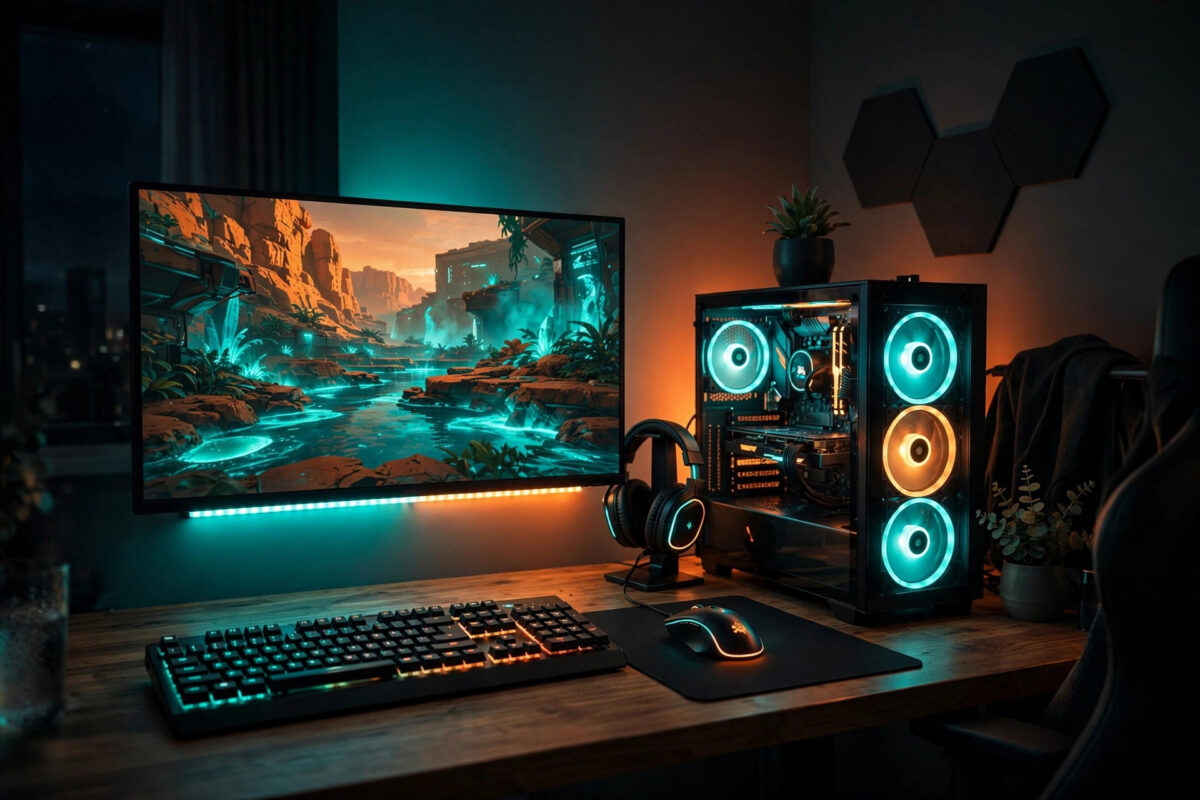
RGB lighting is at its best when it stops being random rainbow decoration and starts reacting to what you are actually playing. Imagine your keyboard flashing red when your health drops, your case fans pulsing with an explosion, or your whole desk glowing the colour of the world on screen. That level of immersion is possible on most modern gaming PCs, and it is easier to set up than it looks.
The challenge is that RGB hardware comes from many brands, each with its own app, and games support sync in different ways. This guide explains the main routes to game-synced lighting, walks through setup step by step, and helps you avoid the software conflicts that frustrate most people.
Quick Answer
Install the lighting software that matches your hardware, such as Razer Synapse with Chroma, Corsair iCUE, or SignalRGB, connect your devices in that app, and enable the game integration or Chroma Connect module for your title. Where a game has no built-in integration, use screen ambience mode, which mirrors the colours on your monitor to your lights in real time.
The Three Ways Lights Sync With Games
Built-In Game Integrations
Some games talk directly to lighting software. The developers decide what each effect means: a colour for low health, a flash for an ultimate ability, a wave for a victory screen. These integrations give the smartest effects because the game knows exactly what is happening, not just what is on screen.
Razer Chroma has one of the largest libraries of supported games, and many titles also work with Corsair iCUE and other ecosystems. Check the supported games list inside your app before you buy new hardware, because support is per game, not automatic.
Screen Ambience Mirroring
Ambience mode samples the colours at the edges of your screen and copies them to light strips, fans, and peripherals. It works with every game, every video, and even your desktop, because it does not need the game to cooperate. The effect is less clever than a true integration but far more universal, and for room lighting behind a monitor it looks fantastic.
Audio Visualisation
Most lighting apps can also react to sound, pulsing lights to music or in-game audio. It is not game data, but for rhythm games, shooters with heavy sound design, and general atmosphere, an audio layer adds energy. Many players combine a subtle ambience base with audio-reactive accents.
Choosing Your Control Software
The golden rule is simple: run as few lighting apps as possible. Every brand wants to control every device, and when two apps fight over the same fan or keyboard, you get flickering, frozen colours, or devices vanishing entirely.
- Razer Synapse and Chroma: Best if your keyboard, mouse, or headset is Razer, and strong for game integrations through Chroma Connect.
- Corsair iCUE: Excellent for Corsair fans, cases, memory, and peripherals, with game profiles and murals for ambience effects.
- SignalRGB: A popular all-in-one option that controls many brands from one app, with a large library of game effects and ambience modes.
- Motherboard software: ASUS Armoury Crate, MSI Center, and Gigabyte Control Center manage headers and in-case lighting well, but are weaker for game sync on their own.
If your setup mixes brands, a unifying app is usually the happiest path. The official ASUS support resources for Aura Sync show how motherboard lighting links with compatible devices, which helps if your case and fans are built around the ASUS ecosystem. For mixed desks, our internal guide on syncing RGB lighting across different hardware brands compares the unifying apps in more depth.
Step-by-Step Setup
- Connect everything correctly. In-case devices should be on the right motherboard headers: 3-pin addressable RGB headers for individually controlled lights, 4-pin RGB headers for single-colour devices. Peripherals connect by USB as normal.
- Install one main app. Download the latest version of your chosen software from the maker official site, install it, and restart your PC.
- Let the app detect your devices. Open the app and confirm every fan, strip, keyboard, and mouse appears. Update any device firmware the app offers, because sync features often arrive through firmware.
- Remove or disable rivals. Uninstall other lighting apps, or at least stop them launching at startup, so only one program controls colours.
- Arrange your devices in the app. Most apps show a layout screen. Place each device roughly where it sits on your desk or in your case, because wave and ambience effects depend on position to look right.
- Enable the game integration. In Razer Synapse, open the Connect section and turn on Chroma Connect for supported games. In iCUE, enable the game integration option in settings and install any per-game plugin offered. In SignalRGB, open the game effects library and link your game.
- Or turn on ambience mode. Choose screen ambience or mural mode, select which devices mirror the screen, and set how quickly colours change. Slower transitions look calmer for room strips; faster suits small desk items.
- Create a profile per game. Save your favourite effect as a named profile and set it to load automatically when that game launches, if your app supports profile switching.
- Test in a safe moment. Load a single-player session or training mode first and watch the lights during a fight, a menu, and a cutscene. Adjust brightness, because full brightness can distract in a dark room.
Making Effects Look Good, Not Gimmicky
Restraint is the secret. Pick a small palette that matches the game: two or three colours beat the full rainbow for immersion. Keep static base lighting dim and let the reactive effects provide the drama. If your health warning is red, make sure nothing else in the profile is red, so the signal stays clear.
Brightness balance matters too. A glowing light strip behind the monitor should be softer than the screen itself, or it will pull your eyes away. Most apps let you set per-device brightness, so turn room lighting down and keep keyboard effects slightly brighter for visibility.
Common Mistakes to Avoid
- Running three lighting apps at once: This causes most sync failures. Pick one controller and remove the rest.
- Plugging addressable lights into the wrong header: A 3-pin addressable device on a 4-pin header can be damaged. Check manuals before powering on.
- Skipping firmware updates: Outdated device firmware is a frequent reason a game integration does not appear.
- Forgetting in-game settings: Some titles have their own RGB toggle in the options menu that must be switched on.
- Max brightness everywhere: It washes out effects and tires your eyes during long sessions.
Troubleshooting Sync Problems
If a game does not trigger effects, confirm the game is on the supported list, launch the lighting app before the game, and run both with matching permissions. Antivirus and overlay software can block the link between a game and a lighting app, so add both programs to your allowed list if effects stop working after a security update.
If only some devices react, those devices are probably still being claimed by their brand app in the background. Check your startup programs and running services, not just installed apps, because brand services often keep running after the main window closes.
Conclusion
Game-synced RGB works best when one app controls everything, your devices are connected to the correct headers, and you choose between true game integrations for supported titles and ambience mirroring for everything else. Set up a profile per game, keep brightness sensible, and your lighting will add real atmosphere instead of random colour. Start with one game you play often, perfect its profile, and the rest will follow quickly.
Frequently Asked Questions
Do all games support RGB sync?
No. Only certain titles include direct integrations, and support varies by lighting platform. However, ambience mirroring works with any game because it copies screen colours, so you can still get reactive lighting for unsupported games, films, and general desktop use.
Can I sync RGB from different brands together?
Often, yes, through a unifying app such as SignalRGB or through motherboard software that recognises multiple brands. Some features stay exclusive to each brand own app, so test your exact devices. The safest rule is one controlling app, with rival software uninstalled or disabled.
Does RGB sync affect game performance?
The impact is tiny on a modern PC, usually well under one percent of CPU use. Ambience modes sample the screen, which costs slightly more than static effects. If you are chasing every frame on an older system, close the lighting app during competitive matches.
Why do my lights freeze or flicker during games?
Flicker usually means two programs are fighting for the same device, or a USB device is losing connection. Remove rival apps, try a different USB port directly on the motherboard, and update firmware. For in-case lights, reseat the RGB header connector firmly.
Can console players sync lights with games?
Options are limited compared with PC. Some smart room lights and TV backlight systems mirror the screen through a camera or HDMI sync box, which works with consoles. Full per-game integrations, however, are mainly a PC feature today.



Leave a Reply