
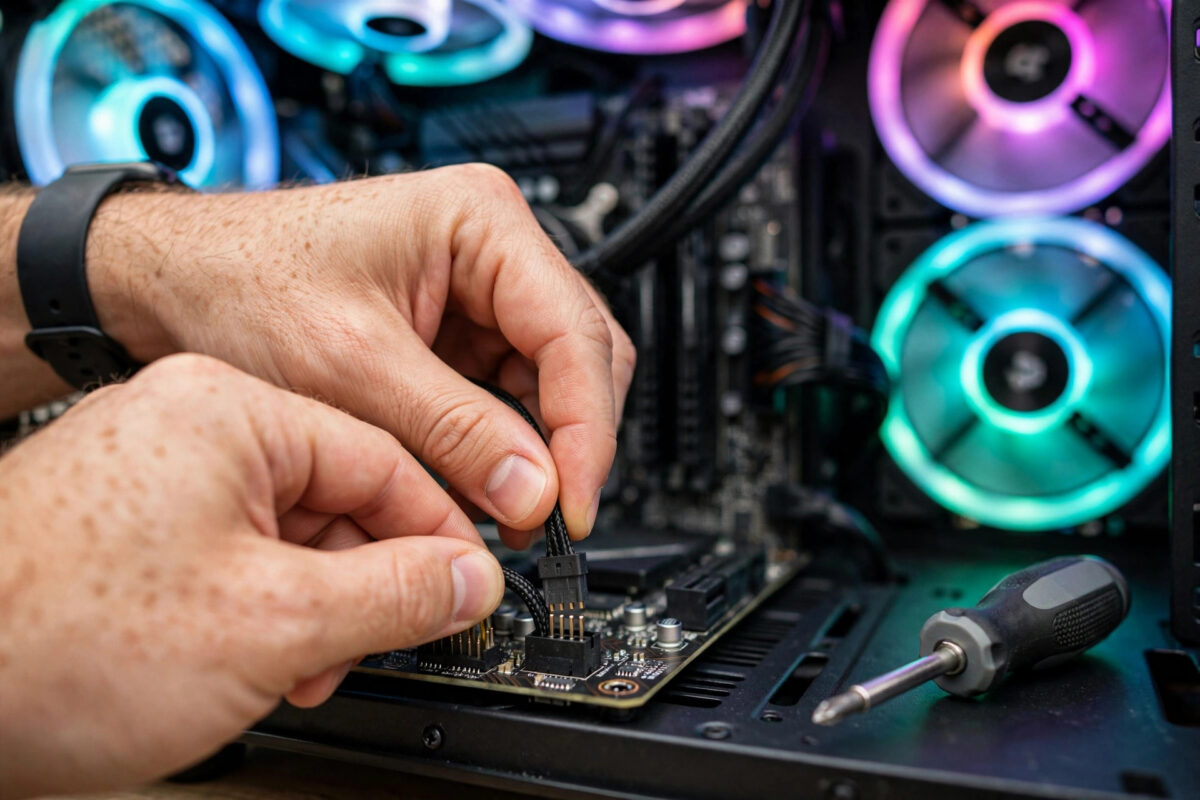
You have fitted new RGB fans, the blades spin perfectly, but the lights either stay a fixed colour or do not appear at all in your motherboard software. It is one of the most common frustrations in PC building, because the fan part and the lighting part of the same product are controlled in completely different ways.
The good news is that undetected fans are rarely broken fans. In most cases the cause is a wrong header, a loose hub connection, a software conflict, or a setting that needs switching on. This guide works through the causes in order, from the simplest physical checks to the deeper software fixes.
Quick Answer
Check that the fan lighting cable is plugged into the correct motherboard header, using a 3-pin addressable RGB header for addressable fans and a 4-pin header for standard RGB fans, and that any hub is powered and connected. Then reinstall or update your motherboard lighting software, remove rival RGB apps, and enable the header in the software settings so the fans can be detected.
Understand the Two Separate Connections
Every RGB fan has two jobs. The fan cable, usually 4-pin PWM or 3-pin, controls spinning and plugs into a fan header. The lighting cable controls colour and plugs into an RGB header, a hub, or a controller. A fan can spin happily while its lighting is completely disconnected, which is exactly why this problem confuses people.
There are also two lighting standards that look similar but are not compatible. Standard RGB uses a 4-pin 12V header and shows one colour across the whole fan. Addressable RGB, often called ARGB or digital RGB, uses a 3-pin 5V header and can show different colours on each LED. Plugging one type into the other can damage the lights, so identifying what you own is step one. Fan manuals and product pages state the type clearly, and the official MSI support pages on RGB connections illustrate how the different headers and voltages work in practice.
Hubs and Controllers Change the Picture
Many fan kits include a hub. All fans plug into the hub, and the hub connects to the motherboard with one lighting cable and one fan cable, plus a SATA power lead from the power supply. If the hub is set to remote-control mode, the motherboard software will never see the fans, because the hub is listening to its remote instead. Most hubs have a button or a long-press mode to hand control back to the motherboard. If you are planning a new build, our guide on how motherboard RGB headers and hubs work together explains the wiring choices before you buy.
Step-by-Step Fixes to Work Through
- Power off and inspect the cables. Shut the PC down fully, switch off the power supply, and trace each fan lighting cable from the fan to the header or hub. Reseat every connector firmly; RGB plugs are small and often sit half-connected behind tidy cable management.
- Verify the header type. Match 3-pin addressable cables to 3-pin 5V headers marked ADD GEN2, D-LED, or similar, and 4-pin cables to 4-pin 12V headers marked RGB. Never force a connector; the pin spacing is deliberately different.
- Check the hub power and mode. Confirm the SATA power lead is connected, the hub-to-motherboard cables are in the right ports, and the hub is in motherboard sync mode rather than remote mode.
- Test one fan directly. Unplug the hub and connect a single fan lighting cable straight to the correct motherboard header. If it lights and appears in software, the hub or its settings were the problem.
- Update the software. Download the latest version of your board maker lighting app, such as ASUS Armoury Crate, MSI Center, or Gigabyte Control Center, from the official site. Install it fresh rather than updating over a broken copy.
- Update the BIOS and chipset drivers. Lighting detection bugs are sometimes fixed at firmware level. Update carefully following the board maker instructions, and never interrupt a BIOS update.
- Remove rival RGB programs. Uninstall lighting apps from other brands, including memory, keyboard, and GPU tools set to control case lighting. Restart, then open only your motherboard software.
- Enable the header inside the software. Some apps list headers as separate devices that must be switched on or added. Look for a devices or sync page and confirm the header holding your fans is enabled.
- Calibrate the LED count. Addressable software often asks how many LEDs or fans are on the header. Setting this too low makes extra fans stay dark or undetected, so enter the correct total for your chain.
Software-Specific Notes
ASUS Armoury Crate and Aura Sync
Aura Sync hides devices that fail an initial scan. Use the refresh or rescan option after reseating cables, and check that the Aura service is running in Windows services. If fans appear but effects do not apply, clear the saved profile and build a fresh one.
MSI Center and Mystic Light
Mystic Light must be installed as a module inside MSI Center; without the module, the board lighting options simply do not appear. After installing, fully close and reopen MSI Center so it rescans the headers.
Gigabyte Control Center and RGB Fusion
RGB Fusion sometimes needs the header selected manually at the top of the window before devices show. Also check that you installed the version matching your board generation, because older standalone RGB Fusion releases conflict with the newer Control Center.
Common Mistakes to Avoid
- Mixing 5V and 12V connections: This can permanently kill the LEDs. Always check voltage and pin count before plugging in.
- Assuming a spinning fan is fully connected: Spin and light are separate cables. Both must be right.
- Leaving the hub on remote mode: The fans will respond to the remote and ignore the PC entirely, which looks exactly like a detection failure.
- Stacking lighting apps: Armoury Crate, iCUE, and brand apps all running together is the fastest route to flicker and missing devices.
- Overloading one header: Headers have a maximum LED and current limit. Too many fans daisy-chained on one header can cause dim, partial, or missing lighting at the end of the chain.
When It Might Be a Hardware Fault
If one fan never lights on any header while its siblings work, swap its position in the chain. A fault that follows the fan points to a dead lighting cable or LED strip inside that fan. A fault that stays at the same position points to the cable before it or the header itself.
Also inspect connectors under good light. Bent pins on a motherboard header are surprisingly common after a rushed build and will stop detection completely. Straighten a pin only with the power fully off and great care, or ask a repair shop if you are unsure.
Before returning anything, test with the simplest possible setup: one fan, one correct header, one lighting app, latest software. Most detection problems disappear at this level, which tells you the fault lies in complexity, not in broken parts.
Conclusion
RGB fans that motherboard software cannot see are almost always a wiring, hub mode, or software conflict problem rather than dead hardware. Confirm the cable type and header match, make sure hubs are powered and set to motherboard control, then clean up your software to a single updated app. Work through the steps in order and your fans should appear, sync, and stay that way.
Frequently Asked Questions
Why do my fans spin but the lights stay off?
Because spinning and lighting use separate cables. The fan power cable is connected, but the lighting cable is unplugged, on the wrong header, or routed through a hub that has no power or is in remote mode. Trace the lighting cable first; it is the cause in most cases.
Can I plug a 3-pin ARGB fan into a 4-pin RGB header?
No. The voltages differ, 5V for addressable and 12V for standard RGB, and forcing the connection can destroy the LEDs. If your board lacks the header you need, use a compatible controller or hub designed for your fan type instead of an adapter that changes pins without changing voltage.
Why did my fans disappear after a software update?
Updates sometimes reset device scans or break the background service that detects hardware. Restart the PC, open the app and rescan for devices, and if that fails, uninstall the lighting app completely, restart, and install the newest version fresh from the board maker site.
How many RGB fans can one header support?
It depends on the header current limit and the LED count of your fans, both listed in the manuals. As a rough guide, three to five typical fans per header is safe. Beyond that, use a powered hub so the motherboard header only carries the signal, not the full power load.
Do I need the hub that came with my fans?
Not always. If your motherboard has enough correct headers, you can connect fans directly and skip the hub. Keep the hub if you have many fans, few headers, or want one tidy connection point. Just remember the hub must be in motherboard sync mode for software control to work.



Leave a Reply