
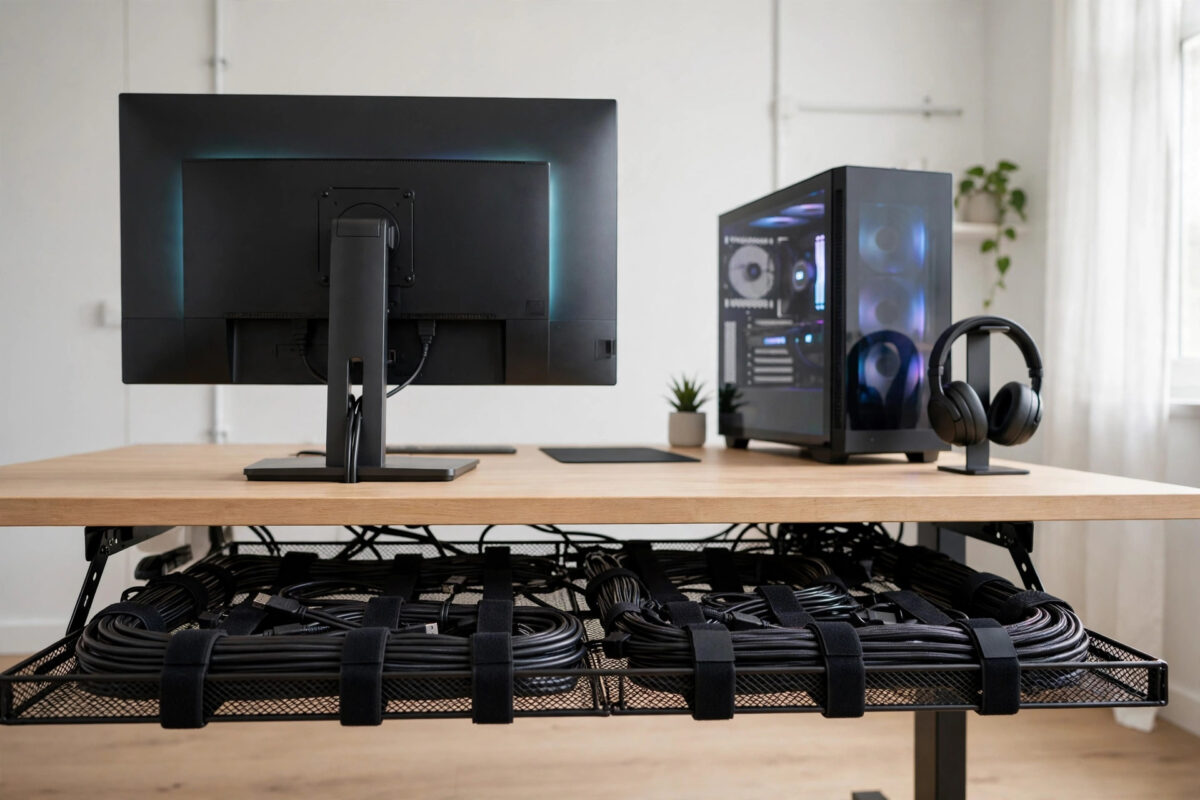
A great gaming setup can be ruined by the mess hiding behind it. Power bricks, monitor cables, USB leads, headset wires, and console cables tangle into one dusty knot that nobody wants to touch. Every time you add a new device, the problem gets worse, and simple jobs like swapping a monitor turn into an hour of untangling.
The good news is that cable management is a one-time effort with lasting rewards. With a simple plan, a few cheap accessories, and about an hour of work, you can turn that knot into a clean, labelled, easy-to-change setup. This guide shows you exactly how to do it, step by step.
Quick Answer
Turn everything off, unplug every cable, and start from an empty desk. Route power cables through a cable tray or box under the desk, group the remaining cables by device using Velcro ties, and shorten slack with loops instead of letting it hang. Label both ends of each cable so future changes take minutes, not hours.
Why Cable Management Is Worth the Effort
Clean cables are not just about looks, although a tidy desk does make a setup feel far more premium in photos and on stream. There are practical benefits too. Grouped cables collect less dust, are less likely to be kicked loose mid-game, and make it obvious when something has been unplugged by accident.
Airflow improves as well. A dense tangle behind a PC or console can trap warm air and block vents. Keeping cables clear of fans and exhausts helps your hardware run cooler and quieter. Finally, a managed setup is safer: fewer cables trailing across the floor means fewer trip hazards and less strain on ports from cables hanging under their own weight.
Plan Before You Unplug Anything
Take a photo of the current mess from behind the desk. It feels pointless, but if you need to put something back quickly, that photo is a perfect reference. Next, list every device in your setup and what it needs: power, video, USB, audio, or network. This list becomes your routing plan.
Decide where your power strip will live, ideally inside a cable management box or tray mounted under the desk. Everything else follows from that decision, because power cables are the thickest and least flexible, so they should be routed first.
Tools and Accessories That Actually Help
- Velcro cable ties, which are reusable and gentle on cables
- An under-desk cable tray or a lidded cable management box
- Adhesive cable clips for guiding single cables along edges
- A label maker or masking tape and a pen for labelling
- Spiral wrap or braided sleeving for grouping cables that run together
- A surge-protected power strip with enough sockets for every device
You do not need all of these. Velcro ties, a tray, and labels alone will transform most setups. Avoid plastic zip ties for anything you might change later, because cutting them off risks nicking the cable underneath. If you are also improving your connection while you tidy up, our guide on choosing the best Ethernet cables for low-lag gaming explains which network cable is worth routing neatly to your desk.
Step-by-Step Cable Cleanup
- Power everything down. Shut down your PC and consoles properly, switch off the power strip, and only then start unplugging.
- Remove every cable. Clear the whole area, wipe down the desk back and floor, and untangle each cable fully. Inspect for damage as you go and replace any cable with a cracked jacket or bent connector.
- Position the power strip. Mount your tray under the desk or place your cable box on the floor against the wall. Put the power strip and all bulky power bricks inside it.
- Reconnect power first. Plug in each device power cable one at a time, routing it through the tray. Loop extra length in a loose circle inside the tray rather than letting it dangle.
- Add video and data cables. Run monitor, USB, and Ethernet cables next. Keep them in a separate bundle from power cables where you can, which reduces interference and makes tracing easier.
- Bundle by device. Group the cables belonging to one device together with Velcro ties every 30 to 40 centimetres. If a cable peels away from the group, that is where a tie should go.
- Manage the drop to the floor. Cables that must reach the floor, such as the power strip lead itself, should drop straight down at one point, ideally behind a desk leg, and run along the skirting board.
- Label everything. Put a label at both ends of each cable naming the device, for example monitor power or console HDMI. Future you will be grateful.
- Test before you tidy the last details. Power everything on, confirm every device works, wiggle-test each connector gently, and only then close the cable box lid and push the desk back.
Managing Specific Problem Areas
The Monitor Cluster
Monitors usually need power, one or two video cables, and sometimes a USB hub cable. If your monitor arm has a cable channel, use it. Otherwise, run the cables down the back of the stand together inside a short length of sleeving so they move as one unit when you adjust the screen.
Controllers, Headsets, and Chargers
Charging cables are the daily mess makers. Give them a permanent home: a small dock or a clip on the desk edge where the cable end always returns. A headset stand with a built-in USB hub can replace several loose cables at once.
PC Case Interior
The same principles apply inside the case. Route cables behind the motherboard tray, use the cut-outs provided, and keep slack loops tied away from fans. A tidy interior is easier to upgrade and keeps airflow paths clear.
Common Mistakes to Avoid
- Tying cables too tightly: Crushed cables, especially HDMI and Ethernet, can be damaged internally. Ties should hold, not strangle.
- Mixing power and signal in one tight bundle: Cheap unshielded cables bundled tightly with power leads can pick up buzz in audio gear. Keep the groups separate where possible.
- Leaving zero slack: Cables pulled drum-tight put constant strain on ports. Leave a gentle service loop so devices can move slightly.
- Hiding the power strip switch: Burying your only power switch behind furniture guarantees frustration during the first crash or freeze.
- Skipping labels: Every setup looks obvious today and confusing in six months. Labels are the cheapest upgrade in this whole guide.
Tips to Keep It Tidy Long Term
Adopt a simple rule: no new device goes live until its cables are routed and labelled. It takes three extra minutes during installation and prevents the slow return of the tangle. Keep a small pouch of spare Velcro ties in the desk drawer so you never have an excuse to leave a cable loose just for now.
Review the setup every few months. Remove cables for devices you no longer use, because most tangles are half legacy wires nobody needs anymore. When you buy replacement cables, buy the right length instead of the longest available; a cable that is exactly long enough is the easiest cable to hide. Stores and maker guides such as the official ASUS support and FAQ library also publish care guidance for cables and ports that is worth a quick read before a big rebuild.
For streaming setups, route one empty spare cable, such as an extra HDMI and USB, through your bundle in advance. When a capture card or camera joins the setup later, you can plug in without rebuilding anything.
Conclusion
Organising the cables in a gaming setup is mostly about order of work: empty everything, route power first, bundle by device, shorten the slack, and label both ends. The result looks better, runs cooler, and makes every future upgrade faster. Spend one focused hour on it and your setup will stay easy to live with for years.
Frequently Asked Questions
Are Velcro ties better than zip ties for gaming setups?
Yes. Velcro ties can be opened and reused every time you change a device, and they do not cut into cable jackets when tightened. Zip ties are fine for permanent runs you will never touch, but most desk setups change too often for them.
How do I hide cables with a standing desk?
Mount the tray and power strip to the underside of the desk so everything moves with it. Then only one cable, the power strip lead, needs to travel to the wall, inside a flexible cable spine or a loose loop with enough slack for full height. Keep that loop clear of the desk legs.
Can bad cable management affect performance?
Indirectly, yes. Cables blocking vents raise temperatures, and heat makes PCs and consoles throttle or get louder. A cable under strain can also work loose and disconnect mid-game. You will not gain frame rates from tidy cables, but you can lose stability from messy ones.
What length of cable should I buy for a desk setup?
Measure the actual route, including the drop down and the run along the tray, then add about 20 percent for gentle bends and a service loop. For most single-desk setups, monitor and USB cables between one and two metres are ideal. Avoid five-metre cables for short runs, because the excess has to go somewhere.
How do I manage cables on a glass or open desk?
Use the desk frame as your friend. Run cables along the rear crossbar or legs with adhesive clips, keep bundles tight to the frame, and use sleeving in a colour that matches the desk. A floor cable box at the wall socket hides the power side where the frame cannot help.



Leave a Reply