
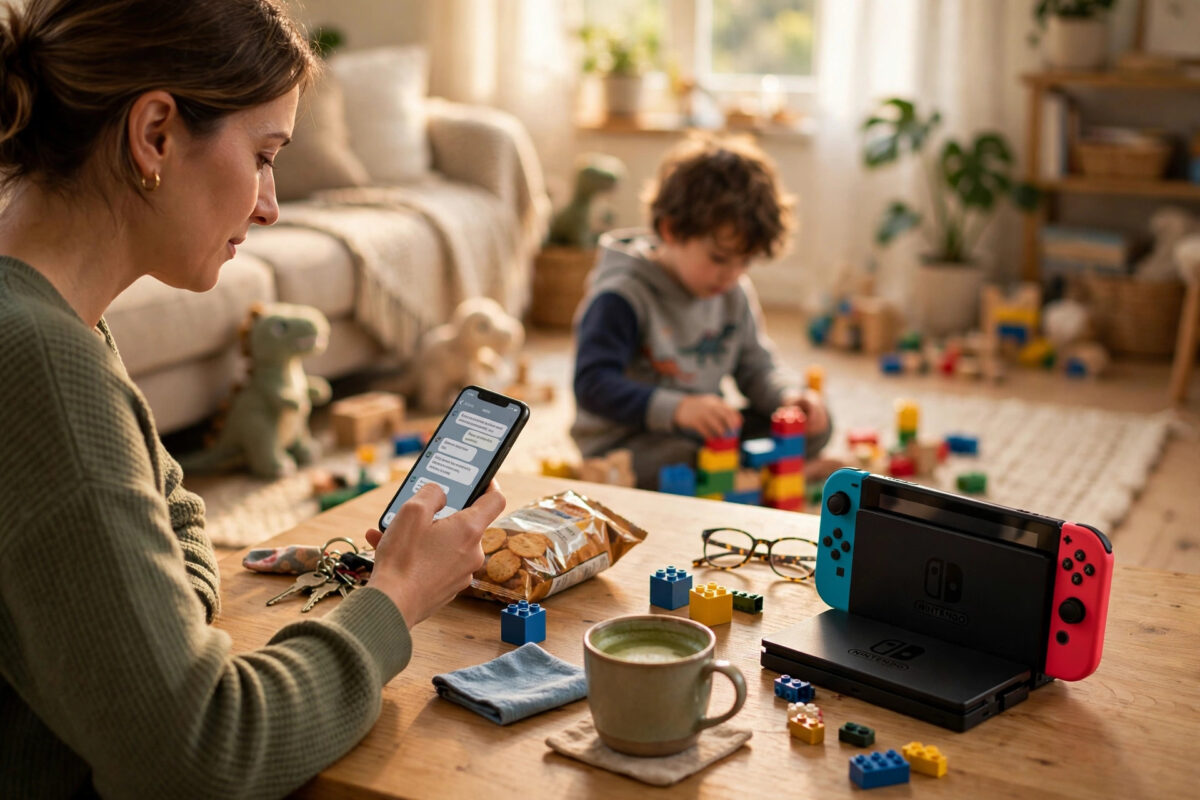
The Nintendo Switch is built for family play, but parents often want clear limits on play time, spending, and age-appropriate games. Nintendo’s free parental controls app for phones makes this much easier than using the console menus alone. You can set daily limits, see what your child plays, and approve things from your own phone.
This guide shows you how to link the app to the console, set sensible rules step by step, and manage the settings day to day. Everything here uses Nintendo’s official tools, and you stay in control throughout.
Quick Answer
Download the free Nintendo Switch Parental Controls app on your phone, sign in with your Nintendo Account, and choose to register a console. On the Switch, go to System Settings, Parental Controls, and enter the registration code shown in the app, then set the PIN the app gives you. Once linked, set the restriction level, daily play time limit, bedtime alarm, and suspended software rules in the app, and the console will follow them automatically.
What the Parental Controls Can and Cannot Do
Understanding the tools first helps you set rules that actually work for your family. The app and the console work together, and each side has its own job.
What you can control
- Daily play time limits, with warnings or automatic suspension of the game when time runs out.
- A bedtime alarm that stops play at a set time each evening.
- Age-based restriction levels that limit games by rating, plus limits on videos and screenshots sharing.
- Reports showing which games were played, for how long, and on which days.
- Spending and purchase limits through your Nintendo Account settings for the eShop.
- Whitelisting a trusted game so it is allowed even if it sits above the chosen restriction level.
What the controls cannot do is just as important. They cannot tell you everything a child does inside a game’s online chat, and they do not replace talking with your child about online safety. Think of them as strong guard rails, not a complete replacement for supervision.
What You Need Before You Start
- Your phone with the free Nintendo Switch Parental Controls app installed from your official app store.
- Your own Nintendo Account. The parent or guardian account should be an adult account, not the child’s account.
- The Switch console, charged and connected to the internet for setup.
- The child’s user profile already created on the console, if you have done that step.
- A few quiet minutes with both the phone and console in front of you.
Nintendo describes the app, its features, and account requirements through its official Nintendo Support pages for parental controls. If your child does not yet have a managed child account, creating one under your family group gives you the strongest controls over purchases and settings.
Step 1: Install the App and Sign In
- Open the app store on your phone and search for Nintendo Switch Parental Controls by Nintendo.
- Install the app and open it.
- Sign in with your Nintendo Account email and password. This should be the parent or guardian account.
- Read the short introduction screens that explain play reports and limits.
- When the app asks whether you want to register a console, keep the app open and pick up the Switch.
Step 2: Link the App to the Console
Linking is done with a registration code and a PIN. The code proves the phone and console belong together, and the PIN protects the settings on the console itself.
- On the Switch Home menu, open System Settings.
- Scroll down to Parental Controls and select Parental Controls Settings.
- Choose the option to use the smart device app, if asked.
- The console displays a registration code.
- In the phone app, enter that registration code exactly as shown.
- The app confirms the link and shows you a PIN. The console also needs this PIN confirmed during setup.
- Enter the PIN on the console when asked and finish the setup screens.
Write the PIN down somewhere private that only adults can reach. You will need it to change settings on the console itself, and children who learn the PIN can undo your rules. If the PIN is ever forgotten, the app can show or reset it as long as the console stays linked, which is another reason the app is the best way to manage controls.
Step 3: Set the Restriction Level
The restriction level is the fastest way to apply age-appropriate rules. Nintendo offers preset levels based on age ranges, plus a custom option for parents who want to choose each setting.
- Open the app and select your console.
- Open the restriction or console settings area.
- Choose a preset level that matches your child’s age, such as Child or Young Teen, or choose Custom Settings.
- In custom mode, review each item: restricted software by age rating, screenshot and video sharing, and free communication with others.
- Save the settings and wait a moment for the console to receive them. The console needs to connect to the internet to pick up changes.
If a favourite family game is blocked by the level you chose, you do not have to lower the whole level. Use the whitelist feature in the app to allow that one title while keeping everything else restricted. If your family also shares consoles and accounts, our guide on transferring save data between two Nintendo Switch consoles can help when a child moves to their own console later.
Step 4: Set Play Time Limits and Bedtime
Time limits are the feature most parents use every day. You can set a general limit, adjust it for specific days, and choose what happens when time runs out.
- In the app, open Play-Time Limit for the console.
- Turn the limit on and set the daily play time, for example two hours on school days.
- If the app offers per-day settings, set longer limits for weekends and shorter ones for school nights.
- Set the Bedtime Alarm to the time play should stop in the evening, such as 8:30 in the evening.
- Choose what happens at the limit. You can show an alarm only, or suspend the software so the game actually stops.
- Save and let the console sync over the internet.
The suspend option is stronger and works well for younger children. The alarm-only option trusts an older child to finish and stop themselves. Many families start with the alarm, talk about it, and move to suspension only if the alarm keeps being ignored. On special days like birthdays, the app lets you lift or extend the limit for that day without changing the normal rules.
Step 5: Review Play Reports Together
The app keeps a clear record of play activity, and this is one of its most useful features. You can see the games played each day, total time, and monthly summaries.
Managing eShop Spending and Online Play
Parental controls on the console work together with Nintendo Account family settings. For spending, the safest setup is a supervised child account in your family group, with purchases requiring your account and password. You can also add funds yourself rather than saving a bank card on the child’s account.
Nintendo explains family groups and supervised accounts in its Nintendo Support guidance on family groups and child accounts. Review those settings at the same time as the app setup, because console limits alone do not cover every purchase route. Also check communication settings for each big online game, since some games have their own chat controls inside the game itself.
Common Mistakes to Avoid
- Sharing the PIN with your child: The whole system depends on the PIN staying secret from the person being limited.
- Using the child’s account as the parent account: Always link the app with the adult guardian account.
- Setting rules and never reviewing them: Children grow quickly. Review levels and time limits every few months.
- Forgetting the console must sync: The console needs an internet connection to receive changes you make in the app.
- Leaving purchases unprotected: Add account-level spending controls as well as console controls, not one or the other.
- Making the first limit a punishment: Introduce the app as a family agreement tool. Rules agreed together are followed far better.
Conclusion
Setting up Nintendo Switch parental controls with the phone app takes about ten minutes: install the app, sign in with the adult account, link the console with the registration code and PIN, then set the restriction level, play time, and bedtime that suit your family. Keep the PIN private, review the play reports regularly, and adjust the rules as your child grows. Used with open conversation, the app gives you real control without needing to stand over the console.
Frequently Asked Questions
Is the Nintendo Switch Parental Controls app free?
Yes. The app is free to download and use. You just need a Nintendo Account for the parent or guardian and a phone that can run the app.
What happens if my child reaches the daily play time limit?
That depends on your settings. The console can simply show an alarm, or it can suspend the software so play stops. You choose the behaviour in the app under the play time settings.
Can I manage two Switch consoles from one app?
Yes. The app can register more than one console under the same parent account, and you can apply settings to each console and review separate play reports.
What should I do if I forget the parental controls PIN?
Open the linked app, where the PIN can be viewed or changed for a registered console. This is a major advantage of managing controls through the app rather than the console alone.
Can my child remove the parental controls from the console?
Not without the PIN. Changing or removing controls on the console asks for the PIN, which is why it must be kept private and not based on an easy birthday or simple pattern.



Leave a Reply