
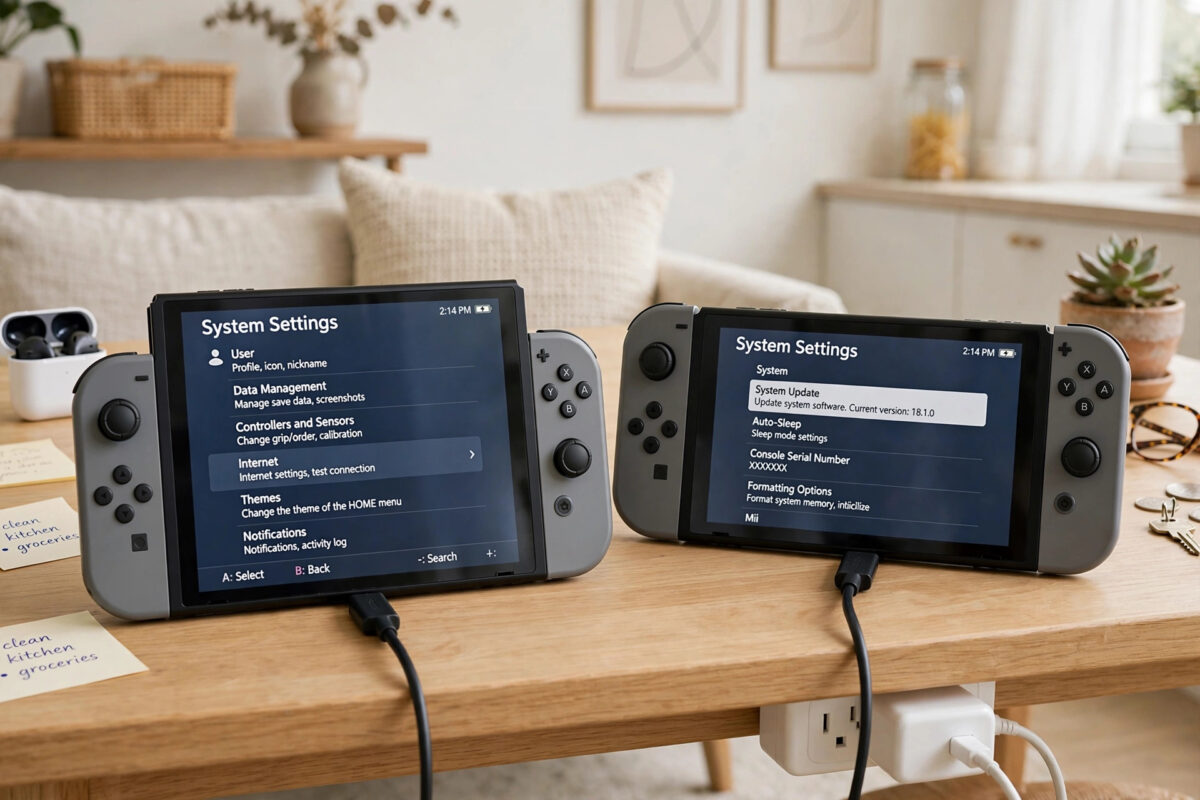
Buying a new Nintendo Switch is exciting, but most players care about one thing first: keeping their save files. Hours of progress in a large game are not something anyone wants to lose or start again. The good news is that Nintendo built a save data transfer tool directly into the Switch system.
This guide explains how the transfer works, what you need before you start, and the exact steps for both consoles. It also covers cloud saves and the important limits you need to know before you trade in or reset your old console.
Quick Answer
Put both Switch consoles side by side, connect both to the internet and a power source, and sign the same Nintendo Account user into both. On the old console go to System Settings, Data Management, Transfer Your Save Data, Send Save Data to Another Console, and on the new console choose Receive Save Data. Select the user and game, confirm, and the save moves across. Note the save is moved, not copied, so it is deleted from the old console once the transfer finishes.
What You Need Before You Start
Getting everything ready first makes the transfer smooth. The two consoles communicate over your local network and the internet, and a flat battery or missing update can stop the process halfway.
- Both consoles: the source console with the saves, and the target console receiving them.
- The same user linked to a Nintendo Account on both consoles.
- Both consoles updated to a recent system version.
- Both consoles connected to the internet.
- Both consoles plugged into their AC adapters, or very well charged.
- Both consoles placed close to each other in the same room.
- The game itself available on the new console if you plan to keep playing straight away. The transfer moves save data, not the game software.
You also need enough time. A single save is usually quick, but you must repeat the process per user and per game, so a family console with many profiles can take a while.
Save Transfer or Cloud Saves: What Is the Difference?
There are two different systems, and mixing them up causes a lot of confusion. The save data transfer in this guide moves a save from one console to another and removes it from the first console. It works for most games and does not need a paid membership.
Cloud saves are different. With a Nintendo Switch Online membership, supported games back up saves to Nintendo’s servers automatically. On a new console, you can then download those cloud saves and carry on. That is a copy from the cloud, not a move, and the original save stays where it was.
Nintendo sets out both options in its official Nintendo Support guidance on transferring save data. Some games do not support cloud backups, including some online and trading-based titles, which is exactly when the local transfer tool in this guide becomes the right choice. Check each important game individually if you plan to rely on the cloud alone.
Step 1: Prepare Both Consoles
- On both consoles, open System Settings, then System, then System Update, and install any update offered.
- Connect both consoles to the same home internet connection.
- Plug both consoles into power using their AC adapters or docks.
- On the new console, add the user profile and link it to the same Nintendo Account used on the old console. If the profile already exists, make sure the account link is correct.
- Close any running games on both consoles.
If you are setting up a brand new console, complete its first-time setup fully before starting. If storage on the new console is tight, sorting that first helps, and our guide on expanding Nintendo Switch storage with a microSD card shows how to add space for the games that go with your saves.
Step 2: Start the Transfer on the Old Console
The old console is the sender. Keep both consoles awake and near each other for the whole process, and do not start a transfer just before you need to leave the house.
- On the old console, open System Settings from the Home menu.
- Scroll to Data Management.
- Select Transfer Your Save Data.
- Select Send Save Data to Another Console.
- Select the user whose save you want to move.
- Select the game save from the list shown.
- Select Send Save Data and wait while the console searches for the new console nearby.
Only one user’s save for one game is sent at a time. You will repeat these steps for each game and each family member. Write down which saves matter most and do those first.
Step 3: Receive the Save on the New Console
- On the new console, open System Settings, then Data Management.
- Select Transfer Your Save Data.
- Select Receive Save Data.
- Wait for the new console to connect with the old console. Keep them close together.
- When the transfer starts, wait until you see the confirmation message on both consoles.
- Check that the process says it completed successfully before touching either console.
Once the transfer finishes, the save data exists on the new console only. The copy on the old console is removed automatically as part of the move. That is normal and is why you should be certain before confirming.
Step 4: Check Your Saves Work
Never reset or sell the old console until you have tested the important saves on the new one. A quick check now can save a lot of regret later.
- Install or insert the game on the new console.
- Open the game with the same user profile you transferred.
- Load the save and check your progress, items, and settings are correct.
- Repeat the check for each transferred game before moving on.
If a save does not appear, check you are using the correct user profile. Saves belong to a user, not just to the console, and opening the game with a different profile shows that profile’s progress or a fresh start.
Transferring a Whole User Profile Instead
If you are moving everything to a new console permanently, Nintendo also offers a full user transfer. That moves the user profile, Nintendo Account link, save data, and some settings in one process. It is found under System Settings, then Users, then Transfer Your User.
The full user transfer suits a complete upgrade, such as moving from an original Switch to an OLED model for good. The single save transfer in this guide is better when both consoles will stay in use, for example when one child gets their own console and only needs their own game saves moved.
Whichever method you choose, read the on-screen warnings fully. Both types of transfer remove data from the source console as part of the move.
What About Games, Screenshots, and Purchases?
Save data transfer only moves save files. Downloaded games can be re-downloaded for free on the new console from the Nintendo eShop using the same Nintendo Account, as long as that account is registered correctly. Screenshots and videos stored on a microSD card can be moved with the card or copied using a computer.
If both consoles will be used in one home, you also need to think about which console is set as the primary console for your account. That setting affects who can play your downloaded games and when an internet check is needed. You can review account and console settings through Nintendo Support advice on Nintendo Account and primary console settings before you make changes.
Common Mistakes to Avoid
- Expecting a copy instead of a move: The transferred save is removed from the old console. Do not start unless you are sure.
- Resetting the old console too soon: Test every important save on the new console first.
- Using a different user or account: The same linked user must exist on both consoles, or the save will not show up where you expect.
- Letting a console sleep or run flat: Keep both consoles plugged in and awake throughout.
- Assuming cloud saves cover every game: Some games do not support cloud backups. Check important titles one by one.
- Trying to transfer the game itself: Only save data moves. Games must be inserted or re-downloaded on the new console.
Conclusion
Transferring save data between two Switch consoles is straightforward when you prepare properly: update both systems, link the same user on both, plug them into power, and use the Transfer Your Save Data tool under Data Management. Remember that the save moves rather than copies, repeat the process for each user and game, and test your progress on the new console before resetting the old one. Done carefully, all your hard-earned progress makes the jump with you.
Frequently Asked Questions
Does transferring save data delete it from the old Switch?
Yes. The save data transfer is a move, not a copy. Once the transfer completes, the save is only on the new console and is removed from the old one.
Do I need Nintendo Switch Online to transfer save data?
No. The local save data transfer between two consoles is free and built into the system. Nintendo Switch Online is only needed for cloud save backups on supported games.
Can I transfer saves for more than one game at once?
No. You transfer one save, for one user and one game, at a time. Repeat the process for each game and each user profile you want to move.
What if the new console cannot find the old console?
Place the consoles close together, check both are online and updated, close any games, and start the send and receive steps again. Restarting both consoles also solves many connection problems.
Can I transfer save data to a Switch Lite?
Yes. The same transfer tool works between any mix of Switch, Switch Lite, and Switch OLED consoles, as long as the same linked user is set up on both.



Leave a Reply