
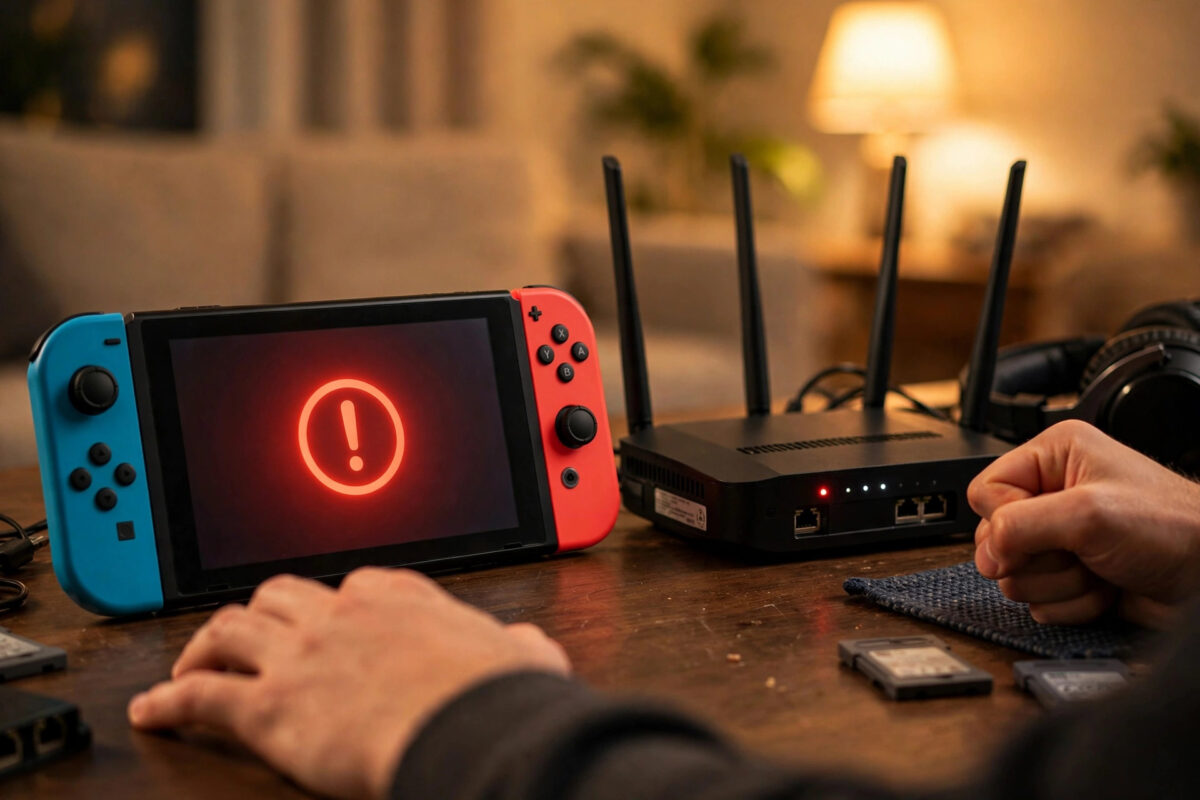
Few things are more frustrating than sitting down to download a game or join friends online, only for your Nintendo Switch to stop with error code 2110-3127. This error looks technical, but in most cases it is a simple problem with how your console talks to the internet.
The good news is that you rarely need a repair. A restart, a change to your DNS settings, or a small tweak to your router fixes this error for most people within a few minutes.
Quick Answer
Error code 2110-3127 on Nintendo Switch means your console could not resolve a DNS address, so it could not reach Nintendo’s servers. Restart your Switch and router, reconnect to Wi-Fi, then change your DNS settings manually to a public DNS such as 8.8.8.8 for primary and 8.8.4.4 for secondary. If that fails, test another network or move closer to your router.
What Error Code 2110-3127 Actually Means
DNS stands for Domain Name System. It works like a phone book for the internet. When your Switch wants to reach a server, it first asks DNS to turn a name into a number it can connect to.
If that lookup fails, the connection stops before it even starts. Your console may still show that it is connected to Wi-Fi, but it cannot load the eShop, check for updates, or join online games.
This is why the error can appear even when other devices in your home seem to be working fine. Phones and laptops may be using cached information or a different DNS server, while your Switch gets stuck on a fresh lookup.
Common Causes of This DNS Error
- Your internet provider’s DNS server is slow, busy, or temporarily down.
- Your router has a temporary glitch and needs a restart.
- Your Switch saved old or incorrect network settings.
- Your Wi-Fi signal is weak or keeps dropping.
- Your router, modem, or internet service is having a wider outage.
- A VPN, firewall rule, or parental control is blocking the lookup.
Step 1: Restart Everything Properly
Do not skip this step. A full restart clears temporary errors from both your console and your router, and it solves the problem more often than people expect.
- On your Switch, hold the Power button for about three seconds.
- Select Power Options, then select Restart. If the console does not respond, hold the Power button for twelve seconds to force it off, then turn it on again.
- Turn off your router and modem at the plug.
- Wait at least 30 seconds. This pause matters because it lets the equipment fully reset.
- Turn the modem on first and wait until its lights are steady.
- Turn the router on and wait another two minutes.
- On your Switch, go to System Settings, then Internet, then Test Connection.
If the test passes, try the eShop or your game again. If the error returns, move to the DNS change below.
Step 2: Change Your DNS Settings Manually
This is the main fix for error 2110-3127. Instead of using your provider’s automatic DNS, you will tell the Switch to use a free public DNS that is fast and reliable.
- From the Home menu, open System Settings.
- Scroll down and select Internet, then Internet Settings.
- Select your Wi-Fi network from the list.
- Select Change Settings.
- Scroll to DNS Settings and change it from Automatic to Manual.
- For Primary DNS, enter 8.8.8.8.
- For Secondary DNS, enter 8.8.4.4.
- Select Save, then select Connect to This Network.
- Run the connection test again.
These numbers belong to Google’s public DNS service. Many players keep them permanently because they are stable. If you prefer a different option, another well-known public choice is 1.1.1.1 as primary and 1.0.0.1 as secondary.
After changing DNS, also check Nintendo’s own guidance in the official Nintendo Support guide for connection errors if your network uses special settings at school, work, or in a hotel.
Important Note About Entering the Numbers
Type the DNS numbers exactly as shown. The Switch will format them with leading zeros in some fields, and that is normal. Do not add extra spaces or characters. If you make a mistake, delete the field and type it again.
Step 3: Forget and Reconnect to Your Network
Sometimes the saved network profile itself is damaged. Deleting it and joining again gives your Switch a clean start.
- Open System Settings, then Internet, then Internet Settings.
- Select your network and choose Change Settings.
- Scroll down and look for the option to delete the settings for that network, or select the network from a new scan.
- Scan for networks again, select your home Wi-Fi, and enter the password carefully.
- Leave DNS on Automatic for this first test, or repeat the manual DNS steps above.
- Test the connection.
Check your password as you type. One wrong character looks like a DNS problem later, because the console struggles to complete a proper connection.
Step 4: Improve Your Wi-Fi Signal
A weak signal can interrupt the DNS lookup, especially if you play in a room far from the router or behind thick walls.
- Move your Switch or its dock closer to the router while you test.
- Keep the dock in the open, not inside a closed TV cabinet.
- Reduce interference from microwaves, baby monitors, and thick metal objects.
- If your router offers both 2.4 GHz and 5 GHz bands, try the other band. The 2.4 GHz band travels further, while 5 GHz is often faster at short range.
- Restart online play during a quieter time if many people are streaming at once.
If the connection works when you are close to the router but fails in your usual room, the problem is range, not DNS. A Wi-Fi extender, mesh system, or wired connection for the dock can help long term.
Step 5: Try a Wired Connection or Another Network
Testing on a different network tells you where the fault lies. You can use a mobile hotspot for a short test, but watch your data use and do not download a large game on it.
If your Switch connects fine on the hotspot, your home network or provider is the issue. If it fails everywhere, the console settings deserve a closer look.
For docked play, a wired LAN connection removes Wi-Fi problems completely. The OLED dock has a built-in LAN port. Older docks need a USB LAN adapter. A wired test is also a useful way to finish an urgent download while you sort out the wireless issue.
While you are testing audio and online play after the fix, our guide on how to connect Bluetooth headphones to a Nintendo Switch can help you set up wireless audio without extra cables.
Step 6: Check for System Updates and Wider Outages
An out-of-date system can sometimes struggle with network changes. When you get a working connection, even briefly, update the console.
- Open System Settings.
- Scroll to System.
- Select System Update and install any available update.
Also think about timing. If the error started suddenly for everyone in your area, your provider may have an outage. Check your provider’s status page on your phone or ask a neighbour on the same service. In that case, waiting is the only real fix.
Common Mistakes to Avoid
- Only restarting the Switch: Your router and modem need the restart too. Many DNS faults live in the router, not the console.
- Typing the DNS wrong: One wrong digit creates a new problem. Double-check 8.8.8.8 and 8.8.4.4 before saving.
- Changing settings on the wrong network: If you have several saved networks, make sure you edit the one you actually use at home.
- Testing from too far away: Do not judge the fix while standing in the weakest Wi-Fi spot in the house. Test near the router first.
- Factory resetting too soon: A full reset wipes settings and creates more work. Try DNS, restart, and another network first.
- Ignoring router updates: Very old router firmware can cause odd connection faults. Check your router app for updates when basic fixes fail.
When to Contact Support
If the error appears on every network, your DNS is set correctly, and other devices work normally, contact Nintendo or your internet provider. Tell them which steps you already tried. That saves time and helps them focus on account, hardware, or line problems instead of repeating the basics.
Take a photo of the error screen and note when it happens. Details like whether it only affects the eShop or all online games can point to the real cause.
Conclusion
Error code 2110-3127 is a DNS lookup failure, not usually a broken console. Restart your Switch, router, and modem, then switch DNS to Manual and use a trusted public DNS. Improve your signal, test another network if needed, and keep your system updated. For most players, the manual DNS change alone brings the eShop and online play back within minutes.
Frequently Asked Questions
Is it safe to use 8.8.8.8 as my DNS on Switch?
Yes. It is Google’s public DNS service and is widely used on consoles, PCs, and phones. It only handles address lookups. You can return to Automatic at any time in Internet Settings.
Why does my Switch connect to Wi-Fi but still show this error?
Wi-Fi connection and internet access are two different steps. Your Switch can join your router successfully but still fail when it tries to look up Nintendo’s servers through DNS.
Will changing DNS make my games faster?
It may make the first connection or store pages load a little faster if your old DNS was slow. It will not increase your download speed or lower your in-game ping in a major way.
What if manual DNS does not fix 2110-3127?
Restart the router again, forget and rejoin the network, and test a hotspot. If it fails on all networks, contact Nintendo Support. If it works on a hotspot, contact your internet provider.
Do I need to change DNS on my router instead?
You can, and that would apply to all devices, but changing it only on the Switch is simpler and safer for testing. Start with the console, and change the router only if you want the same DNS everywhere.



[…] you also have internet problems while setting up online games, our guide on how to fix Nintendo Switch DNS error 2110-3127 covers the restart and DNS steps that restore the […]