
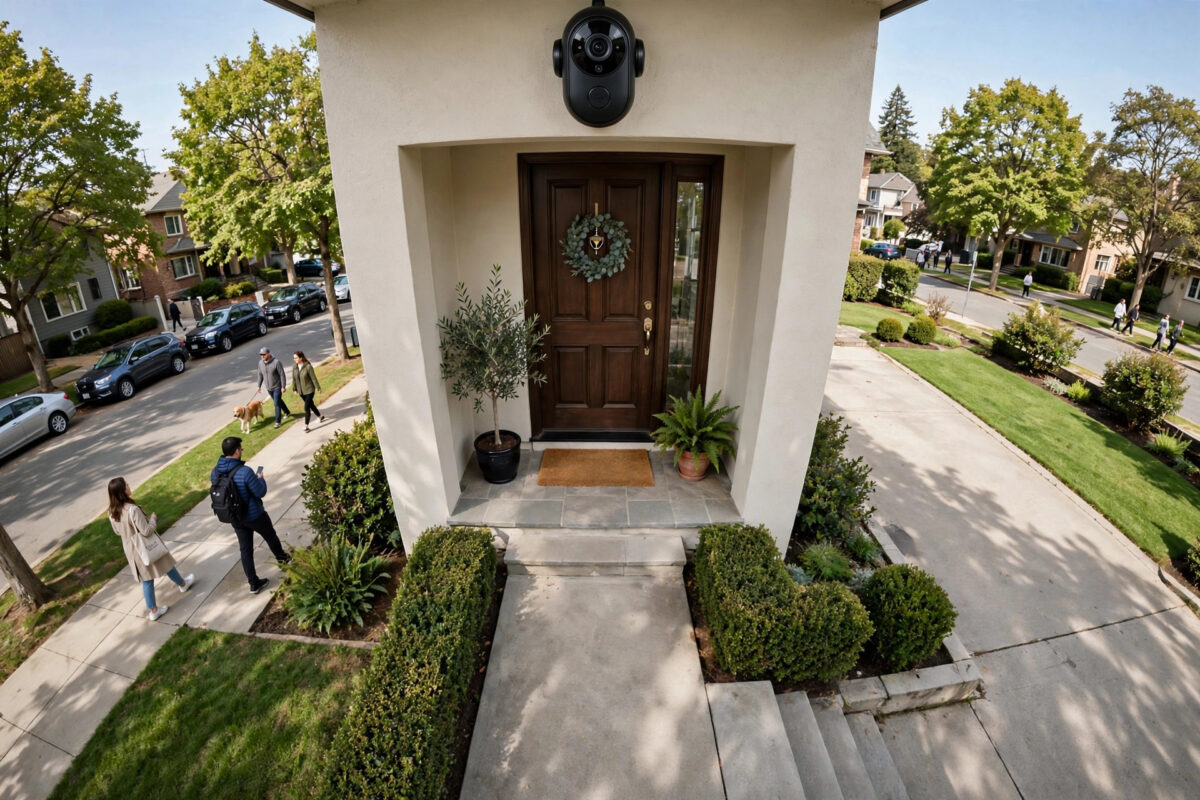
If your front door faces a busy sidewalk, your Ring camera probably knows every neighbour, dog walker, and delivery rider in the street — and it tells you about all of them. Constant alerts for people who are simply walking past, never coming near your door, quickly turn a useful security camera into background noise.
The fix is not to turn the camera off or silence all alerts. It is to teach the camera which part of the view actually matters to you. Ring calls these areas Motion Zones, and in newer parts of the app you may also see them described as activity or privacy-related zone tools. Drawn well, they focus detection on your porch, path, and driveway while the public sidewalk stays outside the alert area.
Quick Answer
Open the Ring app, select your camera, go to Device Settings and then Motion Settings, and edit your Motion Zones so they cover only your porch, front path, and driveway. Leave the sidewalk and the street completely outside the shaded zone, lower motion sensitivity a step, and turn on People Only Mode or Smart Alerts so passing foot traffic triggers far fewer notifications. Save, then test by walking on the sidewalk and on your own path to confirm the difference.
How Ring Motion Zones Work
A Motion Zone is simply a shape you draw over the camera view. The camera pays the most attention to movement inside that shape. Movement outside it should not start a recording or send an alert, although very bright lights, reflections, and large vehicles can sometimes still influence the sensor on some models.
Battery models often first sense heat movement, then confirm it with video, while wired models rely more on video analysis. That is why zones work best alongside sensible sensitivity and positioning. A zone is a strong instruction, not a magic wall.
Motion Zones Versus Privacy Zones
These two features sound alike but do opposite jobs. Motion Zones tell the camera where to look for movement. Privacy Zones block out part of the view entirely, showing a black box in live view and recordings. If you want to stop recording a neighbour’s window or garden, use a Privacy Zone. If you simply want no alerts for the sidewalk while still being able to see it in live view, Motion Zones are the right tool.
Step-by-Step: Drawing Zones That Ignore the Sidewalk
- Open the correct device. In the Ring app, tap the menu, choose Devices, and select the front door camera you want to adjust. Make sure you are editing the outdoor-facing camera, not an indoor one with a similar name.
- Go to Motion Settings. Tap Device Settings, then Motion Settings. On many versions you will see Motion Zones, Advanced Motion Detection, Motion Sensitivity, and Smart Alerts in this area.
- Turn on advanced detection if offered. If your model offers Advanced Motion Detection, enable it. This allows custom zones instead of simple preset areas and gives much better control near a sidewalk.
- Delete the old full-screen zone. If one zone currently covers the whole picture, remove it or shrink it. A full-screen zone is the main reason every passer-by triggers an alert.
- Draw zone one around your porch and door. Create a zone that closely follows your porch, front steps, and the area right in front of the door where visitors and parcels arrive.
- Draw zone two along your path or driveway. Add a second zone covering your own walkway and driveway, stopping it clearly before your property line meets the public sidewalk.
- Leave a clear gap before the sidewalk. Do not let a zone edge touch the sidewalk. Leave a visible strip of your own front yard or the edge of your drive outside the zone as a buffer.
- Reduce motion sensitivity one step. In Motion Settings, move the sensitivity slider down slightly. This reduces edge cases where people close to a zone border still trigger alerts.
- Save and wait a minute. Tap Save, give the camera a short while to apply the change, then test it properly before assuming it works.
The official Ring support guide to using Motion Zones walks through the same menu path for different models, which is useful if your app layout looks slightly different from the steps above.
Testing Your New Zones Properly
A zone change is only proven by walking the scene.
- Walk along the public sidewalk at a normal pace, twice in each direction. You should receive no alert, or at most a much delayed one in edge cases.
- Walk from the sidewalk onto your own path as a visitor would. You should get an alert before you reach the door.
- Stand at the door for ten seconds, as a delivery driver would, and confirm the event records clearly.
- Repeat the test after dark, because headlights and streetlights can change how detection behaves at the zone edges.
If sidewalk walkers still trigger alerts, shrink the nearest zone a little more. Long shadows that fall inside your property count as movement, so a low sun can pull detection beyond the line you drew.
Extra Settings That Calm a Busy Street
People Only Mode and Smart Alerts
If your camera and plan support Smart Alerts, turn on the person category and turn off general motion notifications. On some models this appears as People Only Mode. This means the camera may still record passing movement in some cases, but your phone only buzzes when the system believes a person is in your defined area in a relevant way. Combined with tight zones, this is the biggest reduction in street noise most owners can get.
Motion Frequency for Battery Cameras
Battery models often have a Motion Frequency setting. Constant foot traffic can drain the battery by waking the camera again and again. A slightly less aggressive frequency, paired with good zones, preserves battery without missing a genuine visitor.
Adjust the Camera Angle
Sometimes no zone can fully fix a bad angle. If the camera looks straight out at the street with the sidewalk filling half the picture, tilt it down a little so your porch and path fill more of the frame and the street fills less. Even a small tilt changes how much passing movement the sensor sees. Our guide on positioning outdoor security cameras for the best coverage covers heights and angles that work well for front doors on busy streets.
Common Mistakes to Avoid
- Drawing one zone over the entire view. This is the default on many setups and guarantees an alert for every person in the street.
- Ending the zone exactly at the sidewalk edge. Without a buffer strip, heads, umbrellas, and shadows at the border will keep triggering you. Always leave a gap.
- Covering the road as well, just in case. The road adds cars, reflections, and headlights to your alerts. Your property is what needs protection, not the whole street.
- Forgetting to test at night. A setup that is quiet at noon may be noisy at 7 p.m. when long shadows and headlights reach into the zone.
- Using a Privacy Zone by accident. If part of your live view turns black, you have drawn the wrong type of zone. Remove it and use Motion Zones instead.
- Never revisiting the zones. A new fence, a parked car, seasonal foliage, or a moved camera all change the view. Review zones a few times a year.
What If Alerts Still Come From the Sidewalk?
First, confirm the saved zones are actually active and that you edited the right camera — homes with a doorbell and a separate camera often mix the two up. Next, check that a shared user or a linked Alexa routine is not generating the notifications you are seeing. Then reduce sensitivity one more step and narrow the path zone further.
On some older battery models, the heat sensor can be triggered by warm movement just outside a zone. In that case, angle is the real cure: tilt the camera down so the sidewalk sits smaller in the frame. If the camera is a doorbell you cannot move, zones plus People Only Mode plus lower sensitivity is the practical best combination.
Conclusion
A busy sidewalk does not have to mean a busy phone. Replace the full-screen zone with two tight zones — one for the porch and door, one for your own path or driveway — leave a clear buffer before the pavement, lower sensitivity slightly, and let person-focused alerts do the rest. Test on foot, in daylight and after dark, and adjust the edges in small steps. Done carefully, your Ring will go back to telling you about visitors and deliveries, not about everyone who simply walked past your house.
Frequently Asked Questions
Why does my Ring still alert me for people outside my Motion Zone?
Usually the zone is larger than you think, sensitivity is high, or shadows and reflections from the sidewalk fall inside the zone. Shrink the zone, leave a buffer before the sidewalk, lower sensitivity one step, and test again after dark as well as in daylight.
How many Motion Zones can I create on a Ring camera?
Most Ring cameras with advanced motion detection allow up to three custom Motion Zones. Two well-drawn zones — porch and path — are enough for most front doors facing a sidewalk.
Will Motion Zones stop recordings of the sidewalk completely?
Motion Zones mainly control what triggers recordings and alerts. You can still see the sidewalk in live view. If you want an area blocked from view and recordings entirely, that is what Privacy Zones are for.
Do I need a Ring subscription for Smart Alerts?
Person-focused Smart Alerts and richer notifications are part of Ring subscription plans on many models, while basic Motion Zones work without one. Check your app, because features vary by device and region.
Should I lower sensitivity if my house faces a busy street?
Yes, usually by one step at a time. Very high sensitivity makes borderline sidewalk movement trigger alerts even with good zones. Lower it gradually and test with a real walk to your door so genuine visitors are never missed.



Leave a Reply