
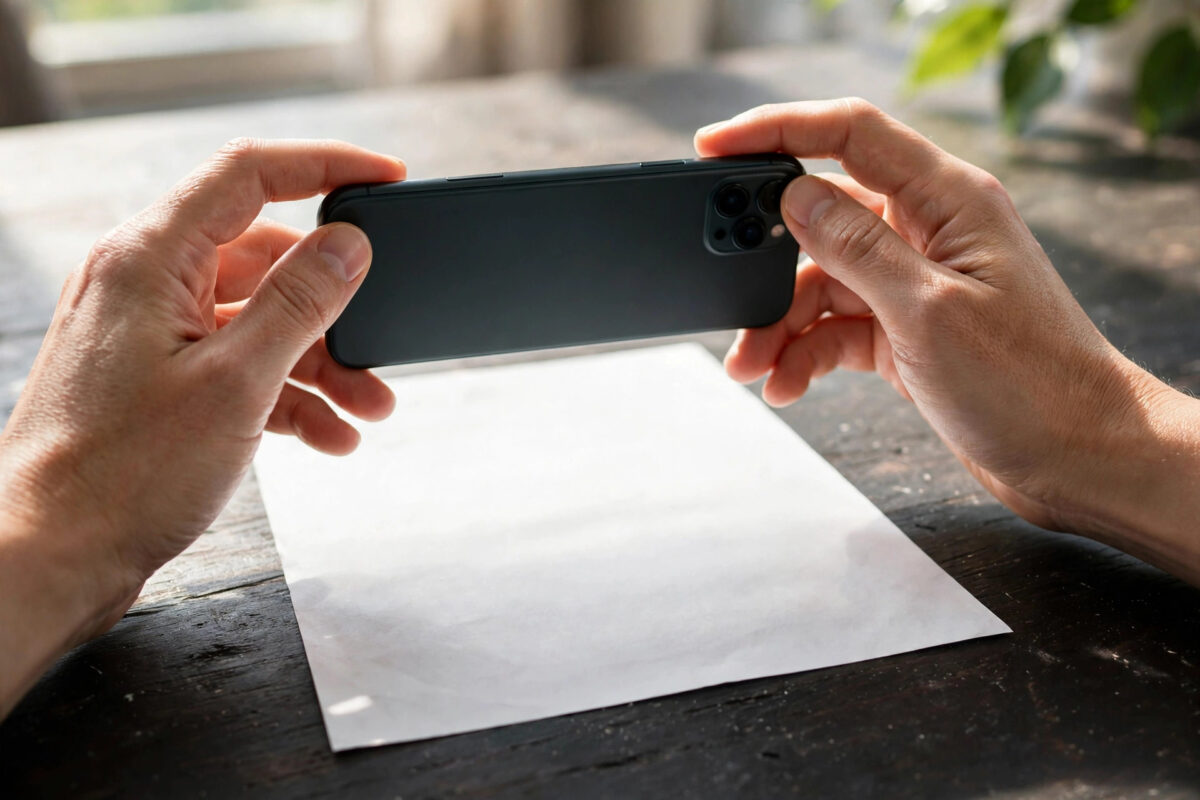
Your phone camera can do far more than take a photo of a piece of paper. Used properly, it becomes a proper document scanner: it finds the edges of the page, flattens the image, removes shadows, sharpens the text, and saves everything as a clean PDF you can email, sign, or upload to a bank, school, or employer. A photo, by contrast, is often crooked, shadowy, and saved as a large image file that many official portals will not accept.
The good news is that both Android and iPhone already include excellent scanning tools, so you probably do not need to install anything. This guide shows you how to scan with the Google Drive app on Android, with the Notes and Files apps on iPhone, and how to get a sharp, professional result every single time.
Quick Answer
On Android, open the Google Drive app, tap + New > Scan, point your camera at the page, and let the app detect the edges before saving as a PDF. On iPhone, open Notes, create a note, tap the camera icon, and choose Scan Documents. Place the page on a dark, flat surface in good light, hold the phone directly above it, and save or share the finished PDF.
Scan Documents With Google Drive on Android
The Google Drive scanner is the most practical option for most Android users because the finished scan is already stored in your Drive account, ready to share from any device. Google explains the feature in its official help page for scanning documents with Google Drive, and the steps below follow that same flow.
Step-by-Step Android Scanning
- Open the Google Drive app and sign in if prompted.
- Tap the + New button in the bottom corner, then tap Scan. Allow camera permission the first time you use it.
- Place the document flat and point the camera at it. Move slowly until a blue outline appears around the page edges.
- Hold still and take the photo, or let the auto-capture mode take it when the page is framed correctly.
- Review the preview. Use Crop to drag the corners exactly to the page edges, and use Clean or the filter options to remove shadows or boost contrast.
- For a multi-page document, tap Add page or the + icon and repeat for each sheet before saving.
- Tap Save, give the file a clear name such as “Passport-Scan-2026,” choose the Drive folder, and confirm. The scan is saved as a PDF.
- To send it, open the saved PDF in Drive, tap the three-dot menu, and choose Share or Send a copy.
If your phone has a dedicated scanner inside its own camera or files app, as many Samsung and Pixel phones do, the process is similar. Samsung phones, for example, often show a “Scan document” prompt automatically when the camera detects a page. The Drive method is still worth learning because it works the same way on almost every Android phone.
Scan Documents on iPhone With Notes and Files
Apple built its scanner into the Notes app in iOS, and it is genuinely good: it detects pages automatically, corrects perspective, and can save colour, greyscale, or clean black-and-white versions. Apple documents the feature in its official guide to scanning documents in Notes on iPhone.
Step-by-Step iPhone Scanning
- Open the Notes app and create a new note, or open an existing one.
- Tap the camera icon above the keyboard, or the paperclip/attachment icon in newer iOS versions, then tap Scan Documents.
- Position the page in view. In Auto mode, the iPhone highlights the document and captures it automatically when it is aligned; in Manual mode, tap the shutter button yourself.
- After each page, drag the corners if the outline missed an edge, then tap Keep Scan.
- Continue scanning further pages, then tap Save. The pages are stored together inside the note.
- To get a standalone PDF, tap the scan, tap the Share icon, and save it to Files, send it by email, or share it to another app.
You can also scan directly in the Files app, which many people find tidier for official documents. Open Files, browse to a folder, tap the three-dot menu, and choose Scan Documents. The scan then saves straight into that folder as a PDF, with no note in between. Whichever route you choose, the scanning engine is identical.
How to Get a Sharp, Professional Scan
The app does the clever processing, but the quality of the original capture is up to you. A few simple habits make the difference between a scan that looks professional and one that gets rejected by an HR department or a bank.
- Use contrast: place a white page on a dark table or a dark folder. Edge detection works far better when the page stands out from the background.
- Light the page evenly from the side, not from directly above your phone, so your own shadow does not fall across the text.
- Hold the phone parallel to the page, directly overhead, rather than at an angle from your chair.
- Flatten creased pages under a book for a few minutes first, and smooth out curled corners with your fingers before scanning.
- Turn off the flash in a well-lit room; flash creates a bright hotspot in the middle of the page. Use it only in genuinely dim conditions.
- Choose the right filter: black-and-white for printed text, greyscale for forms with stamps or handwriting, and colour for certificates, photos, or ID cards.
- Check the scan at full zoom before you put the document away. If small print is readable on screen, it will be readable for the person receiving it.
For ID cards and passports, scan in colour and make sure all four corners and any machine-readable lines at the bottom are fully inside the frame. Many verification systems reject cropped or greyscale ID scans automatically. If you enjoy practical phone tips like this, you will find more step-by-step help among NetworkUstad’s everyday software and phone how-to guides.
Organising, Signing, and Sharing Your Scans
A scan is only useful if you can find it again and send it in the right format. Rename files immediately with the document type and date, and keep a single “Scans” folder in Drive, iCloud, or Files rather than scattering PDFs across your camera roll and downloads. Most official portals ask for PDF, and both methods in this guide produce PDF by default, so avoid converting to JPG unless a form specifically requests an image.
You can also sign many documents without printing them. On iPhone, open the scan, tap the Markup pen icon, tap +, and choose Signature. On Android, open the PDF in Drive, and where supported, use the annotate or markup tools, or a free PDF editor. Signing on your phone and returning the document the same hour makes a very good impression when a form is urgent.
Common Mistakes and Tips
The biggest mistake is sending a camera photo instead of a scan. Photos include the table, your fingers, and uneven lighting, and they are usually saved as images rather than PDFs. Always use the dedicated scan mode. Another common error is scanning at an angle, which makes text slope and can cause automated systems to fail reading the document.
Do not scan confidential documents on a shared or borrowed phone without deleting the local copy and checking cloud backups afterwards. A useful tip for long documents is to scan in small batches of ten pages or fewer, so one bad page does not force you to redo the whole file. Finally, keep the original paper until the scan has been accepted; acceptance, not scanning, is the finish line.
Conclusion
Scanning with your phone takes less than a minute once you know where the feature lives: Google Drive > + New > Scan on Android, and Notes or Files > Scan Documents on iPhone. Work in good light, use a contrasting flat surface, hold the phone square above the page, and always review the result before saving. Do that, and your phone scans will look as clean as anything produced by a bulky office scanner.
Frequently Asked Questions
Is a phone scan legally the same as a flatbed scan?
For most everyday purposes, yes. Banks, universities, and employers routinely accept phone-scanned PDFs because the file format and content are what matter, not the device. A small number of legal or government processes still specify certified copies, so check the instructions for anything involving courts or notarised documents.
Why does my scan come out blurry?
Blur usually comes from moving the phone as it captures, poor light, or a dirty camera lens. Wipe the lens with a soft cloth, add more light, rest your elbows on the table for stability, and tap the page on screen to focus before capturing.
Can I scan multiple pages into one PDF?
Yes, both the Google Drive scanner and the iPhone scanner are built for this. After the first page, choose Add page or Keep Scan and continue; all pages are combined into a single PDF when you save, in the order you scanned them.
How do I scan a document if I have no scanner app?
You almost certainly already have one. Android users can use Google Drive, and iPhone users can use Notes or Files, both pre-installed. If you use Microsoft services, the Microsoft Lens app and the OneDrive app also include capable free scanners.
What is the best format to save a scan in?
PDF is best for documents because it preserves page order, prints predictably, and is accepted by nearly every upload portal. Save as JPG or PNG only when a website specifically asks for an image file, such as a profile photo upload that happens to be a document.



Leave a Reply