
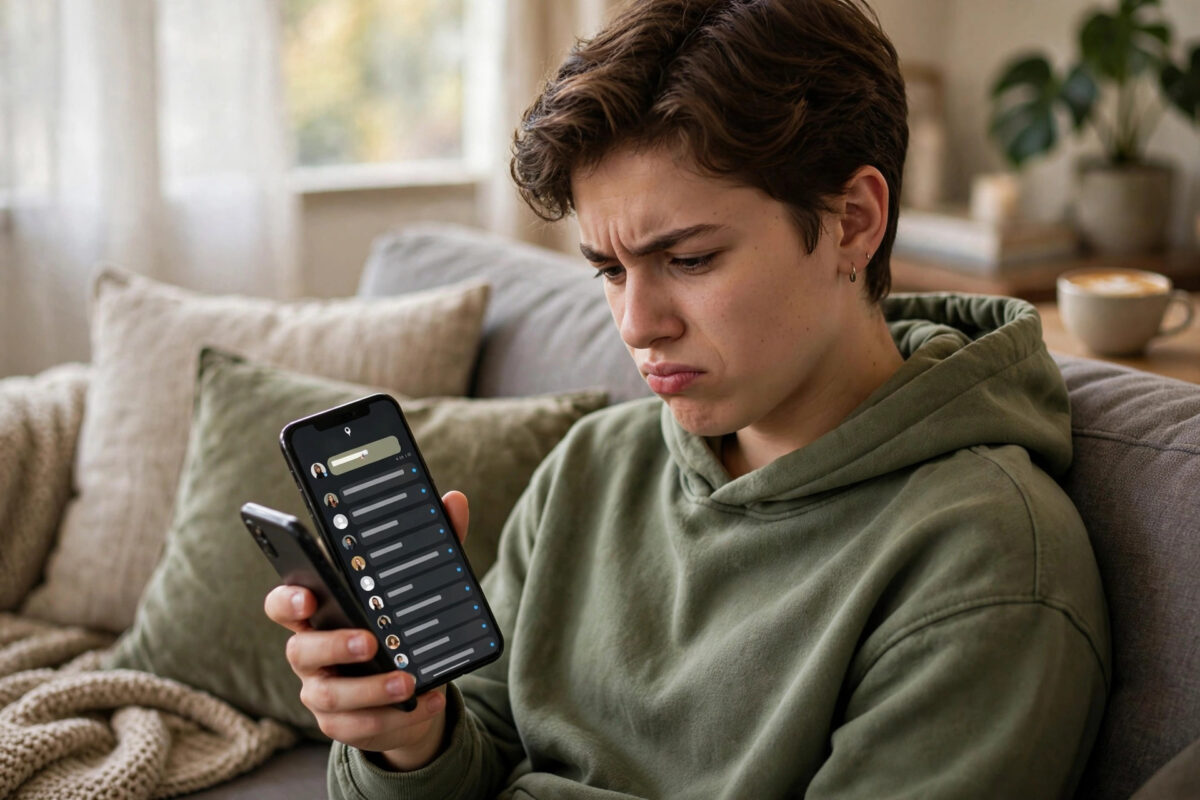
My AI sits at the top of many Snapchat chat feeds whether you asked for it or not. For some people it is a handy chatbot, but for others it is clutter that pushes real friends down the list and invites accidental taps. If you have long-pressed it, swiped on it, and still found it pinned there, you are not doing anything wrong.
Snapchat treats My AI differently from a normal friend conversation. What you can do depends on whether you have Snapchat Plus, whether My AI is pinned or simply recent, and which version of the app you use. This guide explains the honest options: how to unpin and remove it, how free users can move it down and mute it, and how to stop it returning to the top so often.
Quick Answer
To remove My AI from your Snapchat chat feed, Snapchat Plus subscribers can long-press My AI, tap Chat Settings, and choose Unpin Conversation, then clear it from the feed. Free users cannot fully delete My AI permanently, but they can long-press it, choose Clear from Chat Feed, turn off notifications, and avoid opening it so it falls down the list. Unpinning and clearing are two different actions, so for the best result do both, in that order.
What My AI Is and Why It Stays at the Top
My AI is Snapchat’s built-in chatbot. It appears as a conversation in your Chat feed, often with a distinct avatar, and it can answer questions and suggest ideas in a chat style similar to a friend.
Two main reasons keep it at the top. First, Snapchat may pin it by default, and a pinned chat always stays above unpinned chats. Second, even when it is not pinned, any recent interaction pushes it back to the top as your most recent conversation, just like a real friend you just messaged.
Check If You Have Snapchat Plus
Snapchat Plus is the paid subscription that adds extra controls, including more complete control over My AI pinning in many regions and app versions. Menus change over time, so your exact wording may differ slightly.
- Open Snapchat and tap your profile icon.
- Look for a Snapchat Plus banner or badge on your profile.
- If you do not see it, you are likely on the free version and your options are limited to unpinning where available, clearing, and muting.
Do not subscribe only for one button without checking first. Open Chat Settings for My AI on your current version and see which options you already have. Some free accounts now see an unpin option. Snapchat describes current controls in its official Snapchat Support guide to My AI and how to manage it in Chat, which is the best place to confirm options for your region.
How to Unpin My AI From the Top of Chat
Unpinning is the right first step for almost everyone. An unpinned My AI chat behaves like any other chat: it moves down as you talk to real friends, instead of staying fixed at the top.
- Open Snapchat and go to the Chat screen.
- Find My AI at the top of the list.
- Press and hold on the My AI conversation until a menu appears. Do not tap it open, because opening it makes it recent again.
- Tap Chat Settings, or Manage Friendship and then Chat Settings, depending on your version.
- Tap Unpin Conversation if you see it, and confirm if asked.
- Return to Chat and confirm My AI is no longer fixed at the very top.
Alternative Route Through Settings
- Tap your profile icon, then the gear icon for Settings.
- Scroll to Privacy Controls and tap Clear Conversations, or look for a My AI control there.
- Find My AI and check for unpin or clear options.
How to Clear My AI From the Chat Feed
Clearing removes the conversation from your visible feed until there is new activity. It is not the same as deleting your account, and My AI can return if you open it again or Snapchat re-adds it after a major update.
- On the Chat screen, press and hold My AI without opening it.
- Tap Chat Settings.
- Tap Clear from Chat Feed and confirm.
- Check that My AI has disappeared from the list.
- Chat with real friends so your feed fills with conversations you want.
On some versions the wording is Hide Conversation or Clear Conversation, with a similar effect. If it returns immediately after clearing, unpin it first, restart Snapchat completely, and then clear it again in that order. If you want a tidier inbox generally, our guide on how to organise Snapchat chats and clean up your friends list covers sorting, clearing, and muting tricks for regular friends too.
For Snapchat Plus Users: Full Removal Steps
- Long-press My AI in Chat and open Chat Settings.
- Tap Unpin Conversation and confirm.
- Long-press My AI again, open Chat Settings, and tap Clear from Chat Feed.
- Alternatively, open your profile, tap Snapchat Plus, find the My AI option, and choose Unpin if your version controls it from there.
- Restart Snapchat and check Chat. My AI should be gone from the top and, in most cases, gone from the feed until you search for it.
How to Mute My AI So It Stops Disturbing You
Even if you cannot delete My AI completely, you can make it quiet. Muting stops notifications and reduces the chance you will open it by accident and push it back to the top.
- Long-press My AI in Chat and tap Chat Settings.
- Turn off Message Notifications if you see that toggle.
- Turn off notification previews there too, if offered.
- In your phone Settings, review Snapchat notifications if lock screen previews bother you.
How to Stop My AI Coming Back to the Top
- Do not tap My AI to check if it is gone. Opening it counts as activity and moves it up.
- Be careful with swipe gestures on the Chat screen that open the top conversation by accident.
- After a major Snapchat update, check Chat once. Updates can re-pin or re-add My AI, and you may need to unpin and clear it again.
- Keep chatting with real friends. An active feed naturally buries an unpinned, inactive My AI.
- Avoid asking My AI questions from search or Stories if you want it to stay down. Any use brings it back as a recent chat, which is normal.
What You Cannot Do With My AI
- Free users generally cannot permanently delete My AI like a normal friend. There is no block or remove action that permanently deletes the official chatbot.
- No third-party app or modified Snapchat copy can safely remove My AI for you. Those tools risk your account and data.
- Deleting your Snapchat account just to remove My AI is extreme and unnecessary. You would lose your username, friends, and Memories, and a new account would likely get My AI again.
- Turning off all Snapchat notifications also stops alerts for real friends, so targeted muting in Chat Settings is better.
For account safety, Snapchat also outlines general controls in the official Snapchat Support page for My AI questions and privacy. Use only official sources for account changes like this.
Common Mistakes to Avoid
- Opening My AI to find settings: Use a long-press in the Chat list instead, so you do not make it recent again.
- Confusing unpin with clear: Unpin stops it being fixed at the top. Clear removes it from the feed for now. Often you need both, in that order.
- Trusting removal apps: These can steal accounts or cause bans and do not provide real permanent removal.
- Deleting real friends by accident: Read the name on the confirmation carefully before you tap Clear.
- Expecting a free permanent delete: Plan for management, not permanent deletion, unless your account clearly shows a full remove option.
Conclusion
You may not be able to delete My AI forever on a free account, but you are not stuck with it dominating your Chat feed. Unpin it if your account allows, clear it from the feed, mute its notifications, and let real conversations take the top spots back. Snapchat Plus users usually get the cleanest path, while free users can still make My AI far less visible with the same first steps. Recheck after big updates, avoid opening it by accident, and your chat list will feel like yours again.
Frequently Asked Questions
Can I permanently delete My AI on free Snapchat?
For most free accounts, no. You can unpin it on some versions, clear it from the Chat feed, and mute it, but Snapchat does not offer a permanent delete like removing a friend. It may return after updates or if you open it again.
What is the difference between unpinning and clearing My AI?
Unpinning stops the chat being fixed at the very top so it can move down naturally. Clearing removes it from your visible feed until new activity brings it back. Doing unpin first, then clear, gives the best result.
Will clearing My AI delete my chat history with it?
Clearing from the Chat feed mainly hides the conversation from the list. To remove past interaction data, look for a separate Clear My AI Data option in Privacy Controls or inside the My AI chat settings if your version provides it.
Why does My AI keep coming back to the top?
Opening it, tapping it by accident, or a major app update can make it recent or pinned again. Unpin and clear it again after updates, avoid opening it to check, and keep active chats with real friends above it.
Is it safe to use an app that promises to remove My AI?
No. Third-party removal tools and modified Snapchat copies are unsafe, can compromise your account, and may lead to a lock or ban. Use only options inside official Snapchat and guidance from Snapchat Support.



Leave a Reply