
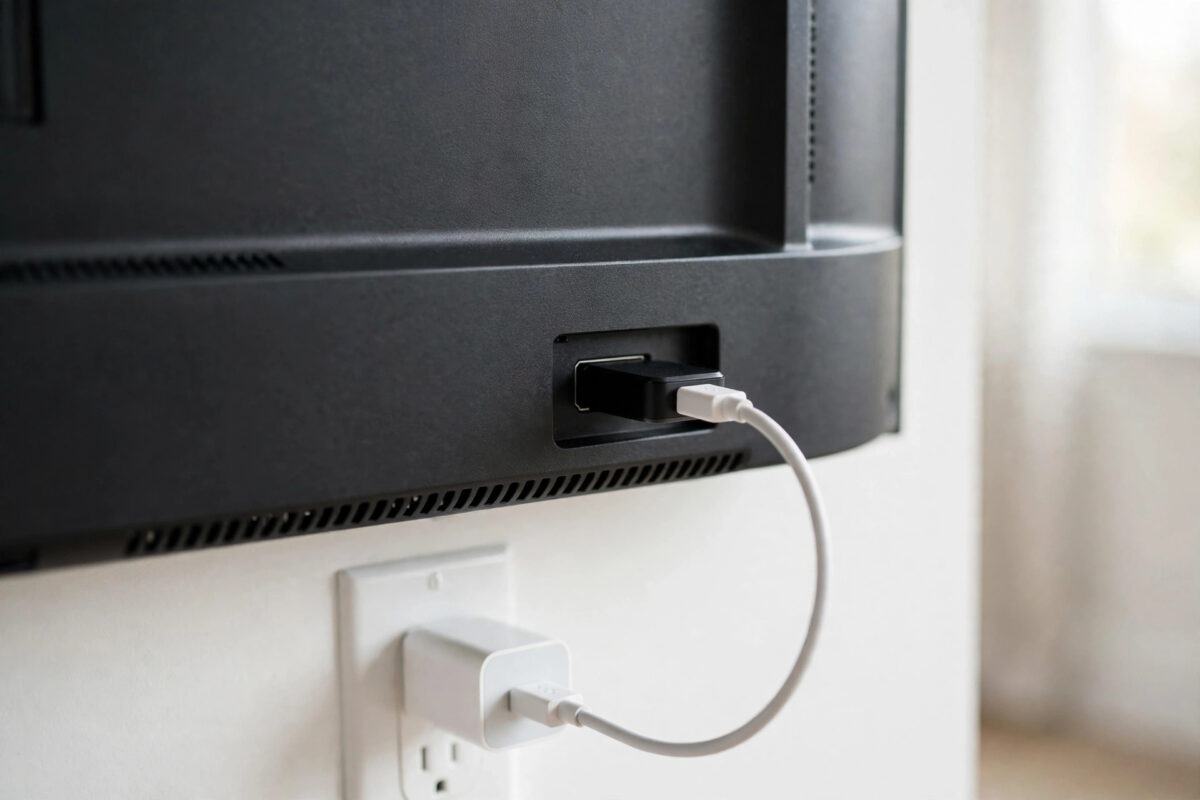
Many people plug their streaming stick’s USB cable straight into the TV and expect it to just work. Sometimes it does for a few days, then the problems start: random restarts, freezing during a film, a stick that will not finish an update, or a screen that goes blank. The hidden cause is often power. TV USB ports were not all built to feed a hungry streaming stick, especially a modern 4K model. This guide explains how to power your stick properly, how to spot a weak port, and what setup gives you stable streaming for good.
Quick Answer
The safest way to power a streaming stick is with the wall adapter and cable that came in the box, plugged directly into a wall socket. Most TV USB ports only supply 0.5A, while many sticks need 1A to 2A for stable 4K streaming and updates. If your stick restarts, freezes, or warns about low power, stop using the TV USB port and switch to wall power immediately — it is the most reliable fix.
Why Streaming Sticks Need More Power Than You Think
A streaming stick is a tiny computer with a processor, Wi-Fi radio, memory, and storage, all running from a 5-volt USB supply. When you browse menus, power draw is low. When you stream 4K HDR video, use Wi-Fi at a distance, or install an update, power draw jumps.
If the supply cannot keep up, the voltage drops for a split second. That tiny drop is enough to crash the stick, corrupt an update, or cut the HDMI signal. You may not see a clear low-power warning. Instead you get symptoms that look like a Wi-Fi problem or a faulty app, which is why power issues are missed so often.
How Much Power Do Common Sticks Need?
Older HD sticks may run on around 1 amp. Newer 4K models, voice remotes with extra features, and sticks with gaming functions often need 1.5 to 2 amps for a safe margin. Always check the rating printed on the original adapter. If it says 5V and 2A, that is what the maker expects you to use. Giving it less may work in light use and fail under load. Amazon makes this point in its Fire TV power and connection troubleshooting guidance, where using the included adapter is listed as a core fix.
Why TV USB Ports Are Often Too Weak
Not all USB ports are equal. A TV may have several ports, but they were mainly designed for reading photos or videos from a flash drive, not for powering another computer all day.
The Three Problems With TV USB Power
- Low current: Many TV ports are rated at 0.5A under the old USB 2.0 standard — half or a quarter of what a 4K stick wants.
- Power cuts with the TV: Most TV USB ports turn off when the TV is off or in standby, so the stick must cold-boot every time and updates can be interrupted.
- Shared supply: Some TVs share power between ports, so plugging in another USB device can starve the stick further.
Signs Your Stick Is Not Getting Enough Power
- The stick restarts on its own, especially during 4K playback or updates
- You see a warning about insufficient power or a recommendation to use the original adapter
- The home screen is slow, apps crash, or the remote feels laggy after a while
- The stick works at first but fails after 20 to 30 minutes as it heats up
- Updates fail, get stuck, or loop back to the beginning
- The picture drops to “No Signal” and returns without you touching anything
If you have two or more of these signs and you use TV USB power, power is almost certainly your problem. Switch the supply first before you reset anything. If you are already seeing signal dropouts, our companion advice on fixing a no signal error when your streaming stick is plugged in will help you rule out HDMI causes at the same time.
The Correct Way to Power a Streaming Stick
- Find the original wall adapter and USB cable that came with your stick. If you lost them, buy a replacement that matches the same voltage and equal or higher current rating, from the maker where possible.
- Plug the USB cable into the stick’s power port, usually micro-USB or USB-C on the side.
- Plug the other end into the wall adapter, not into the TV.
- Plug the adapter directly into a wall socket. Avoid a loose multi-plug extension if you can, and never power the stick from a laptop USB port.
- Insert the stick into the TV HDMI port. Keep the power cable relaxed, not stretched tight.
- Turn on the TV, select the correct HDMI input, and let the stick finish booting and any pending updates without unplugging it.
Once it is on wall power, leave it powered. Streaming sticks are designed to sleep, not to be fully cut off every night. Staying powered means updates happen in the background and the stick is ready instantly when you turn on the TV.
What If There Is No Free Wall Socket Behind Your TV?
This is a real problem in many living rooms, where the TV, soundbar, console, and router already fill every socket. You still have safe options.
- Use a quality extension lead: A short, well-made extension strip with surge protection is better than starving the stick. Plug the stick’s wall adapter into the strip.
- Use a USB adapter with enough rating: A phone charger can work only if it matches 5V and meets the current the stick needs. Check the tiny print. Do not use a very old 0.5A charger.
- Consider a TV USB power cable with a battery buffer: Some products store a little energy and release extra during peak demand. These can work on some TVs, but they are a workaround, not a guarantee. Keep wall power as your first choice.
- Move one device: Often a lamp or phone charger is on the socket nearest the TV. Swap it elsewhere and give the stick the wall socket.
Avoid cheap unbranded adapters with no rating printed on them. A bad adapter can overheat or deliver dirty power that causes the same crashes you are trying to fix.
Can You Ever Use the TV USB Port Safely?
Yes, in narrow cases. If your TV manual confirms a port supplies enough current, and you only stream in HD on an older low-power stick, TV USB power may be stable. Some people also like that the stick turns off with the TV.
Test it honestly. Stream a full film, run an update, and use it for several evenings. If you get even one unexplained restart, move to wall power and do not go back. For most households with a modern stick, wall power is the correct long-term answer. Roku also advises using a wall outlet for consistent power in its official Roku player connection and power troubleshooting guide.
Cable Quality Matters More Than People Expect
Even with a good wall adapter, a poor USB cable can drop voltage along its length. Long, thin, or damaged cables are a common hidden fault.
- Use the shortest cable that reaches comfortably. Avoid very long cheap cables for power.
- If the cable feels loose in the stick or adapter, replace it.
- Do not run the power cable tightly around sharp TV mounts or hot vents.
- If you replace a cable, choose one rated for charging and for at least the current your adapter supplies.
Common Mistakes to Avoid
- Using any random phone charger: Voltage may match, but current may be too low. Check the rating every time.
- Powering from a console or laptop USB port: These ports are often even weaker or turn off unexpectedly.
- Unplugging the stick every night: Repeated cold boots and interrupted updates cause more errors.
- Ignoring the low-power warning: That on-screen message is accurate. Acting on it early prevents update corruption.
- Using a loose extension: A wobbly connection can cut power for a split second and crash the stick mid-film.
Conclusion
Powering a streaming stick properly is not complicated, but it does matter. TV USB ports look convenient, yet many supply only half the current a modern stick needs, and they cut power when the TV sleeps. Use the original wall adapter and cable, plug directly into a wall socket or a quality extension strip, and leave the stick powered so it can update and wake instantly. That one change often makes restarts, failed updates, and mysterious dropouts disappear for good.
Frequently Asked Questions
Is it safe to leave my streaming stick plugged into wall power all the time?
Yes. Streaming sticks are designed for this. They use very little power in sleep mode, stay updated, and wake faster. Use the original adapter and a normal wall socket, and keep the area behind the TV ventilated.
Can I use a phone charger to power my streaming stick?
You can if the charger matches the stick’s needs: 5 volts and a current rating equal to or higher than the original adapter. Read the small print. If it only supplies 0.5A or 1A and your stick needs 2A, it is not suitable long term.
Why does my stick only have problems during updates?
Updates push the processor, Wi-Fi, and storage at the same time, so power demand peaks. A weak TV USB port may handle menus but fail during that peak. Wall power gives the extra headroom the update needs to finish.
Will a better HDMI cable fix power problems?
No. HDMI carries picture and sound, not the main power for most sticks. Power comes from the separate USB cable. A better HDMI cable can fix picture issues, but restarts and low-power warnings need a better power supply.
How do I check how much power my TV USB port supplies?
Look for a label beside the port, such as 5V 0.5A or 5V 1A, and check your TV manual’s specifications. If you cannot find a clear rating, assume it is a low-power port and use wall power instead.



Leave a Reply