
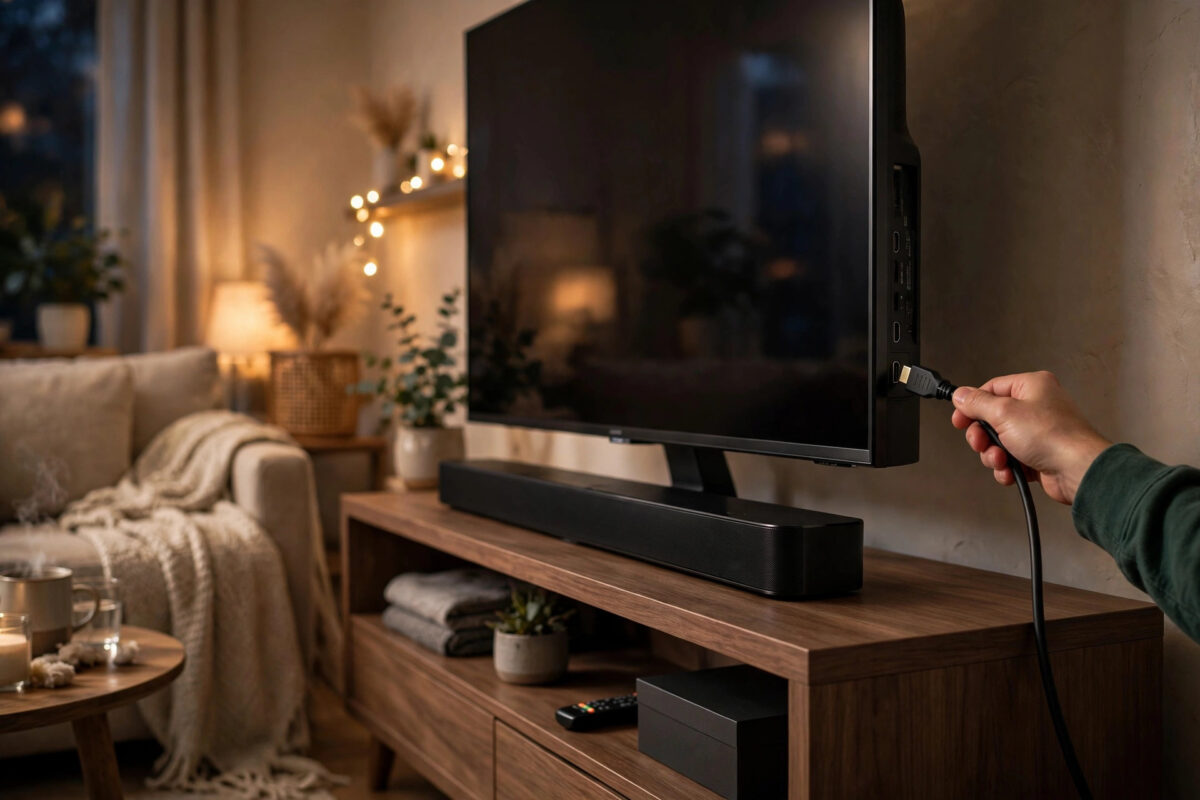
A soundbar can transform flat TV sound into clear dialogue and real movie impact, but only if it is connected the right way. HDMI ARC and eARC are the best options for most people because they carry high-quality sound from the TV to the soundbar over one cable, and they let your TV remote control the soundbar volume. The setup is not hard, but the details matter — the correct port, the correct cable, and two or three TV settings decide whether it works perfectly or not at all. This guide takes you through the full connection step by step.
Quick Answer
Connect one end of a High-Speed HDMI cable to the HDMI ARC or eARC port on your TV and the other end to the HDMI OUT (ARC/eARC) port on your soundbar. Then turn on HDMI-CEC and set the TV audio output to ARC/eARC or HDMI Receiver. Select the HDMI input on the soundbar, and test with a TV app — your TV remote should now control the soundbar volume.
What Are ARC and eARC, and What Is the Difference?
ARC stands for Audio Return Channel. It lets a TV send audio back down the same HDMI cable that brings picture from a device. Before ARC, you needed a separate optical cable for TV sound. With ARC, one cable does both jobs, and the TV and soundbar can control each other.
eARC stands for Enhanced Audio Return Channel. It arrived with HDMI 2.1 and offers much more bandwidth. That extra bandwidth matters for uncompressed high-quality formats from Blu-ray players, games consoles, and some streaming content.
Key Differences That Affect You
- ARC: Supports Dolby Digital, DTS, and stereo PCM well. It can pass Dolby Atmos only in compressed form through Dolby Digital Plus, which many streaming services use.
- eARC: Supports full uncompressed Dolby TrueHD, DTS-HD Master Audio, multichannel PCM up to 7.1, and full-quality Dolby Atmos and DTS:X.
- Lip sync: eARC includes mandatory lip sync correction, so sound and picture match better.
- Compatibility: An eARC TV can work with an ARC soundbar, but you will only get ARC-level quality. For full eARC quality, both TV and soundbar must support eARC.
For everyday streaming, ARC is already a big upgrade over TV speakers. If you have a Blu-ray player or a modern console and want the best lossless sound, eARC is worth using properly. Samsung explains the port and setting names for its TVs in the Samsung guide to connecting a soundbar using HDMI ARC, which is useful to compare with your own brand’s menus.
What You Need Before You Start
- A TV with an HDMI port labeled ARC or eARC — only one port will have this label
- A soundbar with an HDMI port labeled ARC, eARC, or HDMI OUT (TV ARC)
- A High-Speed HDMI cable for ARC, or an Ultra High-Speed HDMI cable with Ethernet for full eARC
- Both devices unplugged from power during the first cable connection, if possible
Check the cable carefully. Very old HDMI cables may not support ARC at all. If your cable has no speed rating printed on it and your setup will not work, replacing the cable is a cheap and common fix. Keep the cable as short as practical.
Step-by-Step: Connect Your Soundbar With HDMI ARC or eARC
- Turn off the TV and soundbar, and unplug both from power for a clean handshake.
- Find the ARC/eARC port on your TV. It is usually HDMI 3 on many brands, but always read the label beside the port.
- Find the matching port on the soundbar, usually labeled HDMI OUT, TV ARC, or eARC. Do not use an HDMI IN port for this TV connection unless the manual says to.
- Connect the HDMI cable firmly between those two ports. Push both ends fully in so they sit straight.
- Plug in and turn on the TV first, then the soundbar.
- On the soundbar, select the TV, ARC, HDMI, or D.IN input. Many soundbars switch to TV input automatically once ARC is active.
- On the TV, open Settings, go to Sound or Audio, and set Sound Output to HDMI, HDMI-ARC, HDMI Receiver, or your soundbar’s name.
- Turn on HDMI-CEC in the TV settings. Brands call it Anynet+ on Samsung, Simplink on LG, Bravia Sync on Sony, and CEC or HDMI Control on other sets.
- In advanced sound settings, set HDMI eARC mode to Auto or On if you have eARC equipment, and set Digital Output Audio Format to Pass-through or Auto.
- Play something from a built-in TV app, such as YouTube. You should hear sound only from the soundbar, and the TV remote should change its volume.
If you hear sound and volume control works, you are done. Secure the cable so it will not pull loose. If you hear nothing, work through the troubleshooting section below in order.
Setting Up Your Other Devices After ARC Is Working
Once the TV and soundbar are linked, the simplest layout is to plug your streaming stick, console, and Blu-ray player into the TV’s other HDMI ports. Their sound will travel through the TV and out via ARC/eARC to the soundbar.
Some soundbars have extra HDMI IN ports. Plugging a Blu-ray player directly into the soundbar can help if your TV only supports ARC, not eARC, and you want lossless audio from discs. In that case picture passes through the soundbar to the TV, so confirm the soundbar supports the video format you need, such as 4K HDR pass-through. For most streaming homes, plugging everything into the TV is simpler. If sound later comes from the wrong place, our guide on fixing sound that plays from TV speakers instead of the soundbar covers the output settings to correct.
Troubleshooting: No Sound After Connecting ARC/eARC
Check These Fixes First
- Confirm the cable is in the TV’s ARC/eARC port, not a normal HDMI port. This is the most common mistake.
- Confirm the soundbar input is set to TV/ARC, not Bluetooth, optical, or a different HDMI input.
- Turn HDMI-CEC off, restart both devices, then turn CEC back on. CEC must be on for ARC to work on most TVs.
- Unplug both devices for 60 seconds, reconnect the HDMI cable, then power the TV on first and the soundbar second.
- Try a different certified High-Speed or Ultra High-Speed HDMI cable, even if the current one looks fine.
- Set the TV digital audio format to PCM as a test. If PCM gives you sound, the issue is format negotiation, and you can then try Auto or Pass-through again after a restart.
- Update the TV and soundbar firmware, then restart both.
LG owners can compare menu names in the LG HDMI ARC setup and troubleshooting help, which shows where the ARC and Simplink options live on LG TVs.
No Atmos or Only Stereo Sound?
If you get sound but not the format you expect, check three things. First, the content itself must carry Atmos or surround — many shows are stereo only. Second, the TV must be set to Pass-through or Auto, not PCM, because PCM from many TVs limits output to stereo. Third, for full lossless Atmos from a disc player, both devices need eARC and the player should be set to bitstream output. Streaming Atmos over standard ARC through Dolby Digital Plus is normal and still sounds excellent.
Common Mistakes to Avoid
- Using the wrong HDMI port: Only the labeled ARC/eARC port on the TV can send audio back to the soundbar.
- Leaving CEC turned off: Without CEC, ARC usually will not activate and remote volume control will not work.
- Using an ancient or damaged cable: ARC and especially eARC need a suitable cable. Replace doubtful cables early.
- Leaving TV speakers as the output: If Sound Output is still set to TV Speaker, the soundbar may stay silent.
- Never restarting after cabling: A full power-off restart helps the devices complete their handshake.
- Expecting eARC quality from an ARC-only device: The chain works at the level of its weakest link.
Conclusion
Connecting a soundbar with HDMI ARC or eARC comes down to four things: use the labeled ARC/eARC ports on both devices, use a proper High-Speed or Ultra High-Speed cable, turn on HDMI-CEC, and set the TV sound output to the HDMI receiver. Do those in order, test with a TV app, and you should get clear soundbar audio controlled by your normal TV remote. If something fails, retrace the port, input, and CEC settings before buying anything new — in most homes, one of those three is the whole problem.
Frequently Asked Questions
Can I use any HDMI port on my TV for ARC?
No. Only the single port labeled ARC or eARC can return audio to a soundbar. The other HDMI ports are for bringing picture and sound into the TV. If your cable is in a normal port, the soundbar will receive no TV audio.
Do I need a special cable for eARC?
For full eARC bandwidth, use an Ultra High-Speed HDMI cable or a High-Speed HDMI cable with Ethernet in good condition. A basic old cable may give you no sound or dropouts with eARC enabled. A certified new cable is the safest test.
Why does my TV remote not control the soundbar volume?
Volume control travels through HDMI-CEC. Make sure CEC is turned on in the TV settings and, if your soundbar has a CEC setting, on the soundbar as well. Also confirm the TV sound output is set to the HDMI soundbar.
Is ARC better than an optical cable?
For most people, yes. ARC uses one cable, allows TV remote volume control, and can carry Dolby Digital Plus with Atmos from streaming services, which optical cannot. Optical is still a good backup if ARC will not work on older equipment.
Why do I get sound from TV apps but not from my console?
Check the console’s audio output settings and confirm the TV is passing audio through to ARC. Set the TV digital format to Pass-through or Auto, and make sure the soundbar has not switched to a different input when the console turns on.



[…] Once CEC works, the soundbar becomes the default output automatically. See also how to connect a soundbar to your TV with HDMI ARC or eARC step by step. […]