
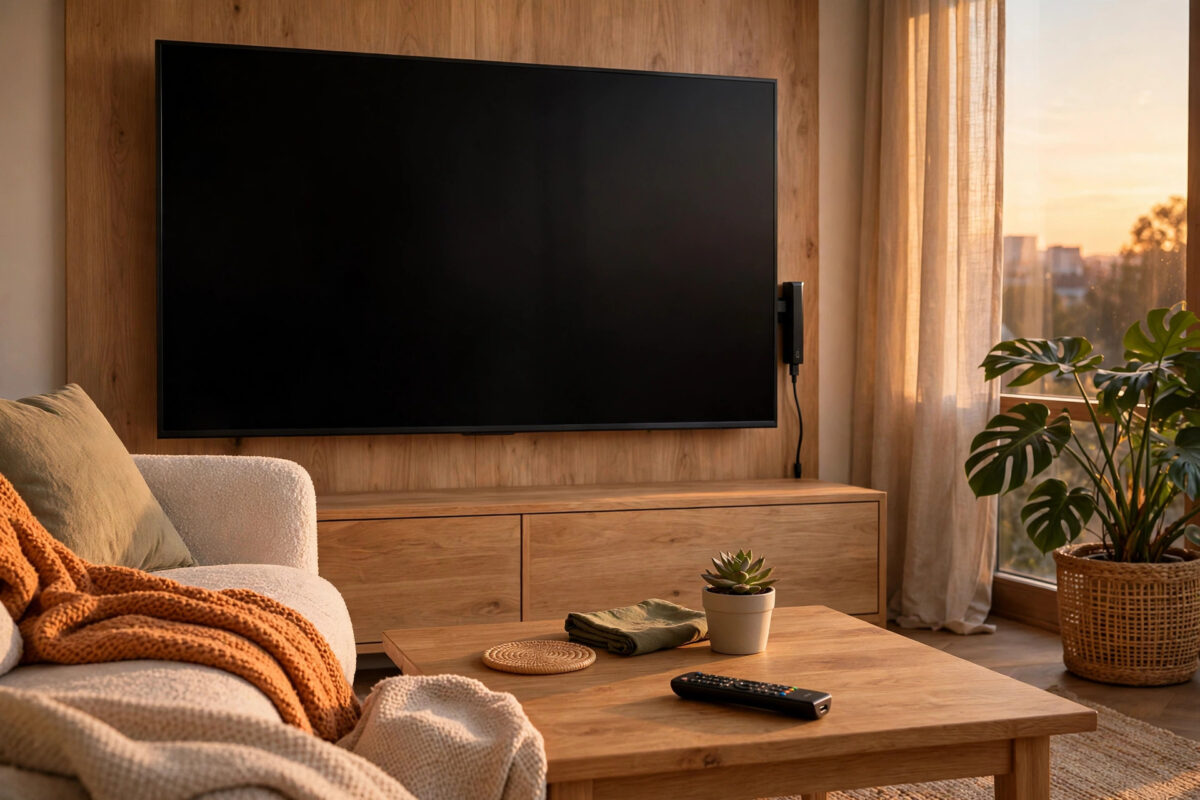
You plug in your streaming stick, turn on the TV, and instead of Netflix or YouTube, you see a frustrating message: “No Signal.” The stick is in the port, its light may even be on, but the TV acts like nothing is connected. This is one of the most common streaming problems, and it is usually not a broken device. In most cases it is a wrong input, weak power, a loose HDMI connection, or a simple handshake error between the TV and the stick. This guide walks you through every fix in the right order, from the fastest checks to the deeper settings that solve stubborn cases.
Quick Answer
Make sure your TV is set to the exact HDMI input where the stick is plugged in, such as HDMI 1 or HDMI 2. Next, power the stick with its original wall adapter instead of the TV USB port, unplug both the TV and the stick for 60 seconds, then plug them back in firmly. If you still see “No Signal,” try a different HDMI port, remove any HDMI extender or switch, and test the stick on another TV to find which device is causing the problem.
Why Your TV Says “No Signal”
Sometimes the TV cannot detect any signal from the HDMI port at all. Sometimes it detects the stick but cannot agree on a video format, so it shows the message instead of a picture. Streaming sticks like Fire TV Stick, Roku, and Chromecast need two things: stable power and a clean HDMI connection that can complete a digital handshake with the TV. If either fails, you get no picture.
The Most Common Causes
- The TV is on the wrong input source
- The stick is not getting enough power from a TV USB port
- The HDMI plug is loose, dusty, or not pushed in fully
- The HDMI port on the TV is faulty
- An HDMI extender, switch, or soundbar is blocking the signal
- The stick or TV needs a full restart to clear a handshake error
- The resolution set on the stick is not supported by the TV
Step 1: Check You Are on the Correct HDMI Input
This sounds obvious, but it is the number one cause. Many TVs have three or four HDMI ports, and they do not switch automatically unless HDMI-CEC is working.
- Look at the back or side of your TV and note which port the stick is in — HDMI 1, HDMI 2, or HDMI 3.
- Pick up your TV remote, not the stick remote, and press Source or Input.
- Select the matching HDMI number from the list on screen.
- Wait at least 10 seconds. Some TVs take a few seconds to lock onto the signal.
Step 2: Power the Stick Properly and Restart Everything
A TV USB port may not give enough power, especially when the stick is updating or streaming in 4K. A starved stick may show its logo briefly, then go to “No Signal,” or it may not boot at all.
- Unplug the stick from the HDMI port and unplug its power cable.
- Connect the stick to the wall adapter that came in the box and plug it directly into a wall socket.
- Turn off the TV and unplug its power cord from the wall.
- Wait a full 60 seconds. This drains leftover power and clears temporary errors.
- Plug the TV back in and turn it on.
- Plug the stick firmly into the HDMI port, then connect its power last.
- Select the correct HDMI input again and wait for the home screen.
This full power cycle fixes handshake errors that a quick menu restart cannot. If power is a recurring issue, it helps to understand how to power a streaming stick properly when the TV USB port is too weak so the same fault does not keep returning.
Step 3: Reseat the HDMI Connection and Remove Extras
HDMI plugs need to sit flat and fully inside the port. A stick hanging at an angle, a tight cable pulling sideways, or dust in the port can break the connection.
- Pull the stick straight out of the HDMI port.
- Check the connector for dust or damage and gently blow out the TV port.
- Push the stick back in until it feels firm and sits straight.
- If you use the short HDMI extender that came with the stick, try both with it and without it. A faulty extender can block the signal completely.
- Remove any HDMI switch, splitter, or adapter for this test. Connect the stick directly to the TV.
If the picture returns when the extras are removed, add them back one by one. The last item added before the picture disappears is the problem.
Step 4: Try a Different HDMI Port and a Different TV
A TV can have one dead HDMI port while the rest work fine. Testing another port quickly tells you if the port is the issue.
- Move the stick to a different HDMI port on the same TV.
- Change the TV input to match the new port.
- If it works there, the first port may be damaged, dirty, or disabled in settings.
- If no port works, test the stick on another TV or monitor with HDMI.
- If the stick works on the second TV, your first TV needs checks or repair. If it fails on both, the stick or its power adapter is likely faulty.
Step 5: Check TV Settings That Can Hide the Signal
Turn On the Enhanced HDMI Format
For 4K sticks, many TVs need an enhanced mode enabled for that port. On Samsung it may be called Input Signal Plus, on LG it is HDMI Ultra HD Deep Color, and on Sony it is Enhanced Format. Find it under external device or picture settings, turn it on for your port, and restart the stick. On an older TV that does not support the stick’s output, turning it off can also help, so test both ways.
Test With CEC Turned Off
HDMI-CEC lets one remote control other devices, but a glitch can cause the TV to switch inputs or fail to wake the stick. For testing, turn CEC off, restart both devices, and select the input manually. Roku provides similar guidance in its official help on what to do if you cannot see the Roku home screen on your TV, which covers input and connection checks.
Step 6: Fix Resolution Mismatch and Reset if Needed
If a stick was last used on a 4K TV and you move it to an older 1080p TV, it may output a signal the new TV cannot show. Plug it back into a TV where it works, set its display resolution to Automatic or 1080p, then move it back. Amazon also lists useful steps in its Fire TV Stick no picture or no signal troubleshooting help for device-specific cases.
If the stick fails on every TV with a known-good adapter and a direct connection, a factory reset is the last software step before replacement. A reset erases accounts and apps, so only do it when other steps have failed. After the reset, set it up again with wall power and a direct HDMI connection, and update its software first.
Common Mistakes to Avoid
- Using the TV USB port for power: It may work for a while, then fail during updates or 4K playback. Use the wall adapter.
- Using the wrong remote: The stick remote often cannot change the TV source reliably. Use the TV remote to confirm the input.
- Not waiting after a power cycle: Five seconds is not enough. Wait the full 60 seconds.
- Testing through a soundbar or switch: Always test with a direct stick-to-TV connection first.
- Forcing the HDMI plug: If it does not slide in smoothly, check the angle. Forcing it can bend pins and damage the port.
- Assuming the stick is dead: A stick that fails on one TV but works on another is not dead. The TV port or setting is the issue.
Conclusion
A “No Signal” message is frustrating, but it is rarely the end of the device. Start with the input, give the stick proper wall power, and do a full 60-second restart of both devices. Then test a direct HDMI connection, try another port, and use a second TV to separate a stick fault from a TV fault. Work through those steps in order and you will either fix the picture or know exactly which part needs replacing, without buying parts you do not need.
Frequently Asked Questions
Why does my streaming stick work sometimes and then show “No Signal” again?
This usually points to weak power or a loose HDMI connection. The stick may boot when cool and fail when warm or when a cable moves. Use wall power, reseat the plug, and make sure the stick is not hanging under its own weight behind a hot TV panel.
Does a “No Signal” message mean my HDMI port is broken?
Not always. A wrong input, a failed handshake, or a resolution mismatch can produce the same message on a healthy port. Test the port with another device and test the stick in another port before deciding the port is broken.
Should I use the HDMI extender that came with my stick?
Use it only if the stick does not fit directly or Wi-Fi is poor behind the TV. It can help in tight spaces, but when troubleshooting, test without it first because a damaged extender can block the picture.
Why does my stick show its logo and then go blank?
That often means the stick starts to boot but loses power or cannot agree on a display format with the TV. Switch to the original wall adapter, try a different port, and lower the stick’s resolution on another TV before testing again.
When should I replace the streaming stick?
Replace it when it fails on two different TVs, with a known-good wall adapter and a direct connection, and after a factory reset. If it works on another TV, fix the cable, accessory, or TV port instead.



Leave a Reply