
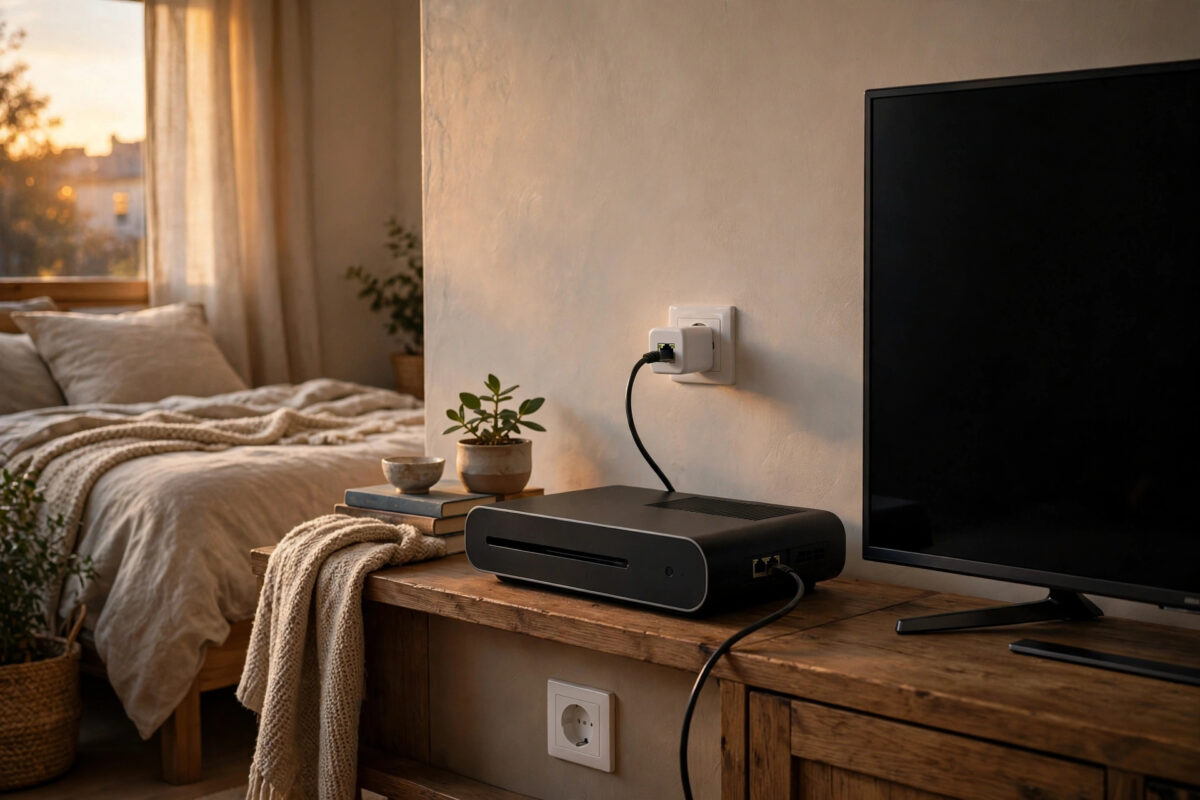
Your router sits in the living room, your console sits in a bedroom or office, and Wi-Fi keeps letting you down at the worst possible moment. Downloads crawl, online matches stutter, and voice chat breaks up just when your team needs a clear call. Running a long cable through walls and doorways is not always possible, especially in a rented home.
Powerline adapters offer a neat middle ground. They send your network signal through the electrical wiring already inside your walls, so you can give your console a wired connection in almost any room with a spare power socket. This guide explains how they work, how to set them up step by step, and how to get the best speed and stability from them.
Quick Answer
Plug one powerline adapter into a wall socket near your router and connect it to the router with an Ethernet cable. Plug the second adapter into a wall socket near your console and connect it to the console with another Ethernet cable. Press the pair button on both adapters so they link securely, then test the connection in your console network settings.
How Powerline Adapters Actually Work
A powerline kit contains at least two adapters. The first adapter takes the internet signal from your router and converts it into a signal that can travel along your home electrical wiring. The second adapter picks that signal up in another room and converts it back into a normal Ethernet connection for your console.
Think of it like a hidden cable run. You are not drilling holes or lifting floorboards, because the copper wires in your walls do the carrying for you. Modern kits use standards such as HomePlug AV2, which can handle fast broadband, game downloads, and streaming at the same time.
What Speed Should You Expect?
The number printed on the box, such as 1000 Mbps or 2000 Mbps, is a theoretical maximum shared across the link. Real speeds are lower and depend on the age of your wiring, the distance between adapters, and electrical noise from other appliances. In many homes, a good kit delivers between 100 and 400 Mbps in practice, which is more than enough for gaming.
For online play, stability matters more than raw speed. A wired powerline link usually gives lower and steadier ping than Wi-Fi, because there is no wireless interference from neighbours, thick walls, or other devices competing for airtime.
Powerline, Wi-Fi, or a Long Ethernet Cable?
A direct Ethernet cable is still the fastest and cheapest option when you can run one safely. If that route is blocked by distance, rented walls, or a layout that would leave cables trailing across floors, powerline is the next best choice. Wi-Fi remains fine for casual play, but it is the first to suffer when the signal has to cross several rooms.
If you are comparing options for a permanent setup, our guide on how to run an Ethernet cable to another room safely walks through the direct cable route in detail.
What You Need Before You Start
- A powerline adapter kit with at least two adapters and Gigabit Ethernet ports
- Two short Ethernet cables, usually included in the box
- Two free wall sockets, one near the router and one near the console
- Your console, whether that is a PlayStation, Xbox, or Nintendo Switch dock
- About fifteen minutes of free time
Check that both rooms are on the same electrical system. In most houses and flats this is automatic. In very large homes with separate fuse boxes for different floors or extensions, adapters on different circuits may connect slowly or not at all, so test before you hide any cables away.
Step-by-Step Setup Guide
- Plug the first adapter into the wall. Use a wall socket close to your router, not a power strip or extension lead. Pass-through adapters are useful here because they give you a socket back on the front.
- Connect the router. Run an Ethernet cable from a free LAN port on your router to the Ethernet port on the first adapter.
- Plug in the second adapter. Place it in a wall socket near your console, again directly into the wall where possible.
- Connect the console. Run the second Ethernet cable from this adapter to the LAN port on your console or Switch dock.
- Pair the adapters. Press the pair or security button on one adapter, then press the same button on the other within two minutes. The powerline lights should turn solid, which means the link is active and encrypted.
- Switch the console to wired. On PlayStation, go to Settings, Network, Settings, and choose Set Up Internet Connection, then Use a LAN Cable. On Xbox, open Settings, General, Network Settings, and the console should detect the wired connection automatically.
- Test the connection. Run the built-in connection test. Check your download speed, upload speed, and NAT type, then load an online game to confirm everything feels stable.
Most modern kits pair themselves automatically the first time you plug them in, so you may find the link is already working before you press anything. Pairing manually is still worth doing, because it encrypts the signal so a neighbour on shared wiring cannot join your network.
Getting the Best Performance
Socket Choice Matters
Power strips, surge protectors, and extension leads filter the signal and can cut your speed in half or break the link entirely. Always plug adapters directly into wall sockets. If you are short on sockets, choose a pass-through model so other devices can plug into the adapter itself.
Reduce Electrical Noise
Some appliances add noise to the wiring. Phone chargers, cheap LED lamps, hair dryers, and washing machines are common culprits. If your speed drops at certain times of day, try moving noisy chargers to a different socket away from the adapter and test again.
Keep Firmware Updated
Manufacturers release firmware updates that improve stability and compatibility. The official TP-Link support and download centre lists the latest firmware and utility software for its powerline range. A quick update during setup can save you troubleshooting later.
Troubleshooting Common Problems
The Adapters Will Not Pair
Move both adapters into the same room temporarily and pair them side by side. If they pair there, the issue is the wiring path between rooms. Try different sockets in the target room, because sockets on the same circuit usually perform far better.
The Connection Works but Feels Slow
Test with a laptop plugged into the second adapter to rule out a console issue. Check for power strips in the chain, move adapters away from noisy chargers, and confirm you are using the Gigabit ports correctly with undamaged cables.
The Link Drops During Games
Intermittent drops often trace back to a loose socket, a failing adapter, or a large appliance switching on and adding noise. Note the time of each drop and what else was running in the house. Swapping the two adapters around can also show whether one unit is faulty, because the problem will follow the bad adapter.
Common Mistakes to Avoid
- Using extension leads: This is the single biggest cause of poor powerline performance. Wall sockets only.
- Skipping the pairing step: An unpaired network may work, but it is not encrypted and may connect to the wrong adapters.
- Mixing old and new standards: Adapters from very different generations can work together, but the whole link slows to the speed of the oldest unit.
- Expecting box speeds: Planning around the printed maximum leads to disappointment. Judge the kit by a real speed test in your own home.
- Forgetting the console setting: Many consoles stay on Wi-Fi until you manually choose the wired connection in network settings.
Tips for a Better Gaming Experience
Once the wired link is running, set your console to rest mode downloads so large updates finish overnight over the stable connection. If your router supports it, give the console priority in the quality of service settings so other household traffic does not push your ping up during matches. Keep a spare Ethernet cable in the room too, so a damaged cable never ruins a game night.
Conclusion
Powerline adapters turn the wiring already inside your walls into a practical network cable, giving your console a steadier connection without drilling, mess, or trailing leads. Set them up directly in wall sockets, pair them properly, and test the result in your console settings. For most players in homes where a long cable run is not an option, this is the simplest upgrade you can make to your online gaming.
Frequently Asked Questions
Is powerline good enough for competitive online gaming?
Yes, in most homes. Powerline usually delivers lower and more consistent ping than Wi-Fi, which is what competitive play needs most. Your results depend on wiring quality, but a stable 100 Mbps link with steady latency feels far better than a faster but jumpy wireless connection.
Can I use more than two powerline adapters?
Yes. Most kits let you add extra adapters to the same encrypted network, so you can connect a console, a PC, and a TV in different rooms. All adapters share the available bandwidth, so very heavy use in several rooms at once can reduce speed for everyone.
Do powerline adapters work in older houses?
Usually, yes, but older or damaged wiring lowers speeds and can cause drops. The only reliable test is to try the kit in your own sockets. Buy from a retailer with a good returns policy so you can check performance in your home first.
Will powerline adapters increase my ping compared with a real cable?
Slightly. A powerline link typically adds a small amount of latency, often just a few milliseconds, compared with direct Ethernet. Most players will never notice the difference, and it is still normally better and steadier than Wi-Fi through several walls.
Can I plug a powerline adapter into a surge protector?
You can, but you should not. Surge protectors and filtered strips are designed to remove exactly the kind of signal powerline uses, so speeds fall sharply or the link fails. Plug the adapter into the wall and use a pass-through model if you need the socket back.



Leave a Reply