
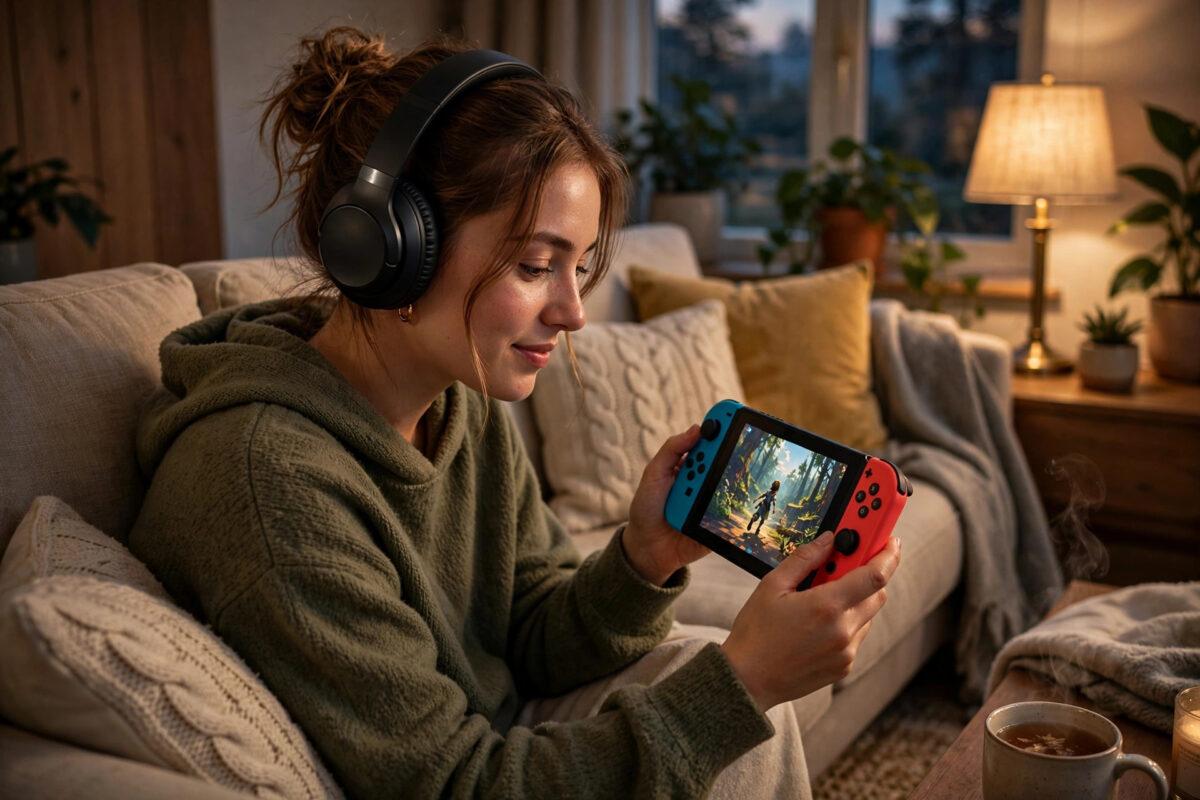
Playing your Nintendo Switch with wireless headphones feels much better than sharing the sound with the whole room or untangling a cable every time you sit down. Since a system update added Bluetooth audio, most modern headphones and earbuds can connect directly to the Switch.
The setup takes less than two minutes once you know where the setting lives. This guide walks you through pairing, reconnecting, volume control, and the limits you should know about.
Quick Answer
To connect Bluetooth headphones to a Nintendo Switch, put your headphones into pairing mode, then on the Switch open System Settings, select Bluetooth Audio, select Pair Device, and choose your headphones from the list. Keep the headphones close to the console during pairing. Note that Bluetooth microphones do not work on Switch, and only two wireless controllers can be used while Bluetooth audio is connected.
What You Need Before You Start
Almost any standard Bluetooth headphones, earbuds, or speaker should work for listening. That includes most models from major brands as well as many budget earbuds. The Switch uses a common Bluetooth audio profile for playback.
Before you begin, check these basics:
- Charge your headphones. Low battery is a common reason for failed pairing.
- Update your Switch. Bluetooth audio needs system version 13.0.0 or later.
- Disconnect your headphones from your phone or laptop first, or turn Bluetooth off on those devices during pairing.
- Sit close to the console for the first connection.
To update your system, open System Settings, scroll to System, and select System Update. If an update is waiting, install it before you try to pair.
An Important Limit: No Bluetooth Microphone
The Switch supports Bluetooth for listening only. The microphone inside your headphones or earbuds will not work for voice chat on the Switch. If a game offers voice chat, you will need the Nintendo Switch Online phone app or a separate wired headset solution, depending on the game. Keep this in mind if you buy headphones mainly for talking to friends.
Step-by-Step: Pair Bluetooth Headphones to Your Switch
- Put your headphones into pairing mode. On most models you hold the power or Bluetooth button until a light flashes or a voice says pairing. Check your headphone manual if you are unsure, because this step is different for every brand.
- On the Switch Home menu, select System Settings, the gear icon.
- Scroll down on the left side and select Bluetooth Audio.
- Select Pair Device. Your Switch will start searching.
- Wait for your headphone name to appear in the list. This can take 10 to 20 seconds.
- Select your headphones. A message will confirm when they are connected.
- Press A to finish, then start a game or video to test the sound.
If your headphones have a charging case, like most true wireless earbuds, open the case and press the case button to start pairing. Keep the case open and close to the Switch while the names appear.
How to Control Volume and Reconnect Later
Once paired, your Switch should remember the device. Next time, turning your headphones on near the console will often reconnect them automatically.
You can control volume in three ways:
- Use the volume buttons on top of the Switch console.
- Use the volume controls on your headphones, if they have them.
- Hold the Home button to open Quick Settings and adjust the slider on screen.
Nintendo warns that volume behaviour varies by device. Some headphones jump in large steps, while others respond smoothly. If the sound is too loud at the lowest step, lower the in-game volume in the game’s settings as well.
You can also set a safer maximum for headphones. In System Settings, look for the option to lower the maximum headphone volume. This is useful for children and for very loud earbuds.
For official notes on supported behaviour and limits, see the Nintendo Support pages on Bluetooth audio for your region.
What Changes When Bluetooth Audio Is On
Using Bluetooth audio changes a few other things on the Switch. Knowing these limits saves confusion later.
Controller Limit
While Bluetooth audio is connected, you can use a maximum of two wireless controllers at the same time. For a single player with one pair of Joy-Con controllers counted as a pair, this is rarely a problem. For local multiplayer with many players, it matters. If you need more controllers, disconnect the Bluetooth audio device first.
Local Wireless Play
Bluetooth audio disconnects when you use local wireless communication, such as playing with nearby consoles. When the local session ends, you may need to reconnect your headphones from the Bluetooth Audio screen.
Audio Delay
Some delay, often called latency, is normal with Bluetooth. You may notice it most in rhythm games or fast action games where sound and movement must match perfectly. Expensive gaming earbuds with a low-latency mode reduce this delay, but they cannot remove it completely on Switch. For competitive rhythm play, a wired connection still feels best.
Troubleshooting When Your Headphones Will Not Pair
If your headphones do not appear, do not panic. Work through these checks in order.
- Confirm pairing mode: A flashing light or pairing message must be active. Simply turning headphones on is not enough if they are trying to reconnect to your phone.
- Turn off Bluetooth nearby: Disable Bluetooth on your phone, tablet, and laptop for a minute so your headphones stop connecting to them.
- Move closer: Put the headphones within a metre of the Switch and keep other wireless devices away.
- Restart the Switch: Hold Power, choose Power Options, then Restart, and try pairing again.
- Remove old pairings: If you paired these headphones before, select them in Bluetooth Audio settings and remove the pairing, then pair fresh.
- Try another device: Test a different pair of headphones or a Bluetooth speaker to see whether the problem is with the console or the headphones.
If you also have internet problems while setting up online games, our guide on how to fix Nintendo Switch DNS error 2110-3127 covers the restart and DNS steps that restore the connection.
How to Disconnect or Remove a Device
To stop using Bluetooth audio for now, turn your headphones off or select the device in System Settings under Bluetooth Audio and disconnect it. Sound will return to the console speakers or TV.
To remove the pairing completely, select the saved device and choose the option to forget or remove it. You will need to pair again from the start next time. Removing old devices you no longer own keeps the list clean and avoids accidental connections.
The Switch can save several Bluetooth audio devices, but it can only play through one at a time. You cannot send game audio to two pairs of headphones at once through the built-in feature.
Tips for Better Sound Quality
- Keep a clear line between the console and your headphones. A dock behind a TV can weaken the signal.
- Charge earbuds fully before long sessions. Many models lower volume or cut out when the battery is nearly empty.
- Turn off nearby Bluetooth transmitters you are not using.
- In handheld mode, avoid covering the top of the console with thick cases that were not designed for it.
- If sound crackles, move away from routers or microwaves and reconnect.
Common Mistakes to Avoid
- Expecting the microphone to work: It will not on Switch Bluetooth audio. Plan a different chat method before a team session.
- Pairing while connected to a phone: Many earbuds can only hold an active search for one new device. Disconnect them elsewhere first.
- Forgetting the controller limit: A family multiplayer night can confuse everyone if controllers stop connecting because Bluetooth audio is on.
- Buying a USB dongle without checking: Some older guides suggest dongles from before Bluetooth audio existed. Most players no longer need one, and an unneeded dongle adds delay and cost.
- Skipping the system update: If Bluetooth Audio is missing from settings, your system is too old. Update first instead of searching for a hidden menu.
Conclusion
Connecting Bluetooth headphones to a Nintendo Switch is simple: update the system, put your headphones in pairing mode, and select Pair Device under Bluetooth Audio in System Settings. Remember the key limits — no microphone support, a two-controller cap, and a little audio delay — and you will get comfortable wireless sound for handheld and docked play in minutes.
Frequently Asked Questions
Can I use AirPods with Nintendo Switch?
Yes. AirPods and AirPods Pro work for listening. Put them in their case, open the lid, hold the case button until the light flashes white, then pair them from Bluetooth Audio settings.
Why do my headphones keep disconnecting?
Common causes are distance, low battery, interference, and local wireless play, which disconnects Bluetooth audio by design. Move closer, charge the headphones, and reconnect from settings.
Can two people listen on Bluetooth at the same time?
No. The Switch plays Bluetooth audio through one device at a time. For shared listening, use TV speakers or a wired splitter instead.
Why is there a delay between the picture and sound?
Bluetooth always adds a small delay when it sends audio. It varies by headphone model. Low-latency gaming earbuds reduce it, but wired headphones remain the best choice for rhythm games.
Do I need the Nintendo Switch Online app to listen to games?
No. The app is only for voice chat in supported games and extra features. Game sound itself plays directly through your paired Bluetooth headphones without the app.



Leave a Reply