
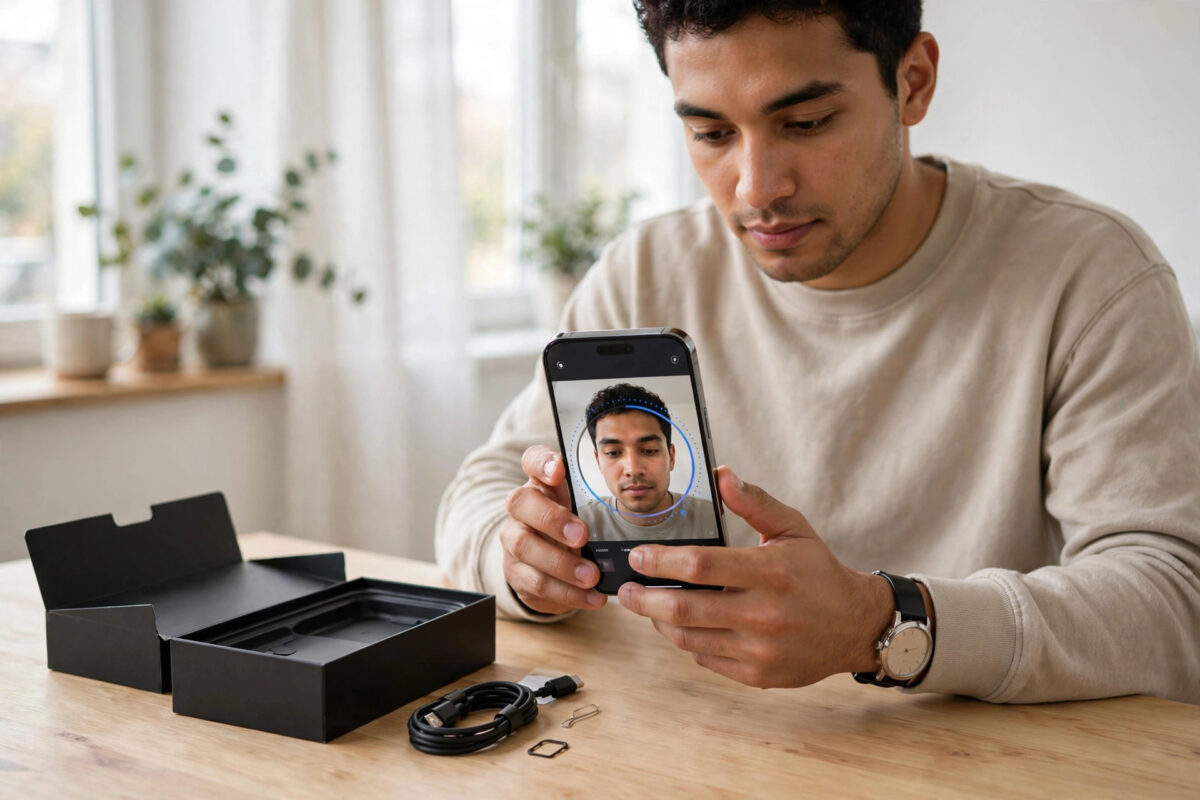
You get a new phone, type in your Instagram password, and instead of your feed you get a wall: “Challenge Required.” No explanation, no obvious way forward, and your account suddenly feels very far away. This message is not a ban and not a hack alert by itself. It is Instagram’s security system saying, “This login looks unusual — prove it is really you before we let it through.” The challenge can be completed, and in most cases it takes only a few minutes if you approach it patiently and from the right network.
Here is what triggers the challenge and how to pass it without falling into a loop.
Quick Answer
“Challenge required” appears when Instagram finds a login suspicious — typically a new phone, a new location, or a VPN. To fix it, complete the challenge on the official app: choose the verification method offered (code by email or SMS, or a video selfie), enter the code promptly, and log in from your usual Wi-Fi without a VPN. If the challenge loops, wait several hours, avoid repeated attempts, and try approving the login from a device where you are still logged in.
Why Instagram Challenges a Login
Instagram builds a picture of your normal behaviour: your usual devices, cities, and networks. A login that breaks the pattern triggers a checkpoint. Common triggers include:
- A brand-new phone or a freshly installed app.
- Travelling, or a new SIM and mobile network.
- A VPN or proxy that places you in another country.
- Several failed password attempts just before.
- Logging in after months of inactivity.
The system is doing its job. The same challenge is what stops a stranger with your stolen password from walking straight in.
Step by Step: Complete the Challenge
- Use the official Instagram app on the new phone — not a browser or third-party client.
- On the challenge screen, choose the verification option offered. Instagram may offer a code to your email, a code by SMS, a login approval from another device, or a video selfie.
- Request the code once, then wait for it. Enter it promptly; codes expire.
- If a video selfie is requested, film it in bright light, face visible, following the head movements shown.
- After passing, stay logged in and use the app normally for a while. Avoid immediately logging out and back in, changing your password five times, or logging in from three more devices that day — let the new phone become a recognised device.
If the Challenge Keeps Looping
The dreaded loop — enter code, get challenged again — usually has environmental causes.
- Turn off the VPN. A VPN exit point in another country retriggers the challenge on every attempt. Log in from your normal home connection.
- Stop attempting for a while. Repeated challenges in a short window raise the security level. Put the phone down for several hours, ideally overnight, and try once more.
- Approve from a trusted device. If you are still logged in anywhere — an old phone, tablet, or browser — Instagram may push an approval or show a “this was me” prompt there. Confirming from a recognised device often clears the new phone instantly.
- Check the code channel. If codes are not arriving at all, that is a delivery problem with its own fixes, covered in our guide on Instagram not sending security codes.
- Reset the password from a trusted device. A password reset completed from a recognised device or network can reset the trust calculation for the account.
What Not to Do
Do not install “challenge bypass” tools or pay anyone to remove the checkpoint — those tools steal accounts, and the checkpoint cannot be removed externally anyway. Do not factory-reset the new phone or reinstall the app twenty times; the challenge is tied to the account and the login pattern, not the installation. And do not try logging in through unofficial Instagram clones, which multiply the suspicion signals that caused the challenge in the first place. Instagram explains checkpoints as part of its login troubleshooting guidance.
Preventing the Challenge Next Time
- Before switching phones, make sure your account email and phone number are current, so codes reach you.
- Keep the old phone logged in until the new one is fully set up and recognised.
- Avoid logging in through VPNs; if you travel, the first login from a new country may still challenge you, but having working email and SMS access makes it a one-minute task.
- Turn on two-factor authentication once you are in, and save the backup codes — a challenged login with 2FA set up resolves more smoothly.
Challenge Required vs a Hacked Account: Telling Them Apart
One worry haunts people at the challenge screen: is this Instagram being careful, or has someone taken my account? The distinction matters. A challenge appears when you attempt a login that looks unusual, and it lets you proceed after verification. A hijack looks different: your password stops working entirely, the email or phone on the account was changed (often with a notification email you can act on), or posts and messages appear that you never made.
If any of those hijack signs are present, do not just push through the challenge. Start from the “Need more help” recovery route instead, use any “secure your account” link in Instagram’s notification emails if you received one, and change the password of your email account too. But if your password works and the only obstacle is the checkpoint, treat it as the security system protecting you — because that is exactly what it is.
Common Mistakes to Avoid
- Requesting codes repeatedly: It triggers rate limits and deeper challenges.
- Logging in from a VPN “to be safe”: The foreign location is precisely what looks unsafe to Instagram.
- Giving up after one loop: A few hours of quiet usually resets the security posture. Patience is a genuine fix here.
- Using a friend’s phone abroad: An unknown device in an unknown country stacks every suspicion signal at once.
After You Pass: Let the New Phone Settle In
For the first day or two after passing the challenge, treat the account gently. Browse, post, and message normally from the new phone, and avoid logging in from additional new devices or changing core account details like your email and password in the same sitting. Each normal session teaches Instagram that this device belongs to you, and the checkpoint quickly stops appearing.
Conclusion
“Challenge required” is Instagram asking for proof, not delivering a punishment. Complete the verification calmly on the official app, from your normal network, without a VPN, and give the system time if it loops. Once your new phone is recognised, logins return to normal — and the same checkpoint will be there to stop anyone who is not you.
Frequently Asked Questions
Is “challenge required” the same as being banned?
No. A ban or suspension tells you the account itself is restricted. A challenge only questions this particular login. Passing the verification restores full access immediately, with no waiting period or appeal.
Why does the challenge appear every time I log in?
Usually because every login still looks unusual: a VPN that changes your apparent location, an app that clears its data daily, or logging in from many devices in rotation. Log in consistently from one device on your normal network and the challenges fade.
The challenge asks for a video selfie. Is that safe?
Yes, when it appears inside the official Instagram app as part of the login flow. Instagram uses it to confirm a real person owns the account. Never send selfie videos to websites or people outside the app.
How long should I wait if the challenge loops?
A few hours is the minimum; overnight is better. Each failed or rushed attempt can refresh the suspicion. One calm attempt after a long pause succeeds far more often than ten attempts in ten minutes.
Can I avoid the challenge by transferring my login to the new phone?
Keeping the old phone logged in until the new phone is accepted, and approving the new login from the old device when prompted, is the closest thing to a transfer — and it works in most cases.



Leave a Reply