
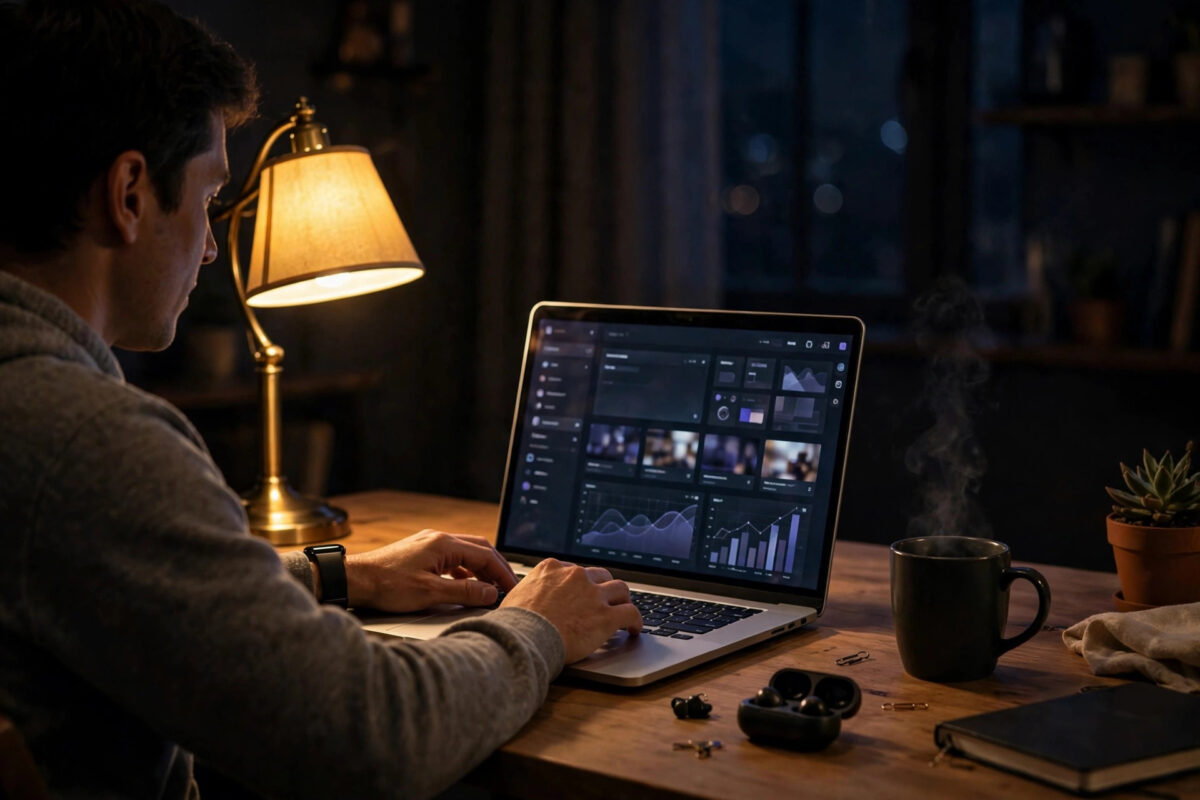
Dark Mode is one of the easiest ways to make your Mac more comfortable to use. It changes bright white windows into dark grey and black tones. Many people find it easier on the eyes, especially at night or in a dim room. It can also look cleaner and help you focus on your content instead of bright menus and toolbars.
The good news is that you do not need any extra software. Dark Mode is built into macOS, and most modern apps follow it automatically once you turn it on. In this guide, you will learn how to enable Dark Mode for the whole system, how to set it to turn on automatically in the evening, and what to do when an app refuses to switch.
Quick Answer
To enable Dark Mode on Mac for all apps, open System Settings, go to Appearance, and select Dark. Your menus, windows, and supported apps will switch right away. Choose Auto instead if you want your Mac to use Light Mode during the day and Dark Mode at night automatically.
What Dark Mode Does on a Mac
Dark Mode changes the appearance of macOS itself and any app that supports it. Finder windows, System Settings, Mail, Messages, Safari toolbars, and many third-party apps will use a dark background with light text. Photos, videos, and web page content usually stay the same, because Dark Mode is about the interface around your content, not the content itself.
Dark Mode does not save much battery on most MacBooks, since they use LCD screens, but comfort is the main benefit. If you work long hours or code late at night, the difference is noticeable within minutes. A small number of older apps may stay light no matter what you choose, which we will cover later.
How to Turn On Dark Mode Step by Step
The setting lives in one place, and it takes less than a minute to change. Follow these steps:
- Click the Apple menu in the top-left corner of your screen.
- Select System Settings. On older versions of macOS, this is called System Preferences.
- Click Appearance in the sidebar. On older versions, click General instead.
- At the top, you will see three options: Light, Dark, and Auto.
- Click Dark. The change happens instantly across the system.
You do not need to restart your Mac or close any apps. Open windows change colour right away. If an app was already open and does not change, quit it and open it again. That simple restart forces the app to read the new appearance setting.
How to Set Dark Mode to Turn On Automatically
Many people like Light Mode in bright daylight and Dark Mode in the evening. The Auto option gives you both without any daily effort.
Using the Auto Appearance Option
- Open System Settings and go to Appearance.
- Select Auto at the top of the window.
- Your Mac will now switch based on the time of day and your location.
With Auto turned on, your Mac uses location services to work out sunset and sunrise times. During the day, you get the bright Light appearance. After sunset, everything fades into Dark Mode. The change is smooth, and open apps update without you doing anything.
Pairing Dark Mode With Night Shift
Dark Mode and Night Shift solve different problems, and they work well together. Dark Mode changes interface colours, while Night Shift warms the colours of your whole display to reduce blue light in the evening. If eye comfort is your main goal, you can also schedule Night Shift on Mac to reduce eye strain so both features start at sunset together.
How to Make Sure All Apps Use Dark Mode
Most apps follow the system setting, but some apps have their own appearance control inside their settings. If you turn on Dark Mode and one app stays bright, check that app first before assuming something is broken.
- Check the app settings: Look for Appearance, Theme, or Display options inside the app’s own settings or preferences window.
- Update the app: Older versions may not support Dark Mode at all. Update through the App Store or the developer’s website.
- Restart the app: Some apps only read the system appearance when they launch.
- Check for a system option: Some design and office apps offer Follow System, Light, and Dark choices. Pick Follow System.
Apple’s own apps such as Mail, Notes, and Messages follow the system setting with no extra steps. Popular apps like Microsoft Word, Slack, Spotify, and most modern browsers also follow it, though some let you override the system choice if you prefer a different look for work.
Apple explains the official options in its guide on using a light or dark appearance on Mac. That page is worth bookmarking if you share your Mac with family members who prefer different settings on their own user accounts. Remember that appearance is set per user account, so each person who logs in can choose their own preference.
Dark Mode in Safari and for Websites
Safari itself turns dark when Dark Mode is on. Its toolbar, sidebar, tab bar, and start page all switch. However, most websites will still show their normal colours, because each website controls its own design.
Some websites detect your system appearance and offer a dark version automatically. Others have a manual dark mode button, often shown as a moon or sun icon near the top of the page. If a favourite site hurts your eyes at night, look for that toggle in the site’s header or settings menu.
The Safari Reader view also helps. In Dark Mode, Reader uses a dark background, which makes long articles easier to read at night.
Common Mistakes and Useful Tips
Mistake 1: Expecting every app to turn dark. Apps built before Dark Mode existed, or apps that use their own custom interface, may never support it. This is a limit of the app, not a fault with your Mac. Check for updates, and if there is no support, look for a built-in theme inside the app.
Mistake 2: Confusing Dark Mode with Night Shift or True Tone. These are three separate features. Dark Mode changes interface colours. Night Shift warms screen colours. True Tone adjusts the display to match the light in your room. You can use all three together, or just one. Turning one on does not turn on the others.
Mistake 3: Using Dark Mode for colour-accurate work without checking. If you edit photos or design work, Dark Mode around your image does not change the image itself, but a dark interface can change how bright you think an image looks. Many editors prefer a neutral grey interface for serious work. Test both and see what gives you more consistent results.
Tip: Pair Dark Mode with the right wallpaper. macOS includes dynamic wallpapers that get darker in the evening to match Dark Mode. You can pick one under System Settings, then Wallpaper. It is a small touch, but it makes the whole desktop feel calmer at night.
Tip: Increase contrast if text feels hard to read. Go to System Settings, then Accessibility, then Display. Options like Reduce Transparency and Increase Contrast can make Dark Mode text clearer, especially on older displays.
Apple also documents the accessibility display settings in its support guide on making text and icons bigger and easier to see on Mac, which is helpful if you are setting up a Mac for a family member with weaker eyesight.
Conclusion
Turning on Dark Mode takes less than a minute. Open System Settings, go to Appearance, and choose Dark for an instant change, or Auto if you want your Mac to handle the switch at sunset. Most modern apps will follow the system automatically, and for the few that do not, a quick check inside the app’s own settings usually fixes it. Try it for a few evenings, adjust Night Shift and contrast if you need to, and keep the setup that feels most comfortable for your eyes.
Frequently Asked Questions
Does Dark Mode save battery on a MacBook?
Only a very small amount, if any. Most MacBooks use LCD screens, which use similar power for dark and light pixels. The main benefit of Dark Mode on a Mac is comfort and reduced glare, not battery life. To save real battery, lower screen brightness and close apps you are not using.
Why does one app stay light when Dark Mode is on?
That app either does not support Dark Mode yet, or it has its own theme setting set to Light. Open the app’s settings and look for Appearance or Theme. Choose Dark or Follow System, update the app, and restart it. Very old apps may never support Dark Mode.
Can I schedule Dark Mode for exact times?
macOS does not offer exact custom clock times in the standard Appearance settings. The Auto option uses sunrise and sunset for your location, which works well for most people. If you need exact times, you can build a custom schedule with the Shortcuts app or Automator.
Is Dark Mode better for my eyes?
Many people find Dark Mode more comfortable in dim light because there is less bright light coming from the screen. In bright rooms, Light Mode can actually be easier to read because dark text on a light background has strong contrast. The best choice is the one that feels comfortable in your normal working light.
Will Dark Mode change how my photos and videos look?
No. Dark Mode changes window frames, menus, and app interfaces. Your photos, videos, and most website content keep their original colours. Only the area around the content changes, which is why Dark Mode is safe to use for everyday viewing and browsing.



Leave a Reply