
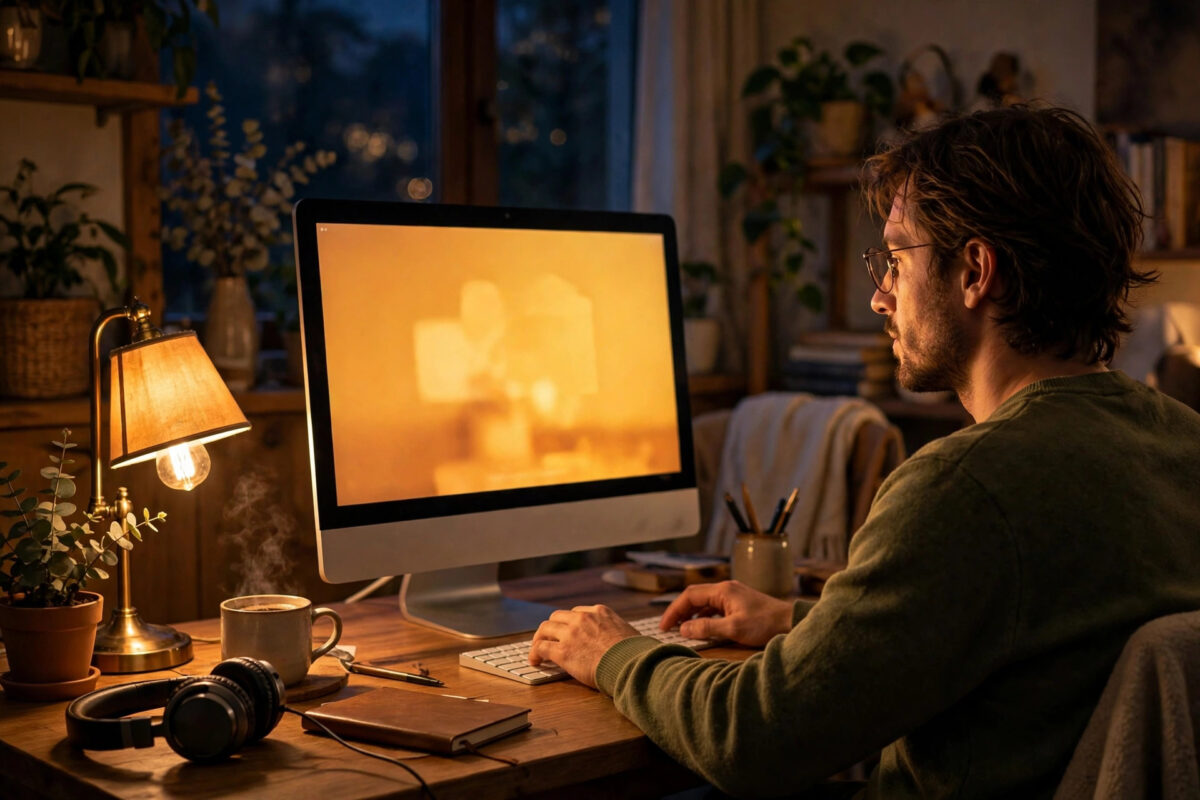
If your eyes feel tired after working on your Mac in the evening, Night Shift may help. Night Shift is a built-in macOS feature that makes your screen colours warmer after sunset. It reduces the amount of bright blue light coming from the display and replaces it with softer yellow and orange tones that feel gentler at night.
Night Shift will not fix poor lighting, a bad sitting position, or the need for glasses. But as part of a healthy evening routine, it makes long screen sessions much more comfortable. This guide shows you how to turn it on, how to schedule it automatically, and how to set the colour strength so it helps without ruining how your screen looks.
Quick Answer
To schedule Night Shift on Mac, open System Settings, go to Displays, click Night Shift, and set the Schedule to Sunset to Sunrise or a Custom schedule. Then use the Colour Temperature slider to choose how warm you want the screen to look in the evening.
What Night Shift Does and Why It Matters
Screens normally give off a lot of blue light, which looks natural during the day because daylight is also bright and cool-toned. In the evening, that same blue light can feel harsh. It can make your eyes work harder, and bright light late at night may also make it harder for some people to wind down before sleep.
Night Shift shifts the whole display toward the warmer end of the colour spectrum. Whites look slightly cream or pale yellow instead of brilliant blue-white. The change can be subtle if you set it gently, or very strong if you push the slider all the way to warm.
The feature works on the built-in display and on many external displays. If you also use an iPhone or iPad in the evening, turning on Night Shift there too gives you a consistent experience.
How to Schedule Night Shift Step by Step
The schedule is set once, and after that your Mac handles everything automatically. Follow these steps:
- Click the Apple menu in the top-left corner of the screen.
- Open System Settings. On older macOS versions, choose System Preferences.
- Click Displays in the sidebar.
- Click the Night Shift button. On some versions it appears at the bottom of the Displays page or in an advanced options area.
- Next to Schedule, choose Sunset to Sunrise or Custom.
- Use the Colour Temperature slider to set how warm the display should become.
- Close System Settings. Your schedule is saved automatically.
Apple describes the official setup steps in its support article on using Night Shift on your Mac. That article also notes which Mac models and macOS versions support the feature, which is useful if you are using an older machine.
Choosing Between Sunset to Sunrise and a Custom Schedule
Both schedule options work well. The right one depends on your routine.
Sunset to Sunrise: Best for Most People
This option changes throughout the year, just like real daylight. In summer, Night Shift starts later because sunset is later. In winter, it starts earlier in the evening. You never need to adjust it when the seasons change, which makes it the easiest choice for most users.
Custom Schedule: Best for Fixed Routines
If you work regular hours, a custom schedule may suit you better. For example, you might want Night Shift from 7 p.m. to 7 a.m. every day, even in summer when it is still light outside at 7 p.m. To set it:
- Open System Settings, then Displays, then Night Shift.
- Choose Custom from the Schedule menu.
- Set your preferred From and To times.
- Adjust the Colour Temperature slider and close the window.
A custom schedule is also useful for shift workers. If you sleep during the day and work at night, you can set Night Shift around your own sleep pattern rather than around the sun.
How to Set the Right Colour Temperature
The Colour Temperature slider controls how strong the effect feels. On the left, the change is mild. On the right, the screen becomes much warmer and more orange.
- Start in the middle: The middle of the slider is a good first test for most people.
- Use it for an evening: Work normally for a few hours before judging it. Your eyes adjust within minutes.
- Go warmer if you still feel strain: Move the slider a little to the right if bright whites still feel harsh.
- Go cooler for colour work: Move it left if colours look too yellow for your tasks.
How to Turn Night Shift On or Off Quickly
Sometimes you need accurate colours for a short task, or you want Night Shift on earlier than your schedule. You do not need to open System Settings every time.
- Control Centre: Click Control Centre in the menu bar, click Display, and toggle Night Shift on or off.
- Notification Centre: On some macOS versions, you can swipe or click to open Notification Centre and find a Night Shift toggle in the widgets area.
- Turn it off until tomorrow: Inside the Night Shift settings, there is an option to turn it on until tomorrow or turn it off early, depending on your macOS version.
These quick controls are ideal for photo editors and designers. Turn Night Shift off while you check colours, then turn it back on for email, writing, and browsing. Building this small habit protects both your eyes and the accuracy of your work.
If you combine Night Shift with a darker interface, the evening experience becomes even calmer. Our guide on enabling Dark Mode on Mac for all apps shows how to set that up in under a minute, including the automatic day and night option.
Other Ways to Reduce Eye Strain on a Mac
Night Shift helps, but it is only one part of eye comfort. A few simple habits make a bigger difference when combined:
- Follow the 20-20-20 rule: Every 20 minutes, look at something about 20 feet away for 20 seconds.
- Match brightness to your room: Your screen should not be much brighter than the room around it. Lower brightness in the evening.
- Increase text size if you squint: Bigger text is easier than leaning closer. Adjust it under Accessibility or in each app.
- Keep a good distance: Sit about an arm’s length from the screen, with the top of the display near eye level.
- Blink and take breaks: People blink less when staring at screens. Short breaks every hour help more than any single setting.
Common Mistakes and Useful Tips
Mistake 1: Leaving Night Shift on during photo editing. Night Shift changes every colour on screen, so skin tones, product colours, and prints will look wrong. Always turn it off for colour-accurate work, and check important edits again with it off before sending files to anyone.
Mistake 2: Setting the temperature too warm on the first day. A very orange screen can be distracting and make text feel muddy. Start in the middle of the slider and adjust slowly over a few evenings. Your eyes will tell you when it feels right.
Mistake 3: Forgetting the schedule needs the right time zone. If Night Shift starts at strange times, check your Date & Time settings and location permissions first. A wrong time zone is the most common reason the sunset schedule feels broken.
Tip: Use Night Shift on all your Apple devices with the same schedule. When your Mac, iPhone, and iPad all warm up at sunset, your eyes do not have to readjust every time you switch devices.
Tip: If you wear glasses, ask your optician about your screen habits at your next check-up. Software settings help, but the right prescription and regular eye tests matter more for long-term comfort. Apple also shares general display comfort settings in its guide on adjusting display settings for easier viewing on Mac.
Conclusion
Scheduling Night Shift takes only a minute and then works silently every evening. Choose Sunset to Sunrise for a set-and-forget setup, or a Custom schedule if your routine is fixed. Start with a medium colour temperature, live with it for a few evenings, and adjust from there. Combined with sensible brightness, regular breaks, and good room light, Night Shift is one of the simplest ways to make evening Mac use kinder to your eyes.
Frequently Asked Questions
Does Night Shift really help with eye strain?
Many people find a warmer screen more comfortable in the evening, especially in dim rooms. It reduces harsh blue-white brightness, but it is not a medical treatment. If you have ongoing pain, headaches, or blurry vision, see an eye specialist rather than relying only on software settings.
Why is Night Shift greyed out or missing on my Mac?
Night Shift needs a supported Mac and a recent enough version of macOS. Very old models do not support it. Update macOS if you can, and check Displays settings again. If you use certain external displays, the option may apply only to the built-in screen.
Should I use Night Shift during the day?
You can, but most people do not need it in bright daylight. Daytime light is naturally cooler, so a normal screen matches your surroundings better. A gentle warm setting during the day is fine if you prefer it, but strong settings will make colours look unnatural.
Does Night Shift affect screenshots and screen recordings?
No. Screenshots and recordings capture the normal colours of your content, not the warm Night Shift effect. What you see on screen looks warmer, but the saved file keeps the original colours. This is useful to know when you share screenshots with others.
Can I use Night Shift with an external monitor?
In most cases, yes. Night Shift usually applies to external displays connected to a supported Mac, but results vary by monitor and connection type. Test your monitor in the evening after enabling it. If the external screen does not change, check the monitor’s own blue light or night mode settings instead.



Leave a Reply