
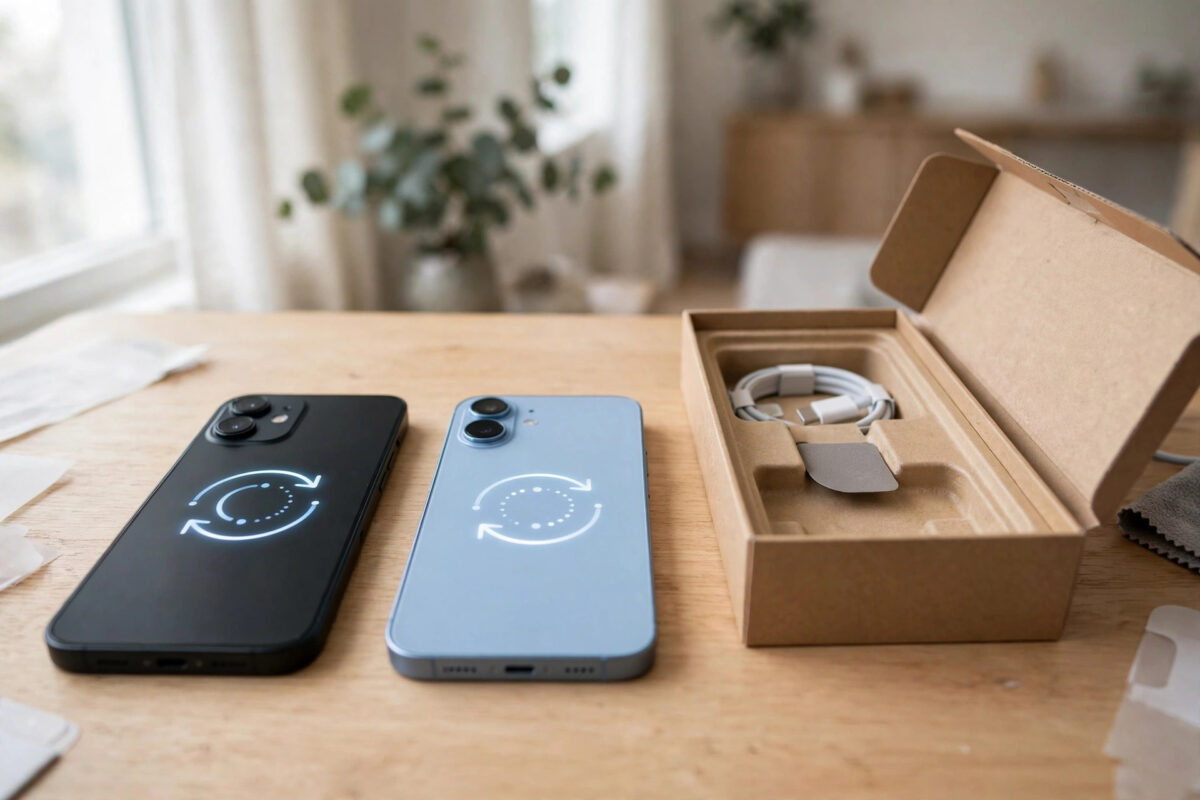
New phone day should be exciting, but for anyone whose contacts still live on an old SIM card, there is a familiar dread: will all my numbers make the journey? They will — and in most cases you do not even need the SIM to do it. Modern phones move contacts through your Google or Apple account automatically, and the SIM itself can be imported in a couple of minutes as a fallback. Here is every reliable route, from easiest to most manual.
Quick Answer
The easiest way to copy contacts to a new phone is through your account: if your contacts are in your Google account (Android) or iCloud (iPhone), simply sign in on the new phone and they appear automatically. If contacts are only on the SIM, insert the SIM into the new phone and use Contacts, then Import from SIM — or import them on the old phone to your Google account first, then sign in on the new phone.
Method 1: Sync Through Your Google or Apple Account (Best Method)
Account sync is the method worth setting up even if you use another route today, because it protects your contacts forever after — every future phone gets them by signing in.
On the old phone (Android)
- Open the Contacts app and check where contacts are stored; if some are only on the SIM or phone, import them to your Google account first (Contacts, Settings, Import, from SIM).
- Go to Settings, then Accounts, then Google, and make sure Contacts sync is ON.
- Wait a minute for the sync to complete.
On the new phone
- During setup (or later in Settings), sign in with the same Google account or Apple ID.
- Open Contacts — everything arrives within moments.
- For iPhone users, ensure iCloud Contacts is enabled in iCloud settings on both devices.
Google’s Contacts help centre covers importing, syncing, and merging in more depth if you run into duplicates.
Method 2: Import Directly From the SIM in the New Phone
If the old phone is gone or its contacts were never synced, the SIM itself carries the numbers with it.
- Insert your SIM into the new phone (check you have the right size — nano-SIM fits all modern phones; older micro or full-size SIMs may need an adapter or a replacement SIM from your network, which keeps your number).
- Android: open Contacts, then Settings or Manage contacts, then Import, then SIM card, and save to your Google account or phone.
- iPhone: go to Settings, then Contacts, then “Import SIM Contacts”, and choose iCloud or your email account.
- Check a sample of contacts for completeness, remembering SIM entries hold only a name and one number each.
For a detailed walkthrough of the SIM-to-storage import itself, see our guide on how to transfer contacts from SIM to phone storage.
Method 3: Phone-to-Phone Transfer Tools
Every manufacturer offers a migration app — Samsung Smart Switch, Google’s setup transfer, Apple’s Move to iOS, and similar tools from other brands. Run during new-phone setup, they copy contacts along with photos, messages, and apps in one go, over a cable or local Wi-Fi. If your contacts are a mess spread across SIM, phone, and accounts, these tools gather them all into the new phone in a single pass; tidy up duplicates afterwards with the merge tool in Google Contacts or the duplicates prompt in iOS Contacts.
Method 4: Export a vCard File (Manual but Universal)
- On the old phone, open Contacts, then Settings, then Export, and save all contacts as a single .vcf file.
- Send the file to the new phone (email it to yourself, or use any file transfer).
- Open the file on the new phone and confirm the import.
This old-fashioned route works between any brands, needs no accounts, and doubles as a permanent backup — keep a copy of that .vcf somewhere safe.
After the Move: Set Yourself Up Properly
- Set the default save location for new contacts to your Google or iCloud account, never to SIM-only storage.
- Merge duplicates created when SIM, phone, and account copies collide.
- Enrich key contacts — add emails, second numbers, and photos that the SIM format could not store.
- Keep the old phone unreset for a week until you are certain nothing was missed.
Common Mistakes to Avoid
- Assuming the SIM carries everything. SIM contacts hold one number and a short name only — WhatsApp identities, emails, and extra numbers live in accounts or the old phone.
- Resetting or returning the old phone before verifying the new phone’s contacts are complete.
- Skipping the account sign-in during setup and then wondering where the contacts are — add the account in Settings and they will sync.
- Cutting an old SIM down to size yourself. A mis-cut SIM can be unreadable; networks issue correct-size replacements free.
Special Cases: Button Phones, Very Old SIMs, and Damaged Cards
Contacts rescued from an old feature phone follow the same SIM route — the card does not care what wrote it — but check two things: the SIM’s physical size, since phones a decade old may carry a mini-SIM that needs an adapter frame or a network-issued replacement in nano size, and the phone’s own memory, because many button phones stored contacts internally rather than on the SIM. If the contacts are in the old phone’s memory, power it on, set its contacts display to “all”, and either copy them to the SIM in its settings (the classic “Copy contacts to SIM” menu) or export by Bluetooth or memory card to the new phone.
A physically damaged SIM that no phone will read is the hardest case. Your network cannot recover contacts from a dead card — the data lived only on that chip — which is why the account-sync habit matters so much going forward. If the numbers matter (a business built on them), a specialist data-recovery service may read a damaged card, but treat that as a last resort and set up cloud sync the moment you are rescued.
Conclusion
Copying contacts to a new phone is a five-minute job when you pick the right route: account sync for the cleanest result, SIM import for numbers that only exist on the card, transfer tools for a full-device move, and a vCard export as the universal backup plan. Whichever you choose, finish by making your account the default home for new contacts — and you will never have to think about this again.
Frequently Asked Questions
How do I copy contacts if my old phone is broken and will not turn on?
If the contacts were synced to Google or iCloud, sign in on the new phone and they return automatically. If they were only on the SIM, put the SIM in the new phone and import — SIM contacts survive a dead phone. If they were only in the dead phone’s memory, a repair shop may be able to recover them.
Why are only some of my contacts on the new phone?
Usually because your old phone held contacts in several places — some in your account (synced fine), some phone-only, and some on the SIM. Check the old phone’s Contacts display settings to show all sources, then export or import whatever was missed.
Can I copy SIM contacts to an iPhone from an Android SIM?
Yes — SIM contacts are a universal format. Put the SIM in the iPhone and use Settings, Contacts, Import SIM Contacts. The card does not care which brand of phone wrote the entries.
Will importing duplicate my contacts?
It can, if the same people already exist in your account. Duplicates are harmless and easy to fix: Google Contacts offers “Merge and fix”, and iOS shows a duplicates banner in Contacts that merges matches in one tap.
How can I check how many contacts are on my SIM?
On Android, the import screen shows the count of SIM contacts before you confirm. There is no standalone counter on iPhone, but the import result and list comparison serve the same purpose.


Leave a Reply