
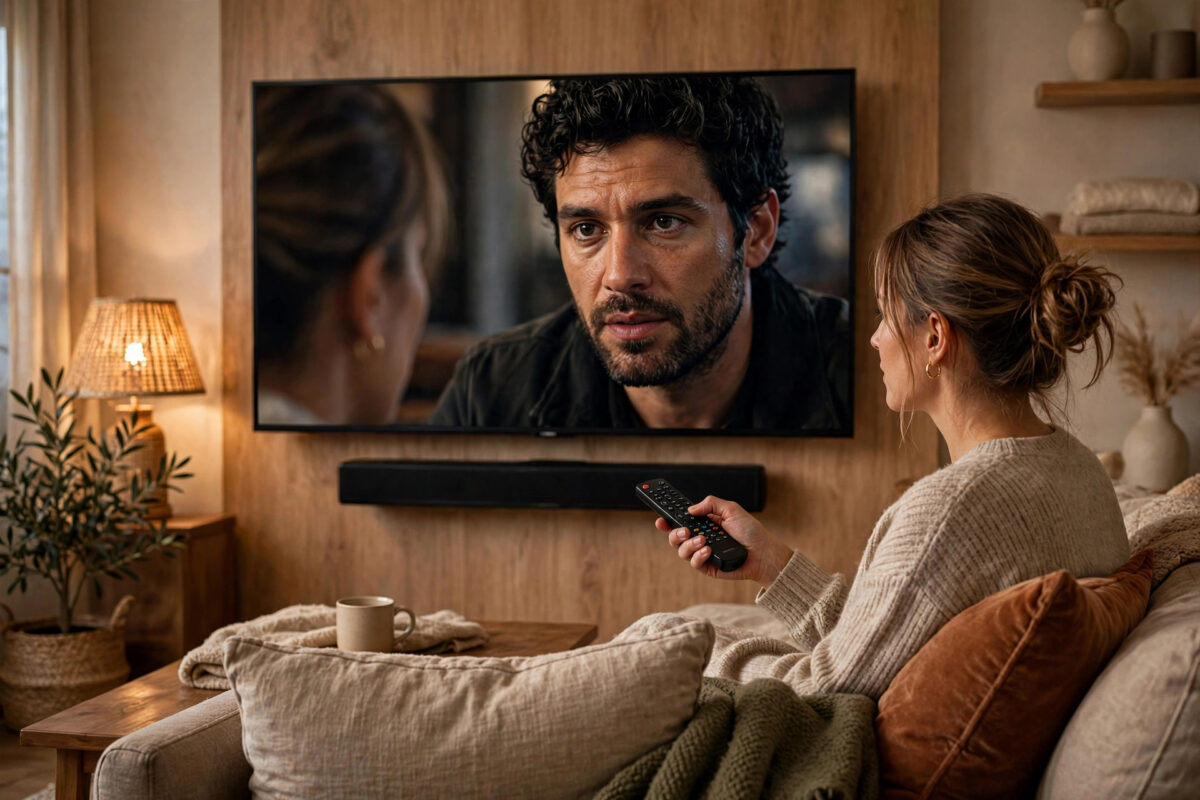
Few things ruin a film faster than bad lip sync. The actor’s mouth moves, and the words arrive a fraction of a second later — or worse, the sound arrives before the lips move. Once you notice it, you cannot un-notice it. Audio delay is very common with soundbars, Bluetooth speakers, and modern TVs that do heavy picture processing, but it is also very fixable. This guide explains why delay happens, how to tell which direction it runs, and the exact settings to adjust on your TV, soundbar, and streaming device to bring sound and picture back together.
Quick Answer
If voices are late compared to the picture, reduce your TV’s picture processing, use HDMI eARC or ARC instead of Bluetooth, and lower the audio delay setting on your TV or soundbar toward 0 ms. If voices come before the lips move, increase the audio delay in small steps of 20 to 30 ms until speech matches. Always test with clear dialogue in a close-up scene, and change only one setting at a time.
Why Audio Delay and Lip Sync Problems Happen
Your TV and sound system process picture and sound at different speeds. A modern TV may take time to upscale the image, smooth motion, reduce noise, and apply HDR. That work can slow the picture down. Meanwhile, audio may be sent quickly to a soundbar, or it may be slowed by wireless transmission, format conversion, or its own processing.
Viewers start to notice the gap at roughly 40 to 50 milliseconds, and it becomes annoying beyond 100 milliseconds.
The Most Common Causes of Delay
- Bluetooth connection to a soundbar or headphones — wireless audio often adds 100 to 300 ms
- Heavy TV picture processing, such as motion smoothing, slowing the video
- Audio format conversion, where the TV decodes Dolby audio and re-encodes it
- A long chain of devices, each adding a little delay
- Incorrect audio delay settings left at a high value from a previous setup
- Standard ARC limitations compared with eARC, which includes automatic lip sync correction
First, Work Out Which Way the Delay Runs
Before touching settings, diagnose the direction. Guessing wrong makes it worse.
- Play a scene with one person speaking clearly to the camera — a news presenter or dialogue close-up is perfect.
- Decide which feels first: the lips or the voice.
- If you hear the word before you see the lips form it, the audio is early and the video is late. You need to delay the audio more.
- If you see the lips move and the word arrives after, the audio is late. You need to reduce audio delay or remove whatever is slowing the audio.
- If only one app or one device has the problem, note that. A delay only on a console or only on Netflix points to that source’s settings.
Fix 1: Remove the Biggest Delay Sources First
Stop Using Bluetooth for TV Sound if You Can
Bluetooth is convenient, but it is the single biggest cause of bad lip sync for films. If your soundbar is connected by Bluetooth, switch to an HDMI ARC/eARC cable or an optical cable. The improvement is often instant and complete. Save Bluetooth for music, where lip sync does not matter. If you must use Bluetooth headphones at night, look for a low-latency option, and accept that a small delay may remain.
Turn On Game Mode or Reduce Picture Processing
Picture processing delays the video, making audio feel early. Most TVs have a Game Mode that cuts most processing and sharply reduces video delay. Turn it on for the input you are testing and check lip sync again. If the problem improves, picture processing was a major part of it. You can then keep Game Mode for that source or re-enable only the features you truly value. A correct wired setup as described in connecting a soundbar to your TV with HDMI ARC or eARC removes several delay causes at once.
Fix 2: Use the TV’s Audio Delay or Lip Sync Setting
Almost every modern TV has an audio delay control, though the name varies: Audio Delay, Lip Sync, A/V Sync, or Sound Delay. It is usually in Settings under Sound, then Advanced or Expert settings.
- Open your TV sound settings and find the audio delay slider. Note its current value before changing it.
- If audio is early, increase the delay by 20 to 30 ms, then replay your test scene.
- Repeat in small steps until speech and lips land together. Most setups land between 0 and 150 ms.
- If audio is late and the slider is already above 0, lower it toward 0. If it is already at 0, the delay is coming from somewhere else — move to the other fixes.
- Check whether your TV stores this setting per input. You may need to set it separately for TV apps, a console, and a streaming stick.
Fix 3: Adjust the Soundbar’s Own Delay Setting
Many soundbars have their own delay control in their remote menu, app, or display, sometimes labeled SYNC, AV SYNC, or Delay, often adjustable up to 200 or 300 ms.
Use only one delay control as your main tool. If both the TV and soundbar add delay, the total can become far too much. Set the TV delay to 0 or Auto first, then fine-tune on the soundbar — or the reverse — but write down what you set so you do not double up. If both devices support eARC, keep eARC enabled, because its built-in lip sync correction does much of this work automatically. Samsung documents its control as the Digital Output Audio Delay option in its Samsung TV audio delay and lip sync troubleshooting guide.
Fix 4: Change the Digital Audio Format to Pass-through or PCM
When a TV decodes a Dolby or DTS signal, converts it, and sends it onward, that conversion costs time and can shift sync. Changing the format path often helps.
- In TV sound settings, find Digital Output Audio Format or Digital Audio Out.
- If it is set to Auto and you have delay, try Pass-through, which sends the original audio to the soundbar to decode without the TV converting it.
- If Pass-through causes missing sound on some content, test PCM as a diagnostic step. PCM is simple stereo that TVs handle with very low delay. If PCM is perfectly in sync but other formats are not, conversion is your culprit.
- Check your streaming stick or box too. In its audio settings, try Automatic, or fix it to a format your soundbar definitely supports.
Fix 5: Check Each Source and Restart the System
It is common for one app or device to drift while others are fine. Restarting the app or stream often clears temporary drift. For games, use Game Mode on the console input and keep delay as low as possible.
If sync was fine last week and suddenly is not, suspect a glitch. Unplug the TV and soundbar for 60 seconds, then test again. Check for firmware updates on both devices — makers regularly fix sync bugs in updates. Finally, simplify the chain: test with the streaming box straight into the TV and ARC/eARC to the soundbar. If sync becomes perfect, one removed device was adding the delay. LG also covers sync steps in its LG TV audio synchronization troubleshooting help.
Common Mistakes to Avoid
- Adjusting delay in the wrong direction: Always diagnose whether audio is early or late first.
- Setting delay on both TV and soundbar: Stacked delays create a bigger problem. Tune with one control and leave the other at zero or Auto.
- Making huge jumps: Move in 20 to 30 ms steps and retest. Small errors need small corrections.
- Testing with cartoons or dubbed content: Animation and dubbing are often slightly out of sync at the source. Test with real people speaking the original language.
- Ignoring Bluetooth: No slider fully cures a large Bluetooth delay for films. A cable is the real fix.
- Forgetting per-input settings: Fixing sync for TV apps may not fix the console input. Check each source you use.
Conclusion
Lip sync problems come from picture and sound taking different amounts of time to reach you, and the cure is to remove the biggest delays and then balance what remains. Replace Bluetooth with a wired ARC or eARC connection, reduce heavy picture processing, set the audio format to Pass-through, and fine-tune a single audio delay control in small steps using a clear dialogue scene. Work through it methodically and speech will lock back onto faces, so you can forget the settings and enjoy the film.
Frequently Asked Questions
What is a normal audio delay setting for a TV and soundbar?
There is no single correct number because every chain differs. Many wired ARC setups are perfect at 0 to 50 ms, while chains with more processing may need 80 to 150 ms. The right value is the one where your test dialogue matches.
Why is lip sync fine on some channels but bad on others?
Broadcasters and apps sometimes send slightly imperfect sync at the source, and different formats take different processing paths. If one channel is always off while everything else is fine, the source is at fault and no home setting will fully fix just that channel.
Does eARC really help with lip sync?
Yes. eARC includes a mandatory lip sync correction system where the TV and soundbar share timing information automatically. It does not fix Bluetooth or app delays, but for a wired TV-to-soundbar link it is the most reliable sync option.
Why did my lip sync suddenly get worse after months of being fine?
A firmware update, a new device in the chain, an app update, or a setting reset after a power cut are the usual reasons. Restart both devices, check for further updates, and verify your delay and format settings have not reverted to defaults.
Can a better HDMI cable fix audio delay?
A cable alone rarely changes sync timing, but a faulty or very old cable can cause dropouts that look like sync problems. If you are switching to eARC anyway, using a certified Ultra High-Speed cable ensures the eARC timing features work as designed.



Leave a Reply