
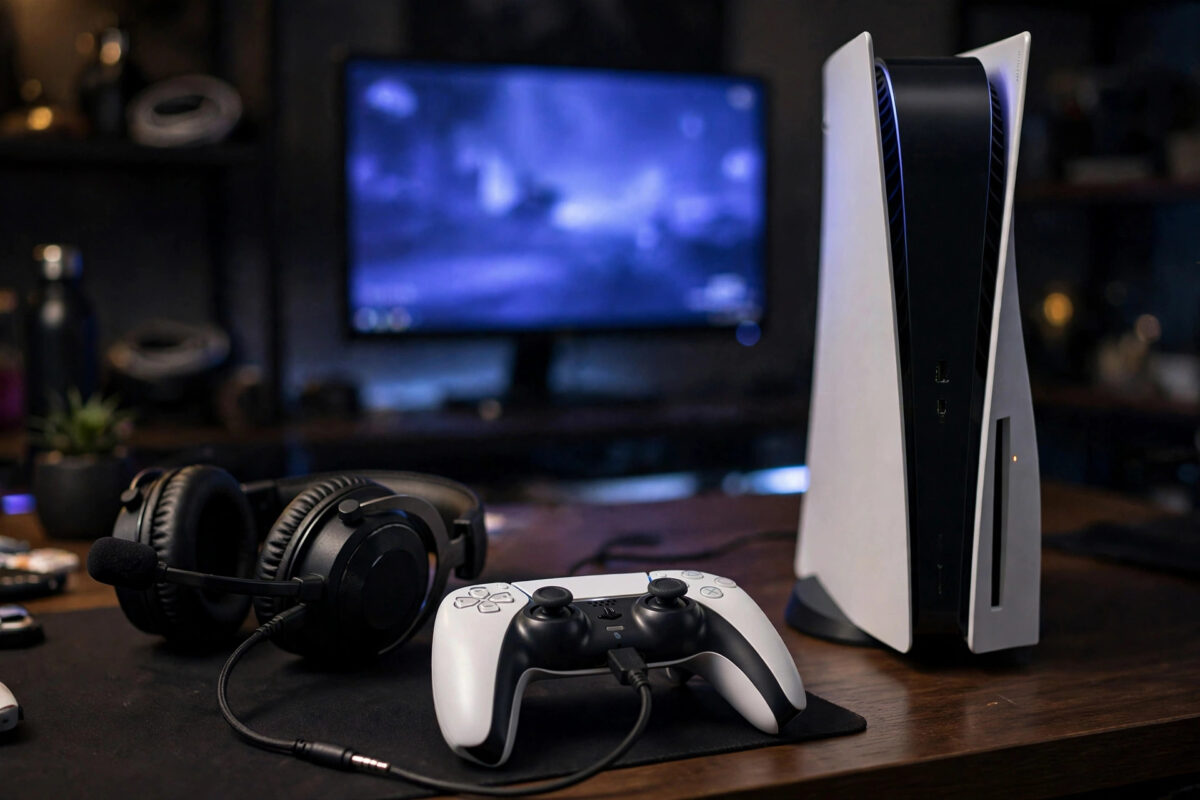
A good gaming headset changes how a PS5 game feels. You hear footsteps, direction, and quiet story details, and your friends hear you clearly in party chat. The setup is quick, but the audio settings decide whether you hear game sound, chat, or a good balance of both.
This guide covers wired, wireless, and Bluetooth options, plus the exact PS5 settings to check if something sounds missing.
Quick Answer
To connect a gaming headset to PS5 and hear game and chat audio, plug a wired headset into the DualSense controller’s 3.5mm jack, or connect a wireless headset using its USB dongle and set it as the input and output device in Settings, Sound. Then adjust Output to Headphones to All Audio and balance game and chat using the Game/Chat Balance slider in the quick menu.
Ways to Connect a Headset to PS5
There are three main connection types. The best one depends on the headset you already own.
Wired Through the Controller
Any headset with a standard 3.5mm plug can connect to the jack at the bottom of the DualSense controller, between the grips. This is the simplest method, needs no charging for basic models, and works instantly. It is ideal for a first headset or as a backup.
Wireless With a USB Dongle
Many PS5 gaming headsets come with a small USB receiver. You plug that receiver into a USB port on the console, turn the headset on, and they pair automatically. This gives you freedom to move, better range than the controller cable, and often extra features like surround profiles. Only use headsets that state they support PS5, because the PS5 does not support every wireless standard a PC does.
USB Wired and Bluetooth Notes
Some headsets connect by USB cable directly to the console. These work like a dongle model after you select them in sound settings.
Standard Bluetooth headphones are different. The PS5 does not support normal Bluetooth audio pairing the way a phone does. You need a headset made for PS5 with its own dongle, a PlayStation Link device, or a separate Bluetooth transmitter. Do not buy plain Bluetooth earbuds expecting a direct menu pairing on PS5.
Step-by-Step: Wired Headset Setup
- Plug the 3.5mm connector firmly into the bottom of your DualSense controller until it clicks.
- Press the PlayStation button to open the control centre.
- Select Sound, the speaker icon.
- Confirm Output Device shows the headset connected to the controller.
- Select Microphone and confirm the input device is also the controller headset.
- Start a game and test both game sound and a party chat or microphone test.
If you hear nothing, push the plug in again. Many cases and partial plugs cause a silent headset that looks connected.
Step-by-Step: Wireless Dongle Setup
- Insert the USB dongle into a free USB port on the front or back of the PS5.
- Turn your headset on and put it in wireless mode if it has more than one mode.
- Wait for the pairing light to turn solid. Most models pair in under 15 seconds.
- On the PS5, go to Settings, then Sound.
- Under Audio Output, set Output Device to your wireless headset name.
- Under Microphone, set Input Device to the same headset.
- Play a game or video to confirm sound, then test your microphone level.
Keep the dongle in a front port if your console sits inside a cabinet. A clearer line to your headset reduces dropouts. Sony’s official guidance in the PlayStation Support section for audio devices also lists which connection types the console officially supports.
Set the PS5 to Send All Audio to Your Headset
Hearing chat but not the game, or the game but not chat, is usually a setting problem, not a broken headset.
- Go to Settings, then Sound, then Audio Output.
- Find Output to Headphones.
- Choose All Audio if you want both game and chat in the headset.
- Choose Chat Audio Only only if you prefer game sound from the TV and voices in your ear.
Most players who bought a headset for immersion should choose All Audio. Chat Audio Only is useful late at night in reverse: some households prefer TV speakers low and only voices private, but it confuses many first-time users.
Balance Game Sound and Chat Volume
Even with All Audio selected, one source may drown out the other. The PS5 has a balance control for this exact problem.
- Press the PlayStation button during a game.
- Open Sound from the control centre.
- Find Game/Chat Balance.
- Move the slider toward Game if chat is too loud, or toward Chat if you cannot hear friends over explosions.
- Ask a friend to speak while you adjust, then save a middle setting you like.
Some headsets also have a physical balance dial or buttons on the ear cup. If both the console slider and the headset dial exist, set the headset dial to the middle first, then fine-tune on the PS5. This avoids one control fighting the other.
If your friends later say they cannot hear you at all, our guide on why friends cannot hear you in console voice chat walks through microphone, mute, and privacy checks step by step.
Adjust Your Microphone Level Correctly
- Go to Settings, then Sound, then Microphone.
- Select Adjust Microphone Level.
- Speak at your normal gaming volume, not a whisper and not a shout.
- Move the slider so your voice reaches the Good zone without staying at the very top.
- Exit and test in a party or in-game chat.
Position matters as much as the slider. Keep a boom microphone a few centimetres from the corner of your mouth, not directly in front of it and not down by your chest. For headsets without a boom, speak clearly and keep background noise low because the small built-in microphones pick up the whole room.
Also check the mute controls. The DualSense has a microphone mute button under the PlayStation button, with an orange light when muted. Many headsets have their own mute switch or flip-to-mute boom. It is easy to mute one and forget the other.
Turn On 3D Audio for Headphones
The PS5 offers 3D audio through compatible headphones in supported games. It can make direction easier to judge, such as whether a sound is above, below, or behind you.
- Go to Settings, then Sound, then Audio Output.
- Turn on Enable 3D Audio for Headphones.
- Select Adjust 3D Audio Profile and listen to the examples.
- Choose the height profile that sounds clearest and most natural to you.
Give yourself a few matches to get used to it. If a particular game sounds odd, you can turn 3D audio off for that session and compare. Personal preference matters here.
Troubleshooting Common PS5 Headset Problems
- No sound at all: Check output device, volume, mute, plug or dongle connection, and headset charge.
- Sound still comes from the TV: Your output device is set to TV or HDMI. Change it to the headset in Sound settings.
- Friends hear you, but you hear no chat: Check Output to Headphones is All Audio and raise chat in Game/Chat Balance.
- Game sound but no microphone: Check input device, microphone level, controller mute light, and headset mute switch.
- Crackling or dropouts: Move the dongle to a front port, charge the headset, and keep the router or other transmitters from sitting directly beside the console.
Common Mistakes to Avoid
- Assuming all Bluetooth works: Plain Bluetooth headphones do not pair directly with PS5 for game audio. Check for PS5 support and a dongle.
- Leaving Output on Chat Only: This is the top reason players think a new headset is broken.
- Maxing the microphone slider: Too high causes distortion and background noise. Aim for the Good zone.
- Forgetting two mute controls: Controller mute and headset mute are separate. Check both.
- Using a damaged splitter: Some PC headsets have separate mic and headphone plugs. On a controller you need a combined jack or a proper adapter.
Conclusion
Connect your headset by controller jack or USB dongle, set it as both output and input, choose All Audio, and balance game and chat until voices sit comfortably over the action. Add a correct microphone level and 3D audio profile, and your PS5 setup will be ready for story games, shooters, and long party sessions without guesswork.
Frequently Asked Questions
Can I hear game and chat audio at the same time on PS5?
Yes. Set Output to Headphones to All Audio in Settings, Sound, Audio Output. Then use Game/Chat Balance to decide how loud each one is compared to the other.
Why does my headset work in menus but not in a game?
Check the in-game audio settings as well as the console settings. Some games have their own output, chat, and mute options that can override what you expect.
Does the DualSense controller speaker still play sounds?
Some games use the controller speaker for special effects. You can lower or turn off controller speaker volume in Sound settings if you want everything only in your headset.
Can I use a PC gaming headset on PS5?
Often yes, if it uses a 3.5mm plug, USB, or a wireless dongle that lists PS5 support. Check the maker’s compatibility list, because some PC-only wireless models will not work.
How do I stop my TV sound when my headset is on?
Selecting your headset as the output device should stop normal game audio from the TV. If sound continues, confirm Output Device in the quick Sound menu and check your TV or soundbar settings.



[…] you need the full setup flow again, our guide on how to connect a gaming headset to PS5 and hear game and chat audio covers output, input, and balance settings […]