
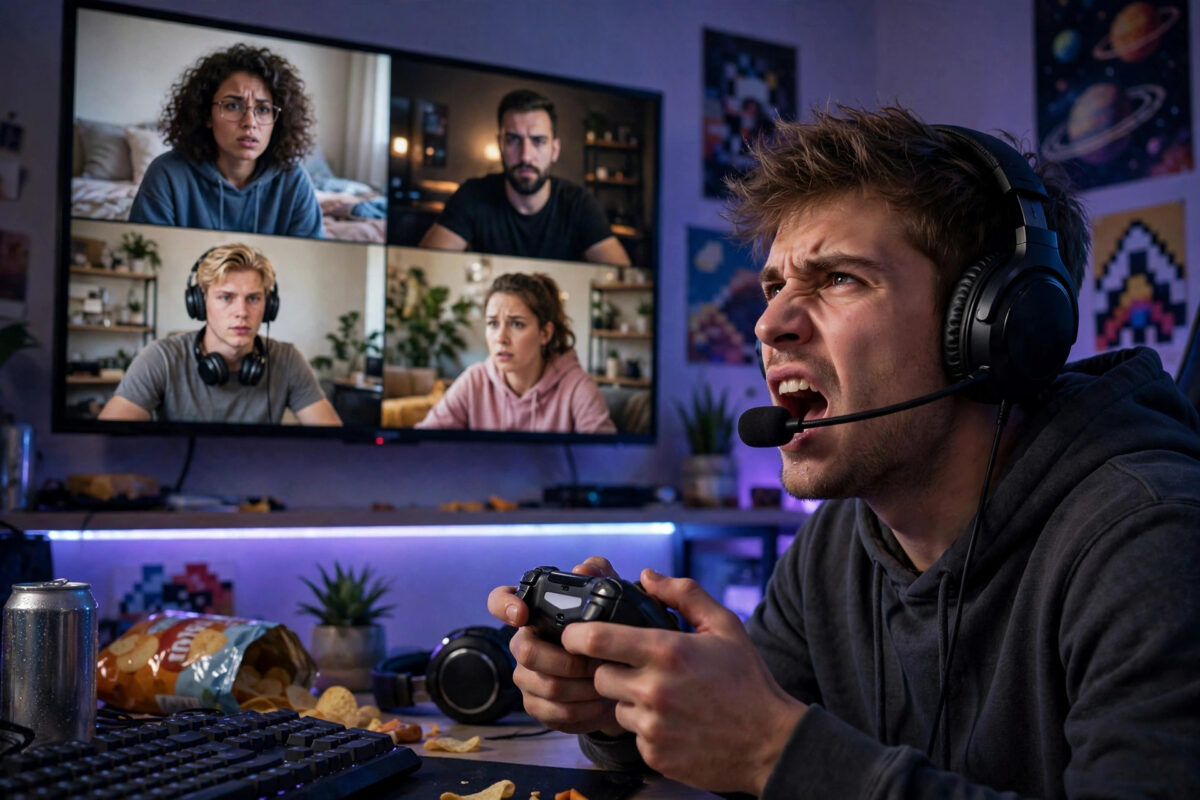
You can hear every callout, joke, and plan from your friends, but when you answer, there is silence. Then someone asks if your microphone is even on. This one-way voice chat problem is extremely common on consoles, and it is rarely a broken headset.
Most of the time the cause is a mute setting, the wrong input device, a privacy control, or a plug that is not fully in. Work through the checks below in order and you will usually find it in minutes.
Quick Answer
If you can hear friends but they cannot hear you in console voice chat, check that neither your headset nor controller is muted, confirm your headset is selected as the input device, and raise your microphone level in the console sound settings. Also check party or game chat selection, privacy settings that block communication, and that a wired plug is fully pushed into the controller.
How Voice Chat Can Fail in One Direction Only
Game audio and microphone audio travel on separate paths. Your headset speakers can work perfectly while the microphone path is muted, unplugged, blocked, or sent to a different device. That is why this problem feels strange but is actually logical.
On PlayStation and Xbox, the system must answer several questions at once: Which microphone should it use? Is that microphone muted? Are you in party chat or game chat? Does your account allow voice communication? If any answer is wrong, your friends hear nothing.
On Nintendo Switch, voice chat is even more split, because many games use a phone app or game-specific systems. Still, the same principle applies: listening and talking are separate features with separate settings.
Check 1: Every Mute Control, Not Just One
This is the number one cause, because modern setups have several mute points.
- Headset mute: A switch on the cable, a button on the ear cup, or a boom arm that mutes when flipped up.
- Controller mute: On PS5, the DualSense microphone button under the PlayStation button glows orange when muted. On Xbox controllers with a headset adapter, check its mute button too.
- On-screen mute: A party menu may show you as muted even if the hardware is not.
- Push-to-talk: Some games require holding a button to speak. If this is on by accident, your friends will hear nothing when you talk normally.
- Look at your headset boom and switches first and set them to talk.
- Check the controller mute light and press the button once if it shows muted.
- Open the party or voice menu and confirm your name does not show a muted microphone icon.
- In the game settings, turn push-to-talk off for testing and set voice to open microphone if available.
Check 2: Make Sure the Console Uses the Right Input Device
Your console may be listening to a controller microphone, a camera, or a different headset than the one on your head.
On PS5
- Go to Settings, then Sound, then Microphone.
- Set Input Device to your headset, not to a controller or other device by mistake.
- Select Adjust Microphone Level and speak normally.
- Raise the level until your voice sits in the Good zone.
On Xbox
- Press the Xbox button and open the guide.
- Go to Parties and Chats or to Profile and System, Settings, then Devices and Connections, then Accessories if needed.
- Open audio settings from the guide’s audio and music section.
- Confirm headset mic is on and raise mic monitoring and volume as needed.
- Test in a party with a friend.
If you need the full setup flow again, our guide on how to connect a gaming headset to PS5 and hear game and chat audio covers output, input, and balance settings together.
Check 3: Push Wired Plugs In and Test the Headset
A 3.5mm plug that is almost in will often play stereo sound but lose the microphone contact. Phone cases, controller shells, and dust make this worse.
- Unplug the headset from the controller.
- Check the plug for damage and clear any fluff from the jack gently.
- Plug it back in firmly until you feel or hear a click.
- If your headset uses separate adapters or a splitter, bypass them for a test if you can.
- Try the headset on a phone or PC and record a voice note. If the microphone fails there too, the headset or its detachable boom may be faulty.
- Try a different headset or earbuds with a microphone on the console. If that works, you have found the faulty part.
For wireless headsets, charge the battery, reconnect the USB dongle, and check that the headset is in the correct wireless mode rather than Bluetooth mode for another device. Official troubleshooting from the maker, linked through the PlayStation Support pages for headsets and audio, is also worth checking for model-specific firmware updates.
Check 4: Party Chat Versus Game Chat
Many one-way problems are really a channel problem. You may be speaking in a party while your friends are listening in game chat, or the reverse.
Ask a friend, by text if needed, which channel they are in. Then join the same channel. On PS5, party voice and Game Base settings can prioritise one over the other. In some games you must switch manually inside the game’s social or audio menu.
Also check cross-play settings. A game may block voice between platforms until cross-play communication is allowed in both the game and your account settings.
Check 5: Privacy, Age, and Account Settings
Consoles protect younger accounts and give every player communication controls. These can block your microphone without any warning in the game.
- Check that your account is not set to block voice communication with other players.
- For child or teen accounts, a parent may need to allow voice chat and communication with cross-platform players.
- Check whether you accidentally blocked or muted yourself through a social menu — no, you cannot usually mute yourself to others there, but a party host setting or game setting can limit who can speak.
- Confirm you are signed in to the correct account that owns the headset settings.
- If you recently received a communication suspension, voice may be restricted until it ends. Check your account messages.
On Xbox, look under privacy and online safety for settings about communicating with voice and text and communicating outside Xbox with cross-network players. On PlayStation, look under privacy and Game Base settings.
Check 6: NAT, Network, and Game-Specific Problems
Less often, network settings block voice traffic while game audio and gameplay still work. If your microphone icon lights up when you speak but friends still hear nothing, think about the network and the specific game.
- Restart the console and router.
- Test voice in a system party chat outside the game. If that works, the problem is the game’s chat settings.
- If system chat also fails, test another network or a wired connection if possible.
- Check the game’s status and known issues. Voice servers sometimes fail separately from game servers.
- Update the game, the console system software, and your headset firmware if the maker provides an app.
Common Mistakes to Avoid
- Shouting into a muted boom: More volume does not fix a mute switch, a wrong input, or a privacy block.
- Testing only in one game: Always test in the console’s party system too. That splits console problems from game problems.
- Ignoring the microphone level screen: If the level meter does not move when you speak, friends cannot hear you no matter how good the party is. Fix the input first.
- Using Bluetooth earbuds for Switch chat: Switch Bluetooth audio does not carry a microphone. You need a supported chat method for that game.
- Changing everything at once: Change one setting, then test. Otherwise you never learn which fix worked, and the problem returns later.
- Forgetting detachable booms: Many headsets have a removable microphone. If it is loose, in a drawer, or plugged into the wrong port, speakers still work while voice does not.
A Simple Two-Minute Test Routine
When it happens again, use this short order: headset mute off, controller mute off, plug fully in or dongle reconnected, input device correct, microphone level moving, same chat channel as friends, privacy allowed. This routine solves the large majority of cases without buying anything new.
Ask one patient friend to stay in the party while you test. Change one thing, speak a short sentence, and wait for their reply. Working together is far faster than guessing alone in menus.
Conclusion
If you can hear friends but they cannot hear you, treat speakers and microphone as two separate systems. Clear every mute, select the right input, set a healthy microphone level, and confirm chat channel and privacy settings. Test in system party chat to isolate the game. In most homes, one of those checks restores your voice in minutes.
Frequently Asked Questions
Why does my microphone work in party chat but not in game chat?
The game has its own voice channel, mute, push-to-talk, and cross-play settings. Open the game’s audio and social menus, join game chat manually, and allow cross-platform communication if you play with friends on other systems.
What does the orange light on my PS5 controller mean?
It means the controller microphone is muted. Press the microphone button under the PlayStation button to unmute. If you use a headset, also check the headset’s own mute control.
Can a controller update fix voice chat?
It can help in rare cases. Keep your controller and console updated, especially if the problem started after a system change. Still check mute and input settings first, as they are far more common causes.
Why can friends hear me in one game and not another?
Each game may use different voice servers, defaults, and privacy rules. One game may default to push-to-talk or muted game chat, while another uses open microphone in a party.
How do I know if my headset microphone is broken?
Test it on a phone or computer with a voice recorder. If it fails there after checking its mute and detachable boom, the microphone is likely faulty. If it works there, the fault is in console settings.



Leave a Reply