
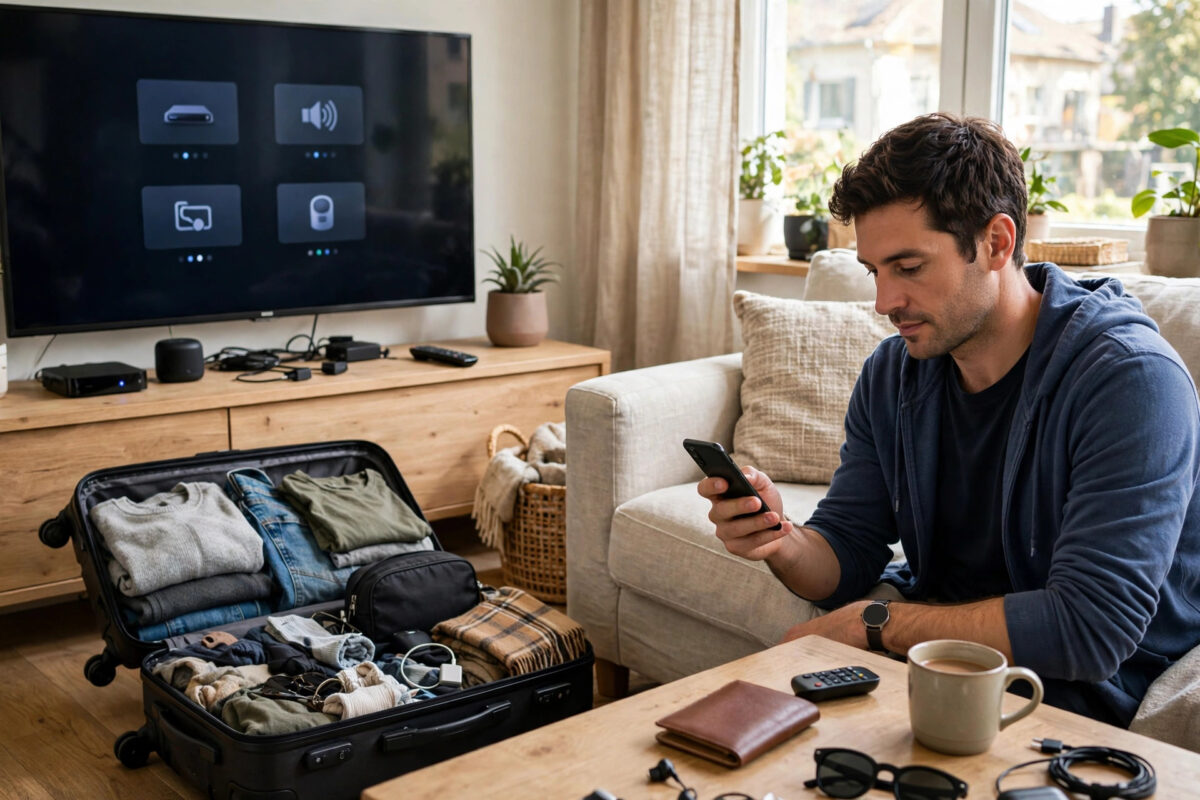
It happens more often than people admit. You stay at a hotel, a holiday rental, a friend’s house, or a family member’s home, you sign in to Netflix on their TV to watch one film, and then you leave with your account still signed in. Days later you remember, and a small panic sets in. Strangers or even well-meaning friends could be watching on your account, changing your recommendations, or worse, seeing your profile and viewing history.
The reassuring part is that you do not need to go back to that TV. Netflix lets you sign out of a single device or every device from your phone or computer. This guide explains both the local method, for when you are still in front of the TV, and the remote method, for when you are already home.
Quick Answer
To sign out of Netflix on a TV that is not yours, open the Netflix website or app on your own phone or computer, go to Account, then Manage Access and Devices, find that TV in the list, and choose Sign Out. If you cannot identify the device, use Sign Out of All Devices instead. Then change your password if you want complete peace of mind.
Why Signing Out Matters
Your Netflix account is tied to your payment method, your email address, and your personal viewing habits. Leaving it signed in on a TV you do not control means anyone with that remote can open your profiles, watch using your plan, and fill your Continue Watching row with their choices. On a shared or public TV, such as in a rental property, the next guests could even see your profile names and the shows your children watch.
There is also a practical problem. Netflix plans limit how many devices can stream at the same time and how many households can use one account under its household rules. A forgotten sign-in can contribute to “too many devices” messages on your own TV at home. Signing out promptly keeps your account tidy, private, and fully under your control. If you are still learning how account sharing rules work, our guide on how Netflix household rules work and what they mean for your account explains the current system in plain language.
Method 1: Sign Out Directly on the TV (If You Are Still There)
If you have not left yet, signing out on the TV itself is the fastest and cleanest option. The menu layout varies slightly by brand, but the idea is the same on almost all smart TVs and streaming devices.
- Open the Netflix app on the TV.
- Press Left on the remote to open the side menu, or select your profile icon if the menu is already visible.
- Scroll down and select Get Help. On some devices this is labelled Settings or appears as a gear icon.
- Select Sign Out.
- Confirm by selecting Yes.
- Wait until the Netflix welcome screen appears asking a new user to sign in or join. That screen proves you are fully signed out.
If the app is stuck or the menu will not open, use the remote sequence. Press Up, Up, Down, Down, Left, Right, Left, Right, Up, Up, Up, Up with the arrow keys. A diagnostics screen appears with a Sign Out option you can select. This works on many TVs, streaming sticks, and consoles.
Before you leave, also check whether the TV saved your account in more than one app or profile. Most TVs only hold one Netflix sign-in, so one sign-out is enough.
Method 2: Sign Out Remotely From Your Phone or Computer
This is the method most people need, because the realisation usually comes after the trip. You can remove a single TV without affecting your devices at home.
- On your phone, open the Netflix app, tap your profile icon, and choose Account. On a computer, go to Netflix in your browser, hover over your profile icon, and choose Account. You can also manage this through the Netflix Help Center instructions for signing out of devices if your menu looks different.
- Scroll to the Security and Privacy section, or on newer layouts look for Devices.
- Select Manage Access and Devices.
- Review the list. Each entry shows the device type, profile last used, location, and the date and time it was last active.
- Find the TV you used. The location, device name such as Smart TV or the hotel area, and the last active time will help you identify it.
- Select Sign Out next to that device.
- Confirm. The TV is signed out straight away in most cases, though Netflix notes it can occasionally take a short while to take effect everywhere.
If you use the Netflix mobile app and cannot see the account options, the app will open your account page in the phone browser after you tap Account. Sign in there if asked, and continue with the same steps.
Method 3: Sign Out of All Devices at Once
If you cannot tell which entry is the TV you used, or you suspect your account is signed in somewhere else as well, signing out everywhere is the safest choice. You will need to sign in again on your own TV and phone afterwards, but that small inconvenience buys complete certainty.
- Open your Netflix Account page in a browser or through the app.
- Find the option labelled Sign Out of All Devices, usually near the Devices or Security settings.
- Select it and confirm your choice.
- Wait a few minutes, then sign back in on your own trusted devices only.
After a full sign-out, check your viewing activity on your account page. It shows recent titles watched by profile, which can confirm whether anyone used your account after you left. If you see programmes you never watched, change your password immediately using the steps in the next section.
Step-by-Step: Change Your Password for Extra Safety
Signing out removes the device, but a password change protects you if your details were ever written down, saved, or shared during your stay. It takes two minutes.
- On your Account page, select Change Password.
- Enter your current password and then a new, strong password you do not use anywhere else.
- Tick the option to require all devices to sign in again with the new password if it is offered.
- Save the change.
- Sign in again on your own TV, phone, and tablet with the new password.
Choose a password made of several random words plus numbers, and store it in a password manager rather than in a note on your phone. Avoid using the same password as your email account, because email access can be used to reset many other services.
What If the TV Belongs to a Hotel or Rental?
Hotels and holiday rentals increasingly offer Netflix on the TV, and some properties sign the TV into a property account or let guests use their own. If you used your own account, the remote sign-out methods above apply in exactly the same way. You do not need to call the hotel, although a polite message to the host can help if you left the TV mid-sign-in and the screen is showing your email address on the sign-in page. The host can simply close the app or sign out locally using the TV menu method.
For your next stay, consider casting from your phone instead of signing in on the TV, or use a small travel streaming stick that holds your sign-in and comes home with you. Both approaches remove the risk of forgetting entirely. Netflix also covers this situation in its own advice via the Netflix Help Center home page, which links to device management help for travellers.
Common Mistakes to Avoid
- Only switching profiles: Choosing another profile does not sign your account out. The account remains fully active on that TV.
- Deleting the app on your phone: Removing Netflix from your own phone does nothing to the TV sign-in.
- Waiting until your next trip: Sign out as soon as you remember. The longer the account stays active, the more chance someone uses it.
- Signing out of all devices but not checking activity: Always glance at recent viewing activity so you know whether the account was used.
- Reusing a weak password: If you change the password, make it genuinely new and unique, not a small variation of the old one.
Conclusion
Leaving Netflix signed in on someone else’s TV feels alarming, but it is one of the easiest account problems to fix. If you are still there, sign out from the Get Help menu. If you are already home, use Manage Access and Devices to remove that single TV, or sign out everywhere and change your password for total peace of mind. Make it a habit to sign out on the last night of any stay, and your account will stay exactly where it belongs: with you.
Frequently Asked Questions
How quickly does a remote sign-out take effect on the TV?
Usually straight away. The next time that TV opens Netflix or tries to play a title, it will ask for a sign-in. In rare cases Netflix says the change can take a short time to apply across all systems.
Can the person with the TV sign back in without my password?
No. After sign-out, the TV needs your email and password to access your account again. That is why changing your password as well gives you complete protection.
Will signing out of all devices cancel my subscription?
No. Signing out only ends active sessions. Your subscription, profiles, lists, and history stay exactly as they are, and you simply sign in again on your own devices.
How can I tell which device in the list is the TV I used?
Look at the device type, the last active date and time, the profile used, and the approximate location. The TV you used on holiday will normally stand out clearly from your home devices.
Someone watched shows on my account. Can I remove them from my history?
Yes. On your Account page, open Viewing Activity for your profile and hide the titles you did not watch. This also helps clean up your recommendations and Continue Watching row.



Leave a Reply