
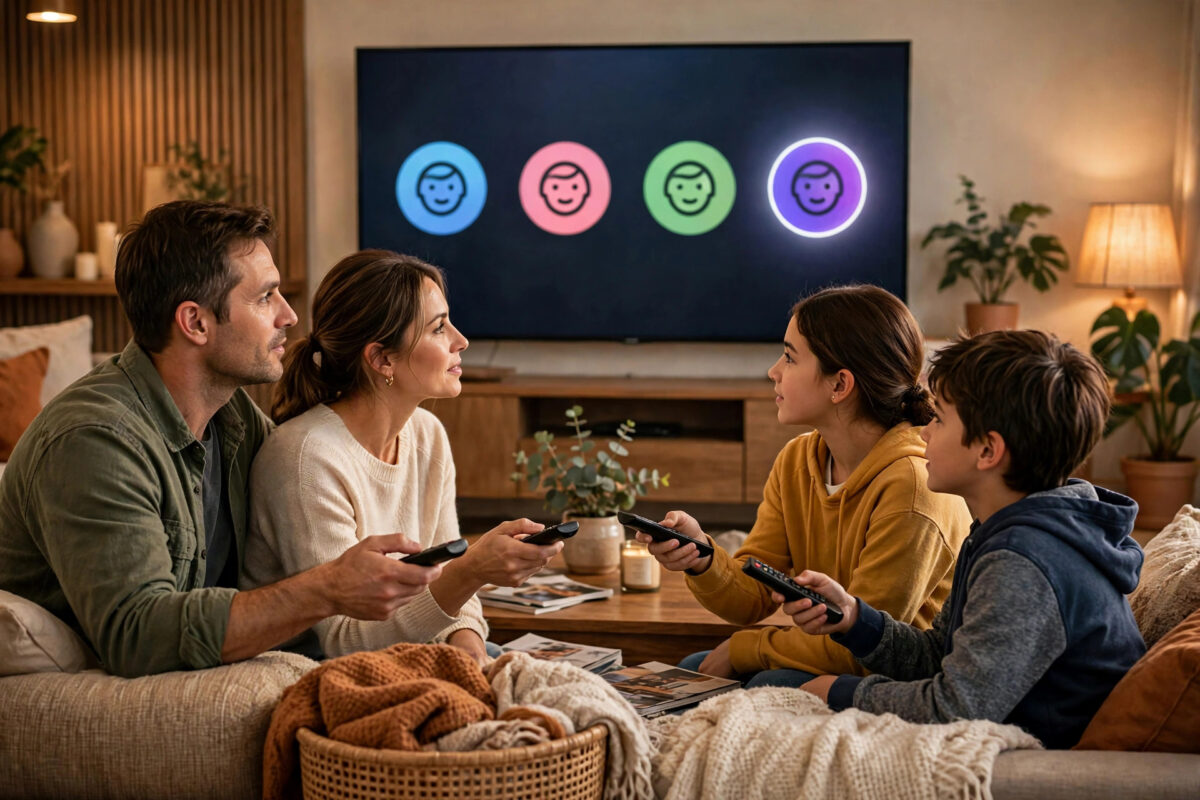
A shared TV can quickly turn into a shared mess. Your carefully built list gets filled with cartoons, your partner’s crime documentaries push your comedies off the home screen, and a visiting relative accidentally watches everything on your profile. Netflix profiles were made to solve exactly this, and profile PINs add a lock so each person’s space stays theirs.
Used well, profiles keep recommendations personal, protect children’s viewing, and stop arguments about who removed what from the list. This guide shows you how to create, edit, lock, and organise profiles on a shared TV, in simple steps that work for the whole household.
Quick Answer
To manage Netflix profiles on a shared TV, use the Manage Profiles option on the TV or your Account page in a browser to add, edit, or remove profiles, with a maximum of five per account. To protect a profile, open Profile Lock in your account settings, enter your account password, and set a four-digit PIN. That PIN will then be required whenever someone tries to open that profile on the TV.
How Netflix Profiles Work
Each Netflix account can hold up to five profiles. Every profile has its own My List, viewing history, recommendations, subtitle settings, and Continue Watching row. When your child watches cartoons on their profile, those cartoons shape their home screen, not yours. When you rate a film, the rating only affects the profile you used at the time.
Profiles are not separate accounts. They all share the same subscription, the same payment method, and the same plan limits, such as how many screens can stream at once. The account owner can manage every profile, while individual profile users can change their own display name, language, and maturity choices within the limits the owner sets.
One profile can also be set as a dedicated Kids profile. Kids profiles show a simpler interface, only display titles within the maturity level you choose, and cannot access account settings. For families, setting this up correctly matters more than any other profile feature, and the Netflix Help Center guide to parental controls and profile settings gives the official background to the options described below.
How to Add a New Profile on the TV
Adding a profile takes less than a minute, and you can do it from the TV in most cases, although maturity and lock settings are easier to control from a browser.
- Open Netflix and go to the profile selection screen. If a show is playing, exit to the home screen and switch profiles to reach it.
- Select Add Profile. If you do not see it, choose Manage Profiles first, then Add Profile.
- Enter a name for the person who will use it.
- Choose whether it is a Kids profile if the option appears.
- Pick a profile icon. Netflix offers characters from popular shows as well as simple coloured icons.
- Save the profile and select it to start using it.
If the Add Profile option is missing, your account may already have five profiles. Delete an unused profile first, or manage the list from your account page in a browser where all options are visible. Our guide on how to use Netflix profiles and parental controls on any device goes further into family settings if you need more detail after this one.
How to Edit or Delete a Profile
Names change, children grow up, and house guests leave. Keeping the profile list tidy makes the TV easier for everyone.
- On the profile screen, select Manage Profiles, or open your Account page in a browser and choose the profile.
- Select the profile you want to change.
- Edit the name, icon, language, or maturity rating as needed.
- To remove it completely, choose Delete Profile and confirm. You cannot delete the main account owner’s original profile in the same way as the others.
- Save your changes before leaving the screen.
Remember that deleting a profile permanently removes its list, ratings, and history. If a family member might return, such as a student away at university, it is often better to keep the profile and simply lock it with a PIN than to delete it and lose everything they built.
How to Set a Profile PIN Lock
Profile Lock is the feature that turns polite agreements into actual privacy. With a PIN set, anyone who selects your profile on the shared TV must enter your four-digit code. Profile locks are set from a browser, not from most TV apps, which is deliberate: it keeps the control with the account owner.
- On a phone or computer, sign in to Netflix and open your Account page.
- Find the Profile and Parental Controls section and select the profile you want to lock.
- Choose Profile Lock and enter your account password when asked.
- Tick the option to require a PIN to access this profile.
- Choose a four-digit PIN that the profile owner will remember but others will not easily guess.
- Save. The lock applies across devices, including the shared TV.
- Test it by opening Netflix on the TV and selecting the locked profile. You should be asked for the PIN.
You can also require the account PIN when someone tries to add a new profile. That stops children or guests from simply creating a fresh, unlocked profile to get around the system. Avoid obvious PINs such as 1234, a birth year, or the same code as your house alarm. If you forget a PIN, the account owner can reset it from the same Profile Lock screen after entering the account password.
Managing Kids Profiles and Maturity Settings
For children, the profile setup matters more than the PIN. Create a Kids profile for each age group in the house rather than sharing one, because a profile suitable for a twelve-year-old is not suitable for a four-year-old.
- Set the maturity rating for each Kids profile to match the child’s age.
- Use the title blocking option to hide specific shows by name, even if their rating would normally allow them.
- Lock the adult profiles with PINs so children cannot wander into them.
- Review viewing activity for each profile from the Account page every few weeks.
- Turn off autoplay previews if you want a calmer browsing experience for younger children.
Viewing restrictions are also managed from a browser under Profile and Parental Controls. Changes can take a short while to appear on the TV. If the TV still shows old settings, switch profiles or restart the Netflix app to refresh them.
Everyday Tips for a Happy Shared TV
Teach everyone to check the profile name before pressing play — it saves weeks of polluted recommendations. If someone watches on the wrong profile, hide that title from viewing activity in account settings to remove it from Continue Watching.
Give regular guests their own profile rather than lending yours. A guest profile keeps their viewing separate, and you can delete it in seconds when they leave. Agree a house rule that nobody deletes another person’s profile or list items, and use PINs for anyone who wants real privacy, such as teenagers with their own tastes. Finally, review the profile list every few months and remove profiles that nobody uses, so the selection screen stays quick and clear.
Common Mistakes to Avoid
- Sharing one profile between adults and children: This ruins recommendations for everyone and exposes children to unsuitable suggestions.
- Choosing an obvious PIN: Birthdays and simple sequences are guessed quickly by curious family members.
- Trying to set the PIN on the TV: Profile Lock lives in the browser account settings. Looking for it only on the TV wastes time.
- Forgetting the account password: You need it to change locks and restrictions, so store it safely in a password manager.
- Creating more profiles than the plan allows: Five is the maximum. Delete unused profiles instead of working around the limit with shared names.
- Assuming a Kids profile locks adults out: It works the other way. Lock adult profiles with PINs to keep children inside their own space.
Troubleshooting Profile and PIN Problems
If a PIN is not requested on the TV, check the lock was saved in the browser settings, then sign out of Netflix on the TV and sign back in to force a refresh. Make all profile changes in a browser rather than the TV app, because the browser account page is the master control. More help is available through the Netflix Help Center for profile and account support.
Conclusion
Profiles and PINs turn one shared Netflix account into separate, private spaces for everyone in the house. Create a profile for each person, set honest maturity levels for children, and lock the profiles that need privacy with a sensible four-digit PIN from your browser account settings. A ten-minute tidy-up today prevents mixed-up lists, spoiled recommendations, and family arguments for the rest of the year.
Frequently Asked Questions
How many Netflix profiles can one account have?
One account can hold up to five profiles in total, including Kids profiles. If you reach the limit, you need to delete an existing profile before you can add a new one.
Can I set different PINs for different profiles?
Yes. Each profile can have its own Profile Lock PIN, set separately in the browser account settings. This lets every family member protect their own profile with a code only they know, managed by the account owner.
What happens if I forget my profile PIN?
The account owner can reset it. Open Profile Lock for that profile in a browser, enter the account password, and set a new PIN. There is also a Forgot PIN option on some devices that sends help to the account email.
Do profile PINs work on all devices or only the TV?
Profile Lock applies across the account, so the PIN is requested on TVs, phones, tablets, and computers when someone opens that profile. Set it once in the browser and it protects the profile everywhere.
Can a person with a profile change my account password or payment details?
No. Profiles cannot access account billing or password settings. Only someone signed in with full account access through the Account page can change those, which is why the account password itself should stay private.



Leave a Reply