
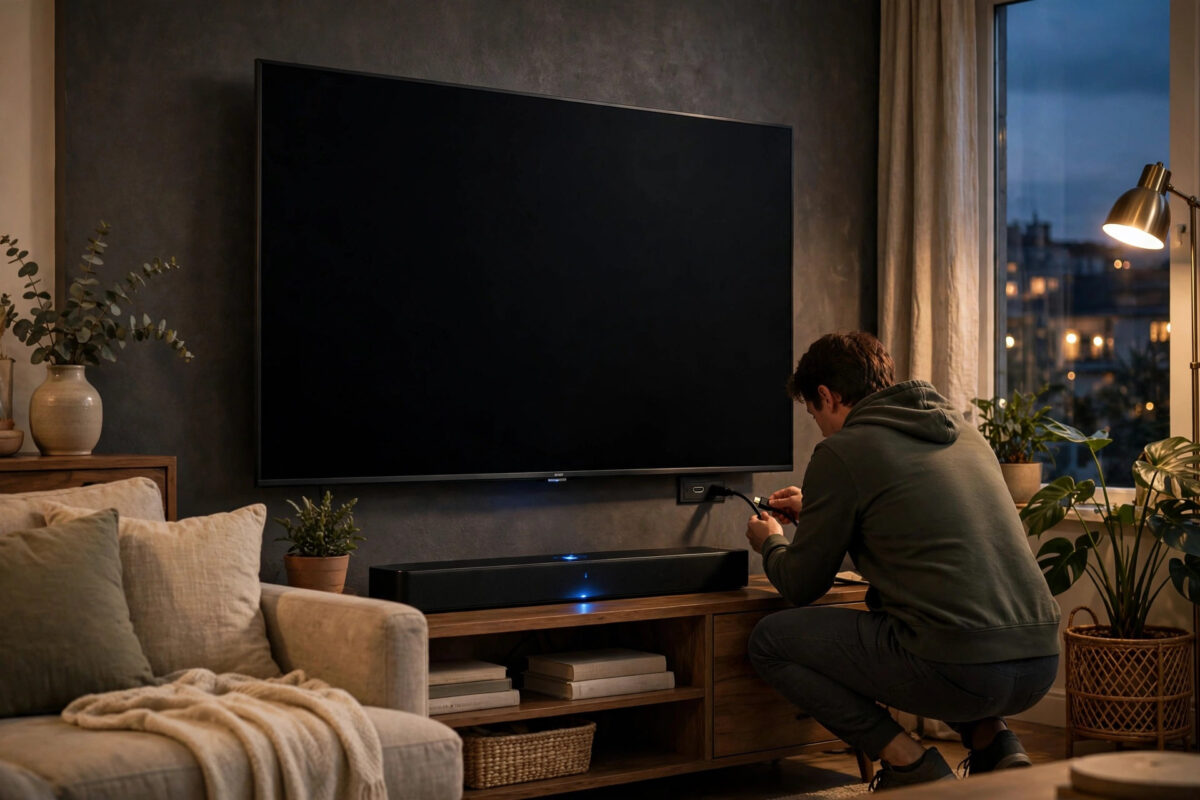
You choose a film on Netflix, you can hear the dialogue and music clearly, but the screen stays completely black. The sound proves the show is playing — the picture simply refuses to appear.
A black screen with sound is usually a communication problem between the Netflix app, your TV, and the secure system that protects video. It can also come from picture settings, an HDMI cable, or outdated software. The fixes are simple and safe, and this guide takes you through them from the quickest checks to the deeper ones.
Quick Answer
Netflix showing a black screen with sound usually means the video signal or the secure playback handshake has failed while audio keeps playing. Restart your TV by unplugging it for one minute, then test another title. If the screen stays black, update or reinstall Netflix, check your HDMI cable and port if you use an external device, adjust HDR and picture settings, and make sure your TV software is up to date.
Why You Hear Sound but See No Picture
Netflix sends audio and video as separate streams that your TV puts back together. Audio is simple and forgiving. Video is protected by a system called HDCP, which is a copy-protection handshake between the app, the device, and the screen. If that handshake fails, Netflix blocks the picture but often lets the sound continue. That is why this fault looks so odd: everything sounds healthy, yet the screen is dark.
Picture features can cause a similar result. If a title plays in Dolby Vision or HDR and your TV, cable, or streaming device mishandles that format for a moment, the screen can go black while the sound carries on. A damaged HDMI cable, a loose port, a glitch after the TV has been in standby for days, or a bug in an outdated Netflix app can all trigger the same symptom.
Quick Checks Before You Change Any Settings
- Try a completely different title, ideally an older film or show in standard HD rather than 4K.
- Pause for ten seconds, then press play again.
- Press the back button to the Netflix menu. If the menu picture is normal, the app is alive and only playback video is failing.
- Try another app such as YouTube. If that picture is also black or missing, the problem is the TV or connection, not Netflix alone.
- Check whether the black screen happens on live menus too, or only after you press play.
Step 1: Do a Full Power Restart
The handshake between your TV and Netflix is rebuilt every time the device starts from a cold boot. A proper restart is therefore the most important first fix, and standby mode is not enough.
- Close Netflix and turn the TV off.
- Unplug the TV from the wall socket.
- If you use a streaming stick, box, or console, unplug that as well.
- Wait at least one minute.
- Plug everything back in, TV first, then the external device.
- Open Netflix and test the same title that failed.
If the picture returns, the fault was a stuck handshake or a temporary software glitch. This single step fixes the black screen for a large number of viewers, especially on TVs that are rarely switched off at the wall.
Step 2: Fix HDMI Cable and Port Problems
If Netflix runs through a Fire TV Stick, Roku, Apple TV, console, or any other HDMI device, the cable is a prime suspect. HDCP travels through the HDMI connection, and a worn, loose, or very old cable can pass sound while failing the protected video signal.
- Remove the HDMI cable from both the TV and the device.
- Check the ends for dust or bent pins and blow away any dust gently.
- Reconnect it firmly at both ends.
- Move it to a different HDMI port on the TV and remember to select that input.
- If the picture is still black, test with a different HDMI cable, ideally a newer high-speed one.
- Remove any HDMI splitters, switches, or soundbar pass-through connections for the test and connect the device directly to the TV.
If a direct connection with a new cable brings the picture back, reconnect your other equipment one piece at a time to find the item that breaks the chain. Our guide on how to fix HDMI no signal and connection problems on your TV covers port testing and cable choices in more detail.
Step 3: Adjust HDR, Resolution, and Picture Settings
Format mismatches are a common hidden cause. If your streaming device is set to force Dolby Vision or HDR at all times, or to output a resolution your TV handles poorly, some titles can start with sound only. Go into your streaming device display settings and set resolution to automatic. Turn off any setting that forces HDR always on, and choose the option that matches the original content instead.
On the TV itself, try switching the picture mode to Standard for a test, and turn off motion smoothing features temporarily. On some models, changing the HDMI port setting from Enhanced to Standard, or the reverse, resolves the handshake for protected 4K content. Make one change at a time and test Netflix after each change so you know exactly what worked.
If a standard HD stream shows a picture while 4K does not, the fault lies in the HDR or 4K path. The Netflix Help Center guidance on black screen problems lists similar device and connection checks for this symptom.
Step 4: Update or Reinstall the Netflix App
An app bug can break video output while audio continues. Check your TV app store for a Netflix update and install it if one is waiting. Then check for TV system software updates in Settings under Support or About, and install those too. Restart the TV after updating, even if it does not ask you to.
If updates do not help, reinstall Netflix. Uninstall the app, restart the TV, then install Netflix fresh from the app store and sign in again. On Android TV and Google TV models, you can first try clearing the app cache in Settings under Apps, which is faster and keeps your sign-in in some cases. On Samsung and LG TVs where clearing cache is limited, a clean reinstall is the reliable route.
Step 5: Sign Out, Check DRM, and Test Another Profile
Occasionally the protected playback licence stored for your profile becomes corrupted. Signing out of Netflix on the TV and signing back in forces the app to request fresh playback permissions. Use the Get Help or Settings area inside Netflix to sign out, then sign in and test.
Test a second profile on the same account too. If one profile plays video correctly and another shows a black screen, the issue is tied to that profile’s settings, such as its playback quality selection. If every profile fails and other apps work, reinstalling Netflix is the stronger step. If every app fails to show video, the TV may need a manufacturer repair or a system reset, which should only be done after backing up your settings.
You should also remove any screen mirroring or casting sessions. Start Netflix directly on the TV app for your test, because mirroring from a phone can produce sound with a black screen when the content is protected.
Common Mistakes to Avoid
- Turning brightness up: The picture is not dim, it is missing. Brightness settings will not fix a failed video handshake.
- Blaming your internet speed first: Sound playing smoothly is a sign the stream is arriving. This fault is usually about display and protection, not bandwidth.
- Leaving HDMI adapters in place: Cheap splitters and switches often break HDCP. Always test with a direct connection.
- Skipping the unplug wait: A quick off-and-on keeps the old session alive. Wait a full minute.
- Factory resetting immediately: Try cable, settings, and reinstall steps first. A reset is slow to undo and rarely needed for this symptom.
When the Problem Is the TV Itself
If other apps and TV channels also show a black screen, the fault is bigger than Netflix. If you can see a very faint image by shining a torch close to the screen, that suggests a backlight failure, which is a hardware repair. Contact the TV manufacturer with the model number and what you have already tested.
Conclusion
A black screen with sound feels like a serious failure, but it is normally a broken handshake between Netflix, your device, and your screen. Restart everything properly, sort the HDMI connection, set HDR and resolution to automatic, and keep Netflix and your TV updated. Work through those steps in order and the picture returns in the great majority of cases, letting the sound finally have its image back.
Frequently Asked Questions
Why does Netflix play sound but no picture only on some titles?
Some titles use 4K, HDR, or Dolby Vision while others use standard HD. If your TV, cable, or device struggles with the higher format, only those titles will go black while simpler titles play normally.
Can a faulty HDMI cable really cause sound without picture?
Yes. HDMI carries protected video through a handshake that can fail even while audio continues. A loose, old, or damaged cable is one of the most common causes when Netflix is used through an external device.
I use the built-in TV app with no HDMI device. What should I try?
Focus on a full unplug restart, TV software updates, reinstalling Netflix, and setting picture options to standard defaults for a test. Without HDMI in the chain, software and settings are the main causes.
Does the black screen mean my TV is broken?
Not usually. If menus and other apps display normally, your TV screen is fine and the fault is in playback. Only worry about hardware if all sources, including TV channels, show no picture.
Why does the picture return after I restart, then fail again days later?
A returning fault often points to a cable that is slowly failing, a device that overheats, or software that needs an update. Replace the HDMI cable as a cheap test and install all pending updates.



Leave a Reply