
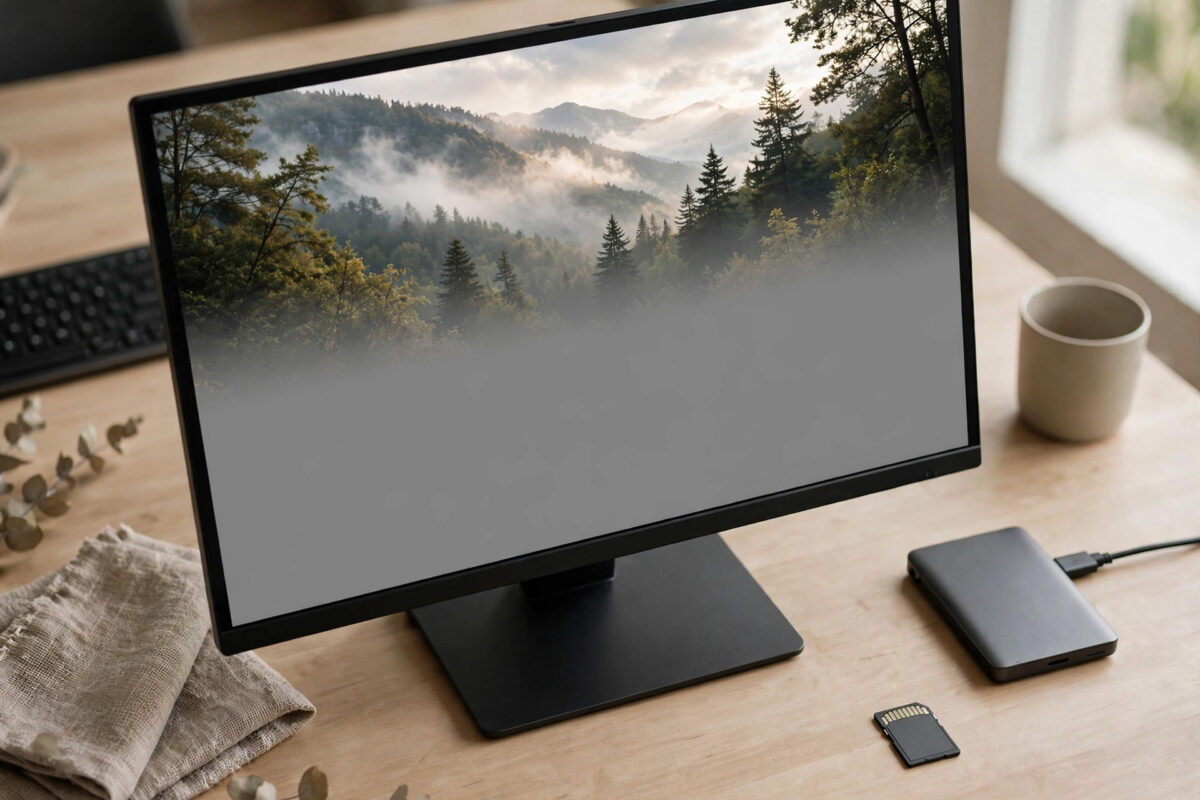
The top of the photo is perfect — faces, sky, the moment itself — and then, halfway down, the image just stops. Grey. Or sometimes a smear of blocky colour. Recovery software swore it saved the file, and in a sense it did: it saved the half that still existed.
This is the most common disappointment in photo recovery, and it deserves an honest explanation before any fixes: a JPG renders progressively from its start, so a file whose second half was overwritten displays exactly what you are seeing. The missing pixels are not hiding. Your options are about finding another copy of that data, or gracefully completing the picture — not conjuring the original back.
Quick Answer
A grey-bottomed JPG is truncated: the file ends before the image data does, usually because the original photo was fragmented on the card or its later sectors were overwritten. You cannot restore data that is gone, but try three things: re-recover the card with a different tool that handles fragmentation better; extract the photo’s embedded preview, which is often a complete (smaller) copy of the whole image; and check for other copies — burst siblings, cloud uploads, thumbnails. Cosmetic completion with AI fill is possible but produces invented pixels, not your photo.
Why Half a Photo Happens
Two mechanisms cause it. First, overwriting: after deletion, the card kept being used, and new photos landed on the freed space. The beginning of your file survived; the end was replaced by someone else’s data or random remnants, which decoders render as grey or garbage. Second, fragmentation: the original file was stored in two or more separate chunks on the card, and simple recovery tools assume files are continuous. They grab the first chunk plus whatever followed it on disk — which belongs to a different file entirely — and the picture breaks at the seam. Fragment-aware recovery (PhotoRec with its fragmented-file handling, or commercial tools) sometimes reassembles the correct second chunk.
A useful diagnostic: if the break happens at a clean horizontal line with pure grey below, truncation is likely. If the lower part shows garbled colours or a piece of a different image, fragmentation is the culprit — and re-recovery has better odds. The PhotoRec documentation on the CGSecurity wiki explains how carving and fragmentation interact, straight from the tool’s authors.
Option 1: Re-Recover with a Different Tool
- Image the card first if you have not. Repeated recovery attempts should run against an image file, not the aging original media.
- Run a second recovery tool with different carving logic — if the first was a simple undelete utility, try PhotoRec; if PhotoRec produced the halves, try a commercial tool with fragmentation support.
- Compare the versions of the photo across tools. Different tools genuinely produce different results for fragmented files, and one may hold the complete image.
- Merge mentally, not literally: there is no reliable way to stitch half of one recovery onto half of another unless the halves came from the same file version — in practice, take the best single result.
Option 2: Extract the Embedded Preview
Here is the trick that saves more photos than any repair tool: most camera JPGs contain a full, smaller copy of the image embedded inside them as a preview or thumbnail. The main image data may be truncated while that preview survives intact. Tools such as JPEG-Repair and some ExifTool-based workflows can extract the embedded preview. The result is lower resolution — often around 1600 pixels wide for camera previews, smaller for simple thumbnails — but it is the complete photograph: full frame, all faces, the whole moment. For a cherished photo, a complete small version beats a broken large one every time.
Option 3: Look for Other Copies
Before accepting damage, inventory the alternatives: the same shot in a burst sequence (the frame before or after is often nearly identical); copies the phone auto-uploaded to Google Photos or iCloud before the card failed; versions shared into chats, which are compressed but complete; and camera-generated thumbnails on the card itself. Our guide to repairing a JPG with an invalid SOS marker or corrupt header covers the related case where the damage sits at the start of the file instead of the end.
About AI Fill and “Repair” Services
Generative fill can paint a plausible bottom half — grass continues, a wall extends — and for scenery that may be all you need. But understand what it is: invented content, not recovered data. On a photo of people it will fabricate hands, hems and shoes that never existed. Use it knowingly, label the result as restored, and never let it replace the damaged original in your archive. Keep the grey-bottomed file too; future tools may yet extract more from it.
Common Mistakes to Avoid
- Deleting the “broken” file. A half photo plus an extractable preview is worth far more than no photo. Damaged originals stay in the archive, marked as damaged.
- Re-running the same tool with the same settings and expecting a different outcome. Fragmentation needs different logic, not a second identical pass.
- Continuing to shoot on the card before recovery. Every new photo after a deletion overwrites more of what you hope to save. Cards come out of the camera the moment something is lost.
- Paying for repair before trying the preview extraction. The embedded-preview trick is free and frequently the best available result. Paid repair cannot exceed what the data contains.
Salvaging the Good Half Properly
When a photo cannot be made whole, the intact half is still worth saving well. Open the file in an editor, crop to the undamaged region, and save the crop as a new file alongside the original — never over it. A tight crop of the top half of a group photo can be a perfectly good portrait of whoever stood in that half. Check also whether the card holds the camera’s companion files: some cameras store small thumbnail or preview files (including .THM companions for videos) that recovery tools skip because they are not full photos. A thumbnail of the same frame is low resolution but complete, and for identification purposes — which day, which place, who is in frame — it can also tell you whether a better copy exists somewhere in your cloud backups. Finally, search your other devices before concluding: the same card’s photos were often copied to a laptop or a family member’s phone at the time, and a “damaged” photo on the card may be sitting intact in a forgotten folder named New Folder (3).
Conclusion
A grey bottom means the second half of the data did not survive — no tool changes that. But between fragment-aware re-recovery, the embedded preview hiding inside the same file, and copies scattered across clouds and chats, many “lost” photos come back complete in some form. Exhaust those routes, keep the damaged original, and treat AI completion as the cosmetic last resort it is.
Frequently Asked Questions
Can any software truly restore the missing half?
No. If those bytes were overwritten, they no longer exist anywhere on the card. Software can only reassemble surviving data (fragmentation cases) or extract the embedded preview. Anyone guaranteeing full restoration of overwritten data is selling fiction.
How do I extract the embedded preview?
JPEG repair tools such as JPEG-Repair include a preview-extraction function, and ExifTool can pull the PreviewImage tag from many camera files. Results vary by camera model — some store generous previews, phone photos often store only small thumbnails.
Why did this happen to new photos but not old ones?
Deletion frees space in patterns that do not follow your timeline, and cards write new data wherever space exists. Survival is about disk geography, not photo age.
The bottom half shows part of another photo. Better or worse?
Better, oddly — that is fragmentation, not overwriting. A fragment-aware recovery tool may find the correct second chunk and rebuild the complete image.
Should I keep using the card after this?
After you have imaged it and finished all recovery attempts, a format in the camera returns it to service — but a card that has corrupted files once deserves replacement, not trust.



[…] If the top renders but the image degrades partway, the damage extends into the scan data. Repair tools can sometimes reconstruct up to the damage; beyond that point you are in the territory of our guide to recovered JPGs that open halfway with grey bottoms. […]