
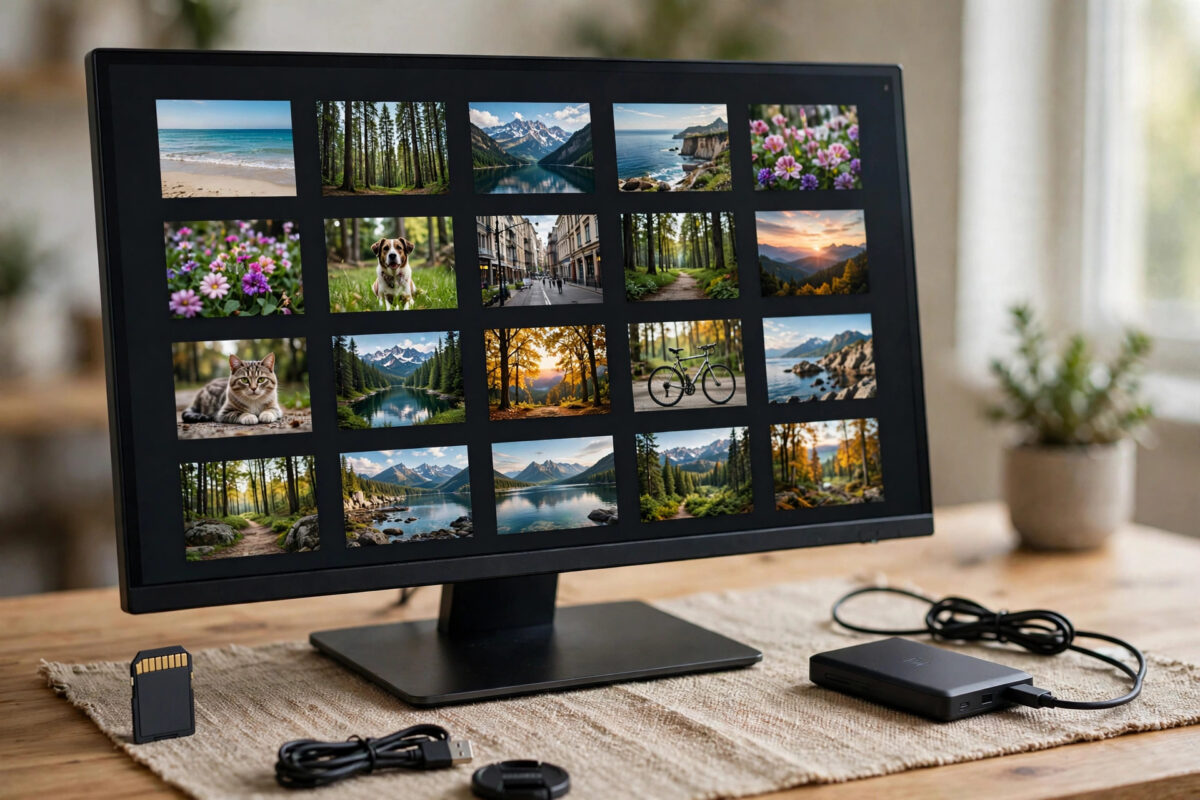
Your recovery software did its job — thousands of photos rescued. It also named them like a robot counting sheep: f0001234.jpg, f0001235.jpg, with no hint of what they show or when they were taken. A folder like that is technically saved and practically useless.
The rescue inside the rescue: most recovered photos still carry their EXIF data, the metadata cameras embed in every shot, including the exact date and time taken. With the right tool you can rename and sort the whole batch by that hidden date automatically — turning numbered chaos back into a timeline.
Quick Answer
Use the free ExifTool to rename files from their EXIF DateTimeOriginal tag: the command exiftool "-FileName<DateTimeOriginal" -d %Y-%m-%d_%H%M%S%%-c.%%e DIR turns f0001234.jpg into 2019-08-14_153022.jpg, and adding a date-based directory format sorts photos into year and month folders at the same time. On Windows you can also sort by the “Date taken” column in File Explorer, which reads the same EXIF field. Always work on a copy of the recovered set, never the only copy.
Why the Date Survives When the Name Does Not
File recovery tools carve photos out of raw disk space by recognising image data; the original filenames, stored elsewhere in the file system, are often gone. But the EXIF metadata travels inside the image file itself, so it survives the same journey. DateTimeOriginal records when the shutter fired, digitised photos may also carry a CreateDate, and even screenshots and downloads have file dates as a fallback. The one requirement: the photo’s data must be complete. Files that were partially overwritten can lose or scramble their metadata — the same damage that produces the grey-bottomed images covered in our guide to fixing recovered JPGs that open only halfway.
The ExifTool Method (Windows, Mac, Linux)
- Copy the recovered photos to a working folder. Keep the original recovered folder untouched as your safety copy. All renaming happens on the duplicate set.
- Download ExifTool from the official ExifTool website and install it (on Windows, the installer puts exiftool on your path; the standalone executable works too).
- Test on a small sample first. Copy 20 photos into a test folder and run:
exiftool "-FileName<DateTimeOriginal" -d %Y-%m-%d_%H%M%S%%-c.%%e testfolder. Check the results — files become 2019-08-14_153022.jpg, with -1, -2 suffixes where several photos share the same second. - Sort into folders by date (optional, recommended). This variant renames and files photos into year/month folders in one pass:
exiftool "-Directory<DateTimeOriginal" -d Sorted/%Y/%m -r workfolder— adapt the pattern to taste, for example %Y-%m for flat monthly folders. - Handle the files with no EXIF date. ExifTool leaves dateless files with their old names (and logs warnings). Deal with those separately using the fallback chain below.
Fallbacks for Photos Without a Usable EXIF Date
- Try other date tags. CreateDate and MediaCreateDate often exist when DateTimeOriginal does not; ExifTool can fall back automatically by trying multiple tags in one command.
- Use the file’s own dates cautiously. Modified dates on recovered files usually reflect the recovery time, not the photo’s age — useful only for grouping by recovery batch, not by memory.
- Sort by the recovery sequence. Recovery tools usually extract in disk order, which roughly follows the order photos were written — oldest card content first. As a last resort, the raw numbers themselves carry a crude chronology worth preserving in the filename.
- GUI alternatives. If the command line puts you off, XnView MP and digiKam both offer batch rename from EXIF dates with friendly dialogs, and Adobe Bridge can sort a folder by Date Created (its EXIF reading) without renaming at all.
Just Want to Browse in Order? Use Explorer or Finder
If renaming feels heavy, Windows File Explorer can sort the folder by date taken directly: right-click the column headers in Details view, add the “Date taken” column, and click it to sort. Finder on Mac similarly sorts by “Date Created” in Photos-oriented views, though it is less consistent about reading EXIF. Browsing in order is enough for a first review pass — deciding what is worth keeping — before you commit to renaming the keepers with ExifTool.
Common Mistakes to Avoid
- Renaming the only copy. A malformed command can rename ten thousand files into a worse scheme than f0001234. Always work on a copy and test on a sample.
- Trusting file Modified dates. After recovery they show when the tool wrote the file, which groups photos by “Tuesday” — not by the holiday they depict.
- Ignoring time zones and camera clocks. EXIF dates come from the camera’s clock, which may have been wrong or set to home time on a trip abroad. The sorting is still consistent within the set, which is what matters for rebuilding a timeline.
- Deleting the dateless leftovers. Files without EXIF dates are often screenshots, edited exports or messaging-app photos — still memories. Give them their own “unknown date” folder rather than the bin.
- Overwriting on name collisions. The %%-c in the command adds sequence numbers when names collide. Leave it in; removing it risks photos overwriting each other.
Rebuilding Order Once the Timeline Is Restored
With dates back in the filenames and folders, the recovered set becomes something you can actually finish. Work through it year by year and delete with confidence: the true duplicates (recovery tools often return the same photo from two locations on the card), the hopeless fragments, and the screenshots of nothing. Then import the keepers into your real photo library — Apple Photos, Google Photos, or a plain folder archive — where faces, places and search take over from filenames. Both Apple Photos and Google Photos read the same EXIF dates during import, so the order you restored survives the move.
Preserve one artefact from the recovery: the untouched original recovered folder, stored on the archive drive alongside the sorted set, at least until you have lived with the sorted library for a while. Sorting decisions made in the first pass occasionally deserve a second look, and the raw set is your undo button. Storage is cheap; regret is expensive. And if the whole exercise was painful enough to teach one lesson, let it be this: the card gets copied to the computer the day it fills, not the month the camera starts complaining.
If you keep a written log of the recovery — the tool used, the settings, and what the rename command produced — attach it to the archive folder as a small text file. Future questions about why a folder is named as it is, or why some files kept their robot names, will have an answer written by the only person who was there: you, today.
Conclusion
Random filenames hide the timeline, but EXIF remembers it. Copy the recovered set, test ExifTool on a sample, then rename and sort the whole library by DateTimeOriginal in one confident pass. An afternoon’s recovery becomes a browsable history again — birthdays back in order, holidays back in sequence.
Frequently Asked Questions
What if most of my recovered photos have no EXIF data?
Messaging apps and some editors strip EXIF on export, so those files genuinely lack dates. Fall back to CreateDate tags, then to recovery order, and file the true unknowns in their own folder rather than forcing wrong dates onto them.
Is ExifTool safe? It looks intimidating.
It is the industry-standard metadata tool, free and read-focused; the renaming commands here only rename based on data inside the files. The safety rule is procedural, not technical: work on copies, test on samples.
Can I rename into folders by year and month automatically?
Yes — using the Directory tag with a date pattern (for example -d Sorted/%Y/%m) creates the folder structure and files each photo into it during the same pass.
Why are some renamed dates obviously wrong?
The camera’s clock was wrong when those were taken — a camera never set after purchase stamps everything 2015. The relative order within the wrong-dated group is still correct, so they sort together coherently.
Does renaming change the photos themselves?
No. Renaming and moving files does not alter image data or EXIF content; only the filenames and locations change.



Leave a Reply